
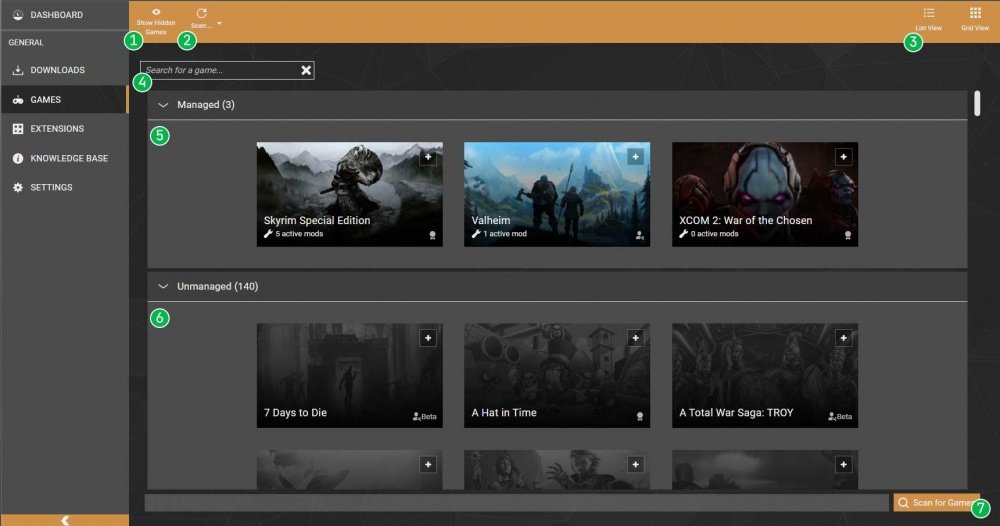
To launch a game from Vortex, select the game from your library and then click the “Play” button within the Vortex interface.
Frustrated because your mod manager isn’t launching games correctly? Many players experience this, especially when using Vortex. This guide explains exactly how to launch game from vortex, making sure your modified games start up smoothly. We’ll cover the simple process, so you can quickly jump back into your favorite titles.

How to Launch Games from Vortex: A Simple Guide
Okay, so you’ve got Vortex, the awesome mod manager from Nexus Mods, and you’re ready to dive into your favorite games with all those cool mods. But, sometimes, actually getting the game to launch through Vortex can feel a bit tricky. Don’t worry, we’re here to make it super easy! This guide will walk you through all the steps you need to know to launch games from Vortex and get your modded adventures started smoothly.
The Basics: Setting Up Your Game in Vortex
Before you can even think about launching a game, you need to make sure Vortex knows where to find it! This part is like introducing Vortex to your games and telling them to be friends. Here’s how it works:
Automatic Game Discovery
The first time you open Vortex, it will try to find any games you have installed on your computer. It’s like a little detective, searching for clues to find where your game files are hiding. If Vortex is able to find the game it will display the game icon in the Games Section of the Vortex. You will see a blue check mark near the game icon, which confirms that Vortex is managing that game.
Manual Game Management
Sometimes, Vortex might miss a game, especially if it’s not installed in a usual place. That is totally normal! In these cases, you need to help Vortex by telling it where to look, this is done with manual game discovery. Here’s the step by step guide how to do it:
- First click on the “Add Games” option in the Game Section.
- Now you have to click on “Scan” option, this will open a new pop up to select where your game is located.
- Navigate to the game’s folder. Usually this is where the main game file (.exe) is located.
- Select the folder and click “Okay”.
- Vortex should now recognize your game and add it to the managed game list.
Setting the Game’s Target
Sometimes, even after finding the game, Vortex might not know exactly which file to use to start the game. This is where setting the game’s target comes in.
Here’s how you set the game’s target if it isn’t correctly set up:
- Go to the games section and select your desired game.
- Now in the main game information section, check if the “Game Target” points towards the game executable. The game executable is the file with .exe extension.
- If it isn’t pointed to the game executable, you need to find it manually.
- Click the “Edit” button next to “Game Target”.
- Now, find the game executable in your game directory and select it.
- Click on the “OK” button to save the changes.
Launching Your Game After Setting Up in Vortex
Okay, so you’ve set up your game and Vortex knows where it is, now comes the best part: actually launching it. There are several ways to start your game from Vortex. It is all depending on how you like to start your game, let’s explore all the ways below:
The Quick Launch Button
The most straightforward way to launch your game is using the launch button. This method is simple and only takes two steps. Here’s how:
- Go to the “Games” Section in Vortex.
- You should see a blue “Play” button next to the name of your game. Click the blue “Play” button to start your game.
That’s it! Vortex will now start your game, including any modifications that you have installed.
Using the Dashboard Launch
You can also launch your game using the dashboard. Here are the steps to do that:
- Go to the “Dashboard” tab in Vortex.
- In the “Recent Games” section, find the game you want to play.
- Click the play button on the game icon in this section.
Directly from Mod Page
If you are in a mod section of the Vortex and want to launch the game, you can also do that! Here’s how:
- Go to the “Mods” section.
- You have to select the mod that you want to use.
- In the mod information section you will find the “play” button. Click on it to start the game.
Troubleshooting Common Launch Issues
Sometimes, even with everything set up correctly, you might run into problems launching your game. Here’s a look at some common issues and how to fix them:
Game Won’t Start or Crashes Immediately
If your game fails to start or crashes right away, here are some things to check:
- Check the game executable: Make sure the game executable file that is pointed towards in the game’s “Game Target” section is the correct executable. If it is pointing towards the wrong file the game will fail to start.
- Mod Conflicts: Some mods can conflict with each other and can cause the game to crash. Try disabling some recently installed mods and see if the game launches correctly. Then enable the mods one by one until you find the conflicting mod.
- Missing Requirements: Some mods need specific files to run. Make sure you’ve installed everything the mod page says you need, this is usually mentioned in the “Requirements” or “Installation” sections of the mod page.
- Incorrect Mod Version: Make sure that you are using mods that are compatible with the game’s current version. Some mods are only for older game versions. Look for updates to the mod, if it is not compatible with your current game version.
- Permissions issues: Sometimes, Vortex or the game might have problems with windows permissions. Try running Vortex as administrator, and see if it fixes the problem. You can do this by right clicking on the Vortex desktop icon and then select “Run as administrator”.
- Check your Anti Virus: In some cases your Antivirus software may conflict with vortex. Try adding an exception to your antivirus to make it ignore Vortex and its related files.
Vortex Doesn’t See Your Game
If Vortex can’t find your game, here’s what to do:
- Double-check the game’s location: Are you sure that you picked the correct game folder? Double check the game’s main directory.
- Manual setup: Try the manual setup option that we discussed above, if automatic scanning fails to detect your game.
- Restart Vortex: Sometimes just closing and restarting Vortex can fix the issue.
- Check for updates: Make sure you have the newest version of Vortex installed. New updates usually come with improved game detections.
Mods Not Working After Launching
If your game starts but your mods don’t seem to be working here are few things you can try:
- Check mod enabling: Make sure that all the mods are enabled before launching the game. Go to the “Mods” section and see if all the mods are enabled with a green check mark.
- Deploy the mods: If you added new mods or changed their load order, make sure to “Deploy” the mods before launching the game. The Deploy button is located on the top of the “Mods” section.
- Load order problems: Sometimes the mod load order matters. Try different orders of mods until you find the order that works for you. This is usually specified in the mod description page.
- Read mod description: Some mods have special installation instructions. Check the mod description page.
- Purge and Deploy mods: If you still face the issue. Try purging your mods and then deploying them again.
Advanced Tips
Now that you have all the basics down, here are some advanced tips that will help your modding experience:
Managing Multiple Profiles
If you play a game with different mod setups, profiles are your best friend. Profiles let you quickly switch between different sets of mods without disabling and enabling them manually. Here’s how to use profiles:
- Click on the “Profiles” tab.
- Select “Manage Profiles” from the bottom of the profiles menu.
- Create a new profile and give it a name.
- Now enable the mods you want for the profile.
- Once the mods are activated, you can deploy them.
- Now you can switch between different profiles by selecting them in the profiles tab.
With profiles, you can have completely separate mod setups for different playthroughs.
Understanding Mod Load Order
The load order is the order in which your mods are loaded by the game. Sometimes, this order matters because some mods rely on changes made by other mods. Vortex usually handles the load order automatically using LOOT(Load Order Optimization Tool). However, you can adjust the load order manually too, to fine tune your mods. Here is how you do it:
- Go to the “Mods” section.
- You will see a numbered list next to the name of your mod. This number is the load order of the mod.
- Drag and drop the mods in the desired load order using mouse.
- Once you have changed the load order you will have to click on the “Deploy” button to make the changes affect the game.
Using Plugins tab to manage plugins
Some games uses plugin system, this is mostly used by Bethesda games like Skyrim, Fallout, etc. Plugins are a special kind of mods that need a load order to work correctly. If you want to manage the plugin load order for your game, here’s how:
- Go to the plugin tab of the Vortex.
- Here you will find the plugin list, and you can adjust the load order using the drag and drop system.
- You can also select the plugins that you want to activate or deactivate.
- Remember to deploy plugins after changing the load order.
Updating Vortex and Extensions
Keeping Vortex and its extensions up to date is important for the program to work correctly. Extensions add extra functions to Vortex, so keeping both updated can save you from many issues.
- Always use the newest version of Vortex. Go to the vortex settings to check the current version of vortex and update if necessary.
- Update your extension frequently. Go to the extension section of Vortex to update them.
By updating Vortex and its extensions, you ensure you have all the latest improvements.
Launching your games from Vortex doesn’t have to be a headache. By following these simple steps and tips, you will be ready to jump into your modded adventures quickly and painlessly. Remember to always read the mod descriptions carefully and if you encounter issues, try restarting Vortex or your computer. Happy gaming!
Vortex Beginner Guide – The Basics (A 2023 Guide)
Final Thoughts
To launch your game from Vortex, first ensure it’s correctly installed and recognized. Next, navigate to the games tab within the Vortex interface. You will see a list of all your managed games.
Select the specific game you want to play. Then, simply click the “Play” button. This will launch your game. You successfully used Vortex for convenient access.

