
To let friends join TF2 custom games, you must first create a server, then invite your friends through the game’s friends list or provide them with the server IP address.
Want to play some wacky TF2 modes with your buddies? It’s pretty easy to set up. Figuring out how to let friends join TF2 custom games can seem tricky at first.
You just need to know the right steps. Starting a server, inviting players, and getting everyone in on the fun is simpler than you think. So, let’s jump right in and make it happen!

How to Let Friends Join TF2 Custom Games
Team Fortress 2, or TF2 as most players call it, is an amazing game for playing with friends. Sure, the normal matchmaking is fun, but sometimes you want something a little different. That’s where custom games come in! You can play all sorts of wacky modes and maps that you wouldn’t normally find in regular TF2. But how do you actually get your friends to join you in these custom shenanigans? It’s not always super obvious, but don’t worry, this article is here to help. We will guide you through the process of inviting your buddies to your TF2 custom games, making sure you all have a blast.
Understanding TF2 Custom Games
Before we dive into inviting friends, let’s make sure we all know what a custom game actually is. In TF2, a custom game is a match that’s not part of the official Valve servers. These games can have different rules, maps, and sometimes even entirely new game modes! Think of it as the wild west of TF2, where anything is possible. Many community members and server owners make these custom experiences. They provide a fun change of pace from the regular game. To get started, you will usually need to connect to a server hosted by someone else.
Types of Custom Games
There are many types of custom games available in TF2. Some popular ones include:
- MGE (My Gaming Edge): These are 1v1 arena-style fights, perfect for practicing your individual skills.
- Jump Maps: Test your jumping skills with tricky platforms and obstacles.
- Trading Servers: A place to trade items with other players.
- Class Wars: Teams of the same class face off against each other.
- Various Modded Servers: Servers with unique rule sets or changes to gameplay mechanics.
These are just a few examples, the possibilities are practically endless!
Finding a Custom Game Server
First things first, you need to find a custom game server to play on. Here’s how you can do it:
Using the Server Browser
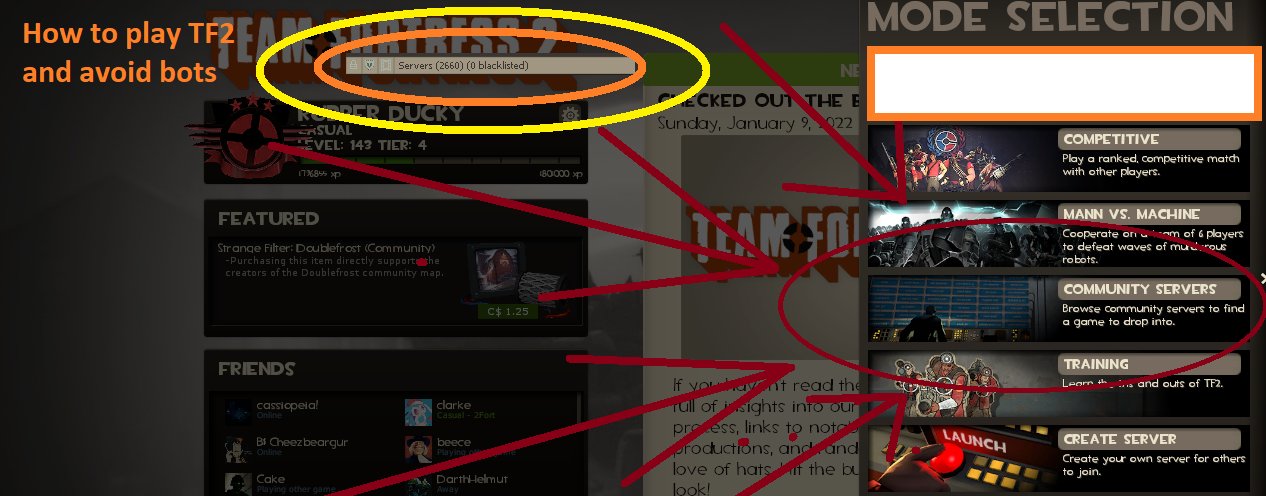
The most straightforward way to find a custom server is through the in-game server browser. Here’s how to access it:
- Launch Team Fortress 2.
- Click on “Find a Game” on the main menu.
- Select “Servers” to open the server browser.
Now that you have the server browser open, you’ll see a long list of servers. To find a custom game server, you’ll need to filter them. You can do this using the options at the top.
- Map: If you know the name of a specific custom map, you can enter it here.
- Game Mode: Filter by specific game modes like MGE or Jump.
- Tags: Custom servers often use tags like “Jump,” “MGE,” or “Trade” to help identify them.
- Name: If you know the name of the server you want, you can type it here.
After you have entered your search criteria, you can see all the available servers. Click on the server you want to join, and then click on the “Connect” button. Sometimes, a server might require a password. If this is the case, you will need to get the password from the server owner or community.
Joining a Server Through a Direct Connect
Another way to join a server is to use the direct connect option. This is great if you already know the server’s IP address. You will often find server IPs on community forums or discord servers. Here’s how to connect this way:
- Launch Team Fortress 2.
- Open the console by pressing the ~ (tilde) key.
- Type the command connect [server IP address]:[server port] and press enter. For example, it would look like:
connect 192.168.1.100:27015. Replace the example with your server’s actual IP address and port.
Inviting Your Friends
Now for the fun part: bringing your friends along! There are a few ways to invite friends to your custom game server.
The Steam Friends List
The most common way to invite friends is using the Steam overlay. Here’s how:
- Join the custom game server you want to play on.
- Press Shift + Tab to open the Steam overlay.
- Click on “Friends” in the overlay.
- Find the friend you want to invite.
- Right-click on their name, and select “Invite to Game”.
Your friend will receive a game invite notification. Once they accept, they’ll join the server you’re on.
Note: This method only works if you and your friend are friends on Steam, so you might need to add each other first.
Sharing the Server Information
If the Steam invite option isn’t working, or if you want to invite people who aren’t on your friend list, you can share the server information directly.
There are two key pieces of information that you need to share:
- Server IP address: This is the unique address of the server. You can find it in the server browser, or by typing ‘status’ in the console once you’re connected to the server.
- Server Port number: This is the number following the IP address in the server details. Most servers use the default port: 27015.
Once you have this information, you can share it with your friends through chat, text message, or any other communication method. Your friends will be able to join using the direct connect method we discussed earlier by using connect [server IP address]:[server port] in the console.
Using In-Game Chat to Coordinate
Sometimes it’s easiest to coordinate joining a server by using the in-game chat. If you are already on a server you can share the server’s IP in chat. Then your friends can copy it, paste it into the console, and connect. This is particularly useful if you are already in a lobby.
Remember to be polite and clear when sharing the information. For example, you could say: “Hey guys, I’m on a jump server, connect with: connect 192.168.1.100:27015”.
Troubleshooting Common Issues
Sometimes things don’t go as planned. Here are a few issues you might encounter and how to fix them:
Server is Full
If the server is full, you might not be able to join. In this case, you will have to wait for a spot to open up. Some servers have reserved slots for VIPs or specific people. Keep an eye on the player count and try joining again later.
Password Protected Servers
Some servers have a password. If you are trying to join a password protected server, you’ll need to get the password from the server owner or their community. Without the password, you won’t be able to join.
Connection Problems
If you are experiencing connection issues, here are a few things you can try:
- Check Your Internet Connection: Make sure you have a stable internet connection.
- Restart TF2: Sometimes restarting the game can solve connection problems.
- Restart Your Router: This can refresh your internet connection.
- Check Server Status: The server might be offline or experiencing technical issues. In this case, check with the server community to see if they’re aware of the issue.
- Firewall Issues: If your firewall is blocking TF2, you’ll need to create an exception.
Incompatible Game Versions
In some cases, you and your friends may not be running the same version of the game. Try to make sure all the game files are up to date.
Making the Most of Custom Games
Once you and your friends are all together in a custom game, it’s time to have some fun! Don’t be afraid to experiment with different maps and game modes. Here are some tips to enjoy the custom game experience:
- Try Different Classes: Custom servers often allow you to try classes you might not usually play.
- Communicate with your friends: Coordinate your strategies and share your experience together.
- Be respectful of the server rules: Each server might have its own specific rules. Read them carefully.
- Join communities: Many servers have associated communities, often on Discord. They are a good place to find friends, share server news, and learn about new servers.
- Have Fun! Custom games are all about having fun and enjoying TF2 in new and different ways!
Playing custom games in TF2 is an excellent way to enjoy the game in different formats with your friends. This can greatly improve the experience of playing TF2 together. From MGE matches to crazy jump maps, the custom game scene has something for everyone. By following the steps mentioned above, you’ll be well-equipped to invite your friends and make memorable gaming experiences. The custom servers of Team Fortress 2 have a lot to offer, from classic mods to completely new and exciting ways to play. Go out there, find some fun servers, and make some great memories with your friends!
TF2: How to Play Listen Servers with Friends (No Port Forwarding) (SDR)
Final Thoughts
To summarize, you must first create a local server through the console. Then, invite friends via the Steam overlay; they join your game from their friends list. This method is how to let friends join tf2 custom games.
Remember the correct console commands, and ensure that your firewall isn’t blocking incoming connections for a successful gameplay. Doing all the steps should allow them to enjoy custom matches with you.

