
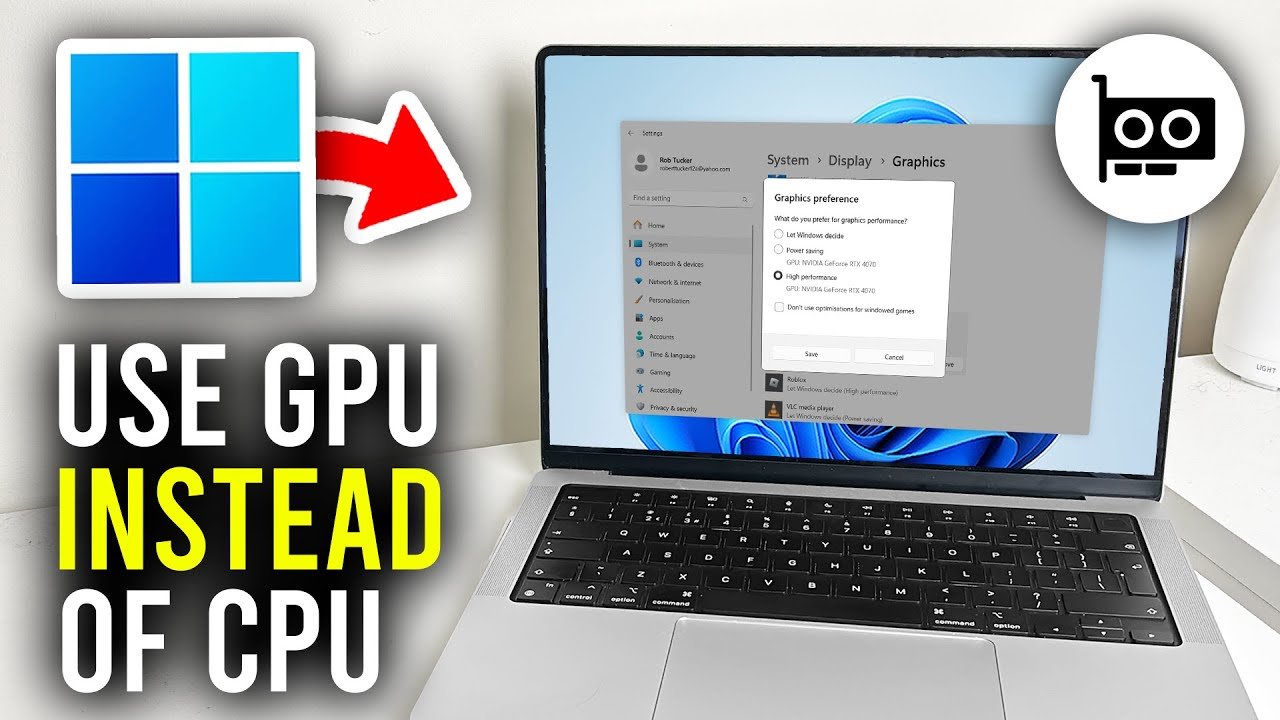
To let games use your GPU, ensure your graphics drivers are up-to-date, select your dedicated GPU within your operating system’s graphics settings, and verify in-game settings are set to use the high-performance GPU.
Ever wondered why your favorite game sometimes feels sluggish? It’s frustrating when the action lags, especially when you know your computer should be able to handle it. The main culprit often involves the game not properly utilizing your dedicated graphics card. We are going to explore exactly how to let games use gpu for better performance.
Knowing how to let games use gpu can greatly improve your gaming experience. It is a quick fix that often makes the difference between a smooth gaming session and frustrating stuttering. Let’s take a look at how to make those changes.

How to Let Games Use GPU: A Detailed Guide
Have you ever noticed that your games don’t look as good or run as smoothly as you expected? Sometimes, your computer might be using the wrong part to make the games work, like using the CPU instead of the GPU. This can make games slow and choppy. But don’t worry! We can make sure your games use the powerful GPU to give you the best experience. This guide will help you understand what a GPU is, why it’s important for games, and how to make sure your games use it.
Understanding the GPU and Its Importance for Gaming
First, let’s talk about what a GPU is. A GPU, which stands for Graphics Processing Unit, is like the artist of your computer. It’s specifically designed to handle all the images, videos, and 3D graphics you see on your screen. Think of it like this: your CPU is like the brain of your computer, handling all the general tasks. The GPU is the part that makes pictures clear, smooth, and detailed. It’s like a specialized brain for visuals.
Why is the GPU Important for Games?
Games, especially modern ones, are very visual. They have lots of complex details, like shadows, reflections, and textures. The GPU is designed to handle all of these quickly and efficiently. It helps make the game look great, run smoothly, and not slow down. When your game uses the CPU to handle graphics, instead of the GPU, it has to work much harder. This can make the game choppy, slow down the frame rate, and not look its best. So, getting your games to use the GPU is really important for a good gaming experience. For example, if you see a game with blurry textures or with slow motion gameplay, this can often indicate that the game is not fully utilizing the GPU’s processing power.
Integrated vs. Dedicated GPUs: Which One Are You Using?
Now, let’s talk about the two types of GPUs you might have. Some computers have an integrated GPU. This is like a GPU that’s built right into the CPU. It’s okay for everyday tasks, like browsing the internet or watching videos, but it’s usually not powerful enough for modern games. The other type is a dedicated GPU, also called a discrete GPU. This is a separate piece of hardware that’s made only for processing graphics. It’s much more powerful than an integrated GPU and will make games run much better. A dedicated GPU has its own memory (called VRAM) and is designed for demanding visual tasks like gaming.
Here’s a quick way to check which GPU your computer is using:
- Right-click on your desktop and select “Display Settings” (or “Screen Resolution”).
- Scroll down and click on “Advanced Display Settings.”
- Click on “Display adapter properties.”
- Look for the “Adapter Type.” If it says “Intel,” or “AMD” then it is an integrated graphics processor. If you see names such as Nvidia Geforce or Radeon, then it is a dedicated graphics processor.
Making Sure Your Games Use the Dedicated GPU
If you have a dedicated GPU, you will want your games to use it. Sometimes, a computer can default to the integrated GPU even if a better dedicated one is present. Don’t worry; there are ways to fix this. It might be slightly different depending on what operating system you have.
Setting GPU Preference in Windows
Windows has a setting where you can tell it which GPU to use for your games and applications. Here is how you can do it:
- Click the Start button and type “Graphics Settings” and press enter.
- In the window that appears, select either “Desktop app” or “Microsoft Store app” from the drop-down menu.
- Click the “Browse” button.
- Navigate to the game’s executable (.exe) file. This is usually found in the folder where you installed the game. For example, “C:\Program Files\GameFolder\game.exe”
- Click the “Add” button.
- Once the game is added to the list, click on “Options”.
- Select “High Performance” from the options. This will make sure Windows uses the dedicated GPU for that game.
- Click “Save”.
Repeat these steps for every game that you want to use the dedicated GPU for.
Setting GPU Preference in NVIDIA Control Panel
If you have an Nvidia GPU, you can use the Nvidia Control Panel to manage GPU usage for games. Here’s how:
- Right-click on your desktop and select “NVIDIA Control Panel”.
- Click on “Manage 3D Settings” on the left menu.
- Click on “Program Settings” tab.
- Under “Select a program to customize” section, click “Add”.
- Browse for the game’s executable (.exe) file and add it to the list.
- Once the game is selected, scroll down to find “Select the preferred graphics processor for this program”.
- Click on the dropdown and change it to “High-performance NVIDIA processor”.
- Click on “Apply” at the bottom right to save the settings.
Setting GPU Preference in AMD Radeon Software
If you have an AMD GPU, you can use the AMD Radeon Software to manage GPU usage. Here’s how:
- Right-click on your desktop and select “AMD Radeon Software.”
- Click on the “Gaming” tab.
- Click on “Games.” If you don’t see your game, click “Add a Game”.
- Find and add the game’s executable file (.exe).
- Select the game from the game list.
- Look for the “Graphics Profile” option.
- From the options, you will want to select “High”. this will typically set it to use your dedicated AMD GPU.
Keeping Your GPU Drivers Up to Date
Another crucial thing for getting the best performance from your GPU is to keep its drivers up to date. Graphics card drivers are like the instructions that allow your computer to communicate with the GPU correctly. Outdated drivers can cause problems, like poor performance, glitches, or even crashes.
How to Update Your Nvidia Drivers
Nvidia provides a software called GeForce Experience that can automatically update your drivers. Here’s how you can do it:
- Search for “GeForce Experience” in the start menu and open it.
- If you haven’t logged in yet, log in with your Nvidia account.
- Click on “Drivers” on the top menu.
- If there is a new driver available, you will see a “Download” button, so click on it.
- Once downloaded, click the “Install” button to install the newest driver.
You can also download the drivers directly from Nvidia’s website and install them manually if you prefer that option.
How to Update Your AMD Drivers
AMD also provides its own software to update drivers called Radeon Software. Here are the steps:
- Search for “AMD Radeon Software” in the start menu and open it.
- Click on the “Drivers & Software” tab.
- If you see a new driver available, click “Download” and then “Install”.
Just like Nvidia, AMD also offers manual downloads on their website, where you can download and install drivers yourself.
How to Update Intel Integrated Graphics Drivers
For integrated Intel graphics, updating is still important! Here’s what to do:
- Go to the Intel website’s driver support page.
- Use the automated tool or search for your specific processor model.
- Download and install the new graphics driver.
Other Tips to Enhance Gaming Performance
Making sure your games are using the GPU is the most important step, but there are some other things you can do to improve your game’s performance. Here are some tips:
Adjusting Game Graphics Settings
Most games have graphics settings that you can adjust to improve your gaming experience. You can change settings like resolution, texture quality, shadow quality, anti-aliasing, and more. If a game is running slow, try turning these settings down to medium or low. Experiment with different settings until you find the balance between game looks and performance.
Closing Unnecessary Background Applications
Having too many applications running in the background can also slow down your games. So, before you start your game, close any unnecessary applications, like web browsers, music players, and document programs. This will free up resources for your games.
Updating Your Operating System
Make sure your operating system is also up to date. Updates will include improvements that could help the games run better and also make sure your system is secure. Updates might include improvements on how the operating system talks to the graphics hardware.
Monitor Your System’s Temperature
If your computer gets too hot, it can cause components to slow down, to keep them safe. Make sure your computer has proper cooling, and always keep an eye on its temperature. If the computer keeps getting too hot, you might consider replacing fans or adding more cooling components.
Check Game-Specific Recommendations
Many games offer recommendations for optimal settings for specific hardware. Looking up these recommendations online can be helpful to improve the performance of your games. Usually, those guides are available on the game’s website or forums related to the game you are playing.
By taking these steps, you can make sure your games are using the GPU and running smoothly, making for a much better gaming experience. Remember, getting your games to use your GPU is very crucial for the best results, so don’t forget to do this.
Now that you have learned how to make your games use your dedicated GPU, you should be all set to get the best performance possible.
How to Force Your Game or App to Use GPU on Windows 11
Final Thoughts
Ensuring games utilize your GPU effectively involves updating drivers and setting the preferred graphics processor in your operating system’s graphics settings. This directs games to use the dedicated GPU.
Sometimes, applications might default to the integrated graphics. You can typically specify the high-performance GPU for individual games. This forces the program to leverage the faster hardware.
Therefore, actively configuring graphics settings is key to how to let games use gpu. Proper adjustments guarantee optimal gaming performance.

