
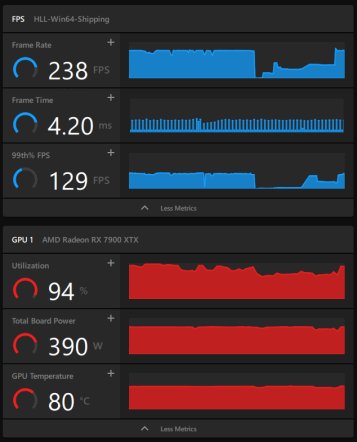
To limit game fps amd, use the Radeon Software settings. You can find the frame rate control option under the graphics tab. Choose your desired maximum frame rate.
Is your gaming experience suffering from screen tearing or excessive heat? You might need to learn how to limit game fps amd. High frame rates, while impressive, can sometimes cause more harm than good.
Controlling the frames per second can reduce strain on your system. It also results in a smoother and more consistent gaming performance. Let’s explore the simple method.

How to Limit Game FPS AMD
Okay, let’s talk about something super important for smooth gaming: limiting your game’s frames per second, or FPS for short. You might be thinking, “Wait, why would I want to limit how fast my game is running?” Well, it’s all about making things feel and look better, especially if you have an AMD graphics card. When your game runs too fast, it can cause problems like screen tearing, where the image looks like it’s being ripped in half, or your graphics card might be working way harder than it needs to, making it hotter and louder. So, let’s dive into different ways to control your FPS with an AMD setup.
Why Limit Your Game’s FPS?
Before we get into how to actually do it, let’s make sure we understand why this is a good idea. It’s not always about making your game run slower; it’s about making it run better.
Preventing Screen Tearing
Screen tearing happens when your graphics card sends frames to your monitor at a different rate than your monitor can refresh. Imagine your monitor trying to show two pictures at once – that’s what screen tearing looks like. It’s like a messed-up puzzle piece on your screen, a distracting line that breaks the smooth image. Limiting FPS can synchronize the game’s output with your monitor’s refresh rate, eliminating this annoying issue. So, you get nice, clear images without distracting breaks. It’s about making the picture smooth. Most modern monitors have a refresh rate of 60Hz, 144Hz, or 240Hz, which means they can update the picture 60, 144 or 240 times per second. If your game is sending out frames at a rate much higher than that, it can cause issues. It is always a good idea to match your game’s frame rate with the refresh rate of your monitor.
Reducing GPU Load and Heat
When your game runs unlimited, your AMD graphics card is trying its best to pump out as many frames as possible. This makes it work harder, gets it hotter, and uses more power. If your graphics card gets too hot, it can actually start to run slower to protect itself. By limiting FPS, you’re telling your graphics card to chill out a bit. This not only keeps it cooler, it also reduces noise from the fan and may even make it last longer. It is like telling the engine of your car to run at a certain speed so that it doesn’t overheat. It’s a good idea for the life of your computer. This can be really helpful if you are playing games on a laptop, because laptop cooling systems are not usually as good as in desktop computers.
Improving Game Consistency
Sometimes, having wildly fluctuating FPS can lead to inconsistent game performance. One minute you might be at 120 FPS, and the next you’re down to 60, which results in annoying stuttering. Capping your frame rate helps keep the game running at a more consistent pace. It is like walking at a steady speed instead of sprinting then walking slowly. This creates a much smoother and more enjoyable experience. This consistency is really helpful in competitive games as it gives you a better and more predictable performance.
Methods for Limiting FPS on AMD
Okay, now that we understand the “why,” let’s talk about the “how.” There are several different ways you can limit your FPS with an AMD graphics card. We’ll look at the most common and effective methods.
Using AMD Radeon Software
AMD’s Radeon Software is a program that comes with your AMD graphics card drivers. It’s a central place to control all kinds of settings for your graphics card, including FPS limits. It’s probably the easiest and most effective way to manage your frame rates.
How to Limit FPS in Radeon Software
Here’s a step-by-step guide to limiting FPS using Radeon Software:
- Open Radeon Software: You can usually find the icon in your system tray (the bottom right corner of your screen), or you can search for “Radeon Software” in the start menu.
- Navigate to Gaming: Once open, click on the “Gaming” tab. This will show you a list of your installed games.
- Select Your Game: Pick the game you want to limit the FPS for. If it is not listed you can add the game manually.
- Enable Radeon Chill (Optional, but Recommended): You’ll see an option called “Radeon Chill.” If it’s available, it’s often a good choice because it adjusts the FPS depending on how much you’re moving in the game and if you’re playing competitive mode or not. This saves even more power when you don’t need a high FPS. You can set a minimum and maximum frame rate.
- Set a Custom FPS Limit: If you don’t want to use Chill, or it’s not available, look for the “Custom Limit” or “FPS Target” setting. You can now set the frame rate that you would like your game to play at. A common frame rate to use is 60 FPS. If you have a monitor that has a higher refresh rate of 144Hz or 240Hz, then you might want to target those refresh rates for a more smooth experience.
- Apply Your Changes: Save or apply your changes and you’re done! Now, when you play that game, the FPS will be limited to your chosen setting.
Radeon Chill vs. Frame Rate Limit
Radeon Chill dynamically adjusts the FPS based on your in-game actions, while a frame rate limit sets a fixed upper cap. Here’s a quick comparison:
- Radeon Chill: Adjusts FPS on the fly, potentially saving energy and reducing heat. Better when you are trying to minimize power usage and improve consistency.
- Frame Rate Limit: Sets a firm cap on FPS. Provides consistent and smooth gameplay, with less fluctuating performance.
Using In-Game Settings
Many games actually have their own built-in options for limiting FPS. It is always a good practice to check if the game has FPS limit options before you try to limit using other software or apps. This is often the easiest method, but each game may have different settings.
How to Limit FPS in Game Settings
Here’s how you’d typically do it:
- Launch the Game: Start the game you want to adjust.
- Go to Settings or Options: Look for the game’s settings menu. This is usually found on the main menu, or from an in game pause menu.
- Find the Graphics or Video Section: Inside settings, find graphics or video options section. Look for something related to frame rate, FPS, or V-Sync.
- Set the FPS Limit: If an FPS limit setting is present, set the desired FPS value.
- Apply Changes: Save your settings and you’re all set.
V-Sync (Vertical Sync):
You’ll often see a setting called “V-Sync.” This feature synchronizes your game’s frame rate with your monitor’s refresh rate. While it can help with screen tearing, it can also add input lag (a slight delay between your actions and what you see on the screen). It also can cause a drop in your frame rate if your game is not able to maintain a frame rate that is higher than the refresh rate of the monitor. If you have AMD FreeSync monitor, it’s best to turn off V-Sync in the game and let the FreeSync handle the frame rate syncing. When you have a FreeSync compatible monitor, it works as an adaptive V-Sync, it can adapt to the game frame rate to provide a smoother gaming experience. It helps reduce screen tearing and minimizes input lag.
Using Third-Party FPS Limiters
If you need more control or if your game doesn’t offer built-in options and you don’t want to use AMD’s software, there are third-party apps that can limit your FPS. These usually work by intercepting the graphics output and imposing a frame rate cap.
Popular FPS Limiting Tools
- RivaTuner Statistics Server (RTSS): Often used alongside MSI Afterburner, RTSS is a powerful tool for monitoring and limiting FPS. It works well with most games and offers a lot of customization.
- Nvidia Profile Inspector (For AMD Users): This tool might sound like it’s only for Nvidia, but it has a frame rate limiter feature that can work with most AMD graphics cards.
How to Use RTSS
Here’s a quick overview of how to use RTSS:
- Download and Install: Download RTSS from the official website (often bundled with MSI Afterburner) and install it.
- Open RTSS: Run the program.
- Add Your Game: If the game you’re trying to limit does not automatically show up, click the “Add” button and select the game’s executable file.
- Set the Frame Rate Limit: In the “Framerate Limit” section, enter the FPS you want to cap the game at.
- Turn On On-Screen Display: If you would like to see your frame rate in game, you can enable it from this section.
- Start Your Game: Now, when you run the game, RTSS will limit your FPS to your set value.
Important Note About Third-Party Tools: While these tools can be very useful, it’s always a good idea to make sure you download from a trusted source and be aware that these tools may sometimes interfere with other software. Always make sure your software and drivers are up-to-date.
Choosing the Right FPS Limit
So, what FPS should you aim for? There’s no single right answer, but here’s a guide that will help you decide:
Matching Your Monitor’s Refresh Rate
The most common recommendation is to match your game’s FPS with your monitor’s refresh rate. So, if you have a 60Hz monitor, capping your FPS at 60 is a good idea. If you have a 144Hz monitor, aiming for 144 FPS can make things look super smooth. However, for higher refresh rate monitors, it can sometimes be very demanding on the computer components to achieve that high refresh rate, so in this case a lower frame rate might make more sense.
General Recommendations
- 30 FPS: While 30 FPS is playable, it is not as smooth as a higher FPS and might look slightly choppy.
- 60 FPS: This is a good target for most gamers. It is a good balance between smooth gameplay and performance.
- 144 FPS+: If you have a high refresh rate monitor, hitting 144 or higher will make for an extremely smooth and responsive gaming experience.
It is important to also consider what type of game you are playing. If you are playing a fast paced competitive shooter game, having a high frame rate will provide better performance. Whereas, a slower paced role playing game does not really benefit from a very high frame rate. In this case 60 FPS will provide a good balance between performance and visual quality.
Testing and Fine-Tuning
The best way to find the perfect FPS limit is to test different values and see what works best for you. Start with your monitor’s refresh rate as a guide. If you have problems with stuttering or frame drops, try lowering the FPS limit to see if it helps. Use the on screen displays provided by the AMD software or RTSS to monitor your game performance. The most important thing is to try and make sure your frame rate is consistent, so that you do not get the stuttering that comes with varying frame rate. Use different settings to see what provides the most stable performance. Some games also have performance overlays that can give you more detail about the game’s performance.
Troubleshooting Common FPS Limiting Problems
Sometimes, things don’t go exactly as planned. Here are a few common issues you might encounter and how to fix them.
The FPS Limit Doesn’t Seem to Work
If you set an FPS limit and your game seems to ignore it, here’s what you can check:
- Check the Settings Again: Double-check to see if the FPS limit is set correctly. Sometimes the game might be running at an uncapped rate and it might override any other FPS limit you have set.
- Conflicting Settings: Make sure you haven’t set an FPS limit in multiple places at the same time. Sometimes different settings conflict with each other and can cause problems. For example, if you have set a limit in AMD’s software and also in the game settings, there may be a conflict, and you should try disabling one of these settings.
- Administrator Rights: Make sure the software you’re using to limit FPS (like RTSS) has administrator rights. Sometimes, it can’t do its job properly without the proper permissions. This setting can usually be set in the shortcut’s properties.
- Driver Issues: Sometimes the old drivers of your graphic card might be causing this issue. Make sure to download and install the latest graphics card drivers.
Games Run Worse with FPS Limit
In some cases, limiting your FPS can actually make things worse, rather than better. Here are some common issues you might encounter:
- Too Low of a Limit: If you set the FPS too low, like 30 FPS, it will make your gameplay feel choppy. You should aim for a minimum of 60 FPS for most games.
- Incorrect Limit for Monitor: If you set the FPS limit incorrectly for your monitor, this may cause stuttering. Try matching your FPS limit to your monitor refresh rate.
- V-Sync and Frame Limits: If you are using V-Sync on an older system, you should try disabling it to see if it improves performance. It might be causing some performance problems by trying to match the frames to the refresh rate of the monitor, but it might not have enough power to do so.
- Background Programs: Sometimes other programs running in the background may be using up your system resources. Make sure to close the other programs, before you start your game, to see if the issue is resolved.
By trying different methods of limiting FPS, you can greatly improve the experience you have with your gaming. Remember to start with your monitors refresh rate, and then fine tune to find the best settings for your computer setup. It can greatly improve visual quality and also reduce system temperatures while gaming.
Limit your FPS for games AMD video cards
Final Thoughts
To limit game fps amd, utilize Radeon Software. You can set a global or per-game frame rate cap. This prevents your AMD graphics card from rendering unnecessary frames.
Applying an FPS limit saves power and reduces heat. It also can reduce screen tearing and stuttering. This provides a smoother gameplay experience.
For achieving desired performance, remember to tweak settings. Proper frame rate control helps with overall system stability. Therefore, understanding ‘how to limit game fps amd’ is important.

