
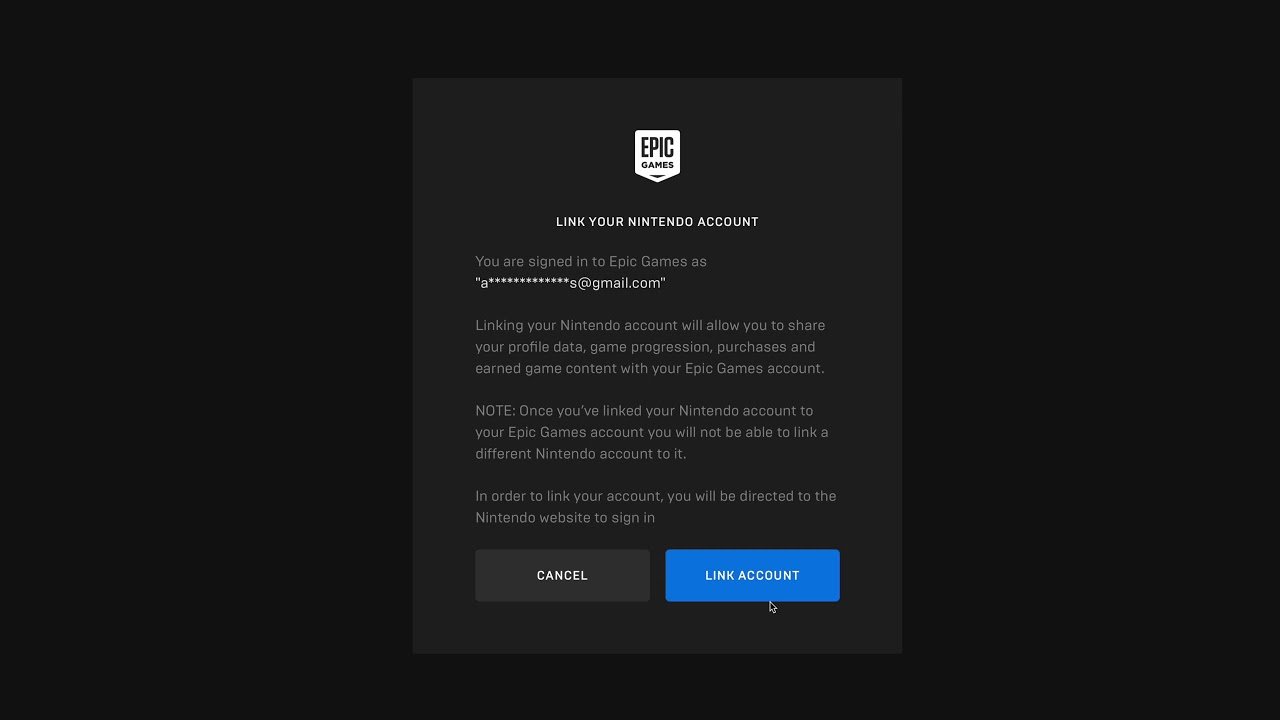
To link your Epic Games account to your Nintendo Switch, you will need to use the Epic Games website or your Nintendo Switch. Navigate to the account settings, and then the connections section, and choose Nintendo to link.
Want to play your favorite Epic Games titles on your Switch? It’s simple to get started, and knowing how to link epic games account to switch opens up a whole new way to play your games. You’ll be able to access your game progress and purchases between platforms.
This process allows you to continue your progress on your Switch, no matter where you originally started playing. It ensures a seamless gaming experience. Now let’s get you connected.

How to Link Epic Games Account to Switch
Getting your Epic Games account connected to your Nintendo Switch opens up a whole world of fun! It means you can take your progress and goodies from games like Fortnite, Rocket League, and Fall Guys with you wherever you go. Imagine playing on your computer, then seamlessly switching to your Switch to continue the adventure on the couch or on the go. It’s super convenient, and thankfully, it’s not too hard to set up. This guide will walk you through the steps to link your accounts and solve some common issues that might pop up. This guide is focused on making this process easy and understandable for everyone, even if you are new to gaming. We will cover everything you need to know about how to link your Epic games account to Nintendo switch.
Why Link Your Epic Games and Nintendo Switch Accounts?
Before we get into the ‘how,’ let’s talk about the ‘why.’ Why should you bother linking these accounts? Here are the top reasons:
- Cross-Progression: This is the big one! Linking your accounts means your game progress, like your level, unlocks, skins, and items in many games, is shared between your PC, Xbox, PlayStation, and your Nintendo Switch. So you’re not starting from scratch each time you switch devices.
- Shared Purchases: If you buy a skin or item on your PC, it’ll often be available on your Switch, and vice-versa.
- Play with Friends: Playing online with your friends becomes much easier, regardless of what platform they’re using. Linking accounts is a necessary step for cross-platform play.
- Access to special events: Sometimes, in-game events and rewards are tied to having your accounts linked. You might miss out if your accounts aren’t connected.
- Convenience: It’s much easier to jump between devices when your accounts are already linked. No need to remember different logins or start fresh!
It’s very clear from these points that linking your accounts makes playing your favorite games a far more enjoyable and continuous experience, allowing you to fully appreciate and continue your journey without starting from zero each time you switch to a different console.
What You’ll Need
Before we begin, you’ll need a few things:
- A Nintendo Switch console and a Nintendo Account.
- An Epic Games account (if you don’t have one, you’ll need to create one – we’ll cover that below).
- An internet connection for both your Switch and the device you’ll use to access the Epic Games website (computer, tablet, or phone).
- A little bit of patience, just in case!
Ensure all these elements are ready and nearby to have a smooth linking process. Having all this ready and accessible will prevent any pauses or disruptions during the process of linking your accounts.
Step-by-Step Guide: Linking Your Accounts
Step 1: Starting from Your Nintendo Switch
The first step of linking your accounts is to start on your Nintendo Switch. This process triggers a request that you’ll confirm on the Epic Games website.
- Turn on your Nintendo Switch: Make sure your console is powered on and connected to the internet.
- Launch an Epic Games game: Choose any game that uses an Epic Games account, like Fortnite, Rocket League, or Fall Guys.
- Follow the game’s prompts: When you launch the game for the first time or if your account isn’t linked, the game will display a screen with a QR code and a URL. This screen tells you what you need to do to link your accounts.
- Do not close the game: It’s important to keep the game open and this screen up as you move to the next step.
Step 2: Navigating to Epic Games on Your Web Browser
Now, it’s time to leave the Switch for a moment and head to your computer, phone, or tablet.
- Scan the QR code (easiest method): Using your phone or tablet’s camera app, scan the QR code displayed on your Switch screen. This will automatically take you to the right page on the Epic Games website. This is the easiest method.
- Alternatively, use the URL: If you cannot scan the QR code, type the URL displayed on your Switch screen into your web browser’s address bar on your device. Make sure you type it correctly.
- Log in to your Epic Games account: You will see a login page. Enter the email address or username, and password for your Epic Games account. If you’re already logged in, the website will take you to the next page.
Step 3: Connecting the Accounts
After logging in, you will be asked to confirm that you want to link your Epic Games account to your Nintendo Switch account.
- Verify your account: The Epic Games website will show a prompt confirming that you want to connect your Epic Games account with the Nintendo Account associated with your Switch.
- Click “Link Account” or similar prompt: Click the “Link Account” or any similar button or option that appears on the screen.
- Confirm the connection on your Switch: Once you have confirmed on the website, your Nintendo Switch will also display a confirmation screen. This indicates that both your accounts are now linked.
Once this is done, you have successfully connected both of your accounts. Now you’re ready to enjoy cross-platform play and carry all your progress seamlessly.
Creating an Epic Games Account If You Don’t Have One
If you don’t already have an Epic Games account, don’t worry. It’s simple to create one. You can create it either through Epic Games website or through your Nintendo Switch. But, it’s often simpler to do this using a computer, phone or tablet. Here’s how:
Creating via the Epic Games Website
- Go to the Epic Games website: Open your web browser and go to epicgames.com.
- Click “Sign In”: Look for the “Sign In” or “Login” button. This is usually in the upper-right corner of the page.
- Choose “Sign Up”: Below the login options, you’ll see a “Sign Up” or “Create Account” link. Click on this.
- Enter Your Details: Fill out the form. This includes your first name, last name, a display name, email address, and a password. Choose a strong, secure password and remember it. You also need to agree to the terms of service.
- Verify your email: Epic Games will send you an email to verify your address. Open the email and click the link to verify your email address.
Creating on Your Nintendo Switch
While linking an account for the first time on the Nintendo Switch, If you don’t have an account, you can create one directly through your Nintendo Switch. Follow these steps.
- Launch an Epic Game: Start one of the games linked with Epic Games such as Fortnite, Rocket League or Fall Guys.
- Account Prompt: The game will then prompt you to either sign in or create an account. Choose to ‘create’ an account.
- Follow on screen instructions: Complete the on screen instructions and prompts. This will include entering your date of birth, a user name, email, and password.
- Verify Email: Just as with the website method, you will be required to verify you email. You will need to use a phone or tablet to do this. Follow the instructions and click the link they send in the verification email.
After creating your account, you can now use the earlier steps to connect it to your Nintendo Switch.
Troubleshooting: Common Issues & Solutions
Sometimes, linking your accounts might not go as planned. Don’t worry, here are some common problems and how to solve them.
“Account Already Linked” Error
This error usually occurs when your Epic Games account is linked with another Nintendo account, or vice versa. Here’s what you should do:
- Check your other accounts: Make sure that you are not trying to link an account which is already linked with another account.
- Contact Epic Games Support: If you are not able to resolve the issue, then get help from Epic Games customer service. They will guide you further in resolving the problem. They can often assist you in identifying which account is connected and can help you unlink it if needed.
“Invalid Email or Password” Error
If you are getting this error, it means you’ve typed something wrong in the log in field. Double check your login information.
- Double-check your login: Verify that you are typing the correct email address and password. Sometimes it is easy to type it incorrectly, so make sure you are paying close attention to what you’re typing.
- Password reset: If you’re unsure, try resetting your password on the Epic Games website.
Trouble Scanning the QR Code
If the QR code is not scanning, try the following.
- Adjust your camera: Ensure that your camera is focused on the QR code and that there’s enough light.
- Try the URL method: Type the URL displayed on your Switch screen instead of trying to use the QR code.
Game Not Recognizing the Linked Account
If the game doesn’t seem to register the linking process, try these things:
- Restart your Switch and the game: Completely close the game and restart your Nintendo Switch. Reopen the game and check if the issue is fixed.
- Check your internet connection: A poor connection can sometimes interfere with account linking. Make sure both your Switch and your phone or computer have a strong, stable internet connection.
I Linked The Wrong Account!
Oh no! If you’ve accidentally linked the incorrect Epic Games account to your Switch, don’t panic. Follow these steps:
- Unlink Accounts: You can unlink accounts in the ‘Connections’ area of your Epic Games account settings.
- Re-link the correct account: Once you have unlinked the incorrect account, simply follow the steps from the beginning of this guide to relink the correct account.
- Seek support: If you’re struggling, don’t hesitate to get help from Epic games customer support.
If you follow the steps carefully and are patient during the process, you will successfully connect your accounts and start playing on both devices. Having both accounts connected provides cross-progression and shared purchases, among other things, making your gaming sessions more pleasant and convenient.
Linking your Epic Games account to your Nintendo Switch is a simple process that greatly improves your gaming experience. By following these steps, you can enjoy your games across multiple platforms without losing any of your hard-earned progress or purchased items. Remember to double-check your information, and don’t hesitate to seek help from support if needed. Now, it’s time to jump into your favorite games and start playing!
How To Connect Nintendo Account To Epic Games – Full Guide
Final Thoughts
To summarize, linking your Epic Games account to your Nintendo Switch requires navigating to Epic’s website and logging in. Then you will proceed to the “Connections” section and choose the Nintendo account to link. This simple process enables cross-progression.
Remember, you must have a Nintendo account to connect with your Epic account. This method shows you exactly how to link epic games account to switch for playing your favorite games.

