
To link your PSN account to Epic Games, visit the Epic Games website, log in, navigate to “Connections” in your account settings, and select PlayStation Network to initiate the linking process.
Ever wished you could share your game progress across platforms? Many gamers wonder how to link PSN account to Epic Games. It’s a common question, and thankfully, the process is quite simple.
Connecting your accounts lets you access your favorite games and items across both PlayStation and Epic Games platforms. This seamless connection enhances your gaming experience, making it more flexible and enjoyable.

How to Link PSN Account to Epic Games
Connecting your PlayStation Network (PSN) account to your Epic Games account opens up a world of possibilities. It allows you to play your favorite Epic Games titles like Fortnite, Rocket League, and Fall Guys across different devices while keeping your progress and items safe. Plus, you only need one login for all your Epic Games fun! It’s like having a single key that opens all the doors to your gaming adventures. This guide will walk you through the easy steps of linking these two accounts so you can get back to playing games as quickly as possible.
Why Link Your PSN Account to Epic Games?
Before we jump into the “how,” let’s talk about “why.” There are some great reasons to connect your PSN and Epic Games accounts. Here’s a breakdown:
- Cross-Progression: This is a big one. If you play a game on your PlayStation and then want to play it on your PC, Xbox, or even your phone, your progress, skins, and other items will move with you. No starting over! This lets you keep your level and all the cool stuff you’ve worked for, no matter where you play. This feature makes gaming very convenient and flexible.
- Unified Account: Once linked, you’ll use your Epic Games account to sign in to your Epic Games on your PlayStation. This means less remembering multiple usernames and passwords. You will have one account that handles everything across different devices which is simple and efficient.
- Access to Epic Games Features: Linking your accounts lets you use things like your Epic Games friends list, use in-game voice chat with your friends, and participate in various Epic Games events and promotions. It will give you more opportunities to experience the full potential of Epic Games.
- Play With Friends: Linking accounts makes it easier to play with friends across different platforms. Whether they’re on PlayStation, PC, or Xbox, you can all join the same games and play together. This is perfect for anyone who has friends on other consoles.
- Free Games and Goodies: Sometimes, Epic Games offers special in-game items or even free games to players who have linked their accounts. It’s a great way to get extra fun and cool content just for connecting the two.
Simply put, linking your accounts makes gaming more accessible and enjoyable.
How to Link Your PSN Account to Epic Games: Step-by-Step Guide
Now, for the part you’ve been waiting for! Here’s how to connect your PlayStation Network account to your Epic Games account:
Method 1: Linking via the Epic Games Website
This method is usually the easiest for most players, so it’s a great starting point.
- Go to the Epic Games Website: Open your favorite web browser and go to the official Epic Games website. Usually the address is epicgames.com.
- Sign In to Your Epic Games Account: Click on the “Sign In” button at the top right of the page. You’ll need to enter your email address and password (or use your other sign in methods like Google or Facebook, if you have linked them to your Epic account before). If you don’t have an Epic Games account yet, you will need to create one first by clicking the “Sign Up” button.
- Access Account Settings: After you’ve logged in, click on your username in the top right corner of the page. This will bring up a menu. Select “Account” from the menu options.
- Navigate to “Connections”: On the left side of your Account page, you’ll see a list of options. Click on “Connections”.
- Find Your PlayStation Network Connection: Under “Connections,” you’ll see a list of other services that you can link to your Epic Games account, including your Playstation. Find the PlayStation Network logo.
- Connect Your Account: Click on the “Connect” button associated with the PlayStation Network. This will usually bring up a pop-up window or redirect you to a Playstation login page.
- Sign in to Your PSN Account: Here, you will need to enter the email address and password associated with your PlayStation Network account. After signing in to your PSN, the PlayStation network will ask if you agree to let Epic games access your PSN data, which you have to allow it.
- Confirm the Connection: After signing in, you may need to click “Confirm,” “Allow,” or a similarly worded button to confirm the connection between your PSN account and your Epic Games account.
- Check for Success: After confirming, you should see that your PSN account is now connected to your Epic Games account and the “Connect” button should change to “Connected”. You should also see your PSN profile picture or ID on the Epic website in the connections section.
And that’s it! Your PSN and Epic Games accounts are now linked. You’re ready to enjoy seamless cross-progression and other benefits.
Method 2: Linking Through an Epic Games Game
Sometimes, you might be prompted to link your accounts directly when you start an Epic Games title on your PlayStation. This is another way to do it and can be very quick and easy.
- Start an Epic Games Title on PlayStation: Launch a game like Fortnite or Rocket League on your PlayStation console. You should see the option to sign in with your Epic Games account.
- Select to Link an Existing Account: When prompted to sign in, you will often be given a choice to create a new Epic Games account or to sign in with an existing one. Make sure you select to sign in with an existing account if you have created one before.
- Follow the Prompts: If your PSN account isn’t linked, the game will likely prompt you to link your account now. Follow the on-screen instructions, which will usually direct you to a web browser page on a different device where you need to sign in using your Epic account.
- Confirm the Connection: After signing into the Epic Games website, the website will redirect you back to your game, and you will be asked to allow the connection, then you have successfully linked your accounts.
- Enjoy Your Game: Once you’ve linked your accounts, your progress should sync, and you can continue enjoying your game.
Method 3: Linking Through PlayStation Network Settings
Although less common, sometimes, the linkage can be initiated through your PlayStation Network settings.
- Go to PlayStation Settings: Navigate to the Settings menu on your PlayStation console.
- Access Account Management: Look for “Account Management” and select it.
- Navigate to Linked Services: Within “Account Management,” you might find an option for “Linked Services” or similar.
- Find Epic Games: Look for the Epic Games logo. If the option to link is available, select it.
- Follow the Prompts: The system will direct you to the Epic Games sign-in page. Follow the on-screen prompts to complete the linking process.
- Confirm Connection: Finalize the connection and you should be good to go!
Troubleshooting Common Linking Problems
Sometimes, the linking process doesn’t go as planned. Here are some common issues and ways to fix them:
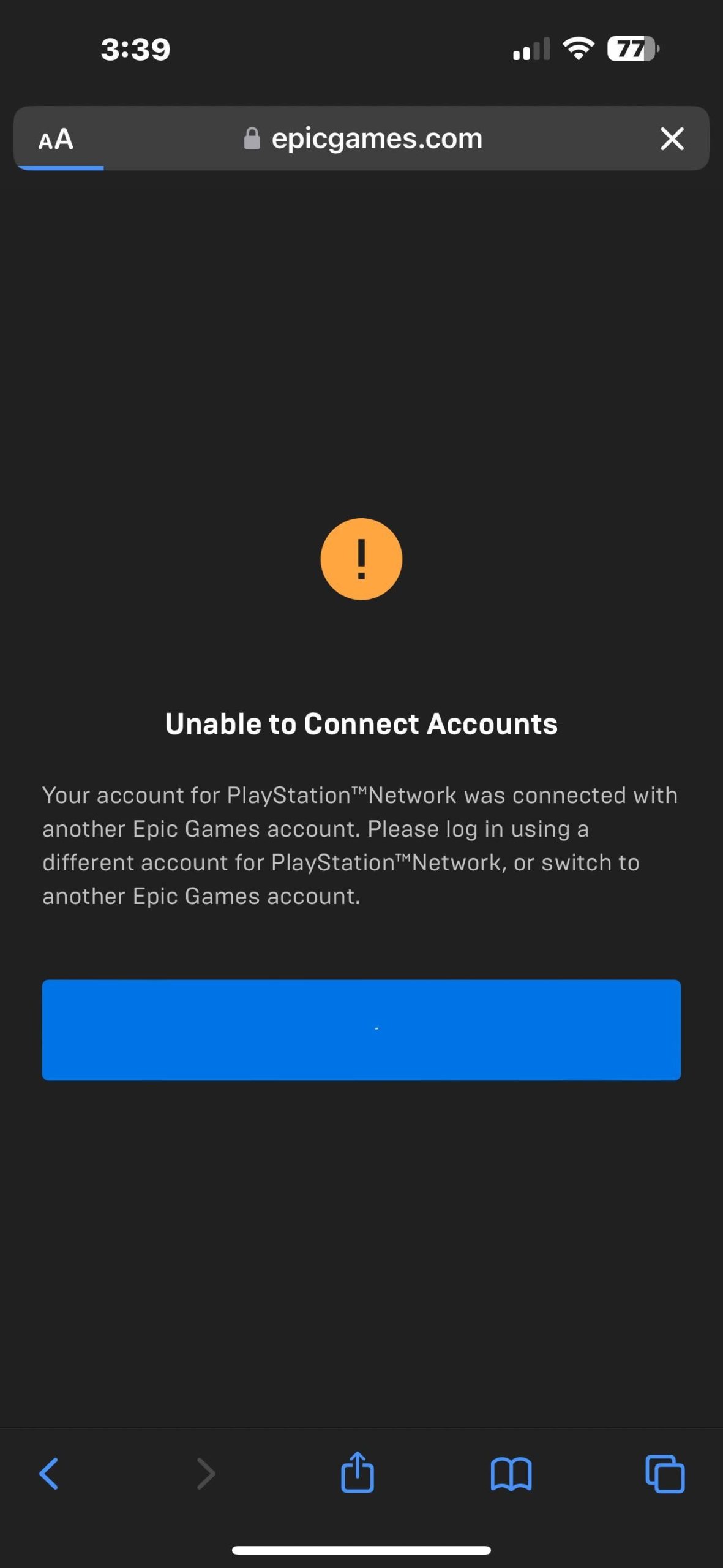
Problem 1: “This Account is Already Linked to Another Epic Games Account”
Explanation: This error means that your PSN account is already linked to a different Epic Games account. This often happens if you have multiple Epic Games accounts or forgot which one you used.
Solution:
- Figure Out Which Account It’s Linked To: Try to remember any other Epic Games accounts you may have created in the past and try to log into them and see if your Playstation account is linked to it.
- Unlink from the Wrong Account: Once you find the account, log in, go to “Connections” and remove the PSN link from that account. Then, try linking it to your main Epic Games account.
- Contact Epic Games Support: If you can’t figure out which account is linked, contact Epic Games support. They can help you find the linked account or un-link it for you.
Problem 2: “Connection Error” or “Unable to Connect”
Explanation: Sometimes, you get generic errors during the linking process. This could be due to problems with your internet connection, the Epic Games server, or other technical issues.
Solution:
- Check Your Internet Connection: Make sure your internet is stable and working well. Try restarting your router.
- Check Epic Games Server Status: Sometimes, Epic Games servers are down for maintenance or due to some other reason. You can check their official website or social media for service updates. If there is maintenance or server issues, try again later.
- Try Again Later: Sometimes, just waiting a little bit and trying again later can resolve the issue.
- Clear Browser Cache: If you are linking via a web browser, try clearing your browser’s cache and cookies and attempt the process again.
- Use a Different Browser: Sometimes, your web browser has problems. Try using a different browser.
Problem 3: No “Connect” Button Appears
Explanation: If you don’t see the “Connect” button when trying to link your PSN account, it might be due to your account being a child account or a temporary glitch.
Solution:
- Make Sure it’s Not a Child Account: If your Epic Games account is a child account, you will need to modify the settings to link other accounts. This will require the account to be an adult account.
- Try Again Later: If it is a temporary error it may be fixed if you try again after some time.
- Contact Support: If it still doesn’t work contact Epic Games support. They can help with account-specific issues.
Problem 4: Cross-Progression Not Working
Explanation: Even after linking your accounts, you may find that your progress isn’t syncing across devices. There could be a simple reason behind it.
Solution:
- Double Check Linkage: Make sure the two accounts are actually linked by re-checking your “Connections” on your Epic Games account.
- Restart Your Game and Console: Try restarting both the game and your Playstation. This can sometimes force the synchronization process.
- Ensure the Game Supports Cross-Progression: Sometimes, not all games support full cross-progression. Ensure your game and region support it.
- Epic Games Support: If none of these solutions work, please reach out to the Epic Games support team, they can better assist you in the issue you are facing.
Tips for a Smooth Linking Process
Here are some quick tips to make linking your PSN and Epic Games accounts as easy as possible:
- Double-Check Your Logins: Make sure you have the right email and passwords for both your Epic Games account and your PSN account. A small typo can cause big problems.
- Use a Stable Internet Connection: A good connection will help avoid any errors during the linking process.
- Be Patient: Sometimes, the process can take a minute or two. Don’t rush and make sure to follow the prompts.
- Keep Your Accounts Secure: After you connect the accounts, make sure to protect your account with strong passwords and enable two-factor authentication (2FA) when possible. This will help to keep your accounts safe from hackers.
- If All Fails, Reach Support: If you have any issues, don’t hesitate to reach out to the customer support for Epic Games. They can walk you through the process.
Linking your PSN account to Epic Games is a simple process that can greatly improve your gaming experience. By following these steps and tips, you should have no problem connecting your accounts and enjoying the benefits of unified access and cross-progression. Get ready to play on any device, keep all your hard-earned progress, and join your friends on the battlefield!
How To Link Epic Games Account To PlayStation Account – Easy Guide
Final Thoughts
To link your PSN account to Epic Games, you must visit the Epic Games website. Navigate to your account settings and find the connections page. Choose PlayStation Network and follow the on-screen prompts.
Confirming the link grants cross-platform progress. This is important for playing games on various platforms. Successful linking ensures your progress syncs.
This process shows how to link psn account to epic games. It’s a straightforward process. The linking must be done with careful attention to the steps.

