
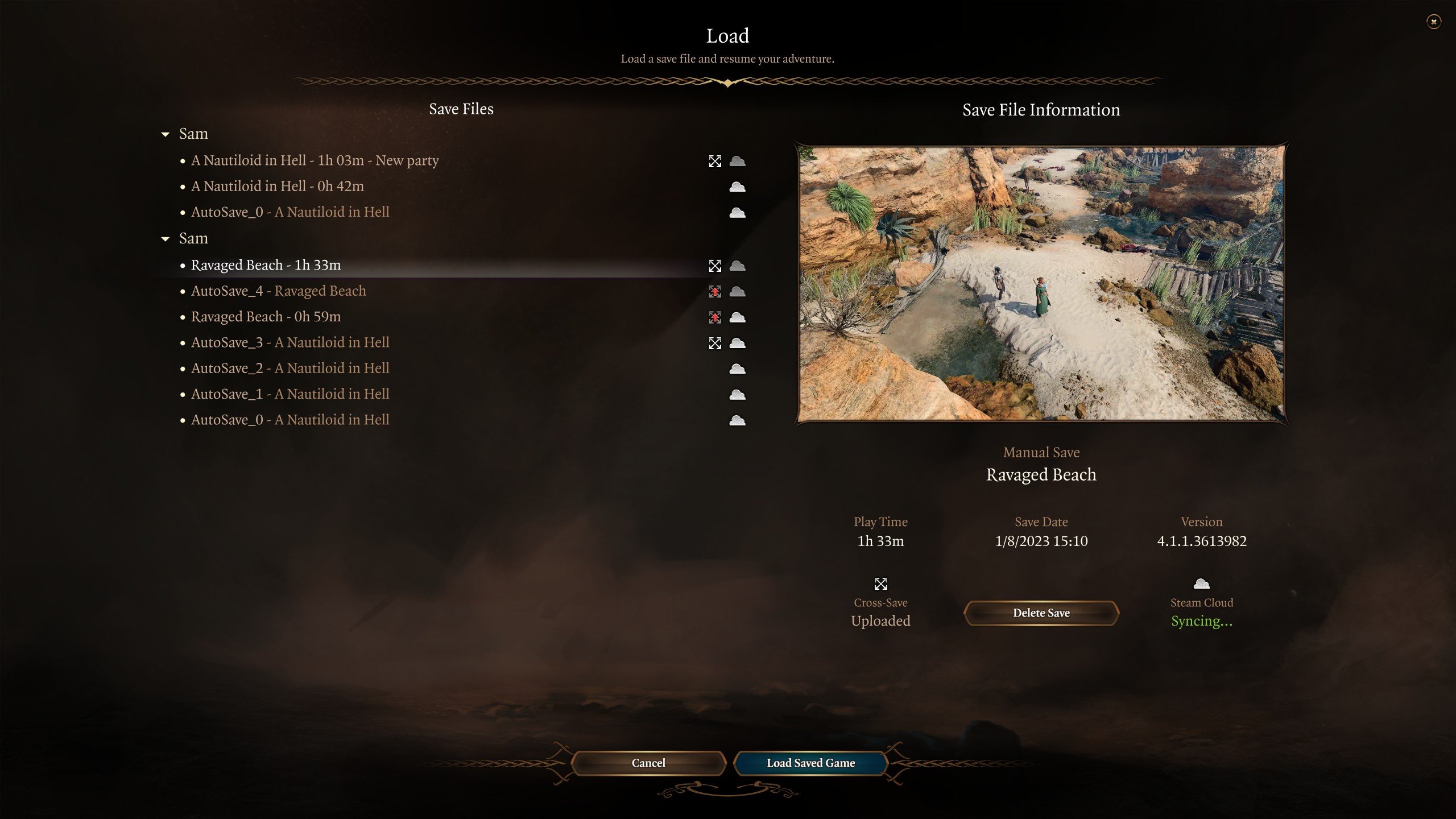
To load a multiplayer game in BG3, select “Multiplayer” from the main menu, then either join an existing game or create a new one and invite friends.
Ready to dive into Baldur’s Gate 3 with your friends? It’s an experience that’s truly enhanced when shared. But how to load multiplayer game bg3 can sometimes feel a little confusing if you’re not familiar with the interface. This short guide will show you the direct steps so you can jump straight into the adventure. We aim to make this part easy and enjoyable.

How to Load a Multiplayer Game in BG3
So, you want to play Baldur’s Gate 3 with your friends? That’s awesome! It’s a fantastic way to experience the story and adventures together. But sometimes, getting a multiplayer game going can feel a little tricky. Don’t worry, this guide will break down everything you need to know about how to load a multiplayer game in BG3, making it easy for you and your buddies to jump in and start your quest!
Getting Started: Before You Begin
Before you even think about starting a new adventure with friends, there are a few things to check. These steps will help make sure your game runs smoothly and that everyone can join without any major headaches. Let’s make sure we’re all ready to go!
Make Sure Everyone Has the Game
This one seems obvious, but it’s important. All players who want to join your multiplayer game need to own a copy of Baldur’s Gate 3. It’s not a game where one person can host and others can join without having their own copy. So, before you get too excited, make sure everyone has bought and installed the game. You also want to make sure that everyone’s game is updated to the latest version. Older versions may not work well with newer ones.
Check Your Internet Connection
A stable internet connection is super important for playing multiplayer games, especially one as detailed as BG3. If your connection is spotty or slow, you might experience lag (the game might slow down and get choppy) or even disconnect from your friends. Here are a few tips:
- Use a Wired Connection if Possible: Wi-Fi can be convenient, but a wired Ethernet connection is usually more stable and faster, reducing potential lag.
- Restart Your Router: If you are having issues with your internet, restarting the router can help a lot. It’s like giving your connection a fresh start.
- Check Your Internet Speed: If you are still facing lag problems, check your internet speed on websites like speedtest.net to see if it’s enough for gaming. You’ll want a decent upload and download speed.
Choose the Right Platform
Baldur’s Gate 3 is available on several platforms. It’s important to know that cross-platform play (playing on different consoles/platforms with the same game) is not yet supported. So, if you plan to play with your friend, make sure that both of you are using the same platform, like PC, PS5, or Xbox. Playing on different platforms will not work for multiplayer.
Starting a New Multiplayer Game
Once you’ve completed the preliminary checks, it’s time to get your game started! Here’s how to get your party together in BG3.
The Main Menu Steps
First, open the game. When you reach the main menu, you’ll see several options. Here’s what you should do:
- Click on “Multiplayer” : The most important step. This will take you to the multiplayer menu where you can either create a new game or join an existing one.
- Choose “Create” : If you want to start a new game and invite your friends, select the “Create” option. This will let you set up your game’s details.
Setting Up Your Game Details
Next, you’ll have to choose a few options that will decide what your game is going to be like:
- Difficulty: Select the difficulty level that matches what you all want to play in the game. Easy, normal, and hard, which is also known as the “tactician” difficulty. Remember that the game will be more challenging at a higher difficulty setting.
- Choose your Origin Character: You can either create a custom character or select from Origin characters. If you play custom characters, you get the total freedom to choose appearance, class and backgrounds. But if you pick Origin characters, you’ll learn more about the lore of the world as well as character’s backstory. You can also have a party of both custom and origin characters
- Lobby Privacy: Decide if you want your game to be public, open for anyone to join, or private, where only your invited friends can join.
- Public: This lets anyone join your game. This is not ideal if you are playing with a few friends.
- Private: This is perfect for playing with friends; you need to share a code to your friend.
Once you are happy with your choices, go ahead and click on “Create.”
Inviting Your Friends
After you have set up the game, it’s time to invite your friends. Here’s what you should do:
- Use the Invite Code: You will receive a special code after creating a private game. Share this code with your friends. They will need this code to join your game. You can copy and paste this code to share with your friends.
- In-Game Friend System: Sometimes, the game will use its in-game friends list. Select your friend from the list and send them the invite. They’ll then get an invite notification in their game.
- Steam or Platform Invites: You might be able to send invites through the platform you are using to play the game, like Steam or PlayStation. This varies a bit depending on your platform, so check the game menu for any specific options.
Joining a Multiplayer Game
Now, let’s look at how to join a game that your friend has already created. It’s super easy.
The Main Menu Steps
Just like with creating a game, the process starts at the main menu. Follow these steps:
- Click “Multiplayer” : In the main menu, the very first thing that you will see is multiplayer option. Click it.
- Choose “Join” : Instead of “Create,” you’ll select “Join.” This will take you to the place where you can enter the code for a private game.
Joining with an Invite Code
If your friend made a private game and sent you a code, follow these steps:
- Enter the Code: You will see a place where you can put in a special code. Paste or type in the code your friend gave you here.
- Click “Join”: Now, click the “Join” button. If the code is correct and everything works smoothly, you’ll connect to your friend’s game.
Joining Through the Friend List
Some platforms also let you join from their friend lists. Here’s how you do that:
- Accept the Invite: If your friend sent you an invite through the platform or in-game friend system, accept the invite and the game should launch.
Troubleshooting Common Issues
Sometimes, things can go wrong when you’re trying to connect for a multiplayer game. It is ok; it happens to everyone. Here’s a guide to troubleshooting any common issues you might face:
Connection Problems
If you are having connection problems while joining or creating a multiplayer game, try these ideas:
- Check Your Internet Again: Make sure your internet is still working correctly and that you have a solid signal. Restarting your router can be helpful.
- Firewall Issues: Sometimes, firewalls or antivirus programs on your computer can block the connection. Try temporarily disabling your firewall to see if that fixes it. If it does, you may need to set an exception for Baldur’s Gate 3 in your firewall settings.
- Game Updates: Make sure that everyone playing the game has the same version of the game. If not, someone’s version might be out of date. This can create issues with connecting to other players.
Code Not Working
If the invite code isn’t working, here are some steps you can try:
- Double Check the Code: Make sure that you’ve entered the code correctly. Sometimes, it’s easy to type a number wrong.
- Restart the Game: If the code is still not working, try restarting your game. This can help the game refresh the connection.
- Create New Game and Code: If all else fails, have the host create a new game and send a new code. Sometimes, it just takes a new code to get things running again.
Lag and Performance
If you’re experiencing lag, here are few things that you can try:
- Lower Graphics Settings: If you are experiencing lag during multiplayer, try lowering your game’s graphics settings. This can help the game run smoother and reduce lag.
- Close Unnecessary Programs: Programs running in the background can use up valuable resources. Close anything you don’t need while playing the game.
- Check for Updates: Make sure that your video card drivers are updated. New drivers often have improvements that can help the game run better.
Understanding Player Slots and Character Management
In Baldur’s Gate 3, the game allows for a party of up to four players in a multiplayer session. Each player has control over their character, and during dialogues or crucial decisions, the game will often feature options tailored to each character’s presence and choices. When playing with four friends, each player will typically control their own character. This means everyone gets to participate in the story and make impactful decisions. But what if you are playing with only two people? The game gives some flexibility:
- Dual Characters: If you are playing with two people, you can each control two characters. This involves picking an additional character in the creation menu before starting the adventure. This works best when two friends are playing together as this way you can control four characters in total.
- Origin Character Control: Alternatively, you can leave the companion slots for the origin characters. This means that while you won’t be playing them in combat, they’ll still be around and their stories will progress along with the game.
Remember, the game always ensures each character is controlled by a person, not the computer, when playing in multiplayer.
Game Saving and Progression in Multiplayer
Saving and continuing games is also a bit different in multiplayer. The game always makes sure to progress as a whole. Here is what you should know:
- Host Responsibility: The game is always saved from the host computer. The game progress of the multiplayer sessions will only save on the host’s PC. Which means, only the host can load the multiplayer game from the save. So, it’s important to make sure that the host is the same person in the next session if you want to continue your journey.
- Auto Saves and Manual Saves: Like any regular game, BG3 will auto-save regularly. However, you can also create manual saves at any point you need. It’s a good idea to manually save at the end of the play sessions or before important events just to ensure that you never lose progress.
- Continuing a Session: To continue your multiplayer session, the host simply loads the save game and then sends out the invitation to the rest of the party.
Knowing how game saving works in BG3 will prevent your progress from being lost.
Communicating While Playing
Playing a multiplayer game also requires good communication. Here is how you can communicate with your friends while playing BG3:
- In-Game Voice Chat: BG3 has an built-in voice chat, which is super useful for talking with your friends during the game. You can discuss tactics during combat or make important decisions while playing in the game.
- Discord or other VoIP Apps: Many people use third-party voice chat apps, such as Discord. Discord is a popular and reliable option with more features than in-game voice chat. If you choose to do that, make sure to mute the in-game voice chat to avoid any echo issues.
Communication is key to playing any multiplayer game.
Getting a multiplayer game going in Baldur’s Gate 3 might seem complicated at first, but it becomes really easy once you know the steps. Remember to check your internet, make sure everyone has the game, choose your platform correctly, and double-check those invite codes! With a bit of patience, you and your friends will be adventuring across the Forgotten Realms in no time.
How to Create, Setup, Join, and Manage Multiplayer Sessions in Baldur's Gate 3
Final Thoughts
Loading a Baldur’s Gate 3 multiplayer game is straightforward. The host first starts the game and creates a new campaign. Then, they must invite friends through the game’s multiplayer menu.
Invited players should then accept the invite. Ensure all players have compatible game versions. If you face issues, check your internet connections.
Now you know how to load multiplayer game bg3. Remember, the host controls the save file and game progress for the group. Always check game versions before starting.

