
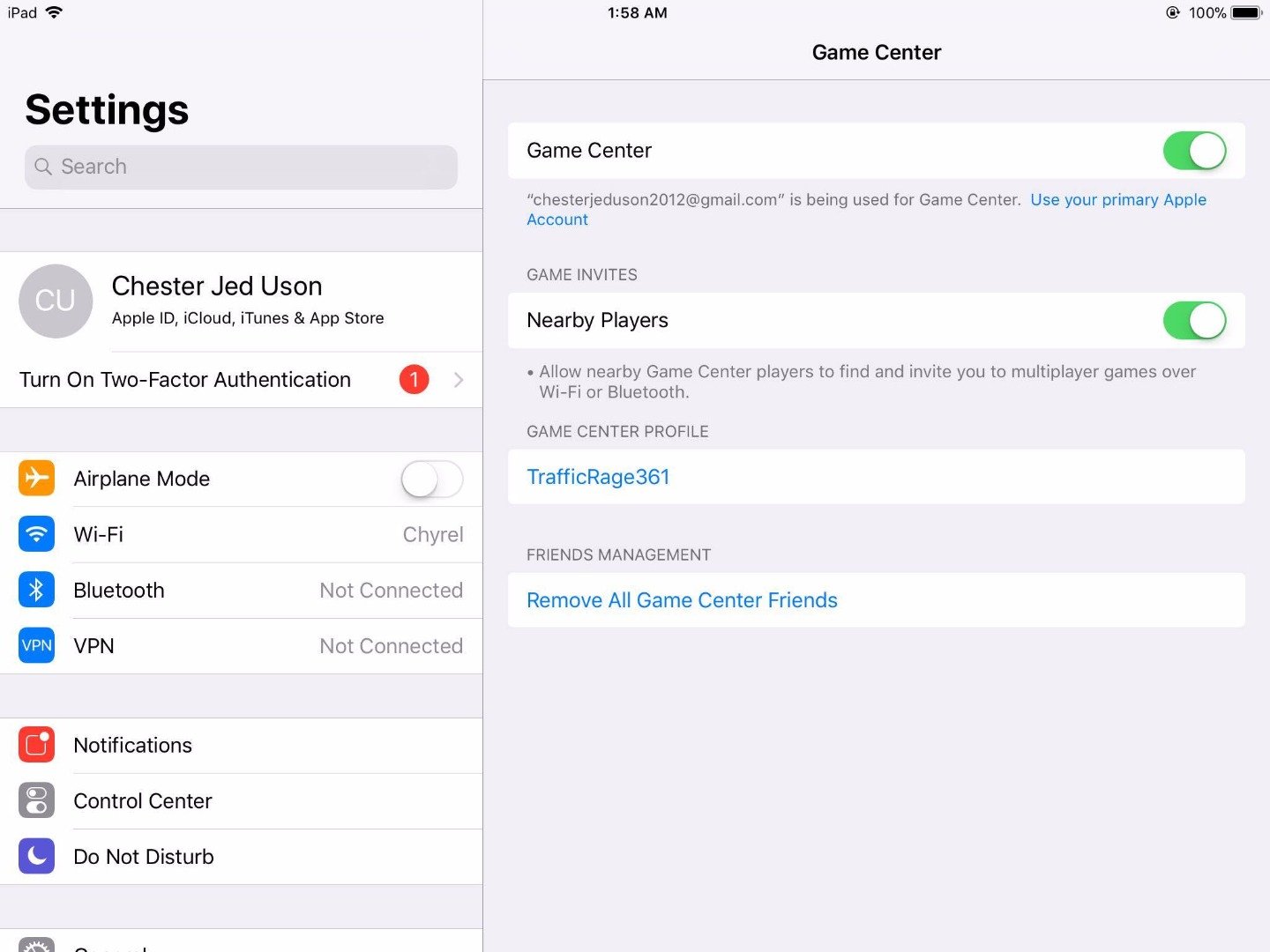
To log out Game Center, navigate to your device’s Settings app, tap on “Game Center,” then tap your Apple ID, and select “Sign Out.”
Ever found yourself wanting to switch Game Center accounts, or just needing a break from it? The process can seem confusing at first, but it’s actually quite simple. You can easily manage your gaming profile and privacy by knowing how to log out Game Center.
Let’s walk through the straightforward steps, ensuring you regain control over your gaming experience on your device. This guide will show how to log out game center in just a few taps.

How to Log Out of Game Center
Have you ever wanted to switch Game Center accounts, or maybe you just want to keep your gaming progress separate from someone else? It’s totally normal to want to log out of Game Center sometimes. Think of it like logging out of your email or social media – it’s just good practice for managing your accounts! This guide will show you how to do that on your iPhone, iPad, or Mac. Let’s jump right in and see how easy it is to take control of your Game Center experience.
Why Log Out of Game Center?
Before we dive into the “how,” let’s talk about the “why.” There are many reasons why you might want to log out of Game Center. Maybe you share a device with a family member, and they have their own Game Center account. Perhaps you’ve created a second Game Center account for a specific game. Or maybe you just want to keep things clean. Whatever your reason, knowing how to log out is a useful skill to have. Understanding these reasons can make managing your devices and gaming profiles much simpler.
Common Scenarios for Logging Out:
- Shared Devices: If you share your iPhone or iPad with family members, you might want to keep your gaming progress separate from theirs. Logging out of your Game Center allows them to log in with their own account, ensuring individual game saves and achievements.
- Multiple Accounts: Some people prefer using different Game Center accounts for various games or purposes. This might be to maintain privacy or to track progress in particular games using a dedicated account.
- Troubleshooting: Sometimes, if you’re having trouble with Game Center, like syncing issues or not being able to access leaderboards, logging out and back in can often fix the problem.
- Privacy Concerns: You might be changing your phone or giving your old one to someone else. Logging out of Game Center and other accounts is an important step to protect your personal information.
Understanding these reasons can help you appreciate why knowing how to manage your Game Center log-in status is beneficial for many people.
Logging Out of Game Center on iPhone and iPad
The most common place people use Game Center is on their iPhone or iPad. Thankfully, the process is pretty straightforward. Here’s a step-by-step guide to help you through it.
Steps to Log Out:
- Open the Settings App: Look for the gray gear icon on your home screen. That’s the Settings app! Tap on it to open.
- Scroll Down to Game Center: Inside the Settings app, you’ll see a lot of options. Scroll down until you see “Game Center” and then tap on it. It often has a little joystick icon.
- Tap Your Apple ID: At the very top of the Game Center settings, you will see your Apple ID (your email address). Tap on your Apple ID.
- Scroll down to Sign Out: A menu will appear. Scroll down until you see the “Sign Out” option. Tap on it.
- Confirm Sign Out: A confirmation message might pop up. Just tap “Sign Out” to confirm that you want to log out of Game Center.
After completing these steps, you’ll be logged out of Game Center. If you want to log in again, simply tap “Sign In” on the same page, and you can enter your Apple ID and password.
What Happens When You Log Out:
It’s natural to wonder what exactly happens when you log out of Game Center. When you log out, you’re basically disconnecting your Apple ID from the Game Center service on your device. Here’s what you can expect:
- Progress is Saved: Your game progress isn’t deleted. It’s linked to your specific Game Center account and usually saved on Apple’s servers. So when you log back in, your progress will be waiting for you.
- Access to Achievements/Leaderboards: You won’t be able to see your achievements or climb up the leaderboards until you log back in. They are specific to your Game Center account.
- No New Achievements or Progress Tracking: Any gaming progress you make while logged out will generally not be saved to your Game Center account. Once you log back in, new progress may or may not sync properly, so it’s recommended to log back in before significant gameplay to make sure everything is tracked correctly.
Logging Out of Game Center on Mac
Game Center isn’t just for iPhones and iPads! You can also use it on your Mac computer. The process to log out is a little different, but just as easy. Let’s take a look.
Steps to Log Out:
- Click the Apple Menu: At the top-left corner of your screen, click on the Apple logo. This will open the Apple menu.
- Select System Settings (or System Preferences): Depending on the version of macOS you have, click on “System Settings” or “System Preferences.”
- Find Game Center: In System Settings or System Preferences, locate “Game Center.” You might have to scroll down a bit. Click on it.
- Click on your Apple ID: Just like on iOS, your Apple ID (email address) should be visible at the top of the Game Center settings. Click on it.
- Click “Sign Out”: You’ll see a “Sign Out” button or option, click on that.
- Confirm: A pop-up may ask for confirmation. Click “Sign Out” to confirm your choice.
And just like that, you’re logged out of Game Center on your Mac! You can sign back in whenever you’d like by following the same steps and clicking “Sign In” instead of “Sign Out”.
What You Should Know about Game Center on Mac:
- Game Access: Even if you’re logged out of Game Center, you can usually still play single-player games on your Mac. However, you will not have access to online multiplayer features, leaderboard rankings, or any achievement tracking unless you are logged back into Game Center.
- Game Data: Your game saves are often tied to your Game Center account. When you log back in, your saved progress from games that use Game Center should be available.
- Sharing Across Devices: When you log out from Game Center on Mac and then log back in, the achievements and game progress will sync across all devices where you are logged into the same Game Center account.
Troubleshooting Common Issues
Sometimes things don’t go as smoothly as we’d hope. Here are a few common problems people face when trying to log out of Game Center, along with how to fix them.
Stuck on “Signing Out”:
If your device seems stuck while trying to log out, the first thing to do is give it a little break. Close the Settings app completely (swipe up from the bottom on iPhone and iPad, or click the red button on Mac), and then try again.
- Restart Your Device: If that doesn’t work, try restarting your iPhone, iPad, or Mac. This can fix many small software glitches.
- Check Your Internet Connection: Make sure you have a stable internet connection. Logging out can sometimes need a good connection to communicate with the Game Center servers. Try switching between WiFi and cellular data on your iPhone and iPad or check the connection icon on Mac.
- Software Update: Make sure your device is running the latest software update. Sometimes old software can cause problems. Go to Settings > General > Software Update on iPhone or iPad, or System Settings/Preferences > General > Software Update on Mac.
Game Center Doesn’t Show Up:
If you can’t find Game Center in your settings, it could mean that it’s been turned off. Here’s how to check and turn it back on:
- On iPhone and iPad: Go to Settings > Screen Time > Content & Privacy Restrictions > Content Restrictions. Make sure Game Center is set to ‘Allow’. Also, check under ‘Allowed Apps’ to make sure that Game Center is not toggled off.
- On Mac: Go to System Settings or System Preferences. Game Center should be listed in the sidebar. If it is not, this is an unusual issue that might require a deeper look into your Mac’s settings, so consider contacting Apple Support.
Syncing Issues After Logging Back In:
If your game progress isn’t syncing after logging back in, there are a couple of things to try:
- Force Quit and Restart the Game: On iPhone or iPad, swipe up from the bottom to close the game app, then open it again. On Mac, right-click the game icon in the Dock and choose “Quit”.
- Restart Your Device: Sometimes restarting your device is helpful to reestablish a connection to Game Center.
- Check Game Settings: Some games have their own settings for Game Center. Make sure that they are also turned on. Usually, you find this under settings within the specific game.
Additional Tips for Managing Game Center
Here are some handy tips to make your Game Center experience smoother:
- Use a Strong Password: Protect your Apple ID with a strong and unique password. This ensures that your Game Center account and gaming progress is safe.
- Enable Two-Factor Authentication: Two-factor authentication adds an extra layer of security. It requires a verification code from a trusted device or phone number when you sign in on a new device. This is really good for keeping your account secure.
- Keep Your Devices Updated: Always keep your devices up-to-date. Newer software often includes improvements and security fixes that can help Game Center work better.
- Regularly Check Settings: Take a peek at your Game Center settings from time to time to make sure everything is configured the way you want it.
Managing your Game Center account doesn’t have to be difficult. By following these tips and understanding how to log in and out, you can enjoy a much more controlled and safe gaming experience. Remember that logging out is a good practice and gives you the power to keep your gaming accounts organized and protected. So next time you need to switch accounts, you’ll be ready.
iPhone 14/14 Pro Max: How to Sign Out Of Game Center
Final Thoughts
To log out, go to your device’s settings, find Game Center, and tap your Apple ID. Then, choose the ‘Sign Out’ option. This will disconnect your current account.
Following these simple steps means you’ve now achieved how to log out game center successfully. You can sign in again with another account if you desire. Remember to close any games first.

