
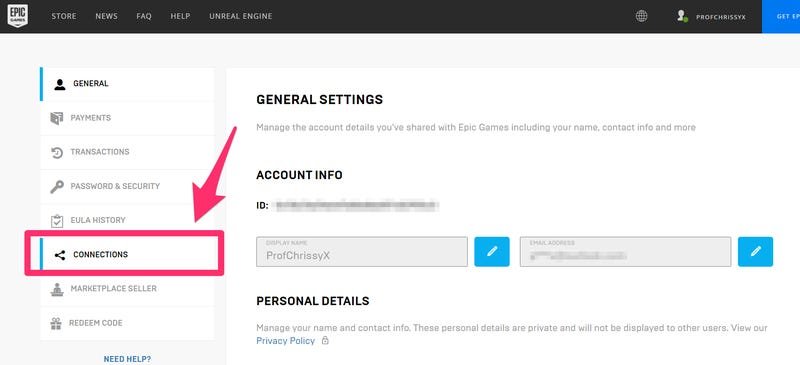
To log out of your Epic Games account, locate the profile icon in the launcher or website, click it, and then select the ‘Sign Out’ option.
Ever found yourself needing to switch accounts or just wanting a break from gaming? It happens, and knowing how to log out of epic games account is key to managing your online experience. This quick guide will show you the simple steps required.
Whether you’re on the Epic Games launcher or the website, the process is similar. It takes just a few seconds to complete the process and will help you securely manage your accounts.

How to Log Out of Your Epic Games Account
Sometimes, you need to step away from your gaming adventures, and that means logging out of your Epic Games account. It’s like closing a book after a good story, ready to pick it up again later. Knowing how to properly log out is important for keeping your account safe and secure, especially if you share a computer or device. This guide will show you exactly how to do that on different devices, ensuring you’re always in control of your account.
Logging Out on the Epic Games Launcher (PC/Mac)
The Epic Games Launcher is where you probably spend a lot of time, browsing games and starting your play sessions. Logging out here is pretty straightforward. Here’s how:
Step-by-Step Guide
- Open the Epic Games Launcher: Find the colorful icon on your desktop or in your applications list, and click it to start.
- Locate Your Profile: Look at the top-right corner of the launcher. You’ll see a circle with either your initials or a picture you’ve chosen. This is your profile.
- Click on Your Profile: Click on that circle. A drop-down menu will appear with a bunch of options.
- Find the ‘Sign Out’ Button: Within that drop-down menu, you will see an option to sign out. It’s usually near the bottom of the list. Click it.
- Confirm Your Decision: The launcher might ask you to confirm that you want to sign out. Click ‘Yes’ or ‘Sign Out’ to confirm.
And that’s it! You’re now logged out of your Epic Games account on your computer. The launcher will close itself to be prepared for another login. Next time you open it, you will need to sign in with your username and password.
Logging Out of the Epic Games Website
You might sometimes be logged into the Epic Games website when managing your account, buying games, or engaging in community discussions. Here’s how to log out from the website:
Steps to Follow
- Open Your Web Browser: Start your preferred browser like Chrome, Firefox, Safari, or Edge.
- Go to the Epic Games Website: Type
epicgames.cominto the address bar and press Enter. - Locate Your Profile: Similar to the launcher, look at the top-right of the screen for your profile icon or initials.
- Click on Your Profile: Click on your profile picture to expand a drop-down menu.
- Select “Sign Out”: Scroll down the list you see in that drop-down menu until you find the “Sign Out” button and press it.
- Verification: You will be taken to the log-in screen, confirming you have successfully logged out of the website.
This will log you out of the Epic Games website, keeping your account information safe. It’s a good practice to do this if you are using a public computer or one that you share with others.
Logging Out on Mobile Devices (Android/iOS)
If you use the Epic Games app on your phone or tablet, the log out process is very similar to the other devices, but with slightly adjusted screen elements:
Process for Mobile Devices
- Open the Epic Games App: Find and click the app icon on your home screen or app drawer to open it.
- Go to Settings: Usually, you find settings in the top or bottom corner of the screen. It might look like three lines (a “hamburger” menu) or a gear icon. Tap it.
- Find Account Options: Look for something similar to “Account,” “Settings,” or “Profile.” Select this to see your account details.
- Search for Log Out: Inside the settings, you’ll find a “Sign Out” or “Log Out” button. It might be at the bottom of the list. Tap it.
- Confirm Sign Out: The app might ask you to confirm your decision. Confirm that you want to log out.
Once you do these steps, you are logged out of your account on the app. You will need to sign in again the next time you want to use it. This is especially useful if you don’t want anyone else using your app while your phone is not with you.
Why Logging Out is Important
Logging out of your Epic Games account is not just a simple action, it’s a part of good digital hygiene and account security. Here’s why:
- Security: If you share a computer or device with other people, logging out ensures they can’t access your account, your game progress, or your payment information.
- Public Computers: When using public computers at libraries or schools, it’s vital to log out. This prevents unauthorized access.
- Account Privacy: Logging out on public or shared devices helps keep your gaming habits and personal information private.
- Avoiding Accidental Purchases: By logging out, you also avoid the risk of someone accidentally making purchases on your account.
Troubleshooting Common Logout Issues
Sometimes, even with clear instructions, you might encounter problems when trying to log out. Here are a few common issues and how to solve them:
Common Issues and Solutions
- “Sign Out” Button Not Visible:
- Solution: Double-check that you’re looking in the right menu. Sometimes, users can look in the wrong menu and then they think the log out button is not there. Also, try updating your Epic Games launcher or app to the latest version. An older version of the app could cause this problem.
- Launcher/App Not Responding:
- Solution: Try closing the launcher or app completely and opening it again. If that doesn’t work, restart your computer or device. If the issue persists, make sure you have enough memory on your computer, a full disk space can stop apps to work. Also, verify that your internet connection is working correctly.
- Persistent Login:
- Solution: Some platforms have “remember me” options. You can usually disable these in your account settings. If you are using a browser, clearing the browser cookies and cache can also help you log out of your account.
How to Protect Your Account After Logging Out
Logging out is just one step in keeping your account secure. Here are some things to do to protect it:
- Use Strong Passwords: Don’t reuse passwords and use a combination of uppercase and lowercase letters, numbers, and symbols for strong passwords.
- Enable Two-Factor Authentication (2FA): This adds another layer of security, requiring a code from your phone whenever you log in from a new device.
- Be Careful of Phishing: Do not click suspicious links or share your username or password. Epic Games will never ask you for this information in emails or messages.
- Keep Software Updated: Make sure that you keep the Epic Games launcher, app and operating system updated on your computer.
Managing Multiple Epic Games Accounts
Some players might have more than one Epic Games account, maybe for different regions or to separate their game libraries. When you switch accounts, you need to be sure you are logged out correctly from the previous one:
- Complete Log Out: Always ensure you log out completely from your current account before trying to log into a different one.
- Verify the Correct Account: Take an extra second to make sure you’re logged into the account you want to use. This step will stop you from purchasing games for the wrong account.
- Use a Password Manager: If you have many different passwords, a password manager is an effective tool to keep them safe and organized. This reduces the chances of entering the wrong password.
It’s useful to be organized if you handle more than one gaming account so that you don’t get confused and waste your valuable time.
Understanding Account Security
Your Epic Games account is valuable, containing games you’ve purchased, personal information, and possibly payment details. Proper logout practices play a crucial part in protecting all of these.
- Prevention is Key: Logging out regularly prevents potential unauthorized access by others.
- Regular Password Updates: Changing your password regularly adds an extra layer of security, even if you are not experiencing any problems.
- Checking Active Sessions: Keep an eye on active sessions in your account settings to spot any unfamiliar activity.
By keeping security in mind, you can game without worries, knowing that your account and personal information are safe.
In conclusion, logging out of your Epic Games account is a very simple, but important process. Whether you are on a PC, Mac, mobile device, or using the web, the steps are easy to follow. Taking these steps helps maintain security, privacy, and overall control of your account. Make logging out part of your routine to ensure a worry-free gaming experience. Remember to always be cautious about protecting your personal information online and ensure that you follow the guidance above so you can keep your Epic Games account safe and secure.
How to LOG OUT of Fortnite Epic Account on PS4, PS5, Xbox, Switch, & PC
Final Thoughts
To log out of your Epic Games account, you must first locate the profile icon. It’s usually in the top right corner of the launcher. Click on your icon then, select the “Sign Out” option from the menu.
This action immediately logs you out from the current session. You will then be at the login screen. Remember to confirm your changes when needed.
Therefore, this method explains how to log out of epic games account quite easily. It’s a simple process and must be done when you are using a shared computer.

