
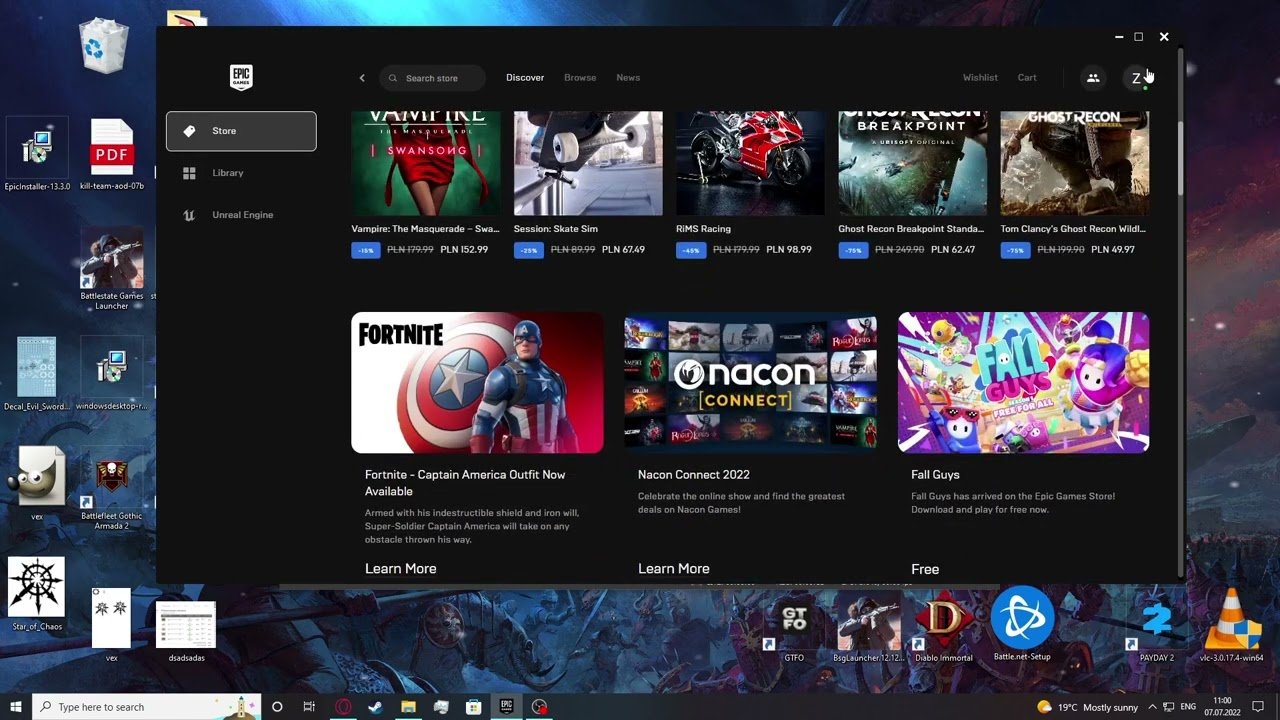
To log out of the Epic Games Launcher, click on your profile icon in the bottom-left corner, then select “Sign Out” from the menu.
Have you ever found yourself needing to switch Epic Games accounts or simply wanting to close your session? It’s a common situation, and knowing exactly how to log out of the Epic Games Launcher is pretty useful. It’s actually a simple process, but if you’re new to the launcher, the option might not be immediately obvious. Let’s quickly walk through it, making sure you can manage your sessions smoothly.

How to Log Out of Epic Games Launcher
Okay, let’s talk about logging out of the Epic Games Launcher. Maybe you’re sharing your computer with a sibling, or perhaps you just want to keep your account secure when you’re not using it. Whatever your reason, it’s a simple process, but sometimes it’s good to have a clear guide. We’ll go over all the ways you can sign out, making sure it’s easy for everyone.
Why Log Out of Epic Games Launcher?
Before we jump into the “how,” let’s quickly touch on the “why.” There are several good reasons to log out of your Epic Games account:
- Privacy: If you share your computer with others, logging out ensures nobody else can access your game library or account details.
- Security: Logging out is a good security practice, especially if you’re using a public computer, like at a library or school.
- Account Switching: Maybe you have more than one Epic Games account. Logging out allows you to easily switch between them.
- Troubleshooting: Sometimes logging out and back in can fix minor issues or glitches with the launcher.
- Taking a Break: Sometimes you might just want to take a break from gaming, and logging out of the launcher can be a symbolic step to help you do just that.
The Most Common Way to Log Out: Using the Launcher Menu
This is the most straightforward method and is likely the one you’ll use most often. Here’s how to do it:
- Open the Epic Games Launcher: Find the Epic Games Launcher icon on your computer (it looks like a square with a stylized ‘E’ in it) and click on it to open the application.
- Locate Your Profile: Once the launcher is open, look for your profile picture or initials at the bottom left corner of the screen. This usually sits next to your name or username.
- Click on Your Profile: Click on your profile picture or initials. This action will bring up a small menu with several options.
- Select “Sign Out”: In the menu that appears, you’ll see an option to “Sign Out” or “Log Out.” Click on this option.
- Confirmation: The launcher might ask you to confirm that you want to sign out. If it does, simply click “Yes” or the appropriate confirmation button.
And that’s it! You’re now logged out of the Epic Games Launcher.
Logging Out from the Settings Menu
While the profile menu is the usual spot, there’s another way to log out, though it leads to the same outcome. You can also access the log out option through the settings menu within the launcher:
- Launch the Epic Games Launcher: Start the launcher by clicking on its icon.
- Go to Settings: Look for the Settings button on the left sidebar (it usually looks like a gear icon). Click on it.
- Find Account Settings: In the Settings menu, look for an option related to “Account Settings” or similar. It might be under a heading like “General” or “Account Management.”
- Scroll Down (if needed): Scroll through the account settings. You may have to scroll down a little.
- Locate the “Sign Out” Option: You’ll find a “Sign Out” button in this section. Click on it.
- Confirm: Just like before, the launcher will likely ask you to confirm your action. Click ‘Yes’ or the confirming button.
Both methods accomplish the same task; choose the one that feels more comfortable to you.
What Happens When You Log Out?
When you log out of the Epic Games Launcher, a few things happen:
- You are no longer signed in to your account: The launcher will no longer be associated with your Epic Games account. You will need to re-enter your username (or email) and password to log back in.
- Access to your games is restricted: You can’t play any games that require you to be signed in until you log back into the launcher. This usually means you can’t play most of your purchased games, especially online multiplayer games.
- Your profile information is not visible: Others using the same computer will not have access to your account data unless you log back in.
- Launcher preferences are not affected: Any preferences or setting adjustments you made while logged in will still be remembered by the launcher. These settings are usually saved on your computer and not tied directly to the account.
Logging Out When the Launcher is Not Responding
Sometimes, the Epic Games Launcher can become unresponsive or freeze. In these cases, the regular logout methods might not work. Here’s what you can do:
Force Quitting the Launcher
The simplest approach is to force quit the launcher using your computer’s task manager. Here is how:
- Open the Task Manager:
- On Windows, you can press Ctrl + Shift + Esc or right-click on the taskbar and select “Task Manager.”
- On macOS, you can press Command + Spacebar, type “Activity Monitor,” and press Enter.
- Find the Epic Games Launcher Process: In the Task Manager/Activity Monitor, look for the process or application that is labeled “Epic Games Launcher”.
- End the Process/Force Quit: Select the “Epic Games Launcher” process, and then click the “End Task” (Windows) or “Force Quit” (macOS) button.
- Restart the Launcher: Once you have closed the launcher completely, you can start it up again, and you will be logged out.
Using Command-Line Options (Advanced)
This method is a bit more technical but can be helpful in situations where the launcher is severely unresponsive. Use this method carefully as it involves commands:
- Close the Epic Games Launcher: Make sure the launcher is closed completely using Task Manager, if needed.
- Open Command Prompt/Terminal:
- On Windows, search for “cmd” and press Enter.
- On macOS, search for “Terminal” and press Enter.
- Use the Command: Type the following command into the command prompt/terminal and press Enter:
"C:\Program Files (x86)\Epic Games\Launcher\Portal\Binaries\Win32\EpicGamesLauncher.exe" -http=disable -disablehttpcacheImportant Note: If you have installed the Epic Games Launcher in a different folder, then you need to modify that command appropriately for your system. For example, if your launcher is in D:\Epic Games, then your command will become:
"D:\Epic Games\Launcher\Portal\Binaries\Win32\EpicGamesLauncher.exe" -http=disable -disablehttpcache - Wait for Launcher to Open: The command will force the launcher to open in a way that will not store any logged-in data, so when it starts again you will be logged out.
Note: This approach might not always be necessary but is helpful in certain situations when you face unusual problems with the launcher.
Handling Multiple Accounts
Many people have multiple Epic Games accounts. Maybe one for family and one for personal use, or multiple accounts for various reasons. Logging out and switching between accounts is easy. Just follow these steps:
- Log out of the Current Account: Use either the profile menu or settings method explained earlier to sign out from the current account on the launcher.
- Restart the Launcher: Close the launcher and open it again, or let it reload its login screen,
- Enter New Account Credentials: On the login screen, type in the username or email and the password for the account you want to log in to. Click the “Sign In” button.
You can now access the game library of the newly logged-in account. Repeat the same steps when you want to switch accounts. This is quite convenient for families or individuals who use different accounts.
Additional Tips
Here are some additional things to keep in mind about logging out of the Epic Games Launcher:
- Remember Your Credentials: Make sure you remember your username/email and password before you log out. Write it down if needed, or store it securely using a password manager.
- Use Strong Passwords: Always use strong and unique passwords for all your online accounts, including your Epic Games account. This can keep your account safe.
- Enable Two-Factor Authentication: For extra security, enable two-factor authentication (2FA). This requires you to enter a code from your phone or email each time you log in from a new device. This will drastically increase your account safety.
- Keep the Launcher Updated: Make sure you have the latest version of the Epic Games Launcher installed. Updates often include important security patches.
Why the Logout Process is Crucial for Security
Logging out of the Epic Games Launcher isn’t just about switching accounts or fixing small glitches; it is primarily about security. Here is why making logging out a regular practice can enhance your security:
- Prevents Unauthorized Access: When you leave your Epic Games Launcher signed in on a computer, you are leaving it open for anyone else using the same computer to access your account. Someone with bad intent can exploit this to purchase games using your account, access your personal information, or worse. Logging out helps to secure your account and prevent any possible misuse.
- Protects Against Public Computer Risks: If you sometimes log in from public computers at libraries, schools, or internet cafes, logging out is essential. These places have many users, and leaving an active session can be a risk. There is a chance that the system might be compromised or that someone can access your account after you’re done. Logging out makes sure you do not give unauthorized access to anyone who might use the same computer later on.
- Protects Against Shoulder Surfing: Shoulder surfing is when someone tries to watch you enter your password while you type it. When you are not logged in, you don’t have to worry about someone seeing your username or password. This adds an extra layer of protection against unwanted access.
- Reduces Phishing Vulnerabilities: If your account is logged out, you have a slightly lower chance of being affected by a phishing attack that asks you to log in to the launcher from a compromised link or website, because you would not automatically be logged in when accessing these links from your browser.
- Keeps Your Account Safe if a Computer is Compromised: If your computer is ever hacked or compromised by malware, logging out can at least minimize the damage done to your Epic Games account. It doesn’t give malware an open window to your data.
In short, logging out is a key step in making sure your Epic Games account is protected. Always log out of the launcher after you’re done, especially when you’re using shared or public computers.
By following these instructions and taking the extra security steps, you can make sure your Epic Games account is safe and secure. Remember, taking a little time to log out when you are not actively using the launcher will keep your account protected from any unwanted access.
Hopefully, this comprehensive guide has made the process of logging out of the Epic Games Launcher crystal clear for you. It’s a simple but important step for privacy and security. Remember, whether you are taking a break from gaming or sharing your computer, log out when not in use! Enjoy your gaming safely!
Epic Games Store 2022 – How To Sign Out
Final Thoughts
To log out, click your profile icon in the top-right corner. A menu will appear, choose the “Sign Out” option. This will close your current Epic Games Launcher session.
Remember, you must log out if you want to use a different account. This quick method is the primary way to achieve ‘how to log out of epic games launcher’. Always double-check if you are logged out properly if you are sharing your computer with someone.

