
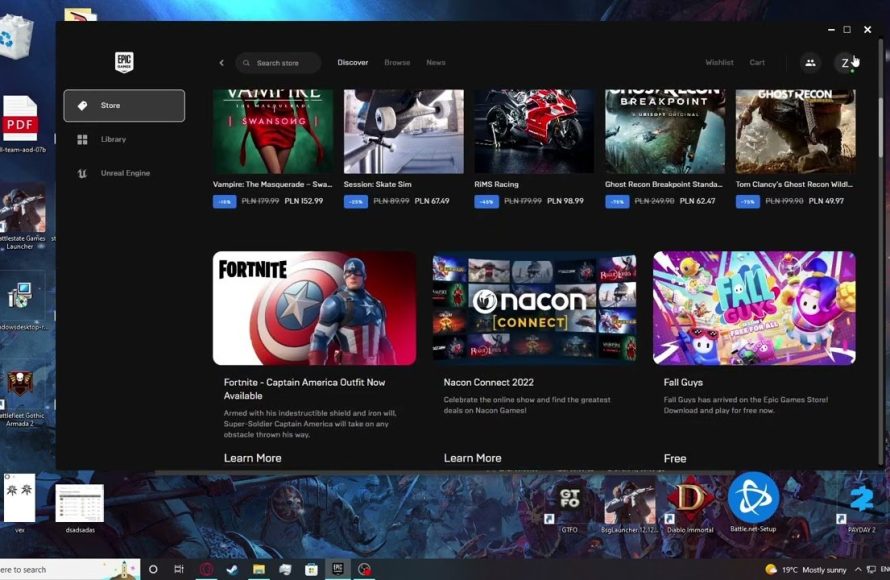
To log out of Epic Games, click your profile icon in the launcher and select “Sign Out”.
Ever found yourself needing to quickly switch accounts or simply want to step away from the Epic Games launcher? Knowing how to log out of Epic Games is essential for managing your gaming sessions. It’s a straightforward process, but it’s helpful to know the exact steps.
This quick guide will walk you through the simple method to ensure you’re logged out securely. You can then jump back in or sign into a different account with ease.

How to Log Out of Epic Games: A Complete Guide
Hey there, fellow gamers! Sometimes, you need to step away from the awesome worlds of Fortnite, Rocket League, or whatever your favorite Epic Games title is. Maybe you’re sharing your computer, or perhaps it’s just time for a break. Whatever the reason, knowing how to log out of your Epic Games account is super important. It’s actually pretty simple, but it can be a little confusing if you’re not sure where to look. Don’t worry, though! This guide will walk you through all the different ways you can sign out of Epic Games, whether you’re on your PC, console, or even on your phone. We’ll make it easy peasy lemon squeezy!
Logging Out of the Epic Games Launcher on PC
The Epic Games Launcher is the main hub for all your Epic Games goodies on your computer. Logging out here is probably the most common way to sign out of your account. Here’s how you do it:
Steps to Sign Out
- Open the Epic Games Launcher: Find the Epic Games Launcher icon on your desktop or in your start menu. It looks like a stylized “E” inside a square. Click on it to open the launcher.
- Click on Your Profile Icon: Once the launcher is open, look for your profile icon in the top-right corner of the window. It usually shows a circle with your initials or your chosen profile picture.
- Select “Sign Out”: A menu will pop up when you click your profile icon. You’ll see several options there, including one that says “Sign Out.” Click on that option.
- Confirm Sign Out: The launcher might ask you to confirm that you want to sign out. If it does, click “Sign Out” again to confirm.
That’s it! You’re now signed out of the Epic Games Launcher. Next time you open it, you’ll need to enter your email address and password (or use your other login methods) to get back in.
Logging Out of Epic Games on a Console (PlayStation, Xbox, Nintendo Switch)
Playing on a console is super fun, but the way you sign out of your Epic Games account can be slightly different. Since the account is often linked to your console profile, the process will involve using your console’s settings. Let’s see how to do it on each major console:
Signing Out on PlayStation
On PlayStation, your Epic Games account is generally linked to your PlayStation Network account. So, there isn’t a direct “sign out” button in the game itself. Here’s what you typically need to do:
- Unlink Your Account: The most secure way to log out of your Epic Games account on a PlayStation is to unlink it directly. To do this, you’ll have to go to the Epic Games Website.
- Go to the Epic Games Website: Using a web browser, go to the official Epic Games website.
- Log into your Account: Log in to your Epic Games account that’s linked to your PlayStation Network profile.
- Navigate to Connected Accounts: Go to the “Account” section. From there, look for something like “Connections” or “Connected Accounts.”
- Find Your Playstation Account: You’ll see all the accounts connected to your Epic Games profile. Find the PlayStation Network account.
- Click on Unlink: Click the unlink button near your Playstation Account.
- Confirmation: The website will ask you to confirm. Be sure that you want to unlink and confirm.
- Start game again: Now go back to your Playstation and start your game. The game will ask to link your account again. You can skip it and login to another epic game account.
Signing Out on Xbox
Just like on PlayStation, your Epic Games account on Xbox is also usually linked to your Xbox Live account. So, you will need to unlink it from the epic games website:
- Unlink Your Account: The most secure way to log out of your Epic Games account on an Xbox is to unlink it directly. To do this, you’ll have to go to the Epic Games Website.
- Go to the Epic Games Website: Using a web browser, go to the official Epic Games website.
- Log into your Account: Log in to your Epic Games account that’s linked to your Xbox Live profile.
- Navigate to Connected Accounts: Go to the “Account” section. From there, look for something like “Connections” or “Connected Accounts.”
- Find Your Xbox Account: You’ll see all the accounts connected to your Epic Games profile. Find the Xbox Live account.
- Click on Unlink: Click the unlink button near your Xbox Account.
- Confirmation: The website will ask you to confirm. Be sure that you want to unlink and confirm.
- Start game again: Now go back to your Xbox and start your game. The game will ask to link your account again. You can skip it and login to another epic game account.
Signing Out on Nintendo Switch
The process for Nintendo Switch is similar. Your Epic Games account is linked to your Nintendo Account. So, we’ll need to go to the epic games website to unlink your Nintendo Account:
- Unlink Your Account: The most secure way to log out of your Epic Games account on a Nintendo Switch is to unlink it directly. To do this, you’ll have to go to the Epic Games Website.
- Go to the Epic Games Website: Using a web browser, go to the official Epic Games website.
- Log into your Account: Log in to your Epic Games account that’s linked to your Nintendo account.
- Navigate to Connected Accounts: Go to the “Account” section. From there, look for something like “Connections” or “Connected Accounts.”
- Find Your Nintendo Account: You’ll see all the accounts connected to your Epic Games profile. Find the Nintendo Account.
- Click on Unlink: Click the unlink button near your Nintendo Account.
- Confirmation: The website will ask you to confirm. Be sure that you want to unlink and confirm.
- Start game again: Now go back to your Nintendo Switch and start your game. The game will ask to link your account again. You can skip it and login to another epic game account.
Logging Out of Epic Games on a Mobile Device
If you play games like Fortnite or Rocket League Sideswipe on your phone or tablet, the way you log out is usually handled within the game itself. Here’s what to do:
General Steps for Mobile Games
The exact steps can vary slightly depending on the game, but most mobile games follow these general steps:
- Open the Game: First, open the Epic Games title on your mobile device.
- Access the Game Settings: Look for a settings icon. It often looks like a gear or three horizontal lines. Tap on it to access the game’s menu.
- Look for Account Options: Once inside the settings menu, look for options related to “Account,” “Profile,” or something similar.
- Find the Sign Out Button: Within the account settings, you should see a “Sign Out,” “Log Out,” or similar option. Tap on it.
- Confirm Sign Out: The game might ask you to confirm that you want to sign out. Tap “Confirm” to finish the sign out process.
Specific Example: Logging Out of Fortnite Mobile
Let’s look at a specific example of how to log out of Fortnite on your mobile phone.
- Open Fortnite: Launch the Fortnite app on your phone or tablet.
- Tap the Menu Icon: Look for the three horizontal lines in the top-right corner. Tap on it to open the main menu.
- Tap the Settings Icon: In the menu, you’ll find a gear icon. Tap this icon to go to the settings.
- Tap the Account Tab: Along the top of the screen, there will be a tab labeled “Account”. Tap this.
- Tap the Sign Out Button: Under account tab, you will see “sign out” button. Tap it.
- Confirm: Confirm that you want to sign out when asked.
Why You Might Need to Log Out
There are a few common reasons why you might need to sign out of your Epic Games account:
Sharing Your Device
If you’re sharing your computer, console, or mobile device with someone else, it’s a good idea to log out of your Epic Games account. This keeps your personal info and game progress safe and separate.
Security Concerns
If you think someone else might know your password or have access to your account, logging out from all devices and changing your password is a smart move. This can prevent unwanted access and keep your account secure.
Switching Accounts
Perhaps you have multiple Epic Games accounts or you want to play on a different account. In that case, you need to log out of the current account first before logging in to the other one.
Troubleshooting
Sometimes, logging out and back in can fix certain issues or glitches you might be experiencing with the Epic Games Launcher or a specific game.
Additional Tips for Managing Your Epic Games Account
Password Security
Always use a strong and unique password for your Epic Games account. This makes it much harder for anyone to access your account without your permission. Try to use a combination of letters, numbers, and symbols.
Two-Factor Authentication
Setting up two-factor authentication (2FA) is a good step to enhance the security of your Epic Games account. With 2FA, even if someone knows your password, they won’t be able to access your account without a special code generated on your phone or other device. Always keep your 2FA methods secure.
Regularly Review Connected Accounts
It’s good to check the “Connected Accounts” section on the Epic Games website from time to time. This will show you all of the platforms that are connected to your Epic Games account (PlayStation, Xbox, etc.). If you see something you don’t recognize, you should disconnect it.
Signing out of your Epic Games account is a simple but important step to make sure your information is safe and that you have the best possible gaming experience. Whether you’re on a PC, console, or mobile, following these steps will help you manage your account effectively. Now go have some fun with your games!
How to LOG OUT of Fortnite Epic Account on PS4, PS5, Xbox, Switch, & PC
Final Thoughts
To conclude, logging out of Epic Games is quite straightforward across devices. You can find the logout option in your account settings on PC or in the settings menu on consoles. This process is similar across platforms. Remember, proper logout helps protect your account.
Therefore, understanding how to log out of epic games is a must for all users.
It ensures your account security.

