
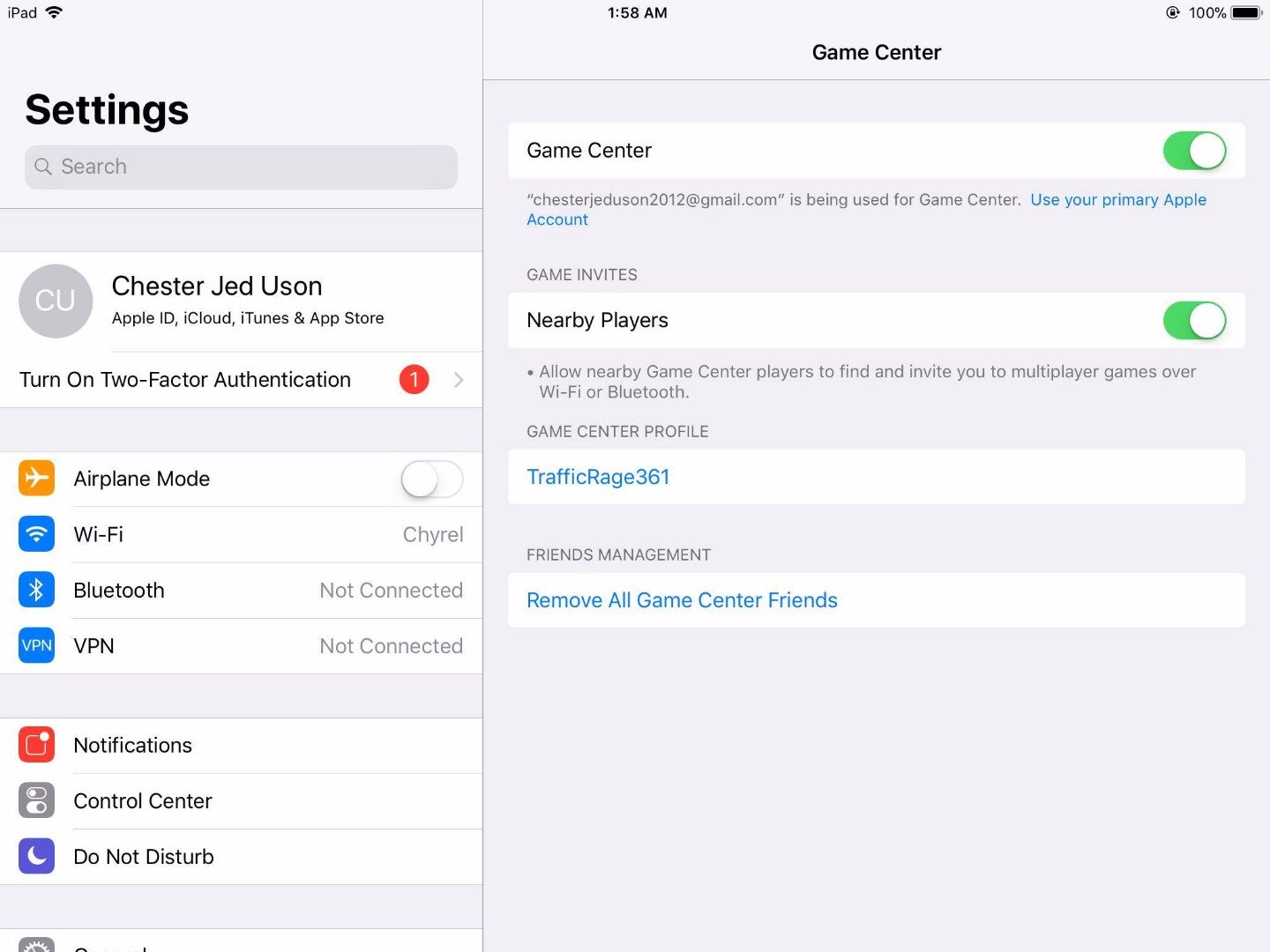
To log out of Game Center, navigate to your device’s Settings app, tap on “Game Center,” and then tap your Apple ID. Choose “Sign Out” from the menu.
Ever felt trapped in a gaming profile? Perhaps you share a device, or you just want a fresh start. It’s a common issue, and that’s why many ask how to log out of Game Center. The good news is, the solution is fairly straightforward.
We’ll guide you through the simple steps, ensuring you regain control of your Game Center access. Getting logged out doesn’t require technical knowledge, just a quick dive into your device’s settings.

How to Log Out of Game Center
Have you ever wanted to switch Game Center accounts on your Apple device? Maybe you have a new game you want to play with a different Apple ID, or perhaps you’re sharing your iPad with a sibling. Understanding how to log out of Game Center is a handy skill. It’s not always super obvious where the logout button is hidden, so let’s explore the process step-by-step. We’ll talk about different ways to sign out and what you can expect when you do. We also will cover common problems you might face while trying to log out and the quick fixes you can try.
Why Log Out of Game Center?
Before we dive into the ‘how,’ let’s quickly touch on the ‘why.’ There are several good reasons why you might want to log out of Game Center. Here are a few common scenarios:
- Switching Accounts: You might have multiple Apple IDs, each connected to a different Game Center profile. Logging out allows you to switch between them.
- Privacy Concerns: Maybe you’re sharing your device with a family member or friend and you don’t want them to access your game progress or see your achievements.
- Troubleshooting: Sometimes logging out and back in can fix minor glitches or problems you might be experiencing with Game Center.
- Preparing to Sell or Give Away your Device: Before you let go of your device, it’s important to log out of your accounts, including Game Center to protect your data and privacy.
Logging Out of Game Center: The Settings App Method
The most common way to log out of Game Center is through your device’s Settings app. This is the central hub for managing many aspects of your Apple device. This method works for iPhones, iPads, and iPod Touch devices. Let’s see how to do it:
Step-by-Step Guide
- Open the Settings App: Locate the gray gear icon on your home screen and tap it to open the Settings app.
- Tap on Game Center: Scroll down until you find “Game Center.” It’s usually near the top or middle of the list. Tap on it.
- Find Your Apple ID: Inside the Game Center settings, you’ll see your current Apple ID (the email address associated with your account). Below that email, you’ll see the option to sign out.
- Tap Sign Out: Tap the “Sign Out” button. A pop-up might appear confirming whether you want to sign out of the Game Center. Confirm this to proceed.
- Verify Sign-Out: After logging out, the area where your Apple ID was will now say “Sign In.” This indicates that you have successfully logged out.
That’s it! You’ve successfully logged out of Game Center using the Settings app. Now you’re ready to sign in with a different account or leave it logged out as per your needs.
Things to Keep in Mind
- Internet Connection: You need an active internet connection to sign out of Game Center properly.
- Game Progress: Remember that your game progress is usually tied to your Game Center account. When you sign out, your progress won’t go away. It is stored in the cloud. However, if you sign into a different account, you won’t have access to the progress saved under your previous account.
- Future Logins: Once you’ve logged out, you’ll need to sign back in with your Apple ID and password when you want to use Game Center again.
- Privacy: Remember, logging out of Game Center does not log you out of your Apple ID in general. If you want to log out of your Apple ID entirely, that’s a separate process in Settings.
Alternative Method: Signing Out Through a Game
Sometimes, a game itself offers an option to log out of Game Center. This can be a quick way to switch accounts without navigating through the Settings app. However, not all games have this function. It often depends on the game design and how deeply it uses Game Center features.
How to Find the Logout Option in Games
Here is how you can look for the sign out option:
- Check Game Settings: Look for a settings or options menu within the game itself. The logout option is often located in that area.
- Profile Sections: Some games may have a profile or account section, where you’ll find details about your Game Center account and an option to sign out.
- Look for Game Center Icons: The game’s main interface or pause menu may show the Game Center icon, tapping on it may present the sign-out button.
- Game Center Button: Some games will have a direct button for Game Center where you will be able to sign out from the same window.
Using the Game Logout Option: A Typical Example
Let’s imagine you’re playing a popular racing game. Here’s how you might log out of Game Center through that game:
- Open the Game: Launch the game.
- Go to Settings: Navigate to the game’s main menu, and look for a gear icon or a section called “Settings” or “Options”.
- Find the Game Center Tab: Within settings, look for a tab or option related to “Game Center,” “Social,” or your “Account.”
- Sign Out: If the game includes a logout function, you’ll find a “Sign Out” or “Log Out” option within that section. Tap it.
- Confirm: If the pop-up appears, confirm that you want to sign out of Game Center.
Remember that the exact steps can vary quite a bit depending on the game you’re playing. So, you have to be observant while looking for the option to sign out.
Benefits and Limitations of Game Logout
- Quick Access: This method is often faster than opening the Settings app.
- In-Game Convenience: You don’t have to leave the game environment to log out.
- Not Always Available: This method is not available for all the games, as some may not have a sign out button or they may force to use the settings to sign out.
Troubleshooting Common Issues
Sometimes, things don’t always go as smoothly as you’d like. You may face issues while logging out of Game Center. Here are some common issues and how to fix them:
“Sign Out” Button is Grayed Out or Not Available
If you find that the sign out button is grayed out or not available in the settings or in the game, it might be due to these reasons:
- Restrictions Enabled: The first reason to this is that you may have restrictions or parental controls active on your device that prevent you from changing Game Center settings.
Solution: Go to Settings, then to “Screen Time,” and then tap “Content & Privacy Restrictions.” If this is turned on, you’ll need to either disable these restrictions or change the settings for Game Center access.
- Active Downloads/Updates: If you’re downloading or updating a lot of apps, it may prevent you from making certain changes in the settings.
Solution: Wait for the downloads or updates to finish before trying to log out of Game Center.
- Temporary Glitch: Sometimes it might be a temporary problem with the system.
Solution: Try restarting your device and then see if you can sign out. Sometimes simply restarting your device can fix the issue.
Stuck on “Signing Out”
If you find that the process is stuck on “signing out” and is not completing:
- Internet Problems: A poor or unstable internet connection can cause delays or make it harder to complete the sign-out.
Solution: Make sure that you are connected to a stable Wi-Fi or cellular network. Try switching your network if possible.
- Server Issue: There may be a problem with Apple’s Game Center servers.
Solution: Wait for a while and try again later. Apple servers may be busy, or undergoing maintenance.
- Force Close Settings:
Solution: You can try force-closing the settings app or the game you are trying to sign out of.
Game Progress Not Synced After Re-logging
When you log back in, you may find that the game progress has not synced up. This is because:
- Game Center Sync Issues: Sometimes, there could be a problem with Game Center syncing progress with the game.
Solution: Make sure that you have a stable internet connection, wait for a bit and relaunch the game.
- Wrong Account: You may have accidentally logged into the wrong Game Center Account.
Solution: Double check that you have signed in to the correct Apple ID which you used to play that game.
Other Tips
- Update Software: Make sure your device is running the latest version of iOS or iPadOS. Updates can fix bugs that may interfere with logging out.
- Contact Apple Support: If none of the methods work, contact Apple Support for help. They have specialized tools and can diagnose device-specific issues.
Game Center and Apple ID: Understanding the Connection
It is important to understand how Game Center is tied to your Apple ID. Game Center is not a separate account but rather a service that uses your Apple ID to keep track of your achievements, game progress, and connect you with other players. Therefore, when you log out of Game Center, you are logging out from using your Apple ID for gaming-related activities. When you log back in, you sign in with your Apple ID.
How it works:
- One Apple ID: One Apple ID can be linked to one Game Center Profile. If you use multiple Apple IDs, you’ll have different Game Center profiles for each of them.
- Game progress: Game Progress is stored with your Apple ID and linked to your Game Center profile. This helps to sync the progress across multiple devices.
- Friends List: Your Game Center friends list is also linked with your Apple ID.
Understanding this connection can help you to manage multiple accounts and handle any potential issues.
Logging out of Game Center is a simple process that can be easily achieved through settings or the game you are playing. It’s helpful for privacy reasons, account switching, and troubleshooting. Hopefully, this detailed guide will help you manage your Game Center smoothly and easily.
How To Sign Out Of Game Center #Shorts
Final Thoughts
To exit Game Center, you must first go into your device’s settings. Then, find the ‘Game Center’ option in the list. Finally, tap your Apple ID and choose to sign out.
You’ve successfully learned how to log out of game center using the steps above. Following these simple instructions will ensure your account is properly disconnected. This is essential when sharing a device or switching accounts.

