
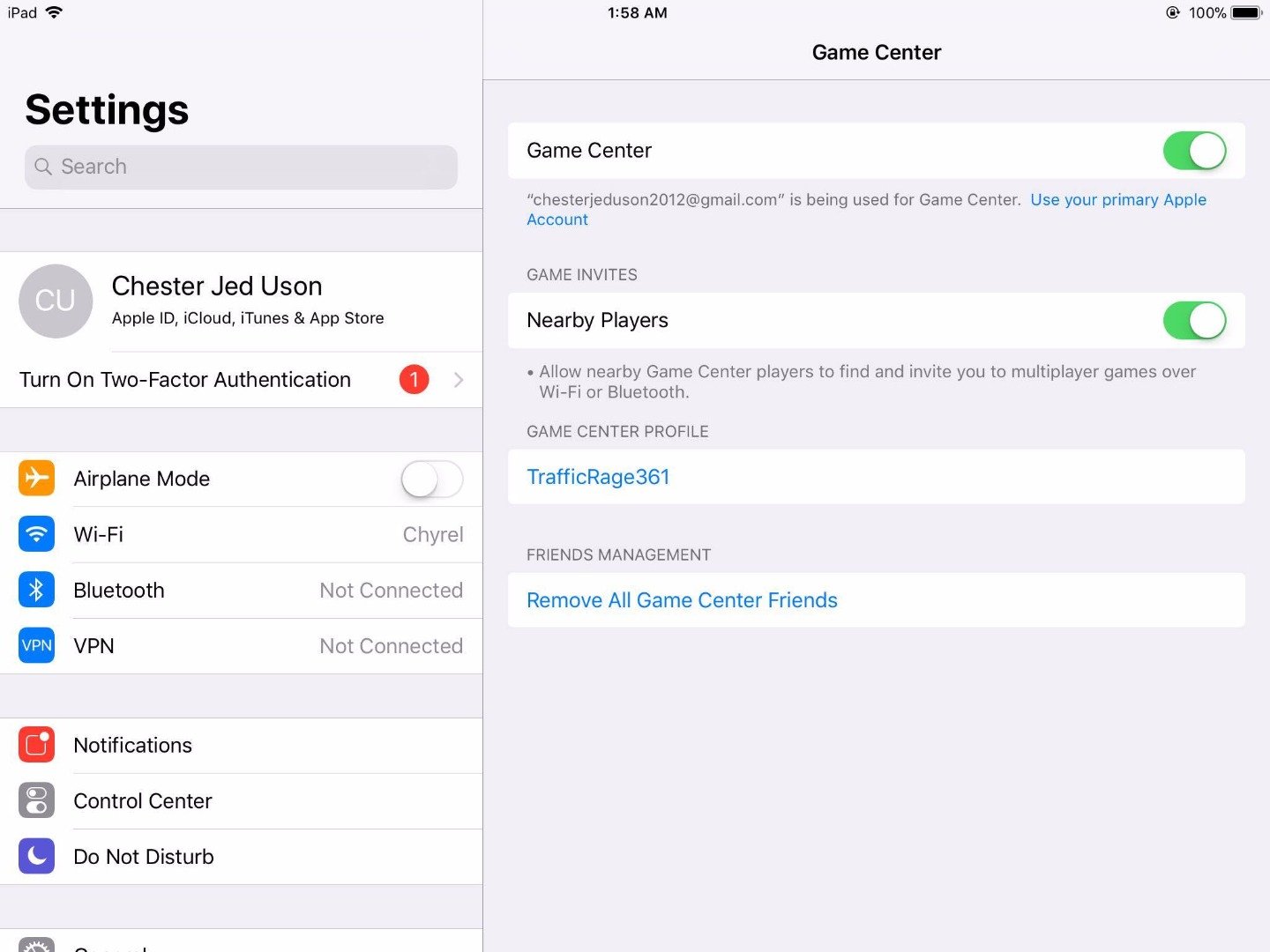
To logout of Game Center, navigate to your device’s Settings, tap on Game Center, and then tap on your Apple ID to sign out.
Ever found yourself wanting a break from your gaming achievements and leaderboards? Maybe you share a device and want to switch accounts, knowing how to logout of Game Center is pretty handy. It’s a straightforward process, but it’s not always obvious for everyone.
We’ll show you exactly how to find that sign out option. This simple guide will walk you through the steps on any of your Apple devices. Get ready to manage your gaming profile like a pro!

How to Logout of Game Center
Okay, let’s talk about Game Center. It’s like a cool clubhouse for all your games on Apple devices – iPhones, iPads, and Macs. You can track your high scores, play with friends, and see what games they’re playing. But sometimes, you might want to take a break or use a different account. That’s when knowing how to log out of Game Center becomes handy. It’s not as obvious as hitting a ‘logout’ button right on the screen, but don’t worry, it’s easy once you know where to look! In this detailed guide, we’ll go over all the different ways to sign out of Game Center, using different methods, so you’ll be an expert in no time.
Why Log Out of Game Center?
You might be wondering, “Why would I even want to log out?” Well, there are a few good reasons. Imagine your friend wants to play a game on your iPad, but they have their own Game Center account. Logging you out lets them use their profile instead. Or maybe you want to start fresh with a different Game Center ID. Perhaps your phone is being serviced or you’re selling it. Logging out ensures your personal game data is safe. Here are a few more scenarios:
- Sharing your device: If you share your iPhone or iPad with family or friends, logging out ensures they don’t accidentally use your gaming profile.
- Switching Accounts: You might have multiple Game Center accounts (maybe one for work and one for fun!), and you need to change between them.
- Protecting your data: Before selling or giving away your device, logging out of all your accounts, including Game Center, is crucial.
- Troubleshooting game issues: Sometimes logging out and back into Game Center can fix weird problems with a game not working properly.
Logging Out of Game Center on iPhone and iPad
The process for signing out of Game Center is very similar on iPhones and iPads. Since both devices use the same operating system (iOS or iPadOS), the steps are basically identical. Here’s how to do it:
Using the Settings App
This is the most common way to log out, as you are using the Settings application to manage many of your phone’s accounts.
- Open the Settings App: Find the Settings app on your home screen (it looks like a gray gear) and tap on it.
- Scroll Down to Game Center: In the Settings menu, scroll down until you see “Game Center.” It’s usually grouped with other Apple apps. Tap on it.
- Tap on Your Apple ID: At the top of the Game Center settings, you’ll see your Apple ID. Tap on it.
- Tap “Sign Out”: On the next page you will see “sign out” in blue, tap on this and this will sign you out of game center.
- Confirmation: After you tap “sign out” you may or may not be asked to confirm. If you are asked to confirm, please tap on the confirm button.
That’s it! You’re now logged out of Game Center. When you open a game that uses Game Center, it might ask you to sign in again, or you can start fresh with a different account.
Using the Apple ID Settings
Another way to sign out is through your main Apple ID settings. This method lets you manage all the services you are using with your Apple ID at once. This method is best if you are wanting to log out of every Apple application on your device.
- Open the Settings App: Find the Settings app on your home screen (it looks like a gray gear) and tap on it.
- Tap Your Name: At the very top of the Settings menu, you’ll see your name and picture (if you’ve added one). Tap on it.
- Scroll to Sign Out: Scroll down to the very bottom of this page, and there you will see the word “sign out”, tap on it.
- Confirmation and Input Passcode: You will be asked to confirm that you want to sign out, if you wish to sign out, press confirm, and you may be asked to input your device passcode to continue.
By doing this you are signing out of all Apple services including Game Center. When you sign back in, you will be prompted to input your Apple ID and password.
Logging Out of Game Center on Mac
On a Mac computer, the process to sign out of Game Center is slightly different than on an iPhone or iPad. You’ll use the System Settings app instead of the regular Settings app. Here’s how it works:
Through System Settings on Mac
- Open System Settings: Click on the Apple menu (the Apple logo in the top left corner of your screen) and choose “System Settings.”
- Click on Game Center: In the System Settings window, find “Game Center” in the sidebar (it will be grouped with Apple applications). Click on it.
- Click “Sign Out”: In the main part of the window, you will see “Sign Out” in blue next to the Apple ID. Click on it.
- Confirmation: You might be asked to confirm your decision. If prompted, confirm that you want to log out.
Through Apple ID Settings on Mac
Similar to the iPhone and iPad, you can also sign out through the Apple ID settings of your Mac. This process is also very similar to the phone settings.
- Open System Settings: Click on the Apple menu (the Apple logo in the top left corner of your screen) and choose “System Settings.”
- Click Your Name: At the top of the left menu, you will see your name and photo, click on it.
- Scroll to Sign Out: Scroll down to the bottom of this page, there you will see the “sign out” button. Click on this button.
- Confirmation and Input Passcode: You will be asked to confirm that you want to sign out, if you wish to sign out, press confirm, and you may be asked to input your device passcode to continue.
Again, this will sign you out of all Apple services including Game Center.
What Happens After You Log Out?
When you sign out of Game Center, a few things happen. Here’s a simple breakdown:
- Your profile information is gone: Your profile picture, nickname, and progress in specific games connected to Game Center are no longer visible on that device.
- You won’t get friend invites: While you’re signed out, you won’t receive friend requests or notifications from other Game Center users.
- Game progress is usually safe: Most games save your progress within the app itself, or tied to your account within the game. Your progress is usually not erased just because you’ve signed out of Game Center, but some games might not save your data if you completely uninstall the game or do not connect it to an account.
- You’ll be asked to sign in again: The next time you play a game that uses Game Center, it’ll ask you to sign in with your Apple ID.
Understanding Game Center Connection
Game Center is a system service that allows different games and applications to connect with your Apple ID so it can sync data. Understanding how it connects can help in situations when the game will not sync, or you are unsure why you are being prompted to log in. Here are some key things to remember when using Game Center.
How Games Connect to Game Center
Not every game will connect to Game Center, some games may use their own account service. But for a game to connect to Game Center it will need to have a developer that has used Game Centers API. Game Center API is a piece of software that lets different applications talk to each other. In the case of Game Center, when a developer puts Game Centers API into their game, that means that when you open up that game, it is capable of connecting your game to your game center account. If you are playing an online game, and have the Game Center logo somewhere in the game’s interface, then this is a good indication the game is using Game Center.
Why Games will Ask you to Re-sign In
If you open up a game and you are asked to sign into game center, this may be due to a few reasons. First is, that if you have logged out of your Apple account, then you will need to re-sign into Game Center. Another reason is if the application was recently updated, then you may also be asked to re-sign in. There are some cases when a game will have issues if Game Center is not active, so some games may push a user to log back into the system. It can also be a sign that there is a bigger issue happening, where the device’s connection to Game Center may be bugged and you may need to completely sign out of your apple account and sign back in.
Troubleshooting Issues with Game Center Logout
Sometimes things don’t go as planned. If you’re having trouble logging out of Game Center, here are a few things you can try:
Force Quit Settings App
Sometimes the Settings app can be a little glitchy. Try closing it completely and then open it again. Here’s how:
- On an iPhone or iPad: Swipe up from the bottom of the screen (or double-click the Home button on older models) to show all the open apps. Then, swipe the Settings app upwards to close it.
- On a Mac: Click on the Apple logo in the upper left corner and choose “Force Quit”. Select the Settings application and then click “Force Quit”
Then, open the Settings app again and try logging out.
Restart Your Device
Restarting your iPhone, iPad, or Mac can sometimes fix simple software glitches. It’s a good first step for most technical problems:
- iPhone or iPad: Press and hold the power button (or volume button and power button on newer iPhones/iPads) until the “slide to power off” slider appears. Then, slide it. Once turned off, press the power button again to turn it back on.
- Mac: Click the Apple menu and select “Restart.”
Check for Software Updates
Make sure your device has the latest software installed. Updates often include fixes for bugs and issues that may cause problems when you are trying to sign out of an application or game:
- iPhone or iPad: Go to Settings > General > Software Update. If there’s an update available, download and install it.
- Mac: Go to System Settings > General > Software Update. Download and install any available updates.
Check Your Internet Connection
A weak or unstable Wi-Fi connection can sometimes interfere with Game Center. Make sure you have a good connection or try switching to a different network.
Make Sure Your Apple ID is Working
If your Apple ID has issues, then logging in and out of any Apple Service may not work. Make sure you are able to log into your Apple account via the Apple Website or another device. If you are unable to log into your account, then please follow Apples instructions for recovering your account.
By following these simple tips you should have no problems logging out of your game center account. You can follow this guide on both Apple Phones, Tablets, and Computer devices.
If you’re still having trouble, it might be a good idea to contact Apple support or find a local Apple store for further help.
Knowing how to log out of Game Center is helpful for many situations. It allows you to change profiles, protect your data, and even troubleshoot game issues. It’s a simple process once you know where to look, and you are now a pro. Remember, if you ever get stuck, there are plenty of online resources, including the support section of Apple, that can further help you with this process. Whether you’re using an iPhone, iPad, or Mac, these steps will guide you through the simple process, making sure you are able to manage your accounts with ease.
iPhone 14/14 Pro Max: How to Sign Out Of Game Center
Final Thoughts
To log out of Game Center, you’ll typically need to navigate to your device’s settings. Find the Game Center option within the settings menu and tap on it. Locate the sign out button there.
Tap the button. This action will disconnect your account from Game Center. Knowing how to logout of Game Center provides control over your gaming identity across your Apple devices. This is a key component of account management.

