
Moving a game from one drive to another usually involves using the game platform’s built-in move feature, or manually copying the game files and updating the game’s location within the launcher.
Have you ever found your primary drive getting too full, especially with those big game installations? It’s a common problem, and thankfully, figuring out how to move a game from one drive to another isn’t as difficult as it might seem. Many platforms now offer user-friendly methods to shift games to a different storage location. This helps you manage space better.

How to Move a Game From One Drive to Another
Is your computer’s game drive getting full? It’s a common problem for gamers! Big games can take up a lot of space. You might want to move games to a different drive – maybe a faster one or a bigger one. The good news is, it’s usually not too hard to do. This article will show you different ways to move your games and talk about things to remember to keep everything working well.
Why Move Games to a Different Drive?
There are several good reasons why you might want to move your game files:
- Free Up Space: Your main computer drive (often called C: drive) is where your operating system lives. If it gets too full, your computer can slow down. Moving games to another drive will give you more space on C: drive.
- Faster Loading Times: If you have a Solid State Drive (SSD), it’s much faster than a regular Hard Disk Drive (HDD). Moving games to an SSD can make them load much faster.
- Organize Your Files: Maybe you want to keep all your games on one specific drive to keep things tidy. It’s your computer, you choose how to organize it!
- Upgrading Your Storage: You might have added a new, bigger drive and want to take advantage of the extra space.
Different Ways to Move Games
The way you move a game depends on where you got it. Some games are easy to move, while others need a bit more care. Let’s look at some of the most common game platforms.
Moving Games from Steam
Steam makes it pretty easy to move your games. Here’s how:
- Open Steam: Start the Steam application on your computer.
- Go to Settings: Click on “Steam” in the top-left corner, and then choose “Settings.”
- Select Downloads: In the settings window, click on “Downloads” in the left-hand menu.
- Click Steam Library Folders: You’ll see a button that says “Steam Library Folders.” Click on it.
- Add a New Library Folder: Click “Add Library Folder” and choose the location on the new drive where you want to keep your games. Click “Select”
- Move Games: Go back to your game library (the main screen of Steam). Right-click on the game you want to move. Select “Properties”.
- Select Local Files: In the properties window, click on the “Local Files” tab.
- Move Install Folder: You’ll see a button that says “Move Install Folder”. Click on it. Then choose the new drive and the library folder you created.
- Steam moves the game: Steam will now move all the game files to the new location. This can take some time depending on the size of the game.
Steam will take care of moving all the files properly. You won’t have to worry about anything getting mixed up.
Moving Games from the Epic Games Launcher
The Epic Games Launcher also allows you to easily move your games. Here’s how to do it:
- Open the Epic Games Launcher: Launch the Epic Games Launcher on your computer.
- Go to Library: Click on “Library” in the left-hand menu.
- Find the Game: Find the game you want to move in your library list.
- Click the three dots: Click on the three dots next to the game you want to move.
- Select Uninstall: From the menu that appears, select “Uninstall”. Don’t worry, you will reinstall it on the new drive.
- Select Install: After the game is uninstalled click on the game again in your library. Click install, then in “install location”, choose the drive where you wish to move the game.
- Epic Games moves the game: Epic games will now download and install on the new location you have selected. This can take some time depending on the size of the game and your download speed.
The Epic Games launcher handles the file transfer process, keeping everything organized for you.
Moving Games from the Xbox App (PC) or Microsoft Store
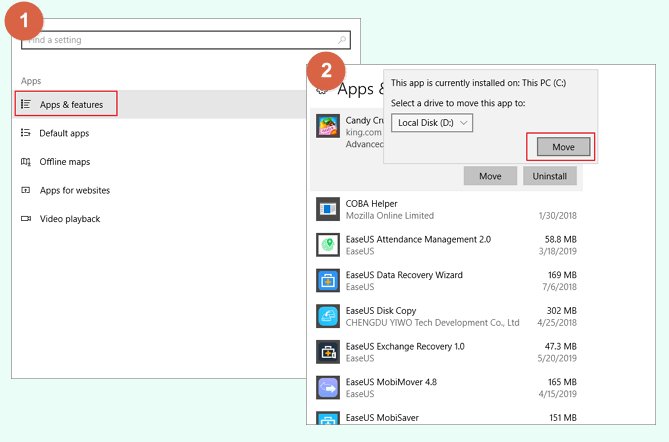
Moving games from the Xbox App or Microsoft Store is a little different. You can’t just change the install folder. Instead, you need to go through a special process:
- Open Settings: Click on the Start button, then click on the gear icon to open “Settings”.
- Select Apps: Click on “Apps” in the settings window.
- Go to Apps & Features: Click on “Apps & features”.
- Find the Game: Scroll through the list of apps and find the game you want to move.
- Click Move: Click on the game, then click the “Move” button.
- Choose the new drive: Select the new drive you want to move the game to.
- Microsoft moves the game: Click “Move” and the system will relocate the game files to your selected new drive. This will take some time based on game size.
This method will correctly change the game’s location so that the Xbox app can still find it.
Moving Games from GOG Galaxy
GOG Galaxy is another popular platform for gamers, and luckily moving games with this app is also a straightforward process:
- Open GOG Galaxy: Launch the GOG Galaxy application on your computer.
- Select a Game: Navigate to the game you wish to move in your library.
- Go to Manage: Click the “More” button or icon (usually three vertical dots) next to the selected game. Then choose “Manage Installation”.
- Select Configure: In the “Manage Installation” menu, select “Configure”.
- Change Installation Path: Click on “Change” next to the “Installation Path”. Choose a new directory on the desired drive, then click “Ok”.
- GOG Galaxy Moves Game: Confirm your selection, and GOG Galaxy will proceed to relocate the game files to the new specified location.
GOG Galaxy ensures that the game’s files and relevant settings are moved accurately to the selected drive.
Manually Moving Game Files (Not Recommended)
You might be tempted to just copy and paste your game folders from one drive to another. While this might seem like the easiest way, it’s generally not a good idea. Games are more complex than just a folder of files. They usually have registry settings and other configurations linked to their location.
If you manually copy files, the game might not work. You might have to reinstall it to get it working correctly. Always use the move features in the game platform whenever you can.
Things to Keep in Mind When Moving Games
Moving games is pretty simple, but there are some things you should always think about:
- Backup Important Files: Before you move a big game, it’s a good idea to back up any save files or important data. Just in case something goes wrong, you won’t lose your progress. You can usually find these save files in your Documents folder or in the game’s install folder.
- Make Sure You Have Enough Space: Before you move a game to a new drive, be sure that the new drive has enough empty space for it. Check the game’s file size to ensure you have enough space on the new drive.
- Be Patient: Moving games, especially large ones, takes time. Don’t interrupt the process while it’s moving. This can sometimes cause problems.
- Check Your Game After Moving: Once a game is moved, it’s a good idea to run it to make sure everything is working okay. Make sure the game loads correctly and that your saved games are still there.
- Game Updates: After moving the game, be sure to keep an eye out for new updates. Sometimes, moving games can trigger the need for the game to be updated.
Specific Considerations When Moving Different Types of Games
While the general moving process remains the same, some games might require additional care. Here are a few considerations for specific types:
- Modded Games: If you have games with mods installed, you should note which mods are installed. Moving the game might break the mod setup. After the game is moved, you might have to reinstall the mods. Always check the mod’s installation instructions when moving a modded game.
- Cloud Saves: Many games save progress to the cloud. When you move a game with cloud saves you usually don’t need to move the game saves manually. The game should keep your saves when it is installed on another drive. Just make sure you’re signed in with the correct account.
- Older Games: Older games might need additional settings to work correctly when they are moved. Some older games do not correctly work with a new path location. If you have a game that does not work after being moved, consider installing the game to its original location.
- Multiplayer Games: If you move a multiplayer game, be sure you are signed in with the same account as before. Your progress should be linked to your account and not the location of your game files.
What if Something Goes Wrong?
Sometimes, things can go wrong. If your game isn’t working after you move it, don’t panic. Here are a few things you can try:
- Restart Your Computer: A simple restart can often fix minor problems.
- Verify Game Files: Most game platforms have an option to verify game files. This checks if all the files are correct and can fix missing or corrupt files. In Steam, right-click on the game, select “Properties,” then “Local Files,” and click “Verify Integrity of Game Files.” You can usually find similar options in other game platforms.
- Reinstall the Game: If nothing else works, you might have to reinstall the game completely. This can be a bit frustrating, but it should fix any problems.
- Seek Support: If you are still having problems, search for help online or contact the game’s support team.
Moving your games to a different drive is a great way to make more space on your computer. It can also make your games load faster. By following the steps above, you can move games easily, using the features in your favorite platforms. Remember to take the time needed to keep everything running smoothly and your games fun to play!
Move installed software / Game to another drive in Windows 10/11
Final Thoughts
Moving a game is simple. You can usually do it within the game platform’s settings. Locate the install location option and choose the new drive.
The process might vary slightly across different launchers like Steam or Epic Games. Always close the game before starting the transfer.
This action effectively moves all the game files. So, that’s exactly how to move a game from one drive to another. Therefore, this task is quite manageable and you must do it correctly for game efficiency.

