
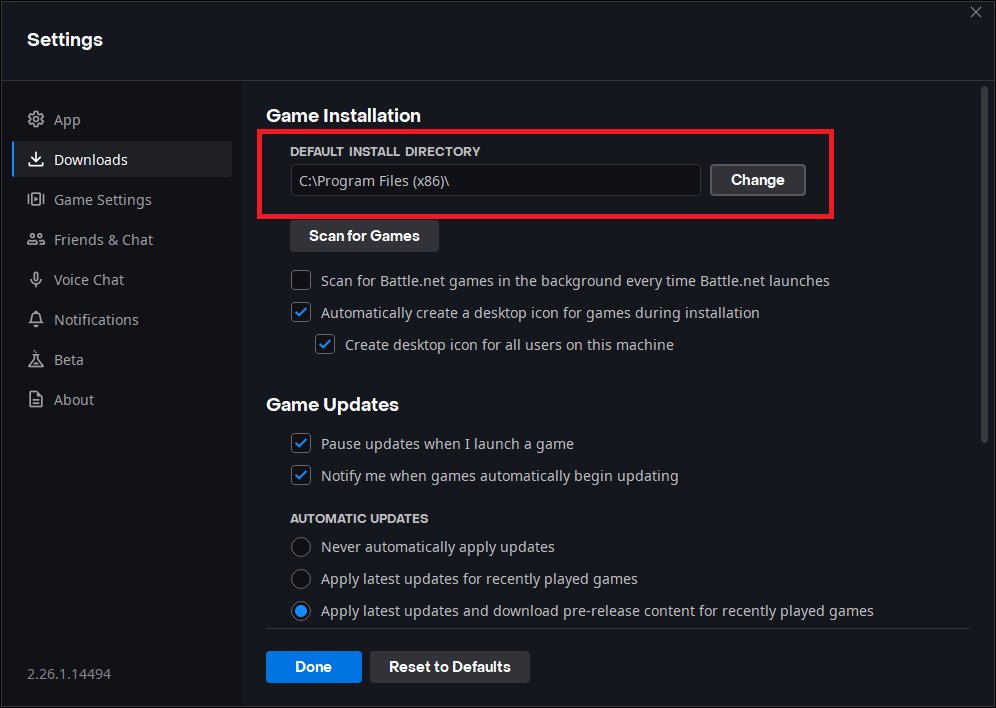
The easiest way to move a game to a different drive is by using the game platform’s built-in feature, often found in settings or the game library. This process usually involves selecting the game and choosing an option to move or install to a new location.
Do you find your primary drive filling up rapidly, leaving less space for new games? It’s a common issue, and thankfully, the solution is pretty simple. Many players wonder how to move a game to a different drive, and the good news is that it’s generally not difficult at all. Game platforms have made this process straightforward. You can usually relocate your games without needing complicated workarounds.

How to Move a Game to a Different Drive
So, you’ve got a new, speedy hard drive or maybe your old one is getting a bit too full, and now you need to move your games? Don’t worry, it’s not as tricky as it sounds! Moving games to a different drive can free up space on your primary drive (usually where Windows is installed), help with loading times if you’re using a faster drive, and generally keep things more organized. Let’s dive into the how-to of moving your precious game library.
Why Move Your Games?
Before we get into the steps, let’s talk about why you might want to do this in the first place:
- Free Up Space: Games, especially modern ones, can be HUGE! They take up a lot of room on your computer. Moving them to a different drive, especially a bigger one, means you’ll have more space for other things like important documents, photos, or even more games!
- Faster Loading Times: If your games are on a regular hard drive (HDD), moving them to a solid-state drive (SSD) can make a huge difference in how quickly they load. SSDs are much faster at reading and writing data, which means less waiting around and more playing.
- Better Organization: Keeping your operating system and your games separate can help keep your computer running smoothly. It’s like keeping your toys in a separate toy box instead of all jumbled together with your school supplies.
Preparing to Move Your Game
Before you jump in, there are a couple of things to consider. It’s a little like preparing to move your house—you need to plan a bit!
Checking Your Drive
First, let’s make sure the drive you’re planning to move the game to has enough space. How to check?
- Open File Explorer (the folder icon on your taskbar).
- Click on “This PC” on the left.
- You will see a list of your drives with space information. Look at the drive you’re planning to move to, check how much ‘free space’ available there.
You’ll need more space than the game currently takes. If you’re not sure how much space a game is using, look at its properties by right clicking on the game folder. If you are moving the game via Steam, Epic Games or other platform, these will also show the game size. Also, make sure that the drive is properly formatted. Most of the drives come formatted, but it is good to check.
Understanding Game Platforms
The way you move a game depends on where you got it from. Most games are purchased through game platforms, such as Steam, Epic Games, GOG, or even the Xbox App. Each platform handles game installations a bit differently, and this means the method for moving the game also differs.
Moving Games on Steam
Steam is one of the biggest game platforms out there, and luckily, moving games is quite easy. Here’s how you do it:
Using Steam’s Built-in Move Feature
Steam has a function that’s specially designed for moving games. This is usually the safest and easiest method.
- Open the Steam application.
- Go to your “Library”.
- Right-click on the game you want to move.
- Choose “Properties” from the menu.
- In the properties window, navigate to the “Installed Files” section, which might be labeled as ‘Local Files’ on some Steam versions.
- Click the “Move install folder” button.
- Select the new drive or folder where you wish to move the game.
- Steam will start moving the game files. It will also take care of re-configuring the install path. Wait for it to finish, and that’s it!
Adding a New Steam Library Folder
If you’re moving a lot of games or want to make sure that any future installs go to your new drive, you can set up a new Steam library folder.
- Open Steam and go to “Steam” menu at the top-left corner of the Steam window
- Select “Settings” from the menu.
- Click on “Downloads” in the Settings window.
- Click the “Steam Library Folders” button.
- Click “Add Library Folder” on the “Storage Manager” window.
- Choose the new drive (or a folder in the new drive) where you want to install games.
- Now that you’ve added a new library folder, you can choose where a game is installed during the install process. Steam will also give you the option to move games in your library using the “Move Install Folder” option we talked about earlier.
Moving Games on the Epic Games Launcher
The Epic Games Launcher is another popular choice for PC games. Moving games with it is similar to Steam, but the steps are a little different.
Moving Installed Epic Games
Epic games also comes with its own way to move the game to other drives. Let’s see how we can move a game on Epic games:
- Open the Epic Games Launcher.
- Go to your “Library”.
- Find the game you want to move and click on the three dots ( … ) next to it.
- Select “Uninstall” from the menu. Don’t worry, we’re not deleting it!
- Now, click on the game again to reinstall it.
- Before you begin the download again, the launcher will ask where you want to install the game. Choose the new drive or folder you want.
- The Epic Launcher will move the files to the new location. The game files should be present on other drive and will be moved to new drive, and the launcher will download only required small files and perform the verification process, this way game will be moved successfully.
This method isn’t as smooth as Steam’s “Move install folder” option. Epic Games Launcher will always try to download the game from the cloud, but it can detect the files are already present in the previous location, which will then be quickly moved to new location, and then small files will be downloaded. So don’t worry you’re not downloading the whole game again.
Changing the Default Installation Path on Epic Games
Just like Steam, you can also set a default installation folder in the Epic Games Launcher so all future installations will go to your new drive by default.
- Open the Epic Games Launcher.
- Click on your profile picture at the bottom-left corner of the launcher window.
- Select “Settings” from the menu.
- Scroll down to the “Default Install Location” section.
- Click on the “Browse” button to choose a new install location.
- Choose the new drive (or a folder in the new drive). From now on, all new games you download will install here.
Moving Games from GOG Galaxy
GOG Galaxy is another popular platform for gamers. It’s known for its DRM-free games. Here’s how you move games installed through GOG Galaxy:
Moving the Game Location with GOG Galaxy
GOG Galaxy provides a simple way to relocate installed games:
- Open the GOG Galaxy app.
- Navigate to the game you want to move.
- Click the “More” button (usually three dots) next to the “Play” button.
- Select “Manage Installation” and then choose “Configure”.
- In the “Installation folder” option, click on “Change folder”.
- Select the new location for your game. Click on “Ok”.
- GOG Galaxy will now relocate the game to the specified new folder/drive.
Moving Games Installed from the Xbox App
The Xbox app on Windows allows you to play Xbox games on PC. Here’s how you move games installed using this app:
Moving the Game Using Xbox App
The Xbox app also has its own way to move the installed games. Let’s find out how we can move the games using Xbox App.
- Open the Xbox app.
- Click on the game you want to move.
- Click on the three dots (…) on the top-right and select “Manage”.
- On the Manage window, click on “Files” tab and select “Change Drive”
- Select the target drive where you want to move the game and then select “Move”.
- Wait for the app to relocate the game to new location.
Moving Games Manually
Sometimes, you might have games that were not installed through any of these platforms, or if you encounter issues with the automatic methods, you can try moving game manually. This way is little more complex, but it can get the job done.
Important Note: Before starting this method, it’s essential to understand where game save files are stored. Some games store save files in the same folder as the game installation, but many keep them in your “Documents” folder or the “AppData” folder. Moving the game won’t transfer these save files, so you’ll need to copy those as well if they are not stored in the game’s installation folder. Let’s explore these methods below:
Locating Save Game Locations
To locate the game save location, you can check the following common folders:
Documents– many games store save files within the “Documents” folder, often in a sub-folder named after the game or the developer.AppData– This folder contains various app and game settings. To get here:- Press Windows + R (run) command.
- Type
%appdata%and press Enter. - Navigate back one folder level (Click on “AppData” folder in address bar) and then click on “Local” folder
- Look inside various subfolders for your specific game’s save files.
If you are still unsure, try searching on the internet for “game-name save location”, or “game-name save folder”.
Steps to Manually Move a Game
- Copy the Game Folder: Locate the game’s installation folder. This is often in “Program Files” or “Program Files (x86)”, or inside your “Steam”, “Epic Games” or GOG installation folder. Then, copy the complete game folder to the new location on your new drive.
- Copy the Save Files: Next, copy the save files if they’re not within the game’s main folder. Copy the game save files located within the “Documents”, “AppData” folder and paste them to the corresponding folder in the new location.
- Create a Shortcut: Create a new shortcut on your desktop or start menu pointing to the game’s main executable file located in the new folder.
- Uninstall from Original Location (optional): If you want to clean up, you can uninstall the game through its uninstaller located in the original game folder.
- Testing: Try to start the game using the newly created shortcut. If it loads and the save games are there, you’ve successfully moved the game!
Important Note: This method will work for most the games. However, some games may still require specific settings to be modified. So, use this method only if you can’t use any other method. This manual method doesn’t configure the game path in Windows registries. Some games rely on this location so the game may not work properly. So use this method as a last resort.
After Moving Your Games
Once you’ve moved your games, here are a few quick tips:
- Test Your Games: Always run your games to check if they work okay after the move. You don’t want to find out that something is not right right when you want to play!
- Clean up the Old Location: If you’re sure your games are working well in their new home, you can delete the game files from the original drive. This will help free up space.
- Update Game Platform Locations: Make sure you update all your game platforms such as Steam, Epic Games, GOG or Xbox app to update the new game locations. If the game path is not configured on these, then you won’t be able to play the games through these platforms.
Moving games to a different drive is a great way to manage your computer’s storage and improve game performance. While it may seem a little complicated initially, following these steps makes the process straightforward. Whether you’re a seasoned gamer or just getting started, keeping your game library organized will make your gaming sessions even more enjoyable. So, go ahead, give it a try, and happy gaming!
How To Move Epic Games To Another Drive – Full Guide
Final Thoughts
Moving a game often involves simple drag-and-drop for some platforms. Other clients offer a built-in move feature. These methods quickly shift your game data.
Always verify the game functions properly after the transfer. You must check for file integrity, just in case anything got corrupted. This process ensures a smooth gaming experience.
In short, learning how to move a game to a different drive is usually very straightforward. The method depends largely on the game platform used. You should follow the steps given for best outcome.

