
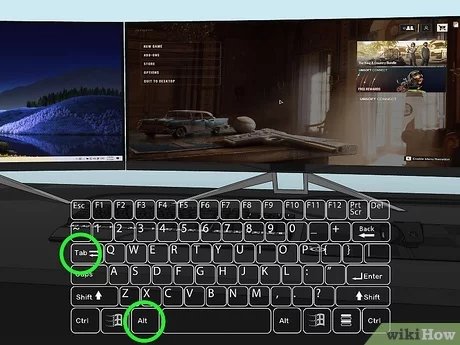
To move a game from one monitor to the other, press Windows key + Shift + Left/Right Arrow keys. This will shift the game window across your displays.
Have you ever been engrossed in an epic gaming session only to realize your game is on the wrong screen? It’s a common frustration for multi-monitor users. Learning how to move game from one monitor to the other can greatly improve your gaming experience and productivity. This simple shortcut will allow you to quickly transfer your game to your preferred display.

How to Move a Game From One Monitor to the Other
So, you’ve got a cool dual monitor setup, and you’re ready to play your favorite game. But wait! It’s showing up on the wrong screen. No worries! It happens to the best of us. Moving a game from one monitor to another is usually pretty easy once you know the tricks. This guide will walk you through all the ways you can get your game on the right display, whether you are using Windows or a Mac, and whether the game is running in fullscreen, windowed, or borderless windowed mode. We’ll also talk about what to do if things aren’t working as smoothly as you’d like.
Understanding Display Settings
Before we dive into moving games, it’s important to get a handle on your display setup. Think of your monitors like different houses on a street – each one has its own address. Knowing which monitor is “1” and which is “2” makes moving things around much easier.
Windows Display Settings
Here’s how to find your display settings in Windows:
- Right-click on your desktop.
- Choose “Display settings”.
You’ll see a visual representation of your monitors. Numbered boxes represent your screens. You can click on each one to see which is set as your main display. The main display is where things like your start menu and icons usually appear. Knowing which monitor is your main one will help predict where new applications and games will start up.
Mac Display Settings
On a Mac, the process is a little different:
- Click the Apple icon in the top left corner.
- Go to “System Settings” (or “System Preferences” on older versions of macOS).
- Choose “Displays”.
Similar to Windows, you will see a layout of your monitors. You can click the “Arrange” button to change how your monitors are positioned and which one is your main display. Dragging the monitor icons around changes the positions of them too – helpful if your monitors are not physically next to each other!
Moving Games in Fullscreen Mode
Fullscreen mode is great for gaming because it often gives you the best performance. But it can make moving your game more complicated. Here’s how you tackle this:
Using the Windows Key Shortcut (Windows)
This is often the quickest and easiest way to move a fullscreen game in Windows:
- Make sure the game is running in fullscreen mode.
- Press the Windows key + Shift + Left Arrow or Windows key + Shift + Right Arrow. The left or right arrow you use will depend on the location of your monitors in the display settings.
This shortcut will shift the game window to your other display. Sometimes it may take a couple of presses, so keep that in mind.
Using the Game’s Settings
Sometimes, games give you the choice of which monitor to use directly in the game’s settings. You’ll need to enter the game’s settings to change this. Usually look for the ‘display’, ‘graphics’, or ‘video’ menu. Within those menus, there will be an option to select a monitor to play on. You might see options like “Monitor 1,” “Monitor 2,” or the names of your monitors (if you have assigned them). If the option to move your game isn’t immediately obvious, don’t be afraid to explore the menu to check for all options.
Alt-Tab Method
The alt-tab method is useful for moving full-screen applications to other monitors, though it might not be reliable for every single game. Here’s how you can use it:
- While your game is running in fullscreen, press Alt + Tab. This will show you the open applications.
- Use Tab to select the game again, and when you release the Alt key, your game should minimize.
- Once your game is minimized, you can move it using the methods we’ll discuss for windowed games below.
This method might not work for every single game, but it’s worth giving it a try.
Moving Games in Windowed or Borderless Windowed Mode
Games in windowed mode and borderless windowed mode are much easier to move around. They are treated like any other window on your computer, which makes it easier to switch them from one monitor to another.
Click and Drag Method
The most straightforward method for windowed or borderless windowed games is to click the top of the game window (where the title bar is) and drag it to the other monitor. This works just like moving any other window on your computer, and is the best way of quickly and reliably moving these types of applications.
Using the Maximize/Restore Buttons
Sometimes, the game window might be too big for your monitor, and it can be difficult to drag it to the other one. When this happens, try this method:
- Make sure the game is running in windowed mode.
- Click the ‘restore down’ button (the one that looks like two overlapping squares) in the top right corner of the game window. This makes the window smaller and moveable.
- Drag it to your other monitor.
- Click the maximize button (the single square) in the top right corner of the game window if you want it to go fullscreen on the new monitor.
This is an efficient way to move the game around, especially when dealing with oversized windows.
Troubleshooting Common Issues
Sometimes, things don’t work quite as expected. Here are some common issues and how to fix them:
Game Always Starts on the Wrong Monitor
If your games consistently open on the wrong screen, it is likely because your main display is set incorrectly.
- Check your main display settings (using the instructions at the start of this article). Make sure you have selected the correct display to be your main display.
- If you want your games to open on your other display, change that display to your main display.
- Many games will open on the main display by default.
Game Window is Stuck or Won’t Move
If the game window is stuck, try some of the following steps:
- Try using the Windows key + Shift + Left/Right Arrow shortcut mentioned earlier (on Windows).
- Make sure the game isn’t in a weird state. Often a quick restart of the game can resolve minor software errors.
- Check that your graphics card drivers are updated. Sometimes outdated or buggy drivers can cause problems with game windows.
- Try switching between fullscreen and windowed mode to force the game to recognize the monitor change.
Game Doesn’t Support Multi-Monitor Settings
Some older games may not play nicely with multiple monitors. Sometimes the game doesn’t have the necessary options built into the game itself, and in other cases, the game simply won’t detect the other monitor.
- Try forcing the game to run in windowed mode. This is done from within the game’s menu settings (if it is an option).
- Run the game at a lower resolution. If the resolution is set too high, sometimes the game window can be pushed off the edges of your display.
- Check community forums for the specific game. Other players might have found solutions that work.
Incorrect Monitor Resolution/Aspect Ratio
If the resolution of your game is mismatched, it can result in issues with how the game appears on your monitors. Always make sure you have set the correct resolution for both the monitor and for the game.
- Check both your computer’s display settings and your game’s in-game settings for any mismatched resolutions or aspect ratios.
- Setting both to your monitor’s native resolution will often solve the problem.
Advanced Tips and Tricks
For those wanting to take things a step further, here are some advanced strategies:
Using Display Fusion or Similar Software
Third-party software like Display Fusion can offer more control over multiple monitor setups. These programs allow for easier window management, monitor profiles, and much more advanced methods of switching game locations. They also may enable features not available in the basic operating system.
Configuring Game Specific Settings
Some games have configuration files or launch options that you can edit to specify the monitor it uses. These options will vary from game to game, but they are often found in the game’s install directory. These types of options are for more advanced users who are familiar with modifying system files.
Monitor Positioning
Your display setup in the system settings should mirror your physical monitor setup. If your left screen in real life is assigned as monitor ‘2’, and the right screen is ‘1’, then you may encounter issues with dragging windows between screens. Ensure your displays are correctly positioned in your settings.
Also, sometimes, the size of your screen matters. Windows treats each display individually, and dragging applications between screens might be more difficult if the displays are vastly different in size.
Moving games between monitors should not be a complicated task, but sometimes troubleshooting is required. By utilizing this guide, you will have the tools necessary to get your game to display correctly, regardless of whether it is in fullscreen, windowed, or borderless windowed mode. You will also have the tools required to correct problems, should you run into issues.
How To Move Full Screen Game To Other Monitor – Full Guide
Final Thoughts
To move a game between monitors, use the Windows key + Shift + arrow keys. This quickly shifts the active window. Alternatively, some games have a display setting option.
You can also drag the game window with your mouse. This is another simple way to adjust.
Remember these techniques to easily achieve how to move game from one monitor to the other. Try these methods for a smooth transition during gaming.

