
Moving Riot Games to another drive requires uninstalling the game and then reinstalling it on your desired drive.
Ever felt your game drive getting cramped? You’re not alone! Many players face the issue of limited space. This leads to the question of how to move riot games to another drive. It might seem tricky, but the process is quite straightforward.
This article will guide you through a safe and efficient way to relocate your Riot Games installation. We’ll explain the steps to follow carefully. You will quickly get your game on a new, spacious location.

How to Move Riot Games to Another Drive
So, you’re running out of space on your computer’s main drive, or maybe you just got a super speedy new one and want your games there? Whatever the reason, moving Riot Games like League of Legends, VALORANT, or Teamfight Tactics to a different drive can seem a little tricky. But don’t worry, it’s totally doable! This guide will walk you through the process, step-by-step, making it easy for anyone to get their favorite games moved safely and efficiently. We will go through multiple methods, making sure there is a way that works for you.
Understanding Why Moving Games is Necessary
Before diving into the “how,” let’s quickly touch on the “why.” Games, especially modern ones like those from Riot, can take up a lot of space. If your primary drive (usually the “C” drive) gets too full, it can slow down your whole computer. Plus, if you’ve got a solid-state drive (SSD), they usually have less storage than traditional hard drives. Moving your games to a larger hard drive or a faster SSD can solve storage issues and even make your games load and run better. Imagine how quickly you could get into a League of Legends match or a VALORANT round! So, let’s explore how we can get your Riot games moved to their new home.
Method 1: The Clean Install Method (The Safest Route)
The most reliable and safest method to move Riot Games to another drive is by doing a clean install. This means you uninstall the games and then install them again on your new drive. It’s not the quickest method, but it has the least chance of causing problems. Think of it like moving all your toys to a new box, making sure everything is put in correctly from the start. Here is how you do it:
Step 1: Uninstalling Riot Games
First things first, we need to uninstall the game(s) you want to move. Follow these steps:
- Open your Windows Settings. You can do this by clicking on the Start button and then the gear icon.
- Go to “Apps” and then “Apps & Features”. This is where you’ll see all the programs installed on your computer.
- Find the Riot Games title you want to move (like League of Legends, VALORANT, or Teamfight Tactics). Click on it.
- Click the “Uninstall” button. Follow the on-screen instructions to remove the game.
- Repeat these steps for any other Riot games you want to move. Don’t worry about the Riot Client. We will take care of it in the next step.
- Also, if you installed the Riot Client separately, uninstall the Riot Client.
It’s important to remove everything completely. This helps prevent conflicts when you reinstall.
Step 2: Downloading the Riot Client Installer
Now, we need to grab a fresh copy of the Riot Client installer. This is like getting a new key to the box for your toys.
- Open your web browser and go to the official Riot Games website. You can search for “Riot Games” in your browser.
- Find the section where you can download games like League of Legends, VALORANT, or Teamfight Tactics.
- Click on one of the game titles to go to its download page. You don’t need to actually download the game yet.
- On the download page, there will be a button or link to download the Riot Client. This is a program that manages all of Riot’s games. Download the Riot Client installer.
Step 3: Installing the Riot Client to the New Drive
Now, it’s time to start the install process, and, most importantly, install it to the new drive.
- Run the Riot Client installer you just downloaded.
- During the installation process, you’ll be asked where you want to install the Riot Client. This is super important! Click on “Advanced options” or “Browse”, or something similar that allows you to choose the installation location.
- Choose the new drive you want to use. For example, if you want to install it on your “D” drive, browse to and select your “D” drive, or a folder within your “D” drive if you wish.
- Click “Install”. The Riot Client will now install on the new drive.
Step 4: Installing the Games on the New Drive
With the Riot Client installed on your chosen drive, we can now install the games there.
- Open the Riot Client, which is now installed on your new drive. You may need to sign in with your Riot account.
- Navigate to the game you want to install (like League of Legends, VALORANT, or Teamfight Tactics).
- Click the “Install” button for the game.
- Again, when prompted, make sure you choose the new drive for installation. The Riot Client will usually default to the same drive it’s installed on, but it’s good to double-check. You may have to select “Advanced Options” or “Browse” to make sure you are installing on your new drive.
- Wait for the game to download and install completely. This can take some time, depending on your internet speed.
- Repeat these steps for any other Riot games you want on the new drive.
That’s it! You’ve successfully moved your Riot Games using the clean install method. All your games, along with the Riot Client are now living happily on your new drive.
Method 2: Using Symbolic Links (For Tech-Savvy Users)
This method is for people who are comfortable with a bit of technical work. Symbolic links (or symlinks) are like shortcuts on your computer. They trick your computer into thinking a folder is in one place when it’s actually in another. With symlinks you will move the riot game files to the new drive, and then create symlinks in your old drive location that point to the new locations of those files on the new drive. This method is faster than a complete reinstall, but you should be careful because mistakes could cause your games not to work.
Step 1: Moving the Riot Games Folder
First, you will need to move the actual game files to the new drive.
- Close the Riot Client and make sure all your Riot games are closed.
- Go to the old drive where your Riot Games are currently installed, which will most likely be your C drive. The default location for Riot Games is usually: C:\Riot Games.
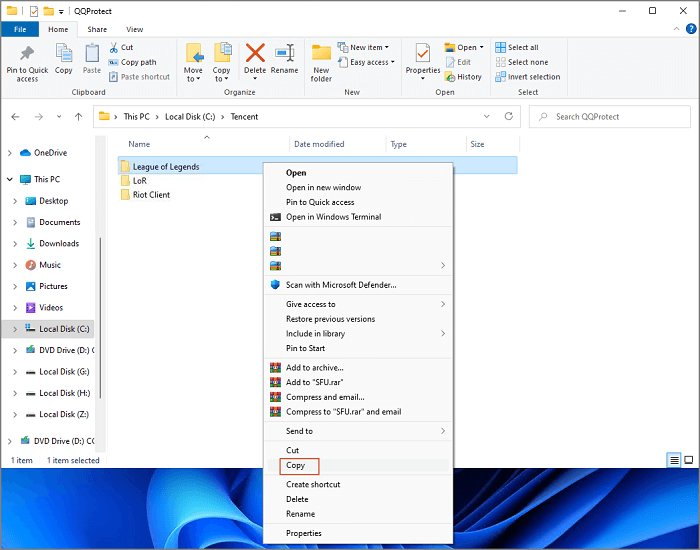
- Inside that folder, you’ll see the folder containing your game(s). For example, League of Legends will have a folder named League of Legends, VALORANT will have a folder named VALORANT, and Teamfight Tactics will have a folder named TFT. Select the folder(s) of the game(s) you would like to move.
- Copy these folder(s). Then go to your new drive and paste them there. For example, if you are moving them to your “D” drive, you will paste these folders in the D drive.
- Wait for the files to transfer. This might take a while depending on how big your games are.
Step 2: Creating the Symbolic Links
Now, we’re going to make those special shortcuts (symbolic links).
- Click on the Windows Start Button, and type “cmd” in the search bar.
- Right-click on “Command Prompt” and choose “Run as administrator”. It’s important to run it as an administrator, otherwise, the command won’t work.
- Now, we need to type the command to create the symbolic link. The command format is:
mklink /d "old_location" "new_location" - For example, if you moved the “League of Legends” folder from
C:\Riot Games\League of LegendstoD:\Riot Games\League of Legends, then you would type the following command:mklink /d "C:\Riot Games\League of Legends" "D:\Riot Games\League of Legends" - Do this for every game folder that you moved, changing the command to match the old and new location of each folder. For the VALORANT game, it would look something like:
mklink /d "C:\Riot Games\VALORANT" "D:\Riot Games\VALORANT". And for Teamfight Tactics, it would look something like:mklink /d "C:\Riot Games\TFT" "D:\Riot Games\TFT". - Press enter after each line. If done correctly, it should show “Symbolic link created”.
Remember to change the paths in the command to the actual paths of your Riot Games folders. It’s important to get these paths correct, otherwise, the method will not work.
Step 3: Testing the Games
Now that you’ve created the symlinks, it’s time to test the game. Open the Riot Client and launch each of the games that you moved to ensure they run without any issue.
That’s it! You’ve successfully moved your Riot Games using symbolic links. This method is faster than reinstalling, but it requires a little more care and attention to detail.
Method 3: Moving Through the Riot Client (Potentially Buggy)
There is a less-well-known way to move Riot Games, and that is through the Riot Client. However, it should be noted that this method is sometimes buggy and it does not always work. If you can, you should use method one or method two. But here’s how to do it, if you are interested:
Step 1: Finding the Move Option
- Open the Riot Client.
- Go to the game you want to move.
- Look for the Settings option for the specific game. It may be a gear icon, or a “Settings” button, depending on the version of the Riot Client.
- If the move option is available it should be somewhere within the settings menu for the game, such as in the “Installation” or “General” tabs. Sometimes there is an option like “Change Location”, “Move Installation,” or something similar.
Step 2: Moving the Games
- Click on the option to move the installation, and select the new drive and a new folder location on that drive, if desired.
- The Riot Client will start moving the game files to the new drive.
- Repeat the steps above for each game that you want to move.
Once again, this method is known to be buggy and it is very possible that it will not work correctly. Use this method at your own risk.
Important Considerations Before Moving Your Games
Before you start moving your games, here are a few important things to keep in mind:
- Backup Important Files: Although it’s rare that anything goes wrong, it’s good to backup important files, like saved game files, before starting.
- Sufficient Storage Space: Make sure the new drive you are moving your games to has enough space for all the games you want to move.
- Administrator Permissions: Make sure you have administrator permissions on your computer. You may need this to create symbolic links, and to install and uninstall programs.
- Stable Internet Connection: If you are going the reinstall route, make sure you have a stable internet connection for the games to download.
Troubleshooting Common Issues
Sometimes, things don’t go as planned. Here are a few common problems and how to fix them:
- Game Won’t Launch: If your game isn’t launching, try restarting your computer first. If it still doesn’t work, check if all the files were moved correctly, or if the symbolic links were created properly. If all else fails, a complete reinstallation is recommended.
- Error Messages: If you are getting error messages, carefully read them. Sometimes, the error message contains instructions on how to resolve it, or at the very least it will tell you what the issue is. Take the time to carefully read the error messages, as this will help diagnose what is going wrong.
- Riot Client Issues: If the Riot Client doesn’t work after the move, reinstall it on your desired drive to ensure everything is working correctly.
Remember, it’s okay if you encounter a problem. Take your time, double-check your steps, and you’ll get through it! If none of these things work, consider looking up the error in a search engine. Usually, someone else has experienced the same error before, and their answer could help you resolve the problem.
Moving your Riot Games to a new drive is a great way to free up space and improve your computer’s overall performance. Whether you choose the clean install method, symbolic links, or even try the Riot client method, this guide has given you all the steps and information you need to be successful. If you choose the symbolic links method, remember to double check that you have entered the correct paths. And if you are going to reinstall, remember to choose the desired drive when installing. Always remember to stay calm, and take it one step at a time. Good luck, and happy gaming!
HOW TO MOVE RIOT GAMES TO ANOTHER DRIVE!
Final Thoughts
To move Riot Games, first copy its folder. Then, uninstall the game using the Riot client. Now, paste the copied folder to your desired drive. Finally, reinstall the game via the client, pointing to the new location.
Following these simple steps makes moving your Riot Games installation easy. Therefore, knowing ‘how to move riot games to another drive’ provides control. You can manage your storage effectively.

