
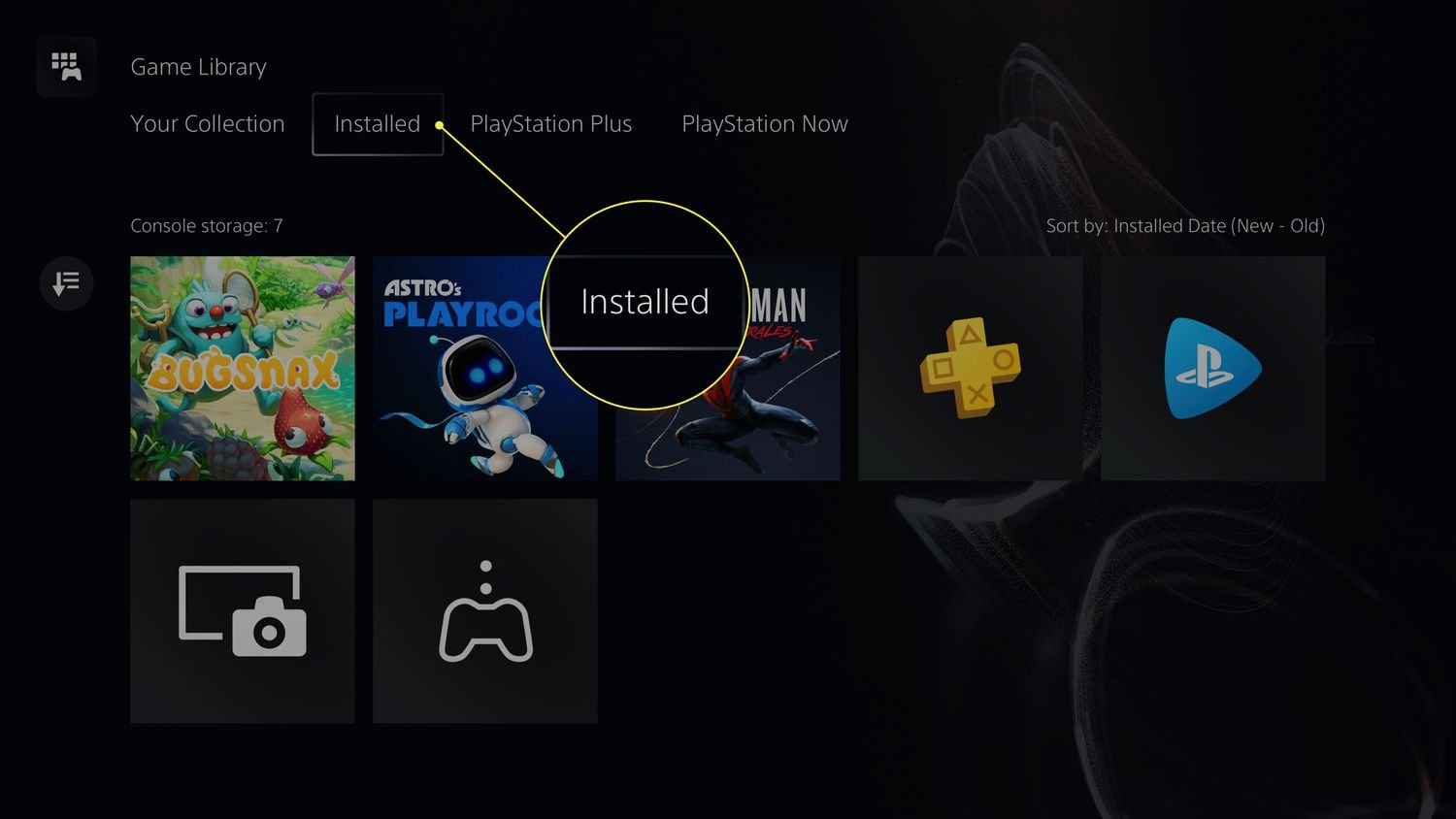
You cannot permanently delete games from your PS5 library. Games you’ve purchased are always accessible for re-download.
So, you’re wondering how to permanently delete games from your PS5 library? Many of us want a cleaner digital space. While you can’t technically remove games from your library permanently, there are steps you can take to hide them from view.
This can help declutter your interface. It is important to remember, purchased games will always remain accessible for redownloading. This guide explains how to manage your game library.

How to Permanently Delete Games from PS5 Library
Okay, let’s talk about something that might bug some of you: those games in your PlayStation 5 library that you just don’t want anymore. Maybe you finished them, maybe you didn’t like them, or maybe you just need to make space for new adventures. It’s totally normal to want to get rid of digital games you no longer play. The good news is, you can! The PS5 lets you manage your game library, including deleting games. But there’s a little more to it than just pressing a “delete” button. Let’s explore all you need to know about removing unwanted games from your PS5.
Understanding the PS5 Game Library
Before we dive into deleting games, it’s important to understand how the PS5 organizes your games. Your game library isn’t just a list of everything you’ve ever touched. It’s split into a few categories:
- Your Collection: This shows all games you own, whether they are installed or not. Think of it as your digital bookshelf.
- Installed Games: This section only shows the games that are currently taking up space on your console’s hard drive.
- PlayStation Plus: Here, you’ll find games you’ve added through a PlayStation Plus subscription. These games can be played as long as your subscription is active.
When you want to remove a game, what you’re really aiming for is getting it out of your ‘Installed Games’ section and possibly even further reducing its visibility in your ‘Your Collection’ section.
The Difference Between Deleting and Uninstalling
It’s super important to know the difference between “deleting” a game from your PS5 and simply “uninstalling” it. These terms are not the same thing:
Uninstalling Games
Uninstalling a game means removing the game data from your PS5’s storage. It’s like taking the book off your bookshelf and putting it in storage. The book still belongs to you, but it’s not taking up space. When you uninstall a game from your PS5:
- The game is removed from your ‘Installed Games’ list.
- The game is still visible in your ‘Your Collection’ library list.
- You can re-download and install the game any time you want without having to buy it again.
- Your saved game progress remains stored in cloud storage, if you have PlayStation Plus, or on your console so if you install it again you can continue where you left off.
This is the typical thing you do when you are short of space on your console and want to make room for a new game without getting rid of the old game permanently.
Deleting Games
True “deleting” of games, in the sense of permanently removing them from your library, is more complicated on the PS5. In most cases you are not really removing the game from your account, you are only removing the license or the entry in the library listing from your view. You’ll still have a record of having purchased it, and you’ll still be able to download it again if you wish.
However, to achieve the permanent or semi-permanent removal, is that you will have to take action on your game library. It is very important to note that this does not prevent you from re-downloading a game, since your purchase information is still there linked to your account.
- The game is removed from your ‘Installed Games’ list.
- The game entry is removed from ‘Your Collection’ list as well.
- You still have the purchase history for this game.
- You can re-download and install the game any time you want without having to buy it again.
- Your saved game progress remains stored in cloud storage, if you have PlayStation Plus, or on your console so if you install it again you can continue where you left off.
So, even though you can remove the game entry from your library list, the license for the game is still tied to your PlayStation account and you will always be able to download it again if you want. The next few sections will describe how to perform both actions on your PS5.
How to Uninstall Games from Your PS5
This is the most common way to remove games from your console and make space. Let’s walk through the steps:
- Turn on your PS5. Make sure you are on the home screen where you can see all your games and apps.
- Go to the Game Library. Use your controller to move the cursor on the screen, and you will find a library icon, press X on it. This will take you to your Game Library.
- Select ‘Your Collection’. In your game library you will see some tabs on the top like Games, Apps, PlayStation Plus, etc. Move the cursor left to ‘Your Collection’ and select it.
- Find the Game. Scroll through your collection to find the game you want to remove.
- Press the Options button. Once you’ve selected the game, press the Options button (the one with three lines) on your controller. This will bring up a menu.
- Choose ‘Delete’. From the menu, select ‘Delete’. A message will pop up to confirm if you really want to delete the game.
- Confirm Deletion. Select ‘OK’ or ‘Delete’ to confirm. The game will now uninstall from your console’s storage.
After you do this, the game will be gone from your installed games list. The game will still appear in ‘Your Collection’ in case you want to install it again later.
How to Remove Games from “Your Collection” List on PS5
Now, let’s talk about how to remove a game entry from “Your Collection” list. This won’t remove the game from your purchase history or prevent you from re-downloading it, but it will clean up your library and remove it from your list. It will give a feeling of permanent deletion.
The process involves using your PlayStation account on a web browser or your smartphone, as the PS5 console does not provide any direct way to do it.
Using a Web Browser
- Go to the PlayStation website. On a computer or smartphone, open a web browser and go to the PlayStation website (playstation.com).
- Sign in to your PlayStation account. Click on “Sign In” in the top right corner and enter your PlayStation account information. This must be the same account you use on your PS5 console.
- Access your library list. Hover on your Profile picture on the top and select ‘Game Library’ from the drop-down menu.
- Find the Game. Scroll through the list to find the game you want to remove from ‘Your Collection’ list.
- Remove the Game Entry. On every game tile you will see three horizontal dots, which is for options menu. Click on it and select ‘Remove from Your Collection’.
- Confirm Removal. A message will pop up to confirm if you really want to remove this game from your library list. Confirm it.
After these steps, you will not find this game in your “Your Collection” list on your PS5 console. Note that, when you purchase new games, this action will not be applied for the newly purchased games, only for the games you have previously taken out of your list following the steps provided.
Managing Saved Game Data
Before deleting games, think about your saved game data. You wouldn’t want to lose all your progress if you ever decided to play the game again, right? Here’s how the PS5 handles save data:
Save Data Options
- Cloud Storage: If you have a PlayStation Plus subscription, your saved games are automatically backed up to the cloud. This is great because it means you can pick up where you left off on another PS5 or if you re-download the game.
- Console Storage: Your saved game data is also stored on your PS5’s internal storage.
Deleting Save Data
If you want to delete your save data, here’s what you can do:
- Go to Settings. From the PS5 home screen, select the ‘Settings’ icon (the cogwheel) in the top right corner.
- Select ‘Saved Data and Game/App Settings’. Scroll down and select this option.
- Choose ‘Saved Data (PS5)’. Select this for the PS5 save data.
- Select ‘Console Storage’. Choose if you want to manage local saved games.
- Select the game whose data you want to delete. Scroll through your list of games and select the game.
- Select ‘Delete’. A message will pop up to confirm if you really want to delete the saved games. Click on Delete.
- Select the data you want to delete. Now you can delete all your game saved data for the selected game.
Important: Deleting save data can’t be undone. If you delete it and then want to play again you’ll start from the very beginning. Be certain before you delete anything.
PlayStation Plus Games and Deletion
If you are a PlayStation Plus subscriber, you might have a large list of games that you have access to through your subscription. You can uninstall them as well by following the previous steps and also remove it from your collection list. Here’s the important part:
- Uninstalling PS Plus Games: You can uninstall these games just like any other. They will disappear from your “Installed Games” list.
- Accessing PS Plus Games: These games will only be available to you as long as you have an active PlayStation Plus subscription. If your subscription runs out, you won’t be able to play them.
- Removing from the library: Same as the procedure mentioned above, the game entry can be removed from your collection list using the PlayStation website or app.
Remember, even if you “delete” a PS Plus game from your library, if you re-subscribe to PlayStation Plus in the future, you can install and play the game again. Your game licenses will be always associated with your account as long as you paid for them or they were part of a PlayStation Plus subscription.
Physical Games
The methods we have described above applies only to digital games. If you have a physical disc for your PS5 games there isn’t anything to remove or delete from the library, but you can always sell it or lend it to a friend. The only thing that the console saves is game save data, that you can manage by following the steps in the previous sections.
Why Delete Games?
There are several reasons why you might want to delete games from your PS5, but the most common ones are:
- Freeing up storage space: PS5 games can be large and take up a lot of space on your hard drive.
- Cleaning up the Game Library: It makes it easier to find the games you want to play if your library is not cluttered with old games.
- Organizing game list: You may want to hide games you do not play anymore from your list of games.
In summary, while you can’t truly remove a purchased game from your account and completely lose your access to it, you can absolutely manage your library and remove old games in order to keep the list clear and your console running smoothly.
How to Delete Games From PS5 Collection & Library (Fast Method!)
Final Thoughts
To permanently remove games, you must first delete them from your console’s storage. Then, go to your game library and remove them from the “Your Collection” view. This action permanently hides the game from your visible list.
This process ensures games don’t appear again, even after you reinstall them. Therefore, if you want to know how to permanently delete games from ps5 library, this is the way. Keep in mind that the game will still be associated with your account.

