
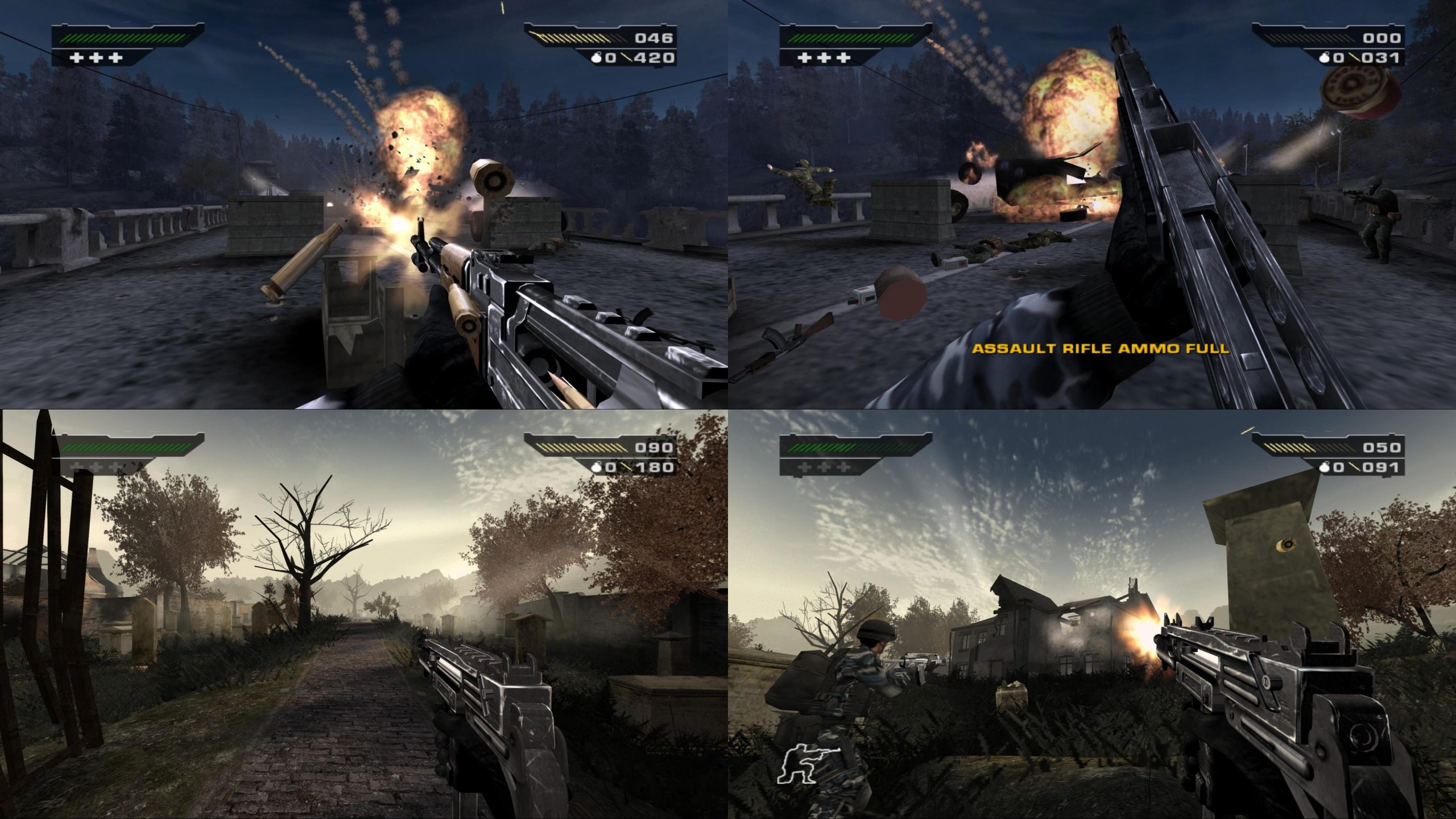
To play 60 fps games at native fps, ensure your monitor’s refresh rate is set to 60Hz or higher and that VSync is either enabled or frame rate is capped in game settings to match the monitor’s refresh rate.
Have you ever felt like your games weren’t running as smoothly as they should? It’s frustrating when a game advertised at 60 fps feels choppy. You might be wondering how to play 60 fps games at native fps, and it is a common issue that many gamers face.
The issue often stems from a mismatch between your game’s output and your monitor’s capabilities. We will help you understand this challenge and offer some quick solutions to make your gameplay experience better.

How to Play 60 FPS Games at Native FPS
Have you ever played a video game and felt like it wasn’t running as smoothly as it should? Maybe the action looked a little choppy, or the characters seemed to move in slow motion. That’s often because your game isn’t running at its intended frame rate. Many modern games are designed to run at 60 frames per second (fps), which makes everything look nice and fluid. But sometimes, your computer or console might not be able to keep up. This article will guide you through the steps to achieve that smooth, native 60 fps gaming experience.
Understanding Frame Rate and Native FPS
Before we dive into how to fix performance issues, let’s talk about what frame rate actually is. Imagine a flipbook: each page has a slightly different picture, and when you flip through them quickly, it creates the illusion of movement. A video game works similarly. Instead of pages, it uses frames. The frame rate is how many of these “pictures” your computer or console displays every second. So, 60 fps means your device is showing 60 different images every second. The higher the frame rate, the smoother and more responsive the game feels. Native fps refers to the frame rate the game is originally designed to be played at. For many games nowadays, that’s 60 fps. When your game runs at its native fps, it looks and plays exactly as the developers intended, making for a much better gaming experience.
Why is Native 60 FPS Important?
- Smoothness: Higher frame rates reduce the appearance of stuttering and choppiness, leading to a more fluid and enjoyable experience.
- Responsiveness: A higher frame rate reduces input lag, the time between when you press a button and when the action happens on screen. This is particularly important for competitive games where every millisecond counts.
- Visual Clarity: When things are moving faster, the information is clearer. 60 fps makes the game look more detailed and less blurry.
- Immersion: A smoother frame rate helps pull you deeper into the game world.
Identifying Performance Problems
Before attempting to make changes, it’s crucial to determine if your game is actually running below the intended frame rate. How can you tell if your game is running less than 60 fps? Here are some ways:
Visual Clues
- Stuttering: If the game seems to pause or skip for a fraction of a second every now and then, you’re likely experiencing a low frame rate.
- Choppiness: When movement on screen appears jerky or not smooth.
- Slow Motion: If actions happen noticeably slower than they should.
- Screen Tearing: If there’s a line across the screen where different frames don’t line up correctly, your frame rate might not be syncing well with your monitor.
Using In-Game Frame Rate Counters
Many modern games have an in-game display for frame rates. Look for settings related to performance or graphics and you will often see an option to enable an FPS counter. This is a very helpful way to see the current frames per second your game is achieving and check whether the rate is less than the intended rate. Usually you will find it in the graphics options of a game.
Using External Frame Rate Counters
If the game doesn’t have a built-in counter, you can use third party tools to monitor the performance. Some of the most popular ones are:
- Steam Overlay: If you are playing a game on Steam, you can enable an FPS counter through its settings. In the Steam overlay, go to Steam > Settings > In-Game, and then find the option to display the FPS counter.
- NVIDIA GeForce Experience (For NVIDIA GPU Users): NVIDIA users can use the GeForce Experience software for a lot of tools, including FPS counters. Press Alt+Z in the game, then click the performance button to turn on the FPS counter.
- AMD Radeon Software (For AMD GPU Users): AMD users can use their Radeon Software for FPS counters. Press Alt+R while playing and then click on Performance to toggle FPS.
- MSI Afterburner with RivaTuner Statistics Server: This popular combination allows you to not only monitor your frame rate but also other hardware information. You will need to install both pieces of software to do this. You can enable the FPS counter in RivaTuner Statistics Server’s settings.
Optimizing Your Hardware for 60 FPS
Sometimes the problem isn’t with the game itself, but with your computer or console’s ability to run the game smoothly. Here’s how you can make sure your hardware is up to the task:
Checking Your System Specifications
Before you do anything else, make sure your system meets the minimum and recommended requirements of the game you are playing. You can find this information either on the game’s packaging, in the online store where you bought it, or on the developer’s website. These specifications list the minimum and suggested hardware such as your computer’s processor (CPU), graphics card (GPU), and memory (RAM) that your system should have to properly play the game at intended frame rates. If your hardware doesn’t meet the minimum specs, you may need to upgrade your components to play the game at 60 fps.
Upgrading Your Graphics Card (GPU)
The GPU is the most important component for playing games smoothly. If you are using an older GPU or one that is not very powerful, you may experience frame rate issues. If your system meets or exceeds the minimum specs, it doesn’t mean you cannot have frame rate issues, there is always room for improvement. Upgrading to a newer, more powerful graphics card is the most effective way to play games with higher frame rates. Here are some things to consider:
- Compatibility: Ensure that the new GPU is compatible with your computer’s motherboard and power supply.
- Budget: GPUs can be expensive, so set a budget before you start shopping.
- Research: Read reviews and compare different models to find the best GPU for your needs and budget.
Upgrading Your Processor (CPU)
The CPU handles all the behind-the-scenes processing. A weak CPU can bottleneck your GPU, preventing it from reaching its full potential. Check game requirements and read reviews to learn more. A modern processor will help ensure smooth gameplay. Here are a few tips to consider:
- Socket Type: Check if the new CPU is compatible with your motherboard’s socket type.
- Core Count and Clock Speed: A higher core count allows the processor to process more data simultaneously, while clock speed determines how fast each core can perform calculations.
- Thermal Management: A more powerful CPU often requires a more capable cooler to prevent overheating.
Increasing Your System Memory (RAM)
RAM is the system’s working memory, used to temporarily store information that the computer is actively using. If your system doesn’t have enough RAM, it can slow down your games. 8GB of RAM is the bare minimum, and you should consider 16GB or more for a better experience. 32GB is the go-to memory for high-end gaming and multitasking. Here are a few things to keep in mind when considering memory upgrades:
- Speed and Type: Make sure your new RAM is compatible with your motherboard’s type (e.g. DDR4, DDR5) and speed.
- Dual Channel or Quad Channel: Consider using a configuration that allows for dual- or quad-channel memory, which can further increase performance.
- Matching Modules: Ideally, use RAM sticks that are the same speed, size, and manufacturer for better compatibility.
Upgrading Your Storage
While storage does not directly influence frame rate, upgrading from a traditional Hard Disk Drive (HDD) to a Solid State Drive (SSD) can significantly improve loading times and reduce micro-stuttering in some games, where slow loading from your storage could cause small moments of slowdowns. These moments, when combined, can cause the perception of a low frame rate. Here’s what to consider when making a change to storage devices:
- SSD Type: There are different types of SSDs, such as SATA and NVMe. NVMe SSDs are faster.
- Storage Size: Consider getting an SSD that is large enough to accommodate your operating system, games, and other frequently used software.
- Compatibility: Make sure the SSD is compatible with your motherboard.
Software Optimization for 60 FPS
Sometimes, the problem is not the hardware itself, but how it’s being used. Optimizing your software settings can also help a great deal to ensure games are running smoothly and at their intended frame rates. Let’s explore these software solutions.
Updating Your Graphics Drivers
Graphics drivers are software that your computer uses to communicate with the graphics card. Outdated or buggy drivers can cause significant performance problems. Here is how to update graphics drivers.
- NVIDIA Drivers: Download the latest drivers from the official NVIDIA website or through the GeForce Experience app.
- AMD Drivers: Download the latest drivers from the official AMD website or through the Radeon Software app.
- Intel Drivers: Download the latest drivers from the official Intel website.
Adjusting In-Game Graphics Settings
Most games have a wide range of graphics settings that you can adjust to get better performance. If you can reduce some settings while not sacrificing too much on visual quality, you will be able to play the game at a higher frame rate. Here’s a step-by-step guide:
- Start Low: Set all the graphics settings to their lowest levels.
- Test and Observe: Run the game and monitor your frame rate using one of the methods described before.
- Adjust Incrementally: Start increasing one setting at a time and test your frame rates again.
- Balance Visuals and Performance: Find a balance that gives you good visual fidelity and the desired performance.
Common Settings to Adjust
The following graphics settings are usually the ones that most affect performance. Try adjusting these:
- Resolution: Lower the resolution. The lower the resolution, the less work your computer has to do.
- Texture Quality: Lower the texture quality from high to medium or low.
- Shadow Quality: Shadows are a big resource drain, so lowering this can give you a significant frame rate boost.
- Anti-aliasing: This can be reduced or turned off for performance.
- Effects: Reduce or turn off non-essential graphics effects such as motion blur and depth of field.
Disabling Unnecessary Background Applications
Applications running in the background consume resources like CPU and RAM. Here’s what you should do:
- Close Unused Programs: Before you launch a game, close any programs that are not necessary.
- Disable Startup Programs: Many programs launch automatically when you start your computer. To disable them, you can use the Task Manager (Windows) or the System Settings (Mac).
Keeping Your Operating System Up-to-Date
Operating system updates usually include performance improvements and bug fixes that could help your system run more smoothly. Ensure you are using the latest operating system version for best performance:
- Windows Update: Go to Settings > Update & Security > Windows Update to check for updates.
- Mac OS Updates: Go to System Preferences > Software Update to check for updates.
Specific Tips for Console Gamers
If you are gaming on a console, you will have less control over the system settings. However, here are some general tips to help ensure smooth performance on a console:
Console Settings
- Performance Mode: Some console games have graphics modes which prioritize performance over visuals. Look for this option in the graphics settings of your game.
- Output Resolution: Make sure your console’s output resolution is set to match your monitor or TV’s native resolution.
Console Maintenance
- Ensure Proper Ventilation: Make sure your console has proper ventilation to prevent overheating.
- Keep it Dust Free: Dust can cause your console to overheat. Keep it clean using compressed air.
Using Performance Monitoring Software
Monitoring your system’s performance can help you identify potential bottlenecks. You can use software such as:
- Windows Task Manager: A built-in tool that shows CPU, GPU, RAM, and disk usage.
- MSI Afterburner: An overclocking and monitoring utility that provides very detailed information on your hardware.
- NZXT CAM: Software used for monitoring your hardware performance, including temperature, usage, and clock speeds.
By carefully evaluating these metrics, you can determine if any of your components are maxing out. If that is the case, it means you have a bottleneck in that particular area of the system. You will then know where to focus your attention to improve your system’s performance.
Achieving a steady 60 fps at a native frame rate is definitely possible with some careful optimization and maintenance of your system, whether that is on PC or console. By paying attention to your hardware, software, and in-game settings, you will be able to maximize your gaming performance.
Higher FPS vs Higher Resolution
Final Thoughts
To play 60 fps games at native fps, ensure your monitor’s refresh rate matches or exceeds the game’s frame rate. Adjust in-game graphic settings to hit a consistent 60 frames per second.
Lowering resolution or detail levels can help achieve a smoother experience. Verify your display driver is updated for optimal performance. These steps will guide you towards playing 60 fps games at native fps successfully.

