
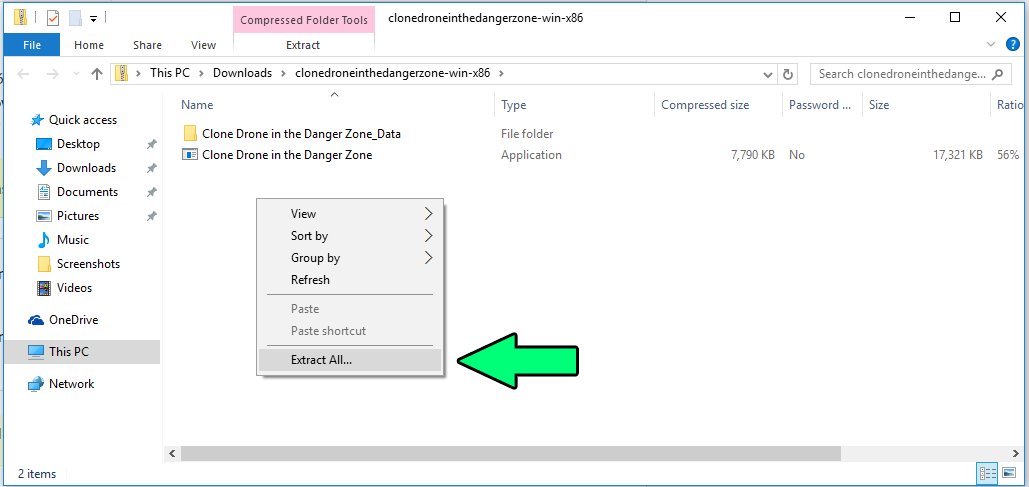
To play a game from a zip file, you must first extract the contents of the zip file to a folder on your computer, and then locate and run the game’s executable file, usually denoted by a .exe extension.
Ever found a cool game tucked away in a zip file and wondered how to get it running? It can seem a little daunting at first, but it’s actually quite straightforward once you know the steps. This article is about how to play a game from a zip file. We will walk you through the process.
Essentially, the zip file is just a container, and the game files are inside waiting to be set free. You’ll be enjoying your game in no time with just a few simple actions. Let’s get started!

How to Play a Game From a Zip File
So, you’ve downloaded a cool-looking game, but it’s all tucked away in a .zip file. Don’t worry, it’s easier than it might seem! Think of a .zip file like a tightly packed suitcase. It holds all the game’s files together in one place. To play the game, you need to unpack that suitcase and get everything ready. This article will guide you through each step, so you can get to playing your game in no time. Let’s jump right in and learn how to open those zip files!
Understanding Zip Files
Before we begin, let’s talk about what exactly a zip file is. Imagine you have a bunch of papers, pictures, and other things all scattered around. A zip file is like putting all those things into one folder and then compressing that folder to make it smaller and easier to move around. It’s a way to bundle many files into one. This makes it quicker to download and store things. Because game files can be quite large, they’re often packaged in zip files.
Why are games put in Zip files?
Games are often packaged in zip files for several reasons:
- Smaller File Size: Zip files compress the game files, making them smaller and faster to download. This is particularly helpful when games are large.
- Easy Transfers: It’s easier to transfer one zip file than many individual game files. This helps avoid missing files during the download or transfer process.
- Organization: It keeps all the game’s necessary files together. This makes it less likely that you’ll lose a needed file when dealing with a game’s folder.
- Preservation: Zipping the files helps protect them from corruption or damage during the file transfer.
The Unzipping Process
The core of getting your game to play is unzipping, or extracting, the files from the zip. Think of it like getting clothes out of that suitcase we talked about. Here’s how you do it:
Using Windows File Explorer
Windows has a built-in tool to handle zip files. Here’s how you use it:
- Locate the zip file: Find the game’s zip file you downloaded on your computer. It might be in your “Downloads” folder.
- Right-click: Right-click on the zip file. A menu will pop up.
- Choose “Extract All…”: From the menu, click on “Extract All…”.
- Choose a Location: A window will appear asking where you want to save the extracted game files. You can pick a new folder or use the same location. We recommend creating a new folder to keep things tidy!
- Click “Extract”: Press the “Extract” button. Windows will now start unzipping the files into the chosen folder.
Using macOS Finder
Apple computers have their own way of handling zip files, and it’s very simple:
- Find the zip file: Locate the game’s zip file in Finder, probably in your “Downloads” folder.
- Double-click: Just double-click the zip file. macOS Finder automatically starts extracting the contents into a new folder with the same name as the zip file.
Using Third-Party Software
If for any reason your computer has trouble with unzipping using the built-in tools, there are many free programs to assist. These are sometimes called “compression utilities” and can handle not only zip files but other compressed file formats too. Some of the popular choices are:
- 7-Zip: This is a free and open-source program that’s very good at handling many different file types.
- WinRAR: This is another well-known option, and it can extract many compressed files. WinRAR is free to try and purchase.
These tools are very easy to use. Typically, once installed, you can right-click on a zip file and select an option like “Extract here” or “Extract to folder.”
Step-by-step example: Using 7-Zip
Here’s an example of how to extract a zip file using the 7-Zip program, which you can download for free.
- Download 7-zip: Go to the official 7-Zip website and download the version of the software that’s compatible with your system. Install it on your computer.
- Locate the zip file: Find the zip file of the game you want to play.
- Right-click: Right-click on the zip file and navigate to the “7-Zip” option in the context menu.
- Choose Extraction Option: Click “Extract Here” to extract the files in the same location or click “Extract to “[foldername]”” to create a new folder.
- Wait: Wait for the files to be extracted. A progress bar should pop up on your computer screen.
- Access Files: The extracted files will be in the location you chose.
Finding the Game’s Executable File
After you’ve extracted all the files, you’ll have a folder with all the game stuff in it. Now, you have to find the special file that launches the game. This file is typically called an “executable” file, and usually has an icon and a name that matches the game.
What is an Executable File?
An executable file is what you actually click to start the game. On Windows, these files often end with a “.exe” extension. On macOS, they are usually contained within application bundles. They are the special files that tell your computer to launch the game. It is very important to find this file, as it is the primary way you will play your game.
How to Locate the Executable File
Here’s how to find the game’s executable file:
- Open the Extracted Folder: Go to the folder where you extracted the game files.
- Look for a .exe file (Windows): If you are on a Windows computer, look for a file ending in “.exe.” The icon will often be a picture related to the game.
- Look for an Application Bundle (macOS): On a Mac, the game may be a file with a .app or the folder will appear with an application icon, which can be launched by double-clicking.
- Check for ReadMe Files: Sometimes, the game may have a “readme” or “instructions” file inside the folder. This file may tell you the exact name of the executable file or give other useful information. If you are unsure, reading the readme file can be a very useful guide.
Tips for Identifying the Correct File
Here are some additional tips to help you find the right file:
- Check the name: The executable file is almost always named after the game. If your game is called “Space Adventure,” the executable file might be named “SpaceAdventure.exe” or “SpaceAdventure.app.”
- Look for the game’s icon: The game’s icon should appear on the executable file, making it easy to spot in a list of other files.
- Check the file type: Windows users can see the “type” column in Windows Explorer. The executable files are often labeled “Application.”
Dealing With Common Problems
Sometimes, things don’t go perfectly. You might run into a few bumps. Here are some common problems and how to solve them:
Missing DLL Files
Sometimes, when you try to start the game, your computer might display an error about missing “.dll” files. These files are like helper files that the game needs. If you see such an error:
- Check the Game’s Website: Often, a game’s download page will list required dependencies or have help links available.
- Install Missing Libraries: It’s also possible you might need to install something like Microsoft Visual C++ redistributables (which are freely available for download), which are very common software used by game developers.
- Google the error: The easiest thing to do if you are unsure is to type the specific error into a search engine, such as Google. Often, other users will have experienced the same error, and they may have a simple answer!
Game Not Starting
If you click the executable file, but the game doesn’t start, here are some things to try:
- Run as Administrator (Windows): Right-click on the executable file and select “Run as administrator”. This gives the game the needed permissions.
- Compatibility Mode (Windows): Right-click on the executable file, select “Properties,” then go to the “Compatibility” tab. Here, you can try running the game in compatibility mode for an older version of Windows. This can sometimes fix issues.
- Restart your computer: Sometimes, a quick restart is all it takes to get things working properly.
- Make sure your computer meets the minimum requirements: The game’s download page should list the minimum specs required to run it. Check that your computer meets those specifications.
Corrupted Files
If the game is very glitchy, it could be that some files became corrupted during the download. If this is the case, try the following:
- Redownload the zip file: If you think something might be wrong with the downloaded file, simply download a new copy and repeat the process described above.
- Try a different archive program: You may experience an issue if your archive software is not up to date. Downloading a different archive program may solve issues.
Antivirus Software
Sometimes, your antivirus software might think the game is a threat and prevent it from running. Try these steps:
- Temporarily Disable the Antivirus: If you think your antivirus program is the culprit, you can disable your antivirus temporarily and try running the game again.
- Make an Exception: Or alternatively, tell your antivirus to ignore the game files by adding the game folder as an exception to the scan.
Staying Safe
While playing games from zip files is fun, staying safe is key. Here are some important tips:
Download From Trusted Sources
Always download games from websites you trust. These could be the game’s official website, well-known game download sites, or forums known for safe links. This helps make sure that you are downloading a clean copy of the game free from viruses. It’s a good idea to read the comments or the reviews before downloading any game.
Use Antivirus Software
Make sure you have antivirus software running on your computer, and keep it updated. This software will scan the files you download and alert you if something harmful is detected.
Be Careful of Suspicious Files
If you come across any files in the zip file that you don’t recognize, or that seem very different from the game’s name, be cautious. If you are ever suspicious of a file, don’t run it or open it. Instead, delete the file, and try downloading a new copy.
Different Types of Games From Zip Files
It is worth noting that many different kinds of games might be distributed as zip files. Here are a few types of games you might encounter:
Indie Games
Many independent game developers distribute their games in zip files, particularly for platforms like Itch.io. These can be very unique games created by smaller teams.
Retro or Classic Games
Older games that may no longer be sold are often packaged into zip files for preservation and ease of use. These games, sometimes known as “abandonware”, are very common to download in zip format.
Game Mods and Fan Games
Mods or fan-created games are often distributed this way. If you want to play a modified version of a game, or a game that has been created by fans of the original game, it can often come in a zip file.
Enjoying Your Game
Now that you know how to play a game from a zip file, you’re ready to begin. Remember to always download from safe places, and to use the steps above to get your game up and running. With a little bit of care, and a few simple steps, you will be able to enjoy a great game! So, go ahead and try out that new game you have been waiting to play. You’ve got this!
Now you’ve got a good handle on playing games from zip files. Remember to be careful where you download from and follow the steps closely. By understanding the simple process of unzipping files, finding the executable, and trouble shooting common errors, you will be set to enjoy many great games.
How To Extract Games Using 7zip
Final Thoughts
To play a game from a zip file, you must first extract its contents. Locate the downloaded zip file and use your system’s built-in tool or third party software. Extract the files to a new folder on your computer.
After extraction, navigate to the folder and locate the game’s executable file, often an .exe. Double click the file to start the game. This is precisely how to play a game from a zip file, enabling you to enjoy your game.

