
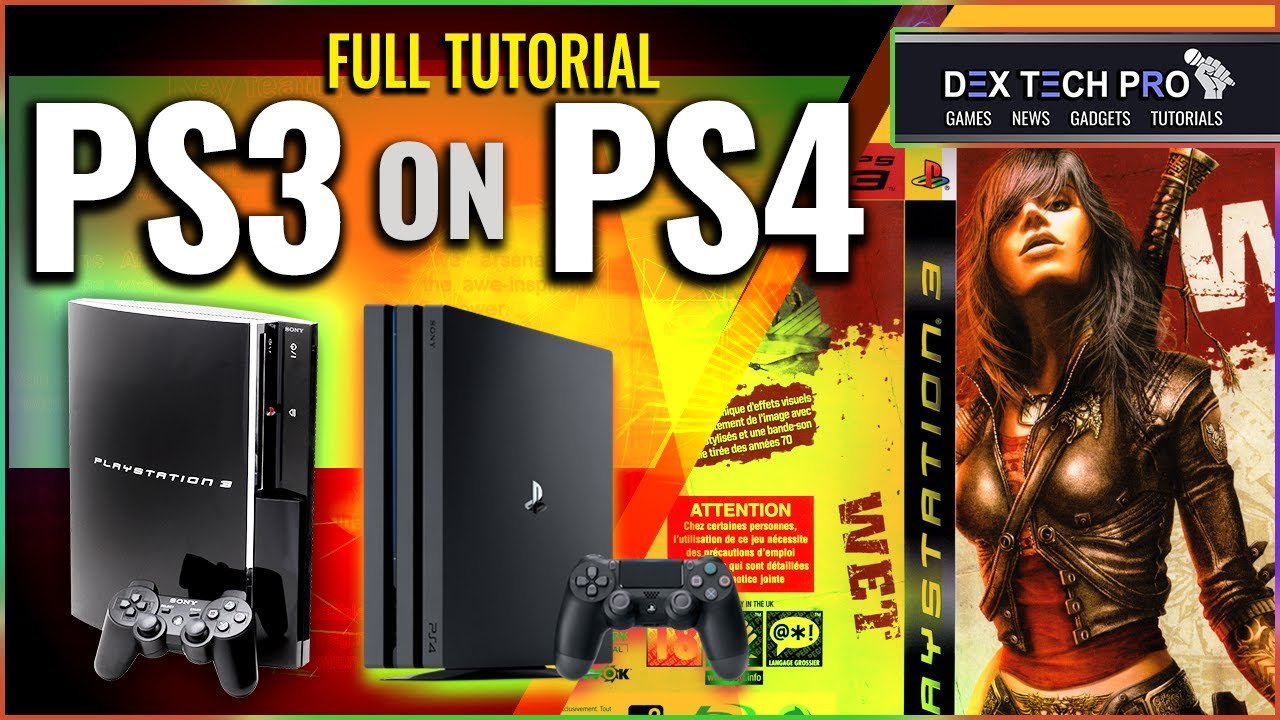
To play a game on PS3, insert the game disc, navigate to the game icon on the XMB (Cross Media Bar), and press the X button to start.
Ready to dive back into some classic gaming? Maybe you’ve just found your old console or are looking to get started for the first time. The question many ask is, how to play a game on PS3 and it’s really quite simple. This guide will quickly show you the way.
The process itself is very intuitive. You will have those cherished gaming experiences quickly. Get ready for the fun!

How to Play a Game on PS3: A Complete Guide
So, you’ve got a PlayStation 3 (PS3) and you’re itching to play some games? Great! The PS3 is a fantastic console with a huge library of awesome titles. But, if you’re new to it, knowing where to start can feel a little confusing. Don’t worry! This guide will walk you through everything you need to know to get playing your favorite games on your PS3, step by step. We’ll cover how to set up your console, insert a disc, use a digital game, and even troubleshoot some common issues. Let’s get started!
Getting Started: Setting Up Your PS3
Before you can dive into gaming, you need to make sure your PS3 is set up correctly. This might seem like a chore, but it’s actually quite easy. Let’s go through the basic steps:
Connecting the Cables
First things first, you need to connect your PS3 to your TV and power source. Here’s how:
- Power Cord: Find the power cord that came with your PS3. Plug one end into the back of the console and the other end into a wall outlet.
- Video Cable: The PS3 uses either an HDMI cable (for HD TVs) or an AV cable (for older TVs with the red, white, and yellow connectors). Plug one end into the back of the PS3 and the other into the corresponding port on your TV.
- Controller: Make sure your controller is charged. You can charge it by plugging it into the PS3 with a USB cable.
Turning on Your PS3
Once everything is connected, press the power button on the front of the PS3. It’s a small, round button, often located towards the left side of the console. The power light will turn green when it’s on. Your TV should now display the PS3 startup screen. If it doesn’t, make sure your TV is on the correct input source. Look for a button on your TV remote labeled “Source”, “Input”, or something similar. Use this button to cycle through the available inputs until you find the PS3 screen.
Initial Setup
The first time you turn on your PS3, you’ll be guided through a short setup process. This might involve:
- Selecting your language.
- Choosing your screen settings. Don’t worry if you’re not sure, you can always change it later.
- Connecting to your Wi-Fi network, if you have one. This lets you download games and updates.
- Creating a user profile. This is where you’ll store your game progress and settings.
Playing a Game Disc
Now that your console is set up, let’s get to the fun part – playing a game! If you have a physical game disc, follow these simple steps:
Inserting the Game Disc
- Make sure the PS3 is turned on.
- Find the disc drive slot on the front of the PS3. It is located on the right-side of the console.
- Carefully insert the disc, with the label facing up. The PS3 will pull the disc in automatically.
Starting the Game
- Once the disc is inserted, your PS3 will recognize the game.
- You should see the game’s icon appear on the main menu screen, also called the XMB menu.
- Use the left stick or the directional buttons on your controller to navigate to the game’s icon.
- Press the ‘X’ button on your controller to start the game.
The game will then load, and you’ll be ready to play. It’s that easy!
Playing a Digital Game
If you have a digital game (a game that you downloaded from the PlayStation Store), playing it is even quicker!
Finding Your Digital Games
All your digital games are found in the Game section of the XMB menu. Scroll over to the Game icon using the left stick or directional buttons on your controller. Then select “Game”. You will see a list of all the games you have downloaded, you can simply browse through the list.
Starting a Digital Game
- Navigate to the game you want to play.
- Select the game and press ‘X’ button to start the game.
- The game will then load and start playing.
Understanding the PS3 Controller
The DualShock 3 controller is your main tool for playing games on the PS3. It might look a bit complicated at first, but once you know what each button does, it will become second nature.
Basic Controller Layout
Here are the main buttons and what they usually do:
| Button | Function |
|---|---|
| Directional Buttons (D-pad) | Used for navigating menus and moving characters in some games. |
| Left Analog Stick | Used to control character movement in most 3D games. |
| Right Analog Stick | Used to control camera movement in most 3D games. |
| X Button | Usually used for selecting items, confirming actions, or jumping in games. |
| O Button | Usually used for cancelling actions or going back in menus. |
| Square Button | Often used for different actions, depending on the game. |
| Triangle Button | Often used for different actions, depending on the game. |
| L1 and L2 Buttons | Located on the top left of the controller, used for various actions in games. |
| R1 and R2 Buttons | Located on the top right of the controller, used for various actions in games. |
| Start Button | Pauses the game and displays in-game menu. |
| Select Button | Often used for various actions, depending on the game. |
| PS Button | Opens the PS3 main menu while in game, or turn on/off the controller. |
Vibration Feedback
The DualShock 3 controller also has vibration feedback, which adds another layer of immersion to your games. You will feel the controller vibrate during specific moments in games, like during explosions or other in-game events.
Saving Your Game Progress
It’s very important to save your game progress, otherwise, you could lose all the hard work you have done. This is easy to do on the PS3.
Auto Save
Many games have an “auto save” feature, which automatically saves your progress at specific points in the game. You do not need to do anything. However, this does not mean that you don’t need to manually save your progress as auto save is often based on a pre-defined points and do not usually record all of your game progress and activities.
Manual Save
Most games will also let you manually save your progress. Here’s how to do it:
- In the game, you need to find the menu for saving game. Usually, this can be accessed from the in-game menu that can be accessed by pressing the “Start” button on your controller.
- Select the save game option.
- Choose a slot where you want to save the progress, or overwrite an existing save.
- Confirm the save game, and your game will be saved in the selected save slot.
Always make sure to save your game regularly, this will prevent frustration in case your game is crashed, or there is a power outage.
Troubleshooting Common Issues
Sometimes, you might encounter issues while trying to play a game. Here are a few common problems and how to solve them:
Game Won’t Load
If the game doesn’t start after inserting a disc, or doesn’t start when you click on the digital game icon, try these:
- Make sure the disc is clean and free of scratches. Wipe it gently with a soft cloth.
- Make sure that the game disc is properly inserted in the disc tray.
- Restart your PS3. Sometimes, a simple restart can fix many problems.
- If you have a digital game, try deleting and downloading it again.
Controller Not Responding
If your controller is not working properly, follow these steps:
- Make sure the controller is charged. Plug it into the PS3 with a USB cable to charge it.
- Make sure the controller is properly synced with your PS3. Sometimes you need to press the ‘PS’ button and re-sync the controller with the console.
- Try using a different controller to see if the problem is the controller itself.
Screen Freezes
If your screen freezes during game play, try these:
- Restart your PS3.
- Make sure your PS3 is not overheating. Make sure the ventilation slots are clear and dust-free.
- If the game freezes at a specific point, try loading an earlier save.
Sound Issues
If you don’t have any sound when playing a game, try these:
- Make sure the volume on your TV is not muted or set too low.
- Make sure the audio cables are correctly connected to your TV.
- Check the sound settings on your PS3. Make sure your audio output is set correctly.
Tips for a Better Gaming Experience
Here are some additional tips to enhance your PS3 gaming experience:
Keep Your PS3 Updated
Make sure your PS3 is running the latest system software. This will ensure that your games work correctly, and also gives you access to new features and security enhancements. You can update your system software from the system settings section on the XMB menu.
Care for Your Discs
Handle your game discs carefully, always hold the edge of the disc rather than touching the smooth surface, and store them in their cases when you’re not using them. This will help prevent scratches and damage, and lengthen the life of the game.
Try Different Games
Don’t be afraid to try different genres of games. The PS3 has a huge library of different kinds of games, from action and adventure games to racing games, sports games, and many more. You can explore and find new games that you might like.
Play Online
The PS3 offers online multiplayer games. Playing with your friends or other gamers online adds a new dimension to your gaming experience.
Join Online Communities
Join online communities related to your favorite games. You can connect with other players, share tips, and get help with game challenges.
Playing games on the PS3 should be fun and enjoyable. With this guide, you should be able to start playing your favorite games quickly and easily. And remember, if you’re ever stuck, there are many online resources and communities that can help. Happy Gaming!
How to start a Playstation 3 Game (Tutorial)
Final Thoughts
To play a game on your PS3, insert the disc into the console. Then, power on the system. Navigate to the game icon using the controller and select it.
The game will then start loading. Follow the on-screen prompts. This is the main process on how to play a game on ps3. Remember to always have a properly functioning controller.

