
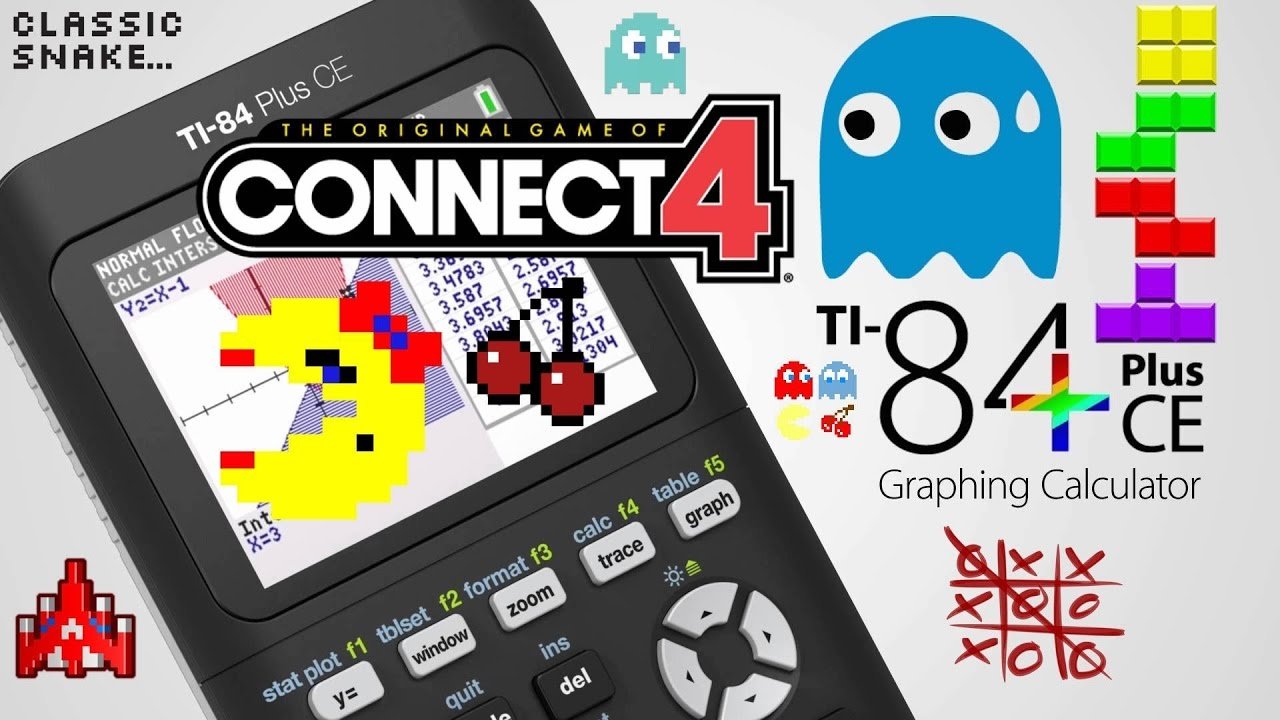
To play a game on your TI-84 Plus, you typically need to transfer a compatible game file onto the calculator using a computer and a linking cable, then access it through the program menu.
Ever wondered if your trusty TI-84 Plus calculator could do more than just crunch numbers? Many people don’t know that these devices can actually run games! It might sound complicated, but figuring out how to play a game on ti-84 plus is simpler than you might think.
With the right steps, you can enjoy some fun diversions on your calculator. This process involves loading specific files and navigating the menu options. Lets get started to make your calculator more fun!

How to Play a Game on a TI-84 Plus Calculator
So, you’ve got a TI-84 Plus calculator, and you’re not just using it for math class? Awesome! These calculators are powerful little computers, and they can actually play some pretty fun games. It’s not like your PlayStation or Xbox, but it’s a cool way to pass the time, especially if you’re stuck somewhere without your phone. Let’s get right into how to get these games on your calculator and start playing!
Getting Games on Your TI-84 Plus
First things first, your TI-84 Plus doesn’t come with games pre-installed (except maybe a very basic one). You need to find and transfer games to it. Think of it like downloading an app on your phone, but way more nerdy. There are generally two main ways you can do this:
Using a Computer and USB Cable
This is the most common way people get games on their TI-84 Plus. You’ll need a few things:
- Your TI-84 Plus calculator.
- A mini-USB cable. (The one that usually comes with the calculator.)
- A computer (Windows or Mac) with internet access.
Here’s how it works:
Step 1: Finding Games
The first step is to find some games you want to play. There are many websites that host TI-84 Plus calculator games. Some good places to look include:
- ticalc.org: This website is a very popular place to find all sorts of calculator programs and games.
- cemetech.net: Another large community with lots of user-created games.
When you’re looking at these sites, pay close attention to the game files. They usually end in a .8xg or .8xp extension. These are the files your calculator understands. Make sure you download the files to a place on your computer where you can easily find them. A ‘TI-84 Games’ folder on your desktop or in ‘Downloads’ works well.
Step 2: Downloading the TI Connect Software
You need special software on your computer to talk to your calculator. This software is called TI Connect. It lets your computer send the game files to your calculator. You can download the appropriate version (Windows or Mac) from Texas Instruments official website, typically found at TI Connect CE.
Follow the instructions on the TI website to download and install TI Connect on your computer. The installation process is like any other software installation.
Step 3: Connecting Your Calculator
Plug the mini-USB cable into your calculator and the other end into your computer. Make sure your calculator is turned on. It should be in the main screen where you do calculations and not in a game or other program.
Step 4: Transferring the Game Files
Now, open up TI Connect. You will usually see a screen that displays your calculator connection status. Once it shows that your calculator is connected, you’re good to go.
Inside TI Connect, you should see a way to send files to your calculator. This might be labeled “Send To Calc” or something similar. Click this and then find the .8xg or .8xp game files you downloaded earlier. Select the files you want to send to your calculator and then start the transfer.
The calculator screen will show you that it’s receiving the files. This might take a few seconds to a few minutes, depending on the game size.
Important: Please do not unplug the USB cable or turn off your calculator or computer while the data is transferring. That could corrupt your files and cause issues with the calculator and game.
Using the Calculator-to-Calculator Method
This is another way to get games, but you’ll need a friend with a TI-84 Plus calculator who already has games loaded.
- You and your friend each need a TI-84 Plus.
- You need a link cable (usually a small black cable with the same plug on both ends).
Here’s how this method goes:
Step 1: Connecting Calculators
Connect the link cable to the port on the bottom of each calculator. Make sure both calculators are turned on.
Step 2: Sending the Game
On the calculator that has the game, press the 2nd button and then the ‘LINK’ button. This will bring up the linking menu.
Use the arrow keys to navigate to ‘SEND’ and press ENTER. Then select ‘Program’ or ‘Application’ depending on the type of game that you want to transfer. Then use the arrow keys to select the game file you want to send. After selecting, press ENTER, it will put a check mark beside it.
On your calculator (the one that doesn’t have the game yet), press 2nd and then LINK button also. Instead of ‘SEND’ use the arrow keys and go to ‘RECEIVE’ and press ENTER.
After both are ready to send and receive, press ENTER on the calculator that is sending the program. The game will transfer from your friend’s calculator to yours.
Like when transferring from a computer, don’t unplug the cable or turn off your calculators while transferring data. It could corrupt your game files.
Playing the Game on Your TI-84 Plus
Okay, you’ve got the game onto your calculator. Now the fun begins! Here’s how to actually play:
Accessing the Program List
First, you need to find where the programs (games) are stored. Press the ‘PRGM’ button (it’s usually near the top, often to the right of the ‘CLEAR’ key).
This will show you a list of all the programs currently on your calculator. If you have a lot of programs, you will need to scroll using the up and down arrows to find the game you want to play.
Running the Game
Use the arrow keys to highlight the name of the game you want to play, then simply press ‘ENTER’. This will select the program. After that, press ‘ENTER’ again, which will start the game.
Once you hit enter again, the game should start up. Each game can have its own instructions, so carefully read any text that appears on the screen.
Game Controls
The calculator’s buttons act as the game’s controls. Here’s how most games utilize them:
- Arrow Keys: Usually for movement (up, down, left, right).
- ENTER: Often used for actions, like starting, jumping, or selecting.
- CLEAR: Usually to pause the game, return to menu, or go back.
- MATH/ALPHA/VARS buttons: These could also be used for special moves depending on the game.
It’s good to check the first few screens of your game because some will have instructions, others won’t. Play around to get used to your specific game’s controls, and you’ll get the hang of it quickly.
Troubleshooting
Sometimes, things might not go perfectly. Here are a few common issues and how to fix them:
Game Doesn’t Appear in the Program List
If you don’t see the game in the program list, it probably means it didn’t transfer correctly. Try resending the game from your computer. Double check that the calculator is in the main menu when you are sending and you are not in some other menu. Make sure the game you downloaded is specifically for the TI-84 Plus calculator; some calculators might use slightly different game files.
Game Freezes or Crashes
Some programs may not be created perfectly. Games made by community members can sometimes be buggy. It is advisable to download well-rated games from reputable websites. If a game freezes, you may have to reset the calculator. This can be done by removing a battery and then reinserting it. If the game continues to freeze, you might want to try a different game.
Error Messages
If you get error messages on your screen, take note of what the message says. This can help you figure out what went wrong. Common errors involve problems transferring the file, or if the calculator’s memory is full. Check to make sure your calculator’s memory isn’t full by checking the memory screen by pressing 2nd and then the plus button (+) (which brings up the MEM screen). If you’re close to full, you might need to delete some other programs or files.
Types of Games You Can Play
The possibilities aren’t endless, but there are some pretty cool types of games you can find for the TI-84 Plus:
- Platformers: These games often involve navigating a character through a level. Think Super Mario style, but simple, 2D graphics.
- Puzzle Games: This could be simple logic games, number puzzles, or something like a Sokoban game where you push blocks around a level.
- Text Adventures: These games are like interactive stories where you make choices and see where the story takes you.
- Simple Arcade Games: You can find games similar to the very old games like Tetris, Snake, or Pong.
While calculator graphics are basic, these games can be surprisingly fun.
Tips for a Better Gaming Experience
Here are some tips to make your TI-84 Plus gaming better:
- Keep the batteries fresh: Low batteries can make the game slower or even cause it to glitch. Use fresh batteries to keep the game smooth.
- Start simple: Don’t try to play the most complicated game right away. Begin with simple games and work your way up to complex ones.
- Read the instructions: Look out for the instructions, if given, in the game. Some games can be complex and take time to master.
- Share your finds: If you find a game that is fun or works really well, share with your friends to have fun together.
Playing games on your TI-84 Plus is a fun way to use this tool. From downloading the games to learning the controls, there’s a lot to explore. Have fun gaming!
How to Put Games on the TI 84 Plus CE
Final Thoughts
To play games, transfer compatible files using a cable. Then, access the program menu on your calculator. Select and run your chosen game.
Following these steps explains how to play a game on ti-84 plus. You must have the required file before the steps.
Enjoy your gaming on this handy device after the game transfers. It’s fairly simple!

