
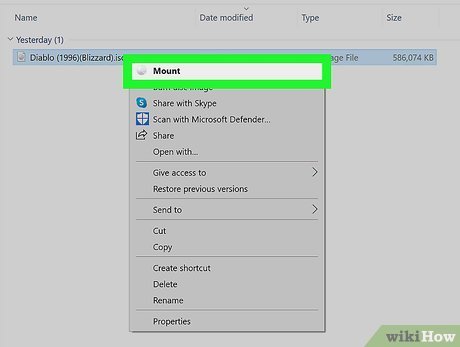
To play an ISO game, you typically mount the ISO file using a virtual drive application and then launch the game from the mounted drive.
Have you ever stumbled upon a game file with the .iso extension and felt confused? Many gamers encounter this format, especially when exploring older titles or independent releases. Figuring out how to play a iso game can seem tricky, but it’s actually a straightforward process once you know the steps.
This article guides you through the process of accessing and enjoying those games. We will explain what these files are and show you how to access their contents. You’ll be gaming in no time.

How to Play an ISO Game
So, you’ve got an ISO game file and you’re itching to play, but you’re not quite sure how to make it happen? Don’t worry; it’s not as tricky as it might seem! An ISO file is basically like a digital copy of a game disc, like a CD or a DVD. It holds all the information needed to run the game. Think of it like a zipped-up box filled with all the game’s goodies. Instead of using a physical disc, we use software to open and use this digital box. Let’s dive into the steps to get your game going!
Understanding ISO Files and Game Emulators
Before we get into the practical steps, let’s talk a bit about what an ISO file really is and why we need an emulator. An ISO file, also called an ISO image, is a perfect copy of a disc’s data. It’s like taking a snapshot of everything on a CD, DVD, or even Blu-ray disc. This file format helps us share games digitally and play them without needing the original physical copy. That’s great, because who wants to keep track of a bunch of discs these days?
Now, to use an ISO game, you need special software called a game emulator. An emulator acts like the game console (like a PlayStation, Xbox, or Nintendo) on your computer. It pretends to be that console so that the game thinks it’s running on the original hardware, allowing you to play it on your computer. There are different emulators for different consoles, so picking the right one is very important.
Why Use an Emulator?
- Play Older Games: Many old consoles are hard to find, but with emulators, you can play all the oldies but goodies!
- Convenience: No more swapping discs, just click and play.
- Portability: Take your favorite games anywhere you go on your computer.
- Save Games: Emulators often have better save options than the original consoles.
Finding the Right Emulator
Choosing the correct emulator is vital. Here’s a quick guide:
- PlayStation (PS1, PS2, PS3): For PS1 games, try ePSXe or RetroArch. For PS2 games, PCSX2 is a great option. PS3 emulation is more demanding, but RPCS3 works well for many titles.
- Xbox (Original, 360): The original Xbox has Cxbx-Reloaded, while Xenia is a work-in-progress emulator for Xbox 360.
- Nintendo (NES, SNES, N64, GameCube, Wii): For older systems, RetroArch can handle many. Project64 works well for N64, and Dolphin Emulator is the top pick for GameCube and Wii.
- Other Systems: There are also emulators for handheld systems like the Game Boy Advance (VBA-M), Nintendo DS (DeSmuME) and many more.
Always download emulators from trusted sources, usually the official websites of the emulator projects. This will help ensure that the files are safe and free of viruses or malware. It’s good to search for reviews to ensure the emulator is reliable.
Step-by-Step Guide to Playing an ISO Game
Alright, let’s get to the main event! Here’s a detailed, step-by-step guide on how to play an ISO game:
Step 1: Download an Emulator
First, decide which game you want to play and which console it’s from. Then, find the right emulator. Head to the official website of the emulator (like PCSX2 for PS2) and download the latest version for your computer’s operating system (Windows, macOS, or Linux). Make sure you are getting it from a trusted site.
Step 2: Install the Emulator
After the download is finished, install the emulator. The installation process is normally like any other software on your computer. Most emulators will ask for the installation folder; keep note of this location, as you may need to go back to it later. Follow the instructions provided by the installation wizard. If the installer offers options, you usually don’t have to change the defaults, unless you have specific needs.
Step 3: Get the ISO File
Now, it’s time to find the ISO file for the game you want to play. Keep in mind that downloading games you don’t own is not legal, so make sure you are using an ISO that you have the rights to. After you have the file it’s good to place it in an easy-to-find folder (like a folder called “Games” in your documents, or on your Desktop). A well-organized folder for your games will make everything easier later on.
Step 4: Setting Up the Emulator
With the emulator installed and the ISO file ready, it’s time to configure your emulator. This step might seem a little tricky, but it’s important for a smooth gaming experience.
BIOS Files
Many emulators need a special file called a BIOS (Basic Input/Output System) file. The BIOS file is like the core software of the actual game console, and it helps the emulator to properly imitate the console. BIOS files are usually copyright protected, and not provided by the emulator developer. You need to find these files separately, and ensure that you have the right to use them. The internet is your friend here, as there are many guides that will point you in the direction of these files. Make sure these are files that came from a legal source.
After downloading a legal BIOS file, you will need to put the BIOS file in a specific folder. Normally, the emulator’s folder has a BIOS subfolder, or the emulator program will prompt you where to put it the first time you run it. For example, PCSX2, used for PS2 emulation, expects the BIOS file to be placed in its “bios” subfolder. The specific file names may also be important, such as “SCPH-xxxxx.bin” where the x’s represents numbers associated with that specific BIOS.
Controller Settings
Next you should configure your controller. Most emulators allow you to play with a keyboard, but a gamepad is much better for most games. You can use gamepads like the Xbox controller, PlayStation controller, or a generic USB controller. Go to the emulator settings, and find the section for controller settings or input options. You will need to map buttons on your controller to the actions of the game. This is usually fairly simple, and the emulator will guide you through this process. You should also test your controller after configuration to ensure everything is working.
Graphics and Audio
If your game is running slower than normal you can also adjust graphics and audio settings in the emulator. You may want to lower the resolution or switch to a different rendering method to get better performance. Adjust the audio output to make sure the sounds come through clearly. Experiment with these settings to find what works best with your computer. There are often lots of options available.
Step 5: Loading and Playing Your ISO Game
With your emulator set up, it’s time to actually play. Open the emulator and find the option to load or open an ISO file. This is normally under “File” > “Open ISO”. Navigate to where you have the game’s ISO file located. Select your ISO file, and click “Open”. The emulator will load the game and you are ready to play!
Now you should be in your game! Use the controls that you mapped, and play your game. Remember if you have any issues, you can always go back into settings and adjust settings. Also, many resources on the internet are available, if you get stuck. There may be specific tips for your specific game.
Advanced Settings and Tips for a Better Gaming Experience
Sometimes, a game might not run perfectly right away. Here are some tips to improve your gaming experience:
- Frame Skipping: If a game is too slow, you might try frame skipping. This makes the game go faster by skipping some visual frames. This might make the game look a bit less smooth, but it could solve speed issues.
- Graphics Plugins: Some emulators let you use different graphics plugins. These plugins change how the game is rendered, and this can improve visuals or performance. Experiment with different plugins to see which works best for your setup.
- Save States: Use save states! This lets you save the game progress at any point. This is really handy because you can jump back to where you were in the game without having to start over from a checkpoint. Many classic games have limited or challenging save systems.
- Patches and Cheats: Some players like to use patches or cheats with games. These usually come in file form and can sometimes be enabled in emulator settings. This is optional, and some may find it ruins the challenge of the game.
- Check Online Forums: If you are having trouble with a certain game, check forums or websites that support your emulator. Sometimes, other users have had the same issues and can offer solutions.
Troubleshooting Common Issues
Sometimes things don’t go as planned. Here are some common problems and how to fix them:
- Game Won’t Start: Make sure you have the correct emulator and the appropriate BIOS files. Check for updates to your emulator, as they often have fixes to start games. Verify that your ISO file is not corrupted (try another source, if you can).
- Slow Performance: Try adjusting graphics settings in the emulator. Lowering the resolution, or using a different rendering plugin, can improve performance. Close other programs on your computer to free up processing power.
- Controller Issues: Check your controller settings in the emulator. Ensure that all the buttons are mapped correctly. Also verify that the controller is working correctly with other applications. If the issue continues, a reinstall of the emulator might help.
- Audio Problems: Check your audio settings within the emulator. Make sure the correct audio output device is selected, and that the volume isn’t too low or muted. Updating your audio drivers on your computer may also help.
- Graphical Glitches: Experiment with different graphics plugins and settings in the emulator. See if any work better with your system. Also keep up with emulator updates, which may fix issues like these.
- Error messages: When there’s an error message, it’s helpful to copy and paste that directly into a search engine or forum. You are very likely not to be the first person to have that specific error.
The Legal Side of ISO Files and Emulation
It’s really important to talk about the legal side of using ISO files and emulators. While emulation itself is legal, downloading or distributing copyrighted games without owning the original is not. It’s a good practice to only use ISO files of games that you own, just like how you should only borrow games that you own from friends. Respecting the law helps ensure that the people who make the games get credit and that the industry can continue to make great games. If you like a game, try purchasing a copy of the game to support its creators.
In many instances, older games are not available anymore for purchase. It’s an ongoing discussion about the legality and ethics of emulation in these situations. If the game is hard to find, and there is no financial harm being done to the creator, some people feel that there is no ethical reason why these games should not be preserved and played. However, it’s always best to be aware of copyright laws in your country.
Emulation Community
The emulation community is a huge and great resource for new and experienced players. Many websites and forums discuss emulators, game settings, and solutions for specific games. This is also a good place to discuss favorite games, get news, or find out new information. These are communities of passionate individuals that have extensive knowledge of specific systems or games. Consider joining a community, or a Discord server, if you’re interested in a specific emulator.
With the information above you should be able to download, setup, and enjoy your favorite classic ISO game. It’s a fun way to explore video game history and to return to nostalgic classics. Always remember to respect copyright, support developers, and enjoy the gaming journey!
How To Install and play .iso games on a Windows PC
Final Thoughts
To play an iso game, you typically need an emulator compatible with the game’s console. After obtaining the correct emulator, you must load the iso file.
Navigate through the emulator’s menu. Usually, the game will start after you choose the loaded iso file. Remember that legal ownership of the original game is necessary for using its iso.
You can use controls, either physical or mapped to your keyboard. Now you understand how to play an iso game; remember to respect copyright law.

