
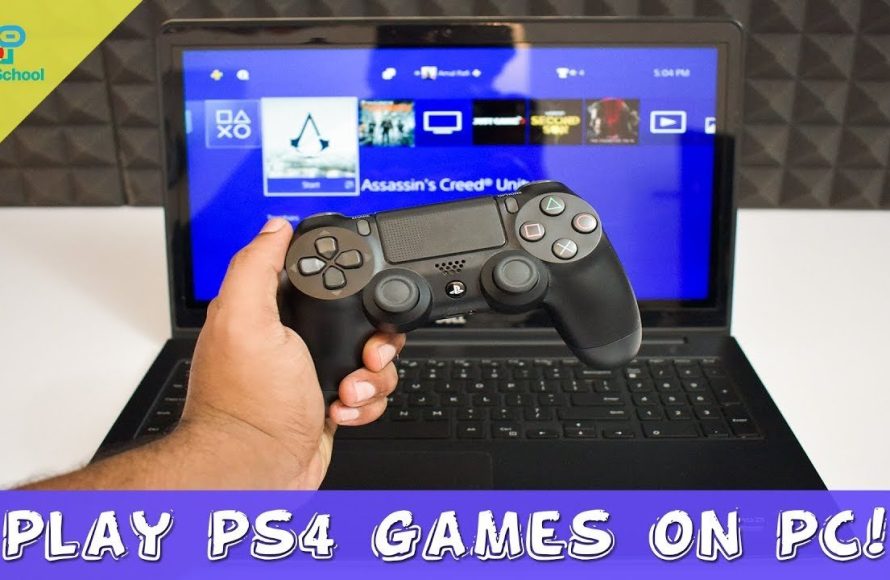
To play a PS4 game on PC, you’ll primarily need to use the Remote Play application provided by PlayStation, which requires both your PS4 and PC to be connected to the same network.
Ever wondered if you could enjoy your PlayStation 4 games on your computer? It’s a common question, and the good news is, it’s totally possible! Many people want to learn how to play a PS4 game on PC, and thankfully, the solution is pretty straightforward.
Sony provides an easy method with their Remote Play application. This lets you connect your console and PC, displaying the game on your monitor. With a stable internet connection, it’s like having your PS4 directly on your computer screen.

How to Play a PS4 Game on PC: A Comprehensive Guide
Want to play your awesome PlayStation 4 games on your computer? It’s totally possible, and it’s not as complicated as you might think. This guide will walk you through everything you need to know to get your PS4 games running on your PC. We’ll explore different methods, discuss what you’ll need, and troubleshoot common issues. Let’s jump right in!
Understanding the Basics: Why Play PS4 Games on PC?
Before we dive into the ‘how,’ let’s talk about the ‘why.’ There are several reasons why someone might want to play PS4 games on their computer:
- Bigger Screen Experience: Many people prefer playing on a larger monitor rather than a TV. Your PC monitor might offer better resolution and refresh rates, too.
- Convenience: If your gaming setup is primarily on your PC, it’s convenient to play all your games in one place. No need to switch between different consoles and screens.
- Streaming and Recording: It’s easier to stream or record gameplay using a PC. PCs have many excellent tools for these tasks, unlike the limited options on the PS4 itself.
- Sharing the TV: Perhaps someone else needs to use the TV. Playing PS4 games on your PC allows you to keep gaming without interruption.
Now that you know why people might want to do this, let’s look at the methods available.
Method 1: Using PS4 Remote Play
The most common and straightforward way to play PS4 games on your PC is by using Sony’s official “Remote Play” application. This method streams your PS4 game to your computer over your home network. Here’s how it works:
What you’ll need:
- A PlayStation 4 console: Obviously, this is the starting point. Your console needs to be connected to your home network.
- A PC: You’ll need a Windows PC or an Apple Mac to run the remote play app. Make sure your operating system is compatible.
- A DualShock 4 controller: While you can use a mouse and keyboard, the experience is better with a controller. You can connect your controller to your PC via USB or Bluetooth.
- A stable internet connection: Both your PS4 and your PC need a stable connection to your network. Ideally, use a wired Ethernet connection for the best results. Wi-Fi works, but it can sometimes cause lag.
- The PlayStation Remote Play application: You need to download and install the application on your PC.
Step-by-step guide to setting up Remote Play:
- Prepare Your PS4:
First, turn on your PS4. Go to Settings, then navigate to “Remote Play Connection Settings.” Make sure the box is checked to enable Remote Play. Now, go to “Account Management”, then activate your console as your primary PS4.
- Download and Install the Remote Play App:
On your PC, go to the official PlayStation website and download the Remote Play app for your operating system (Windows or macOS). After downloading, run the installer and follow the on-screen prompts.
- Connect your DualShock 4 Controller:
Connect your DualShock 4 controller to your PC using a USB cable or via Bluetooth. If using Bluetooth, make sure your controller is in pairing mode (press and hold the PS and Share buttons until the light bar starts flashing). Then, go to your computer’s Bluetooth settings to pair it.
- Launch the Remote Play App:
Open the Remote Play app on your PC. The first time you run the application, you might have to sign in to your PlayStation Network account (same one you use on your PS4).
- Connect to Your PS4:
The Remote Play app will now look for your PS4 on your network. If it doesn’t find it automatically, you can enter your PS4’s IP address manually. Once found, select your PS4 from the list. If everything goes well, your PS4 screen will appear on your PC!
Troubleshooting Remote Play Issues:
Sometimes, things don’t go smoothly. Here are some common problems and how to fix them:
- Connection Issues: If you have trouble connecting, make sure both your PS4 and PC are on the same network. Also, try restarting your router and both devices. If using Wi-Fi, consider using a wired connection.
- Lag or Low Quality: Lag means delays and low video quality can be annoying. Try closing other apps on both your PC and PS4 that are using internet. Also, check your internet speed. A faster, more reliable connection is key. Adjust your remote play settings in the app for lower resolution, if needed.
- Controller Issues: Ensure your controller is correctly paired and recognized by your PC. Try connecting with a USB cable if Bluetooth is unreliable.
Method 2: Using a Capture Card (Less Common)
Another way to play PS4 games on your PC is by using a capture card. This method is generally used for streaming or recording gameplay, but it also allows you to play the game on your PC screen. It’s more complicated and more expensive than Remote Play, but it also provides more flexibility.
What you’ll need:
- A PlayStation 4 console
- A PC with a capture card: A capture card is a device that takes the video and audio signal from your PS4 and sends it to your PC. Capture cards can be internal or external.
- HDMI cables: You’ll need HDMI cables to connect your PS4 to the capture card and your capture card to your PC monitor.
- Capture software: You’ll need a capture software program to display the game on your PC screen.
How to set it up:
- Connect your PS4 to the capture card: Use an HDMI cable to connect the PS4’s HDMI output port to the capture card’s HDMI input port.
- Connect the capture card to your PC monitor: Connect the capture card’s HDMI output to your monitor or use the capture card’s USB output to connect it to the PC.
- Install capture card software: Install the driver software for your capture card on your PC. Many capture cards come with their own software. OBS Studio and Streamlabs Desktop are popular alternatives.
- Configure the software: Launch the software and configure it to receive video input from the capture card. You will need to select the right input source, as well as audio source.
- Start playing: Now you should be able to see your PS4 game displayed on your PC screen.
Considerations for using a Capture Card:
- Input Lag: You might notice some input lag using a capture card, which is the delay between your button press and the action happening on screen. Different cards and software can have varying amount of lag.
- Cost: Capture cards can be costly, especially high quality ones.
- Setup Complexity: This method is more complex than Remote Play. There is more hardware and software to install and setup correctly.
- Better for Recording: Capture cards are ideal if your main goal is to record or stream PS4 gameplay on your PC. For casual play, Remote Play is often a simpler choice.
Understanding Network Requirements
Regardless of the method you choose, a stable and fast internet connection plays a big role in your playing experience. Here are a few points to remember:
Types of connections:
- Wired connection (Ethernet): This is usually the best option. Wired connections are more stable and provide faster speeds than Wi-Fi. This means less lag and a smoother gameplay experience.
- Wireless connection (Wi-Fi): Wi-Fi is more convenient, but it’s also more prone to interference. If you’re using Wi-Fi, make sure your router isn’t too far from your PC and PS4. Consider a dual-band or tri-band router for better Wi-Fi performance.
Bandwidth Requirements:
Remote Play and capture card streaming both require enough bandwidth to send video and audio data. If you have a slow internet connection, your game will probably lag or appear blurry. Check your internet speed to make sure you have the recommended upload and download speeds.
Optimal Settings for PS4 Remote Play
To get the most out of PS4 Remote Play, it helps to configure some settings in the app. Here are some suggestions:
Video Quality Settings:
- Resolution: Remote play offers several resolution settings. If you are having performance issues, you can lower the resolution. If your connection is strong, you can increase resolution for better visual quality.
- Frame Rate: You can adjust the frame rate depending on your connection. Lower frame rates can help reduce lag but it can affect the smoothness of gameplay.
Audio Settings:
- Audio Output: Make sure your audio output is set to either headphones or speakers on your PC. This ensures you can hear the game’s sound properly.
Controller Settings:
- Controller Type: Make sure your controller is connected and working in Remote Play. The best experience will be with Dualshock controllers.
- Input Lag: If you are experiencing input lag, make sure that you are not running many apps on your computer and have a stable connection with the PS4.
Advantages and Disadvantages
Let’s briefly compare the two main methods we’ve discussed:
PS4 Remote Play
- Advantages:
- Easy to set up.
- No extra hardware required (besides the controller).
- Free to use.
- Disadvantages:
- Requires a good internet connection for optimal performance.
- Can experience some lag.
- Video quality is limited by your network.
Capture Card
- Advantages:
- Better for recording and streaming gameplay.
- Can offer higher image quality and low latency with high end cards.
- Disadvantages:
- More expensive and complicated setup.
- May still experience some input lag.
- Requires additional hardware.
Game Compatibility and Performance
Most PS4 games will work fine with both Remote Play and capture cards. However, there might be slight performance differences:
- Performance: Fast paced games that rely on quick reactions might benefit from the low latency provided by capture cards. With a slower connection or Wi-Fi, Remote Play might result in noticeable lag in such games.
- Game Genres: Action and fighting games might experience a slight performance hit through remote play compared to playing on the console directly. But slower, strategic games might be perfectly fine with both methods.
Experiment with different games and settings to see what works best for your setup and preference. Remember that a stable internet connection and a good PC can make a significant difference. Don’t get discouraged if things don’t work flawlessly the first time. You might need to adjust a few settings or try different connection methods to find what suits you best. With a bit of patience and the right setup, playing your favorite PS4 games on your PC can be a fantastic experience.
In conclusion, playing PS4 games on your PC is quite attainable through methods like Remote Play and capture cards. Remote Play stands out for its simplicity and cost-effectiveness, while capture cards cater more to recording and streaming needs. Remember that your network strength and computer specifications are important factors in ensuring smooth gameplay. Play around with settings and methods to find the perfect setup that aligns with your unique requirements.
How To Play PS4 Games On PC – Full Guide
Final Thoughts
To play a PS4 game on PC, you need remote play software and a stable network. The PlayStation console must be on, and you will need to sign in with your PlayStation Network account on your PC.
Use the remote play application to connect to your PS4 and start playing games through your PC. Input methods from your pc are used on your console. This is how to play a ps4 game on pc.

