
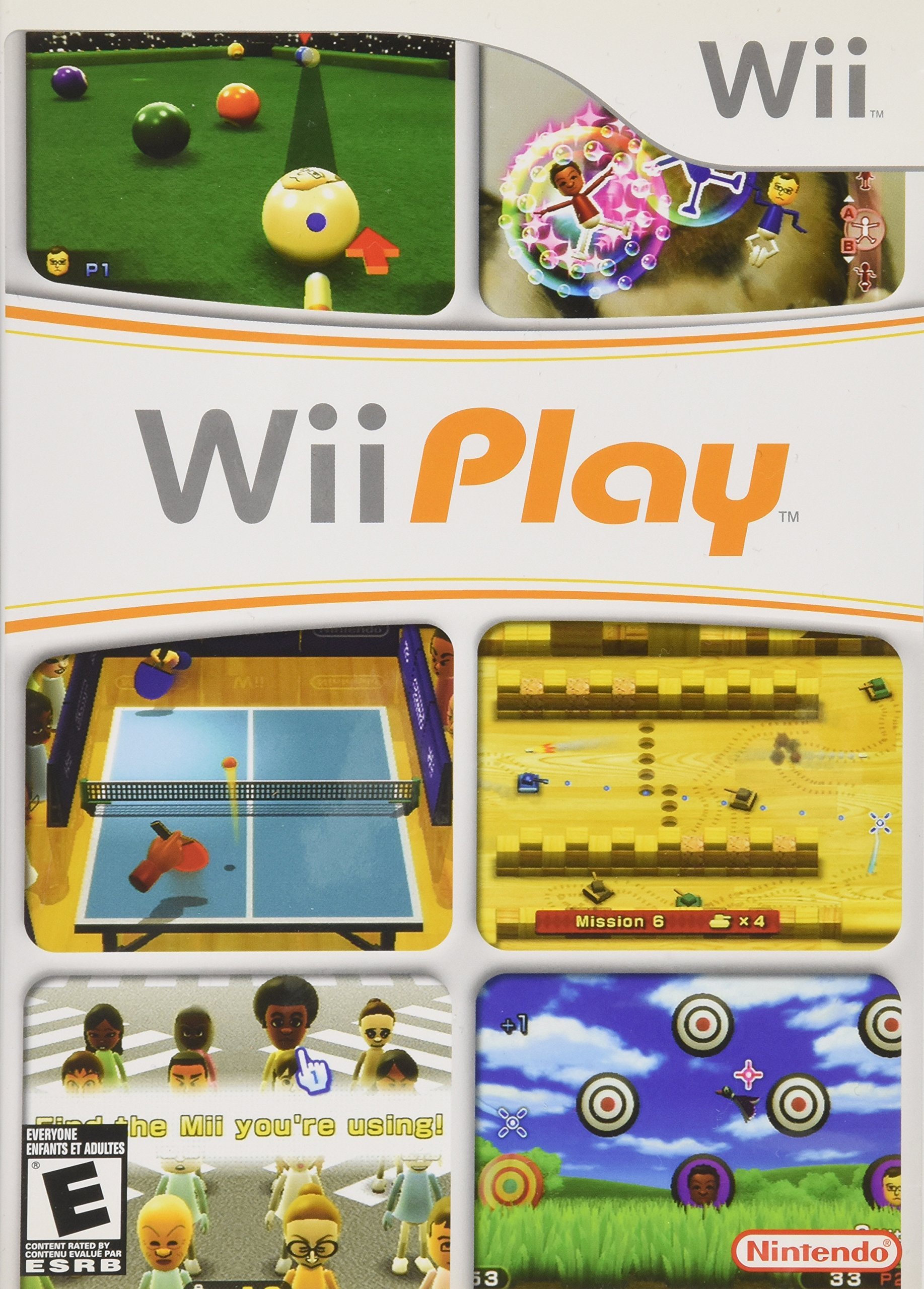
To play a Wii game, insert the disc, power on the console, and use the Wii Remote to navigate the menu and control gameplay.
Ready to dive into some retro fun? Let’s explore how to play a Wii game, the classic console with motion controls. Getting started is much easier than you might remember.
First, you need the game disc and the console itself. Then, power it up and get those remotes ready. The intuitive interface makes it easy to pick a game and start having a blast.
With a little practice, the controls become second nature. Soon, you’ll be swinging, pointing, and jumping into the action. It’s a fantastic way to enjoy classic titles again.

How to Play a Wii Game: A Complete Guide
So, you’ve got a Nintendo Wii and a game, but maybe you’re scratching your head wondering where to start? Don’t worry, getting into Wii gaming is super easy and fun! This guide will walk you through everything you need to know, from setting up your console to finally playing your favorite games. Let’s dive in!
Setting Up Your Wii Console: The First Steps
Before you can even think about playing a game, you need to make sure your Wii is all hooked up and ready to go. It’s not as complicated as it might seem. Think of it like building a simple puzzle.
Connecting the Cables
Your Wii comes with a few important cables. Let’s look at each one:
- Power Cable: This one is pretty straightforward. Plug one end into the back of your Wii and the other into a wall outlet. It’s what gives your Wii its energy!
- AV Cable (Audio/Video): This cable usually has colored ends – yellow, red, and white. Plug these into the matching colored ports on the back of your Wii and then into the corresponding ports on your TV. The yellow is for video, and red and white are for sound. If your TV has different colored ports, check the TV’s manual for details.
- Sensor Bar: This is a thin, long bar that needs to be placed either above or below your TV screen. It helps the Wii Remote (the controller) know where it’s pointing. Plug its cable into the back of the Wii.
Positioning the Wii
Now, where should your Wii sit? You’ll want to place it in a spot that’s out of the way of foot traffic, and somewhere where it can get some air circulation. Don’t put it in a closed-up cabinet, as it can get overheated. Also, make sure the front of the console is facing you. This is important for the next step!
Turning on Your Wii
Once you have everything connected, it’s time to see if it works. Press the power button on the front of the console, or if you have the Wii remote synced already, you can use the power button on that instead. The light on the Wii should turn from red to green. If it doesn’t turn green, make sure the power cord is plugged in correctly and that your wall outlet is working.
Understanding the Wii Remote: Your Magic Wand
The Wii Remote, often called the Wiimote, is a unique controller. It lets you interact with games in a new way, moving your hand to move characters on the screen. Let’s take a look at its features.
Buttons and What They Do
- A Button: This is the main action button. You will use this button for jumping, selecting menus, and using most in game actions.
- B Button: Usually used for secondary actions or holding down while using the pointer.
- Minus (-) Button: This button sometimes opens game menus or options, depending on the specific game.
- Plus (+) Button: This button will also open in game menus or options, often opening a bigger menu or more options than the minus button.
- Home Button: This brings up the Wii Home Menu, allowing you to pause, return to the main menu, or even turn off your Wii.
- Power Button: This turns the Wii on and off and is located on the controller as well.
- Directional Buttons (D-pad): These are the up, down, left, and right buttons. These help you move through menus, and sometimes also move characters in the game, depending on the game.
- 1 Button: Located on the face of the controller. This usually adds additional control options.
- 2 Button: Also located on the face of the controller. This button is sometimes used for an action, and sometimes also to select options in a menu.
The Wrist Strap: Safety First!
Always put on the wrist strap that comes with the Wii Remote. This will keep your remote from flying across the room if you accidentally let go during a game. It’s a simple step but super important for your safety and those around you!
Syncing the Wii Remote
Before you can start playing, you need to sync the Wii Remote to the Wii console. If the controller is already synced, you will see a light indicator on the controller, and you should be good to go. If the controller doesn’t seem to work, look at the front of the Wii, there is a small red button. Open the battery compartment of the controller, and you will see a similar red button. Press both red buttons at the same time, and the controller will sync. Once synced the light will stay solid.
Starting Your First Game: Time for Action
Alright! Everything is plugged in, the remote is synced, it’s time to get the ball rolling! Let’s see how to actually play a game!
Inserting the Game Disc
Wii games come on discs, just like CDs or DVDs. On the front of the Wii, you’ll see the disc slot. Push the disc in (label facing up), and the Wii will pull it in. Make sure you use the right kind of disc. If you try to put in a disc not made for Wii, the system won’t be able to play it.
Navigating the Wii Menu
Once the disc is in, the Wii will recognize it, and an icon will appear on the main menu screen. Use the Wii Remote to point at the icon and press the A button to select it. This starts the game! You will use the dpad to navigate through the system if the pointer isn’t working or not needed.
Understanding Game Controls
Each game will have its own controls. Some games will use the Wii Remote’s motion controls, while others may use the directional buttons and A/B buttons. Most games will usually have an introduction or tutorial to explain the controls to you. Pay attention to the game’s instructions, and be prepared to experiment and learn the various controls for each game. Many games include a screen where you can see what each button does before starting the game. Take a look at this screen first.
Types of Wii Games: Exploring the Fun
The Wii has a massive library of games, from racing to sports to adventures and parties! Here are a few popular categories of Wii games:
Sports Games
These games let you experience sports from your living room. Think about games like Wii Sports, where you can play tennis, baseball, or bowling with simple motion controls. You can swing your Wiimote like a tennis racket!
Adventure Games
Adventure games send you on grand quests where you’ll explore vast worlds and solve puzzles. Think of games like Legend of Zelda, where you solve puzzles and fight monsters in a big world.
Racing Games
From Mario Kart to Excite Truck, Wii racing games are fun for the whole family. You can use a wheel attachment to your Wiimote to make the experience more realistic, or control it by tilting your Wiimote left and right.
Party Games
Party games are great for groups! These games often involve mini-games and competition, perfect for friends or family gatherings. Think of games like Mario Party and WarioWare.
Tips for a Better Wii Experience
Here are a few pointers that will ensure you have the best time playing Wii games.
Adjusting the Volume
You can adjust the volume of your Wii games through the Wii menu. Just press the Home button, and you will be able to adjust the sound levels in the menu.
Taking Breaks
It’s easy to get lost in your games, but remember to take breaks. It is important to give your eyes and body a rest every once in a while. Also, make sure to stand up and move around after sitting and playing for a while.
Keeping the Wiimote Charged
The Wii Remote needs batteries to work. If it starts to lose power, it’s a good idea to have fresh batteries nearby. If you are using rechargeable batteries, keep a charging dock or extra batteries around. The remote may stop working correctly if the batteries are dead, and that could ruin your game.
Cleaning the Disc
Sometimes, if a disc gets dirty or scratched, the Wii might have trouble reading it. Gently clean the disc with a soft cloth to help it work properly again.
Calibrating your Wii Controller
Sometimes the controller will stop working correctly if you have moved the sensor bar or the position where you are sitting. To correct this, go to the Wii menu by pressing the Home button on your remote, and you should find an option to recalibrate the controller pointer. This is useful if the pointer is not acting correctly.
Exploring Game Options
Take some time to look through the settings and game options to see if there is anything you want to change or explore. Many games have options for difficult settings or control preferences, so feel free to go in and change them.
Playing a Wii game should be a fun experience for the whole family. Remember the basics, be patient, and you will get better as you play! Enjoy your gaming adventures!
How to set up your Nintendo Wii
Final Thoughts
To play a Wii game, first turn on the console and TV. Next, insert the game disc into the Wii. Use the Wii Remote to navigate the menu and select your game.
Follow on-screen prompts and tutorials if needed, understanding how to play a wii game is simple. The gameplay itself uses motion controls with your Wii Remote.
Enjoy your gaming session! Remember, practice makes perfect with any game.

