
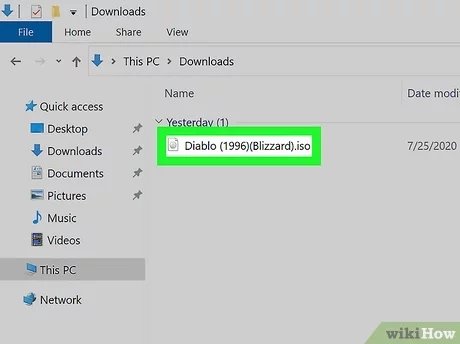
To play an ISO file game, you must first mount the ISO image using a virtual drive program or extract its contents, then run the game’s executable file.
Ever wondered how to play an ISO file game? Many older games come as these disc images. They are essentially digital copies of physical discs. Understanding how to handle them is crucial for retro gaming.
This might seem technical at first but it’s actually quite straightforward. We will guide you through the steps. It allows you to enjoy these games.

How to Play an ISO File Game
So, you’ve got an ISO file and you’re itching to play that cool game, but you’re not sure how to get started? Don’t worry, it’s easier than you might think! An ISO file is like a digital copy of a game disc, a sort of digital container holding all the game’s data. Think of it like a zipped-up folder but for games. This container needs to be opened and used, which is where we come in. We will walk you through the steps. No need to be a tech whiz to play these games.
Understanding ISO Files
Before we dive into the “how,” let’s understand what we’re dealing with. An ISO file, often called an ISO image, is a special file that’s basically a mirror image of a disc, like a CD, DVD, or Blu-ray. This image contains all the information from the disc, including the game files, system files, and everything needed to run the game. It’s like having the disc itself, but in a single file on your computer. They are commonly used to back up games, share them, or play games from older systems on a computer. These files are helpful when you can’t find the physical game disc or if your disc drive is not working.
Why are ISO files used?
ISO files became popular for a few key reasons:
- Backup: They allow users to create backups of their game discs, ensuring they have a copy even if the original gets damaged.
- Sharing: They can be shared online which allows people to play old classic games.
- Convenience: No need to have stacks of game discs, everything is neatly stored in a file.
- Emulation: They’re essential for playing games from older consoles on your computer.
Now that you know what an ISO file is, let’s get to the fun part!
Getting Ready to Play: What You’ll Need
Playing an ISO game on your computer or device isn’t too hard, but there are a few essential things you will need before getting started.
A Computer or Device
You will need a computer that meets the game’s requirements. If it’s a retro game, you probably don’t need a super powerful machine. But, if it’s a modern game, make sure your system can handle it. Also, make sure you have enough space on your hard drive, because ISO files can be very big.
An ISO Game File
This is the heart of the matter! You will need to find the ISO file for the game you want to play. Make sure the source from where you get these files are safe and do not contains viruses or malware.
Software to Mount the ISO (For PC)
For most PCs, you’ll need software that can handle mounting ISO files, which creates a virtual drive so your computer sees the ISO as if it were a disc. We’ll go into detail about this in the next section.
An Emulator (If Playing Console Games)
If the ISO game you have is for an older game console, you will need an emulator. An emulator is a type of software that lets your computer behave like a specific console. There are lots of emulators available for different consoles, like PlayStation, Nintendo, etc. We will discuss it further in the dedicated section below.
Mounting an ISO File on a PC
Mounting an ISO on your Windows PC or Mac is a crucial step to get your game running. It lets your computer treat the ISO file as a real disc. Here’s how to do it on Windows and macOS.
Mounting on Windows
Windows makes it very simple to mount an ISO file.
- Find Your ISO File: First, go to the folder where you saved the ISO game file.
- Right-Click: Then, right-click on the ISO file.
- Select Mount: In the menu, select the “Mount” option.
- Virtual Drive: A new virtual drive will appear in “This PC” or “My Computer” which looks like the game disc is inserted.
- Run the Setup: Go to the new virtual drive and click the setup or executable file (.exe) to begin installing the game.
Mounting on macOS
Mounting on a Mac is also quite straightforward.
- Locate the ISO File: Find the ISO file of your game.
- Double-Click: Simply double-click on the ISO file.
- Virtual Drive: A new virtual disk will appear on your desktop, just like an external hard drive.
- Run the Setup: Open this virtual disk, then find the game setup or installation file. Run this to install the game.
Once mounted, you can install the game from the virtual drive just as if you were using a physical disk.
Using Emulators to Play Console ISO Games
If your ISO file is from an older console like PlayStation, Nintendo, Xbox, etc., then you will need an emulator to play the game. These special programs make your computer behave like the actual console, allowing you to run the games smoothly. There are a lot of different emulators available for different consoles.
Finding the Right Emulator
Finding the correct emulator is essential. Here’s a quick guide:
- Research: First, do a quick search for the best emulators for the specific console that your ISO file belongs to. For example, search “best PlayStation 2 emulator” or “top Nintendo GameCube emulators”. There are tons of websites that list emulators for various platforms.
- Official Websites: It is good idea to download the emulator from its official website to avoid any potential viruses or harmful files.
- Read Reviews: See what other players say about the emulator before downloading it. This can help you avoid problems or bugs.
- Check System Requirements: Check the system requirements of the emulator. Make sure your computer is compatible with the emulator.
Setting Up Your Emulator
Setting up the emulator may be different from one emulator to another, but they all have some similar basic steps.
- Download and Install: First, download the emulator from the official website, and install it on your computer.
- BIOS Files: Some emulators need BIOS files to work properly. BIOS files are system files that usually come from the original console. You may have to find these files separately and place them in a specific location for the emulator. There are some legal discussions regarding BIOS files, but generally, if you own the console, you can use its BIOS.
- Configuration: After you have all files required, go to the settings of the emulator and configure the controls, graphics, and other settings to match your preferences.
- Loading the ISO: After the initial setup, find an option to load or open a game file. Select the game’s ISO file. The game will then begin running inside the emulator.
Tips for a Smooth Emulation Experience
Here are a few tips to make the game experience more enjoyable.
- Update Your Drivers: Always make sure that your video and audio drivers are updated. This will make the game run better.
- Tweak Settings: Experiment with emulator settings to find the best balance between speed and graphical quality. There are a lot of options to change resolution and make it smoother.
- Save Often: Use emulator’s save state feature, which saves your progress anytime during the game. If something goes wrong you can load the save file and start where you left off.
- Use a Gamepad: Using a gamepad will improve your experience while playing console games. You can customize gamepad buttons and enjoy the game like playing on an actual console.
Troubleshooting Common Issues
Sometimes, things can go wrong. Here are a few problems you might face and how to fix them.
Game Not Loading
If the game does not load, check the following:
- Check the ISO file: Make sure the ISO file is not damaged or corrupted. If it is, you will have to find a new copy of the ISO file.
- Emulator Compatibility: Make sure that the emulator and the game’s ISO file are compatible. Some emulators do not support some games.
- BIOS Files: If you are using an emulator, make sure you have placed the correct BIOS files in the correct place.
Slow Performance
If your game runs very slowly or lags, do the following:
- Lower Graphics Settings: Reduce the graphics settings in the emulator. This can reduce the load on your computer.
- Close Other Programs: Close all the programs running in the background. This makes more resources available for the game to run.
- Update Drivers: Make sure that your computer has the latest drivers installed. Updated drivers can improve performance.
Sound Problems
If you face issues with game sound, here’s what you can check:
- Sound settings: check emulator sound settings to make sure the audio output is set correctly.
- Driver Updates: Make sure that your audio drivers are up to date.
- Restart: Restarting the emulator or the game may sometimes solve the sound problem.
If you’re still facing issues after going through these steps, check online forums or community boards to seek specific support for your emulator and game. There is always someone that had the same problem and found the solution to the issue.
Legal and Ethical Considerations
While enjoying games from ISO files, we must remember about legal and ethical practices. Make sure you understand copyright laws.
Copyright Laws
It is important to know that downloading or sharing ISO files of a game that you do not own may be illegal. This also means that even if you have purchased a physical copy of the game, you should not download or share the ISO version. If you have a physical copy, you can use that ISO for your personal use, but avoid distributing it to others.
Respect Developers
Remember that games are made by hard working developers. So, it is important to respect their work and hard earned money. Always purchase games legally and support the developers.
Playing an ISO game is a simple process after you grasp the basics. Whether you are revisiting old classics or playing new releases through ISO images, understanding how to mount an ISO file, using an emulator, and troubleshooting common problems is essential for a successful game playing experience. Remember to stay within legal and ethical boundaries while enjoying these games. Have fun, and happy gaming!
How To Install and play .iso games on a Windows PC
Final Thoughts
To play an ISO file game, you first need to mount the ISO using software like Daemon Tools or WinCDEmu. These programs create a virtual disc drive. The game setup can then be launched.
After mounting, you will see a new drive in your File Explorer. Run the game’s executable file from that drive. This starts the game installation or direct gameplay, depending on the file structure.
Finally, to directly play the game after it’s installed, you might need to install extra files as well from the ISO. Now you know how to play an ISO file game; just repeat these steps for any future files.

