
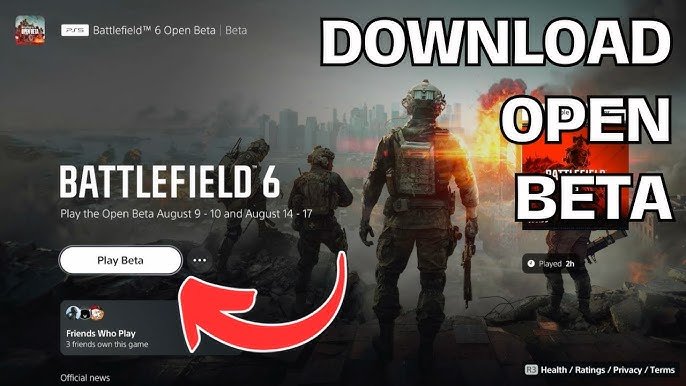
To play Battlefield Portal with friends in Battlefield 6 (Battlefield 2042), create or join a custom Portal experience through the in-game menu, then invite your friends to your lobby before launching the game.
Want to squad up with your buddies and experience the nostalgic chaos of Battlefield Portal? Are you trying to figure out how to play Battlefield Portal with friends in Battlefield 6 (Battlefield 2042, technically!)?
It is quite simple. The game provides you with options to create a custom experience or to jump into one.
Once you have selected your experience, just invite your friends to the lobby and prepare for action. Get ready to relive classic battles and create some new ones together!

How to Play Battlefield Portal with Friends in Battlefield 6
Battlefield Portal in Battlefield 2042 (often referred to as Battlefield 6 before release) is a game-changer. It allows you to create custom Battlefield experiences. But how do you play these custom creations with your friends?
This article will walk you through the process. We will cover everything from setting up a Portal experience to inviting your squad.
Understanding Battlefield Portal
Battlefield Portal is a community-driven platform within Battlefield 2042. It lets players mix and match content from different Battlefield games.
This includes maps, weapons, vehicles, and rulesets. Think of it as a “Battlefield sandbox”.
It allows for incredible customization options. You can recreate classic battles or invent entirely new ones.
Setting Up Your Battlefield Portal Experience
Before you can play with friends, you need to set up your Portal experience. This involves defining the rules and parameters of your game.
This is done through the Battlefield Portal web editor. The editor is accessed outside of the main game.
Accessing the Battlefield Portal Web Editor
You’ll need an EA account linked to your Battlefield 2042 game. The web editor is accessible through a web browser.
You can find the link on the official Battlefield website. Log in with your EA account credentials.
This is where the magic happens, enabling you to design your perfect Battlefield experience.
Configuring Game Rules and Settings
The web editor offers a wide array of settings to customize. You can choose which eras of Battlefield are included.
You can also adjust weapon restrictions and vehicle availability. You can modify core game mechanics.
This might involve things like health regeneration and bullet damage. Experiment with different settings to find what you like best.
Selecting Maps and Game Modes
Choose from a selection of maps across different Battlefield titles. Mix and match maps from Battlefield 1942, Battlefield 3, and Battlefield Bad Company 2.
Then select the game mode. This could be Team Deathmatch, Conquest, or Rush.
You can also create custom game modes using the logic editor.
Inviting Friends to Your Battlefield Portal Experience
Once your experience is set up, you need to invite your friends. This process involves generating a code and sharing it.
Alternatively, you can invite them directly through the Battlefield 2042 in-game menu.
Generating an Experience Code
After saving your custom experience in the web editor, you’ll receive an “Experience Code”. This code is unique to your creation.
Share this code with your friends. They will use it to find and join your game in Battlefield 2042.
This code is essential for others to access your custom Battlefield Portal experience.
Joining via Experience Code in-Game
In Battlefield 2042, navigate to the “Battlefield Portal” section. Look for an option like “Browse” or “Find Experiences.”
There should be a field to enter the Experience Code. Enter the code your friend gave you.
This will bring you to the lobby of their custom game.
Inviting Friends Through the In-Game Menu
Alternatively, once you’ve launched your Portal experience, you can invite friends directly. Use the game’s social menu.
Select your friends from your friend list. Send them an invitation to join your current game.
This is a straightforward way to get your squad into the action quickly.
Playing Together: Squads and Team Assignments
Once your friends have joined, you need to ensure you’re all on the same team. This is managed within the game lobby.
Coordinate with your friends to choose the correct team. This ensures you’re fighting alongside each other.
Squad Management in Portal
Battlefield Portal allows for squad management. This is similar to traditional Battlefield games.
Create a squad or join an existing one with your friends. This promotes teamwork and coordination.
Communicate effectively to strategize and dominate the battlefield.
Team Balancing and Assignments
The game may automatically balance teams. You can manually adjust team assignments in the lobby if needed.
Make sure everyone is on the correct team before starting the match. This prevents any confusion or accidental friendly fire.
Effective team management is crucial for a fun and competitive experience.
Troubleshooting Common Issues
Sometimes, you might encounter issues when trying to play with friends. Here are some common problems and solutions.
These can range from connection errors to problems with the Experience Code. Addressing them promptly ensures a smooth experience.
Experience Code Not Working
Double-check that the Experience Code was entered correctly. Codes are case-sensitive.
Ensure the creator of the experience is still hosting the game. A code becomes invalid if the host closes the session.
Sometimes, the Battlefield servers may be experiencing issues. Check the server status and try again later.
Connection Problems and Latency
Poor internet connection can cause problems. Ensure everyone has a stable internet connection.
Try restarting your routers and game consoles. Close any unnecessary applications that may be using bandwidth.
Geographical distance between players can also affect latency. Consider playing with friends in the same region.
Game Crashes or Freezes
Ensure your game is updated to the latest version. Outdated game files can cause instability.
Update your graphics drivers. Old drivers can sometimes cause compatibility issues.
Reduce the graphics settings in the game. This can improve performance and reduce the likelihood of crashes.
Advanced Battlefield Portal Tips and Tricks
Beyond the basics, there are advanced techniques to enhance your Portal experience. These can improve both gameplay and enjoyment.
Exploring these can unlock even more creative possibilities within Battlefield Portal.
Using the Logic Editor for Custom Game Modes
The Logic Editor is a powerful tool. It lets you create entirely custom game modes.
You can program complex rules and events. This allows for truly unique gameplay experiences.
Experiment with different logic blocks to create innovative and engaging game modes.
Balancing Weapon and Vehicle Restrictions
Carefully consider weapon and vehicle restrictions. Overly restrictive settings can make the game less fun.
Allowing certain weapons and vehicles can create interesting strategic choices. Find a balance that promotes both fairness and excitement.
Consider the map layout when deciding on restrictions. Certain maps may benefit from different weapon configurations.
Creating Themed Experiences
Consider creating themed experiences. Recreate historical battles or invent alternate realities.
Use the customization options to match the theme. This includes weapon restrictions and map selection.
A well-themed experience can be incredibly immersive and enjoyable.
Battlefield Portal: The Future of Battlefield?
Battlefield Portal represents a significant shift in the Battlefield franchise. It empowers players to create their own experiences.
It brings together content from across different Battlefield games. It offers endless possibilities for customization and experimentation.
What does this mean for the future of Battlefield? Only time will tell, but Portal is a powerful tool.
It could shape the way we play Battlefield for years to come. The community will continue to push the boundaries of what’s possible.
Staying Updated with Battlefield Portal
Battlefield Portal is constantly evolving. New features and updates are regularly added.
Keep up with the latest news and announcements from DICE. Follow official Battlefield channels.
Stay informed about new content and changes to the Portal editor. This ensures you can take full advantage of the platform.
Leveraging Community Resources and Sharing
Engage with the Battlefield Portal community. Share your creations and discover new experiences.
There are many online forums and communities dedicated to Portal. These are great places to find inspiration and collaborate.
Share your Experience Codes with others. Let them try out your custom game modes.
Maximizing Fun with Friends in Battlefield Portal
The key to maximizing fun with friends is communication. Coordinate your strategies and tactics.
Experiment with different game modes and settings. Find what works best for your group.
Don’t be afraid to try new things and think outside the box. Battlefield Portal is all about creativity and experimentation.
Battlefield 6 has a BIG Problem… 🚨
Final Thoughts
To play Battlefield Portal with friends in Battlefield 6, you can create or join custom experiences. Simply use the in-game menu to invite your friends to these experiences.
These experiences could range from classic map remakes to unique game modes with custom rules. Your friends must accept your invite to join your custom experience.
Therefore, how to play Battlefield Portal with friends in Battlefield 6 essentially boils down to creating or joining a custom experience and inviting them. Playing with friends is must for maximum fun in Battlefield Portal!

