
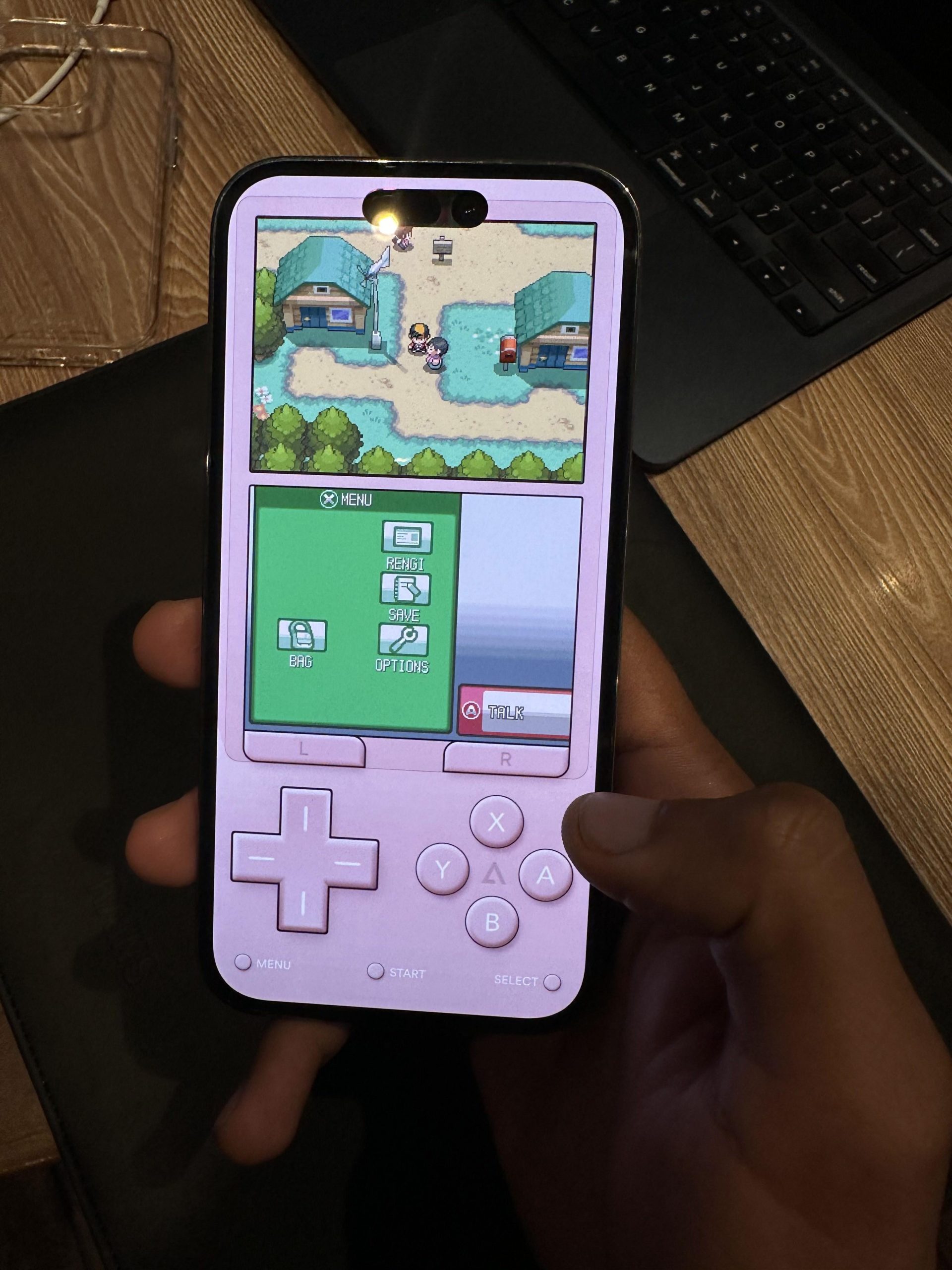
Playing DS games on iPhone requires using a DS emulator app, as Apple does not natively support DS game files.
Ever wished you could revisit classic Nintendo DS titles on your iPhone? Many people wonder how to play DS games on iphone, and it’s a common desire. The good news is, it is possible, though it requires a little tech know-how.
You’ll need to download an emulator app designed to mimic the DS hardware. These apps can let you enjoy all sorts of classic titles once you load the game files correctly onto them.

How to Play DS Games on iPhone
Alright, let’s dive into the exciting world of playing Nintendo DS games on your iPhone! Maybe you have fond memories of playing classics like Mario Kart DS, Animal Crossing: Wild World, or Pokemon Diamond and Pearl. You’re not alone! Many people want to relive those awesome gaming experiences. While Apple doesn’t directly allow you to download and play DS games from the App Store, there are ways around it. It takes a little bit of setup, but the result is totally worth it. This guide will walk you through the process step-by-step.
Understanding the Basics: Emulators and ROMs
Before we start, let’s talk about the two key things you’ll need: an emulator and ROMs. Think of an emulator like a special app that pretends to be a Nintendo DS. It lets your iPhone understand and run DS game files. Now, ROMs are the actual game files. They are like digital copies of your old DS game cartridges. You will need these to play the games within the emulator. It is important to know that downloading ROMs of games you don’t own is not legal. It is always recommended to back up the games you own instead of downloading ROMs.
You might be thinking, “This sounds complicated!” Don’t worry, it’s simpler than it seems. We will break down each step so it is easy for you to follow. This process generally involves downloading an emulator app through a third-party source and then adding your ROM files to the emulator.
Choosing the Right Emulator for Your iPhone
There aren’t any official DS emulators on the App Store because Apple has strict rules about these types of apps. This means you’ll need to look for emulators outside of the regular app store. You might find some apps available through alternative app stores or methods like using TestFlight or through a process called sideloading. Some of the popular options you might encounter include:
- Delta Emulator: Delta is a popular emulator that can handle many types of retro games, including Nintendo DS. It’s known for being user-friendly and having a good interface. It’s a favorite among many iPhone gamers and it supports multiple consoles.
- Provenance Emulator: Provenance is another great option. It’s also a multi-system emulator, meaning it can play games from various consoles, not just DS. It has a nice interface and allows you to customize how games look.
- iNDS Emulator: This emulator is specifically made for Nintendo DS games. It is often easier to find and install compared to multi-system emulators.
Finding Emulators: Things to Remember
The availability of these emulators can change over time. Apple regularly updates their software, which sometimes makes it harder to install emulators from outside of the app store. Here are a few tips:
- Stay Updated: Keep up-to-date on the latest information. Search online forums, social media groups, and website articles, or even YouTube tutorials, for the most recent methods of downloading emulators.
- Verify the Source: Only use reputable sources. Be careful of websites or apps that seem suspicious. Downloading from untrusted sources might risk your phone’s safety. Always try to download from the website of emulator’s original developer.
- Trust Developer Profiles: If you download an emulator through a method other than the App Store, you might need to ‘trust’ the developer profile in your phone’s settings. This allows the app to run on your device.
Installing the Emulator on Your iPhone
Because you’re getting your emulator from a source other than the App Store, the installation process is a little bit different. Generally, it follows a few steps:
- Download the Emulator: Find the emulator you want to use from a trusted source. The download process will vary depending on the emulator and where you found it. You might need to download an IPA file or follow a link that installs it using a service.
- Trust the Developer Profile: After installing, go to your iPhone’s Settings, then navigate to ‘General’, and then ‘Device Management’ or ‘VPN & Device Management’. Find the profile associated with the emulator, and tap on it. Then, tap ‘Trust’ to allow the app to run.
- Open the Emulator: Once trusted, you can open the emulator app. Now you need to find your game ROMs.
The exact steps may vary, so it’s important to follow the specific instructions for the emulator you chose.
Obtaining and Adding Nintendo DS ROMs
Now for the games! As mentioned before, you need ROM files to play the games. Remember to be responsible, and only use ROM files that you have personally backed up from a game you own.
Where to Get ROMs
Backing up ROMs requires special software and potentially a way to extract the game data from your DS cartridge. You can find guides online if you want to backup your game cartridges, make sure to follow instructions carefully.
Adding ROMs to the Emulator
Once you have your ROM files, you need to add them to your emulator app. The process will slightly vary depending on which emulator you are using, but here’s the general idea:
- Find the Emulator’s Files Section: Many emulators have a built-in section or folder for adding ROM files.
- Import the ROMs: Often, you can use the “Import” or “Add” function in the emulator to choose your ROM files. You might have to navigate to the folder where you’ve stored them. Sometimes, you can also drag and drop the ROMs into the emulator using the Files app, depending on the emulator you choose.
- Game List: The emulator should then recognize the ROMs and show the games in a list.
Configuring Your Emulator Settings
Emulators have many settings you can adjust. These settings can make your gaming experience better. Here are a few important ones:
- Controls: You can often customize the on-screen buttons or connect a Bluetooth controller for more comfortable gaming. Look for the controls or input settings. Try different layouts and set the buttons where it is easiest for you to play.
- Graphics: You can change resolution, graphics, and display settings. This helps the game look sharper on your iPhone screen. Some emulators also have options to improve the graphics, such as scaling and filtering.
- Performance: Adjust the settings related to performance if you’re having issues with the game running smoothly. You can tweak frame rates and other performance options. Sometimes, this is needed to make older games run properly.
- Saving: Make sure you understand how the emulator saves your game. Usually, it saves the game internally, which means you do not use the game’s original save file. Always double check after you stop playing that your saves worked.
It is helpful to spend some time looking at all the options within the emulator, as the more you know how to adjust the settings, the more you will enjoy your games.
Tips for a Better Gaming Experience
Playing DS games on your iPhone can be a lot of fun. Here are some extra tips to make your gaming time even better:
- Use a Game Controller: Connect a Bluetooth game controller to your iPhone for a real console-like experience. This makes playing much more comfortable and natural.
- Test Your Setup: It is good to test the games thoroughly, to make sure your set up is smooth and you are ready to play. Before jumping into an in-game adventure, try a quick game session to see if the controls are smooth, and the game saves well.
- Be Patient: Sometimes emulators can be a little tricky. Don’t get frustrated if things don’t work perfectly at first. Take your time and keep trying. Sometimes a quick restart is all you need.
- Join Communities: Look for online forums or communities of gamers who use emulators. You can find great advice, support and you might learn something new.
Potential Issues and How to Solve Them
Sometimes you might run into issues while playing games. Here are some common problems and what you can do:
- Game Runs Slowly: If your game runs slowly, try reducing the graphics settings within the emulator. Close background apps, and check that your phone is up to date with the latest operating system version.
- Emulator Crashing: If the emulator keeps crashing, make sure you downloaded from a trusted source and it is not a damaged file. If the crashing continues, try another emulator.
- ROMs Not Loading: If your game ROM won’t load, check the file extension to make sure it’s compatible with the emulator. Make sure the ROM is not corrupted and try another ROM.
- Controls Not Working: If the buttons are not working, make sure you have adjusted the controls setting within the emulator. Try to restart the emulator.
If the problem continues, search online forums or communities related to the emulator for help. Other players may have encountered the same issues and may be able to offer help.
Playing DS games on your iPhone can be very fun! While it takes a few steps to get started, the chance to relive your favourite games is worth it. With the right emulator, ROMs and a few tweaks, you can enjoy hours of retro gaming on your iPhone. Always remember to use caution when downloading emulators or ROM files, and only use game files that you own.
How To Play DS GAMES on iPhone
Final Thoughts
To summarize, playing DS games on your iPhone requires emulation. You must first find a suitable emulator app from trusted sources. Then, obtain game ROM files.
After that, load the ROMs into the emulator. The process of playing DS games on iphone may have some technical aspects. However, once set up, you can enjoy your favorite games.

