
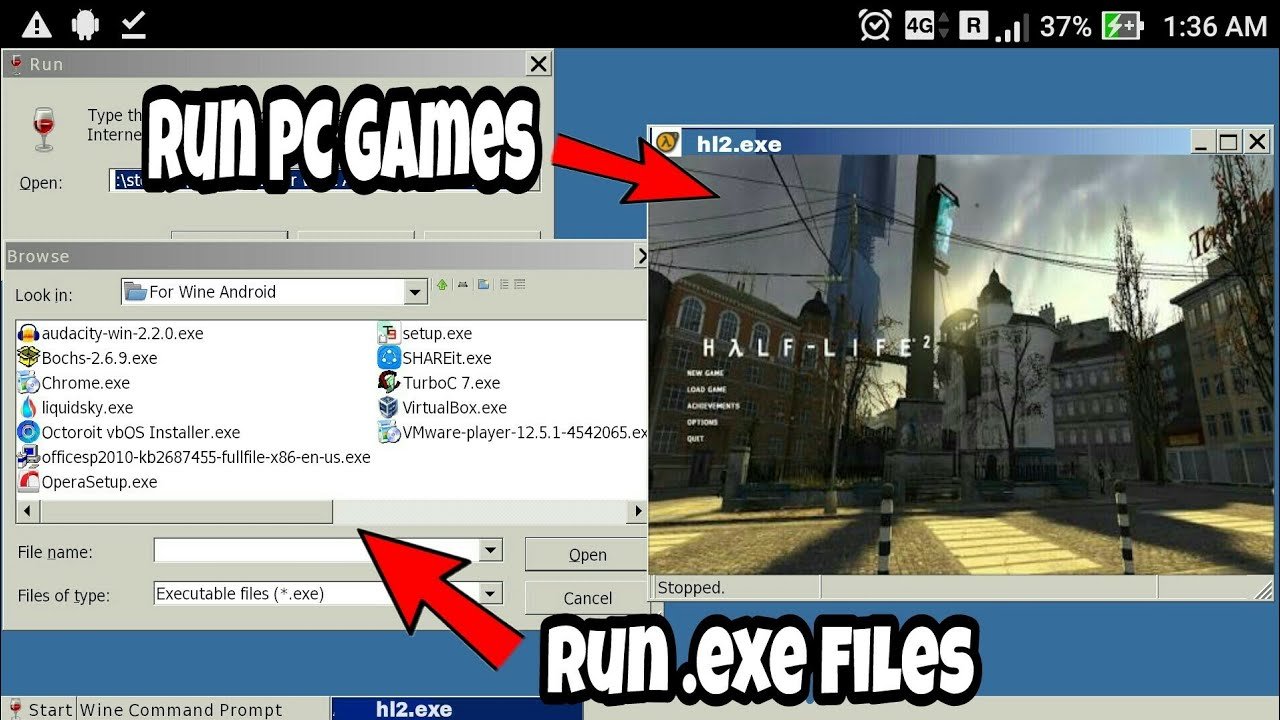
Unfortunately, you cannot directly play exe games on Android devices as they are designed for Windows operating systems.
Ever wanted to play your favorite PC games on your phone? Many of us do. The question “how to play exe games on android” pops up often. Exe files, used by Windows, aren’t naturally compatible with Android. This means a little tech know-how is usually needed to get it working.
Luckily, there are methods to bridge this gap. You can use apps or emulators to run PC games. We’ll explore some practical ways to get your games working on your mobile. It opens a new world of gaming!

How to Play EXE Games on Android
So, you’ve got a favorite computer game with that “.exe” ending, and you’re wondering if you can play it on your Android phone or tablet? It’s a great question! Those “.exe” files are made for Windows computers, not Android devices. But don’t worry, there are ways to enjoy some of those games on your Android! It’s not as simple as just downloading the file and tapping, but we’ll guide you through the steps.
Understanding EXE Files and Android
First, let’s talk about what makes this tricky. EXE files are essentially instructions for Windows computers. They tell the computer exactly what to do. Android, on the other hand, is like a different language – it uses APK files instead. Android devices use a different operating system, therefore, it cannot directly understand the instructions in an EXE file. It’s like trying to read a book written in Spanish when you only understand English. You need a translator!
Why Can’t Android Run EXE Files Directly?
Think of it like this: Windows and Android are built with different components. They use different systems, different drivers and different file types. EXE files include specific Windows system calls and libraries that simply do not exist on Android. Android operates using a Linux-based kernel and requires apps and games that have been compiled to run on its specific operating system.
The Role of Emulators and Compatibility Layers
So, how can we get around this? This is where emulators and compatibility layers come into play. These are like special programs that act as translators. They can pretend to be a Windows computer on your Android device. Emulators create an environment that mimics the Windows operating system, making your Android device think it’s running on windows, allowing some “.exe” programs to run. Compatibility layers, on the other hand, are like special software that makes the different instructions compatible with one another. These tools allow the games to function by interpreting the Windows commands and making them understandable by the android device.
Methods for Playing EXE Games on Android
Now, let’s get to the fun part – actually playing those games! There are a few different routes you can take, and we’ll explore the most common ones.
Using Wine for Android
One popular method involves using Wine. “Wine” is not an emulator, instead its a compatibility layer for linux based systems and it can make your computer run windows programs. Wine (which stands for “Wine Is Not an Emulator”) is a compatibility layer that translates Windows system calls into Linux calls. Since Android is based on Linux, it can work with Wine. There are special Android versions of Wine available that can let you run some Windows applications, including some older games. It can be a tricky setup at times but it is one of the best choices. Here’s how it generally works:
- Download and Install Wine for Android: You’ll need to find a reliable version of Wine for Android. This usually comes as an APK file, so you’ll have to permit the installation from unknown sources in your device settings. Make sure to download from a trustable source to avoid malwares.
- Create a Wine Prefix: You may need to create a “prefix” within the app. A prefix is basically a folder that pretends to be the Windows environment.
- Copy your EXE Games: Transfer your game’s files to your Android device. This is usually easiest to do by connecting your device to your computer with a USB cable, or transferring files through other cloud services.
- Run your game: Now you have to try and run the game from the Wine for Android application, sometimes this step is a bit complicated, depending on the version of the Wine you’re using, so you have to find the correct instructions on how to run the game file.
Things to Remember When Using Wine:
- Compatibility is not guaranteed. Some games will work better than others and some might not work at all.
- Performance can vary. It depends on your android device’s specifications.
- Wine can be complicated to set up, and may require some troubleshooting.
- Wine will not work for all games. The more modern the game, the more likely it is to fail.
Using Cloud Gaming Services
Another option is to use cloud gaming services. These services basically run the game on a powerful server and stream the video to your Android device, letting you control the game through the internet. Think of it like watching a movie, except you get to interact with it!
Here are some popular cloud gaming services you might want to check out:
- Xbox Cloud Gaming: Lets you stream Xbox games to your Android device. (requires subscription)
- NVIDIA GeForce NOW: This service streams games from your own Steam, Epic Games and other libraries. (requires subscription)
- Google Stadia: Google’s cloud gaming platform, although it is no longer available for purchase for new subscribers, if you had already bought games, you can play them. (requires subscription)
Pros of Cloud Gaming:
- No need to install games on your device.
- Can play high-end games even on less powerful Android devices.
- Often provides a very smooth gameplay experience if you have good internet connection.
Cons of Cloud Gaming:
- Requires a strong and reliable internet connection.
- Usually requires a paid subscription.
- You don’t have full ownership of the game files and must rely on the service’s game library.
Using Emulators
While Wine is a compatibility layer, there are actual emulators that are dedicated to running Windows games and applications. These emulators will simulate the Windows environment in your Android device and they work with your game. Here’s an explanation of the most common options:
DOSBox
DOSBox is the best option for running old games that used the MS-DOS operating system. Many games which now are available on Windows PCs, started out on DOS and can still be played using DOSBox. If your game is a DOS game, this is the best option for you.
- Download DOSBox for Android: Just like with Wine, you’ll need to get DOSBox from a trustable source. You’ll be installing an APK file.
- Transfer Your Game: Connect your phone to your computer and move the game folder to your phone.
- Mount Your Game’s Folder: When using the app, you will need to use commands to “mount” your game folder, telling the emulator that this is where your game files are.
- Run the Game: Finally, use the correct command to launch the executable file of your game, and if everything went well, you should see the game.
Things to remember when using DOSBox:
- It’s designed for older games, mostly DOS-based games.
- Setting it up may involve using command-line commands, but its easier than with Wine.
- You will likely need to use a virtual keyboard or gamepad to play.
ExaGear
ExaGear was a powerful emulator that allowed users to run a decent amount of Windows games on their Android devices. It has stopped being updated and it has been removed from the Play Store. However, if you find an old version online (which you should only do from a trustable website), it will still work. You should always be careful of the source when downloading software from outside the Play Store.
- Find and install ExaGear APK file: You can find an old version of the application online, but make sure you trust the source.
- Transfer your Game: Move the game folder from your computer to your Android device.
- Run the Game: Inside the app, there should be an option to select the game’s .exe file, and if compatible, the game should run.
Things to remember when using ExaGear:
- It’s not available on the Play Store anymore.
- Requires a bit of tinkering to work correctly and finding a trustable apk is hard.
- Compatibility is limited, and many modern games will not work.
Using Remote Desktop
A different method to play your games is using a remote desktop connection. This method does not involve actually running the game in your device, instead, it lets you see your computer screen and control your computer from your phone or tablet. This is useful if you have a powerful gaming computer, you can use your Android device to play games by using it as a monitor.
Some popular remote desktop softwares include:
- Microsoft Remote Desktop: Built by Microsoft, so it is compatible with any Windows computer.
- TeamViewer: Great for all-around remote access to computers.
- Chrome Remote Desktop: Made by Google and very easy to set up and use if you’re already using Chrome browser.
Pros of Remote Desktop:
- Lets you play any game that runs in your computer in your android device.
- If the game’s performance is not optimal you can simply change your computer settings to increase the framerate.
Cons of Remote Desktop:
- Your computer has to be turned on to use this feature.
- A reliable and fast internet connection is required.
- You must set up the connection beforehand.
Choosing the Right Method
So, which method is right for you? It really depends on what kind of games you want to play and your technical skills. Here’s a quick guide:
| Method | Best For | Difficulty | Internet Required |
|---|---|---|---|
| Wine for Android | Older and simpler Windows games | Medium to High | No |
| Cloud Gaming Services | Newer and more demanding games | Low | Yes |
| DOSBox | Old DOS games | Medium | No |
| ExaGear | Old Windows games | Medium to High | No |
| Remote Desktop | Any game in your computer | Low | Yes |
Important Considerations
- Device Specifications: Some emulators and cloud services require a more powerful android device in terms of processor, ram and storage space, be sure to check your device’s specs before starting.
- Storage space: Some games are quite large, so make sure your device has enough space for the game files and the emulator application.
- Legality: Always make sure you have the correct rights and licenses for the games you play.
- Security: When downloading APK files from sources that are not the Play Store, be careful of malware and viruses.
Playing EXE games on Android can be done, but it takes some work and sometimes a little bit of luck. There isn’t a single “magic” method that works for every game, so you have to test and find the best method for the games you want to play. Be patient and have fun!
Remember, not every game will run smoothly (or at all). However, with a little persistence, you can enjoy some PC favorites on the go! Experiment with the different methods and see which one is the best fit for you and your games.
Run PC Games On Android Easily With Winlator! Fallout 3, Oblivion And More!
Final Thoughts
You can play some EXE games on Android through emulators or cloud gaming. These methods allow you to access PC software on your mobile device. Be aware that performance might vary based on your phone’s specs and internet connection.
The process isn’t always perfect, needing a decent connection for cloud options. Emulation success relies on finding a compatible program. So, how to play exe games on android requires a bit of setup and some patience. Choose the approach that suits your needs best.

