
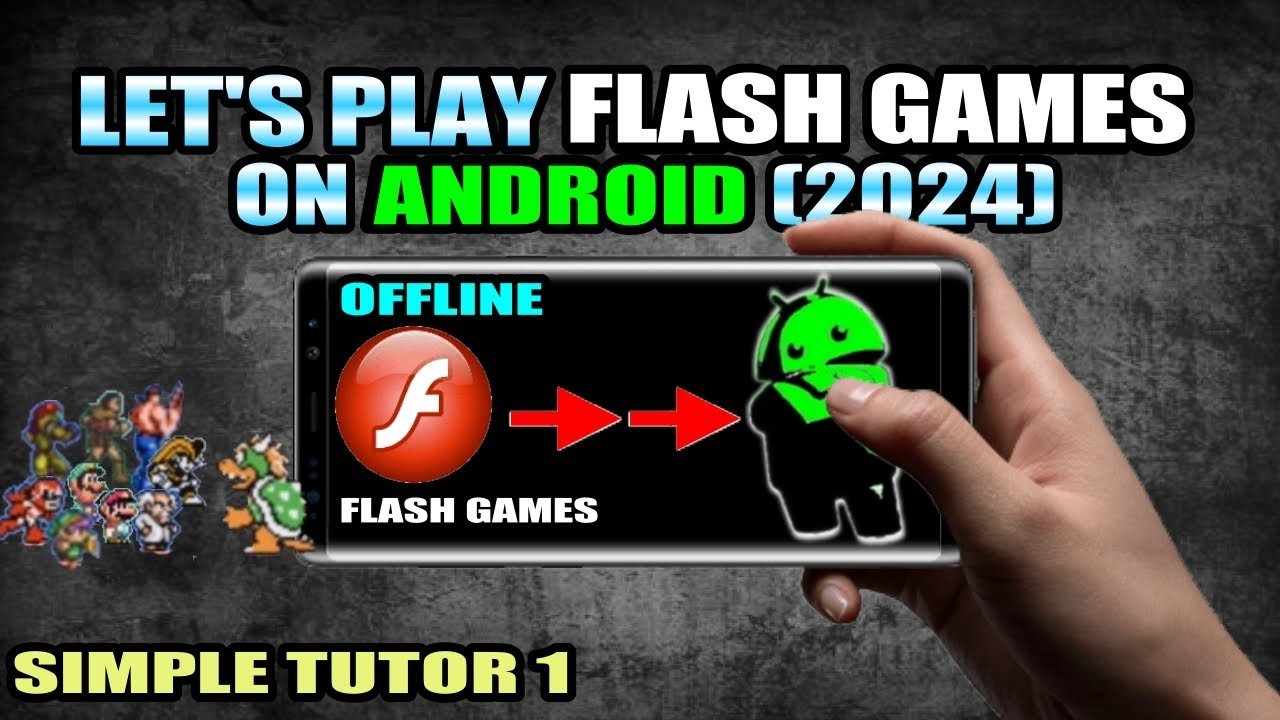
Unfortunately, you cannot directly play flash games on Android devices anymore due to Adobe’s discontinuation of Flash Player. You need to use third-party browsers or emulators designed to support Flash content.
Remember those countless hours spent on flash games? It’s a shame they’re not readily available on our phones. Many of us wonder how to play flash games in android, especially with Adobe Flash Player’s retirement.
This guide explores solutions that let you relive these classic games. There are a few workarounds, involving specific browsers and apps which try to emulate the flash experience. We can get back into that action.

How to Play Flash Games on Android
Remember those super fun flash games you used to play on your computer? Maybe you loved zipping around in a racing game or solving tricky puzzles. Well, good news! Even though Flash is kind of old news now, you can still play those awesome games on your Android phone or tablet. It might take a little bit of extra work, but it’s totally possible! Let’s jump into how you can get back into your favorite flash games on your Android device.
Why Flash Games Don’t Work Directly on Android Anymore
Okay, so first things first, why can’t you just click on a flash game and have it work on your Android? The main reason is that Adobe Flash Player, the program that made these games run, isn’t supported on Android devices anymore. It’s like trying to put a square peg in a round hole – it just doesn’t fit! Flash used a special way of coding that modern phones and tablets don’t understand. So, we need a workaround – a way to trick your phone into thinking it’s playing these old-school games. Don’t worry; it’s not as complicated as it sounds!
Understanding the Tools You’ll Need
Before we dive into the process, it’s important to gather the necessary tools. Think of it like preparing ingredients before baking a cake. Having everything ready makes the whole process much smoother. Here’s a look at what we’ll be using:
The Browser That Supports Flash
The first major thing you’ll need is a browser that still supports Flash, since most browsers don’t anymore. The most popular choice for this task is the Puffin Browser app. It’s like a special web browser that still understands the old flash player. It does this by using a cloud-based system. What that means is that instead of your phone doing all the work, the Puffin browser sends the information to a big computer somewhere else, that computer processes it and sends the result back to your phone. This allows you to run flash games without needing the flash player. Puffin is available on the Google Play Store, and it’s easy to install. There are other options like Dolphin browser, but Puffin is the easiest for the users.
Finding Flash Games
Now that we have our special browser, we need to find the flash games to play! Many websites still host old flash games, so you’ll just need to do some searching. A good place to start is by searching for the name of the flash game you want to play. You could search for “Cool Math Games,” “Armor Games,” or simply type in the specific game’s name. It is also recommended to include ‘play online’ or ‘flash game’ in your search to find the right version of the game. Remember, since these are older games, some websites might not work as well as others on your phone. Be patient, try a few different places until you find one that works best. Below are some popular resources for finding Flash games:
- Flashpoint Archive: A massive collection of Flash games, easily accessible through their website.
- Classic Gaming Websites: Websites like Miniclip, Addicting Games, and Kongregate. They still host many flash games, and although not all will work, you can still find many hidden gems.
- Internet Archive: A vast library of digital resources, including some flash game archives.
You can also search on Google by writing, “flash games online.” And you will get more option for flash games.
Setting Up Puffin Browser for Flash Games
Now let’s set up the Puffin Browser, so it can run flash games smoothly on your Android device. It is a pretty easy task. Here are the steps:
- Download and Install: Go to the Google Play Store and search for “Puffin Web Browser.” Download and install the app on your Android device.
- Open the Browser: Once installed, open the Puffin Web Browser app.
- Go to the Game Site: Use the browser’s address bar to navigate to the website where your flash game is located.
- Enable Flash (If Needed): Most of the time, Puffin will automatically detect a Flash game and will load it right away, but in rare cases, you might need to manually enable Flash on a page, there is usually a small flash icon that you can use to enable the flash.
- Start Playing: Once the game loads, you should be able to play it just like you would on a computer. Enjoy your flash game!
Troubleshooting Common Issues
Even with the best setup, you might run into a few bumps along the way. Here are some common issues and how to fix them:
Game Not Loading
Sometimes, a flash game might not load even if you have Puffin Browser. Here are the steps you can follow to check this:
- Check Your Internet Connection: Make sure your Wi-Fi or mobile data is working correctly. A weak or unstable connection can cause games to fail to load.
- Refresh the Page: Sometimes the game might not load correctly on the first try, refreshing the page can often fix the problem.
- Try a Different Browser: While Puffin is very effective, some websites may work better with a different Flash-supporting browser. You can try the Dolphin Browser if Puffin doesn’t work for you.
- Try a Different Site: If the game doesn’t work on one website, try finding the same game on a different website.
Game Runs Slowly
If a flash game runs slow, here’s what you can do to make the game run more smoothly:
- Close Background Apps: Make sure you have closed other apps running on your phone, as they may slow your game. Close all unnecessary apps to improve the performance.
- Clear Cache on Puffin Browser: Clearing the cache in the Puffin Browser can also make a difference. You can go to Puffin’s settings and clear your browsing data.
- Check your Internet Speed: If your internet speed is slow, that can also make the game run slowly. Try using a faster network or moving closer to your Wi-Fi source.
Controls Not Working Correctly
Sometimes the controls in a flash game might not work as smoothly on a touch screen. Here are some things you can do:
- Adjust the screen view: Sometimes zooming in or zooming out can solve this problem. Try doing this and see if the controls start responding.
- Check for on-screen buttons: Sometimes a flash game may have built in on screen controls, if the game has these controls use them.
- Use a Keyboard/Mouse: If you have access to a Bluetooth keyboard and mouse, connect them to your Android device for a better experience.
The Security Aspect of Running Flash Games
Now, a quick word about security. Since flash is an older technology, there are some things you should keep in mind when trying to play flash games online:
- Use Trusted Websites: Only visit websites that you recognize and trust. Do not download files from unknown websites.
- Update Your Browser: Always ensure that your browser (like Puffin) is updated to the latest version. This includes security updates.
- Avoid Shady Sites: If a website looks suspicious or seems to be asking you to download something you’re not sure about, steer clear of it. It’s better to be safe than sorry.
Tips for a Better Flash Game Experience
Want to make your flash game time even better? Here are some quick tips:
Use a Stylus
Using a stylus instead of your finger can sometimes make the controls more accurate, especially for detailed games. Using a stylus can also reduce fingerprints on the screen.
Adjust Screen Brightness
Make sure that the brightness of your phone screen is comfortable for your eyes. Playing for a long time on a very bright screen can tire your eyes.
Take Breaks
Playing games is super fun, but it’s a good idea to take breaks. Give your eyes and hands a rest every now and then. It also helps to have a healthy lifestyle.
Exploring Alternatives
While playing flash games through a browser like Puffin is a great option, there are also some other alternatives you might find interesting:
Game Emulators
Game emulators can let you play older games from consoles. While they are different from flash games, some gamers enjoy these emulators as well. These emulators need game ROMs which can be found online.
HTML5 Games
Many newer games are made using HTML5, which is supported by most modern browsers. They are like the new version of flash games. If you are finding it hard to play flash games, HTML5 games may be the best alternative for you. You can simply search “HTML5 games online” on Google and play without any hassle.
Mobile Game Apps
Lastly there are tons of game apps on the Google Play Store. If you don’t have your favorite flash game available you may find something similar in the Google Play Store.
Playing flash games on an Android device can be a great way to enjoy classic games. Following the tips and tricks mentioned, you can start playing your favorite games on your phone in no time. It is all about using the right tools and keeping a few safety tips in mind. Remember, if you hit a snag, take a breath, try a different method, and don’t give up. You will surely be able to get back to your old favorites soon!
How to Play Any Flash Game on your Phone | Tutorial 2021
Final Thoughts
Playing flash games on Android involves using a specialized browser, like the Puffin browser. This browser emulates the Flash player, allowing you to enjoy classic games. Install the app and navigate to websites that host flash content.
Another way involves utilizing third-party apps that offer flash support. These apps often bundle a flash emulator and require careful setup. Remember to download from trustworthy sources for security.
Ultimately, ‘how to play flash games in android’ hinges on using emulators or compatible browsers. Enjoy your nostalgic gaming experience!

