
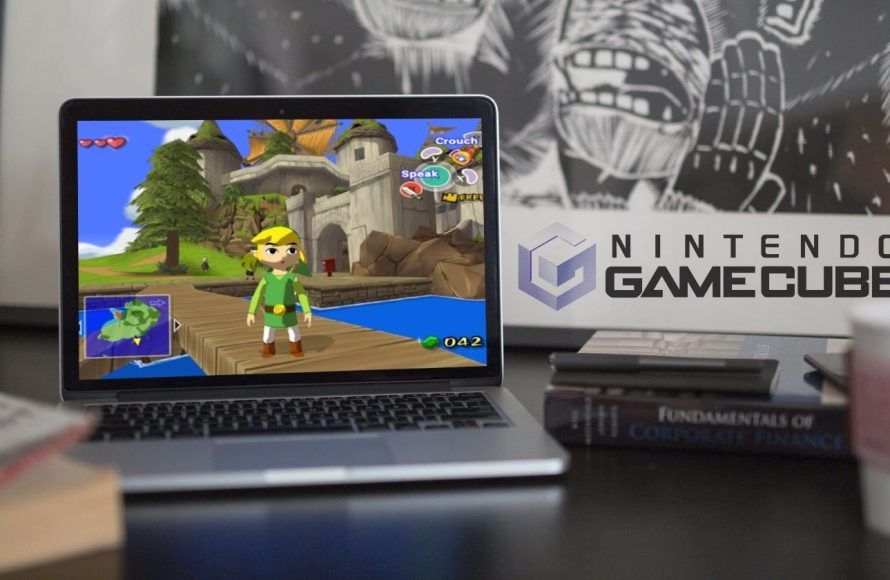
To play GameCube games on a PC, you’ll need to use a GameCube emulator and game ROM files.
Ever wished you could revisit those classic GameCube titles without digging out the old console? Many gamers are now seeking ways on how to play GameCube games on a pc. It’s certainly possible, and fairly straightforward with the right tools.
The process primarily involves downloading an emulator, which acts like a virtual GameCube, and then acquiring game files. Getting it set up allows you to dive into your favorite titles right from your computer. Enjoy the nostalgia!

How to Play GameCube Games on a PC
Want to play your favorite GameCube games but don’t have the console anymore? No problem! You can actually play them on your computer. It’s like having a virtual GameCube inside your PC! This guide will show you how. It might sound a little tricky, but we’ll break it down step-by-step so it’s easy to understand.
What You Need to Get Started
Before we dive in, let’s make sure you have everything you need. Think of it like gathering ingredients before you start baking a cake. Here’s your checklist:
- A Computer: You need a desktop or laptop that’s powerful enough. Think of it like needing a strong enough oven for that cake. A computer with at least an Intel Core i5 or AMD Ryzen 5 processor, 8GB of RAM, and a dedicated graphics card is recommended for a smooth experience. Integrated graphics might work, but you might see some slowdown.
- GameCube ISOs (Game Files): These are digital copies of your GameCube games. It’s like having a digital version of the game disc. You will need to obtain these legally. You can use a game disc and an ISO extractor, or if the game is available, you may be able to acquire it from digital marketplaces. We recommend using your own legal copies of the games.
- A GameCube Emulator: This is the special software that makes your computer think it’s a GameCube. Think of it like the cake pan that helps bake your cake into shape. Dolphin emulator is a popular choice.
- A Game Controller (Optional but Recommended): While you can use a keyboard and mouse, a gamepad (like an Xbox or Playstation controller) makes playing feel more like using a real GameCube controller.
Finding and Setting Up a GameCube Emulator
The emulator is the key to playing GameCube games on your PC. Let’s take a deeper look at it.
Choosing an Emulator
As said before, the most popular and widely used emulator for the GameCube is called Dolphin. It’s free, it’s powerful, and it gets regular updates. It’s like the best tool in the workshop! You can download it from the official Dolphin website. Make sure you get the version that matches your operating system (Windows, macOS, or Linux).
Downloading and Installing Dolphin
Here’s how you can get Dolphin and get it ready:
- Go to the Official Website: Visit the Dolphin emulator website. Make sure it’s the correct website to avoid any unwanted software.
- Find the Download Section: Click on the ‘Download’ button and find the version for your operating system.
- Download the Installer: Click the button to download the installer file.
- Run the Installer: Open the downloaded file and follow the steps that come up on your screen. It’s similar to installing any other program.
- Complete the Installation: Once installed, you’ll find an icon on your desktop or in your applications folder for Dolphin.
First Time Setup
When you open Dolphin for the very first time, you might see a message asking you to find where the game files or ISOs are kept, which we’ll discuss in the next section. You might also want to customize your controller settings so that it plays exactly how you like it. It’s like adjusting the settings on your video game console to make things perfect for you.
Acquiring GameCube Game Files (ISOs)
Getting your hands on the game files (ISOs) is the next important step. This part is a bit sensitive, as it involves making copies of games.
Understanding GameCube ISOs
ISOs are like digital images of a GameCube game disc. They contain all the data needed to run the game. Think of it as a full picture of a puzzle that allows you to piece it together on your computer. You’ll need these ISO files to play your games.
Legally Obtaining ISOs
The best and most legal way to get these ISOs is to create them from your physical GameCube game discs. You will need a special disc drive and software to do this. This method ensures that you’re playing games that you legally own. Here’s the typical process:
- Get a Disc Drive: A standard DVD drive might not work with GameCube discs. If your PC doesn’t have one or a suitable one, you may need to purchase a separate USB device.
- Install the Software: You will need to get a suitable disc ripping software. Usually, you would start with looking for ISO creators on the internet that are compatible with your computer.
- Insert the Game Disc: Put your GameCube game disc into the drive you installed.
- Start the Ripping Process: Using your ISO creation software, create the ISO file from the disc. This may take some time.
- Store the ISO: Once created, store the ISO file in a folder on your computer where it is easily accessible.
Important Note About Downloading ISOs
Downloading ISOs of games from the internet is often not legal unless you already own the physical copy of the game. We encourage you to only use your own legal game copies. Downloading from unauthorized sources can expose you to viruses and malware, and is considered piracy, which is not allowed. Remember, supporting the developers by purchasing their games is a good thing to do.
Setting Up Your Controller
Playing with a keyboard and mouse is okay, but a gamepad gives you the real GameCube experience. Let’s talk about how to set up a controller with the Dolphin emulator.
Connecting Your Controller
Most game controllers connect via USB or Bluetooth. Here’s how to connect it to your computer:
- USB Connection: Plug your controller into a USB port on your computer. Usually, your computer will detect the controller and install necessary drivers automatically.
- Bluetooth Connection: If your controller supports Bluetooth, you may need to pair it with your computer. Open your computer’s Bluetooth settings, make the controller discoverable, and then pair the devices.
Configuring the Controller in Dolphin
Now, you need to tell Dolphin emulator how to use your controller:
- Open Dolphin: Launch the emulator.
- Go to Settings: You need to find the controller settings menu. This is commonly found in the ‘Controllers’ section.
- Configure Inputs: Click on configure, and then you may see a picture of a GameCube controller. Click the buttons on the graphic to then configure the buttons on your physical controller. For example, click on the ‘A’ button on the Dolphin interface and then push the ‘A’ button on your controller to assign it.
- Save the Configuration: When you finish setting the controller up, save this new profile.
- Test the Controller: You can test that your inputs work correctly in this interface, and you can then save this config.
Troubleshooting Controller Issues
If your controller isn’t working as it should, try these tips:
- Check Connections: Make sure your controller is properly connected to your computer and that your controller has sufficient power.
- Update Drivers: Sometimes, old drivers can cause issues. Make sure you have the latest drivers for your controller.
- Restart Dolphin: Close and restart the Dolphin emulator to see if that fixes the issue.
- Different Controller Ports: If Dolphin detects multiple ports, make sure that your controller is set to the port that it is connected to.
Playing Your GameCube Games
Finally! It’s time to play your games. Let’s cover how to get your games running and what to expect.
Loading the Game in Dolphin
Now that you have everything set up, load up your game.
- Open Dolphin: Launch the emulator again.
- Add Game Folder: Dolphin may ask you to find the folder where you store your ISOs. Set that up.
- Select the ISO: Choose the game you want to play. Click on it to begin.
Understanding Performance Settings
GameCube games run differently on a PC than they did on the original console. Performance might not be the same for everyone, based on the specs of their computer. If your game is running too slow, try these settings:
- Resolution: Lowering the game’s resolution can improve performance. This is located in the video or graphics settings.
- Internal Resolution: Lower the resolution settings within Dolphin. This may also improve performance.
- Backend: Try changing the backend rendering to Vulkan or OpenGL depending on what is available on your device.
- Graphics Card: Make sure that your device is using its dedicated graphics card, if it has one. Sometimes computers may try to run these games with integrated graphics.
Saving Your Game
Save often! GameCube games usually let you save your progress within the game. Dolphin also has the option to take snapshots or save states for games, which allows you to load your save game at the exact same place you left off. This can be a big help if you want to quickly jump back into where you left off.
Enhancing the Experience
Some Dolphin features can make the games even better. Here are a few things you can explore:
- HD Textures: You can download HD texture packs for your games and load them into dolphin. This makes games look sharper and more clear.
- Widescreen Hacks: You can use these to expand a game’s perspective to your computer’s widescreen display.
- Cheats: If you are looking for ways to make games easier or have some special conditions, Dolphin provides a method for using cheat codes.
Common Problems and Solutions
Sometimes, things might not go perfectly smoothly. Here are some common problems you might run into:
Game Crashes
If a game crashes frequently, try these fixes:
- Update Dolphin: Make sure you have the latest version of the emulator.
- Graphics Driver Updates: Update your graphics card drivers to the latest versions.
- Lower Settings: Try lowering the graphics settings in Dolphin to make the game less demanding for your computer.
- Game Compatibility: Verify that the game is known to be compatible with your version of Dolphin. Check other forums for any compatibility related issues with the game in question.
Slow Performance
Slow, or choppy, game play can be improved by these steps:
- Close Other Programs: Close background apps that could be taking up resources on your PC.
- Increase Graphics: Increase your device’s graphics performance if the graphics are not being used properly.
- Game Settings: Check if any game settings are affecting the performance.
Controller Not Working
If your controller is not being detected or working properly, then:
- Restart Controller: Unplug and replug your controller. Check that the light is on and is functioning properly.
- Reconfigure: If the button mappings are incorrect, then reconfigure the controller in the Dolphin settings.
- Controller Driver: Reinstall or update your controller’s drivers.
Playing GameCube games on your PC is possible! It might take a little practice, but it’s a really fun way to play your favorite games again. You have all the information you need to get started. Follow these steps, and you’ll be playing in no time! Remember to stay safe and legal with your game files. Have fun and enjoy your games.
Dolphin Emulator Full Setup Guide in 2024
Final Thoughts
To play GameCube games on a PC, you need an emulator like Dolphin, plus game ROMs. Download the emulator and install it. Then, find your desired game ROMs.
Configure the emulator settings to optimize performance. After setup, load the ROMs within the emulator. Now, you can enjoy the game. This is how to play gamecube games on a pc.

