
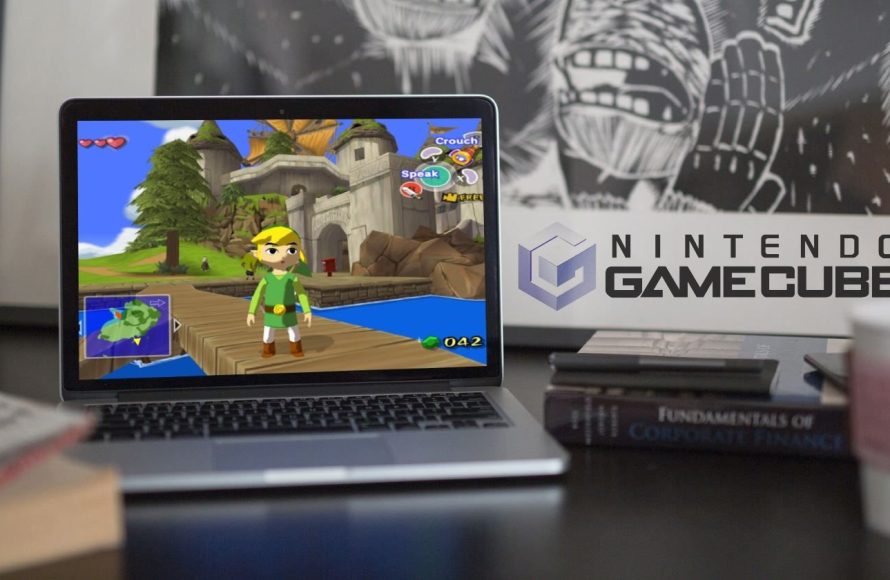
You can play GameCube games on your PC by using a GameCube emulator, like Dolphin, and obtaining game ROMs.
Remember those fantastic adventures on your GameCube? The good news is, you can experience them again, right on your computer. Many people are curious about how to play GameCube games on PC, and the process is actually quite straightforward. You’ll need specific software that mimics the console’s hardware.
This software, known as an emulator, allows your computer to run the games. Additionally, you’ll need the game files themselves, often called ROMs. Get ready to dive back into the classic worlds of the GameCube!

How to Play GameCube Games on PC
Want to play those awesome GameCube games again? Good news! You can actually play them on your computer. It might sound tricky, but it’s totally doable with a little know-how. This guide will walk you through every step, making it super easy to jump back into your favorite GameCube adventures. We’ll cover everything from the basics to the nitty-gritty details, ensuring you have a smooth and enjoyable gaming experience.
What You Need to Get Started
Before we dive into the process, let’s gather everything you’ll need. Think of it like preparing for a super fun video game mission. Here’s your checklist:
- A Computer: You’ll need a Windows, Mac, or Linux computer. The more powerful your computer is, the better your games will run. Think of it as needing a speedy race car for a fast-paced game.
- GameCube Emulator: This is special software that makes your computer think it’s a GameCube. It’s like having a translator that lets your computer understand GameCube games. The most popular one is called Dolphin.
- GameCube Game Files (ROMs): These are digital copies of your GameCube games. It’s important to understand that you should only use ROMs of games you actually own. Using ROMs you don’t own can create problems.
- A Game Controller (Optional but Recommended): While you can use your keyboard, a controller gives you that authentic GameCube feel. Imagine trying to play Mario Kart with a keyboard – a real controller is so much better! You can use a USB controller, an Xbox controller, or even a PlayStation controller.
Getting the Dolphin Emulator
Alright, let’s get to the exciting part – downloading the Dolphin Emulator. This software is the heart of playing GameCube games on your PC, it’s like the engine of your virtual GameCube. Follow these steps:
Finding the Right Download
The best place to get Dolphin is from its official website. This is really important to make sure you are getting a safe and legit copy. To find the website, simply search “Dolphin Emulator” on your favorite search engine. Make sure you are on the official website of Dolphin Emulator.
Downloading and Installation
Once you are on the official Dolphin website, you’ll see a downloads section. Click on the version of Dolphin that matches your computer’s operating system (Windows, Mac, or Linux). The download should be pretty quick, especially if you have a good internet connection. When the download is complete, open the installer file. This will start the installation. Just follow the instructions that show up on the screen, and you’ll be all set in no time.
Obtaining GameCube ROMs
Now, here comes the important part about game files, called ROMs. These are the digital versions of the GameCube games you want to play. You should only obtain ROMs of games that you own, this ensures that you are playing games fairly.
Legally Obtaining ROMs: If you own a physical copy of a GameCube game, you can create a ROM of that game for your own use. You’ll need a special piece of equipment to do this, which is called a disc dumper. This device will transfer the data from the game disc to your computer, creating the ROM file. This process ensures you are playing games legally and ethically.
Ethical Considerations: Using ROMs of games you don’t own is generally not allowed and can get you into trouble. We want you to have fun and enjoy GameCube games, so please play fair. Always try to support the people who make these wonderful games.
File Formats: GameCube ROMs come in different file formats. The most common are ISO (.iso) and GCM (.gcm). Dolphin can play both of these formats, so either one is fine. It’s just like having different kinds of puzzle pieces that fit perfectly into place.
Setting Up Dolphin
With Dolphin installed and your ROMs ready, it’s time to set up the emulator. This is where you customize Dolphin to work just how you want it, making sure the games play great. Let’s walk through it:
Loading Your Games
Open the Dolphin emulator. The first thing you need to do is tell Dolphin where your game ROMs are. To do this, click on “Config” on the main Dolphin window. Then click “Paths,” and then, “Add.” Find the folder where you saved all of your game files, select it, and then press “Ok”. This is like teaching Dolphin where your toy box is located. Dolphin will now look inside that folder to find the game files, this allows Dolphin to show them all in the main window.
Controller Configuration
Next, you’ll need to set up your controller. Under the “Config” option, select “Controllers,” and in the “Port 1” dropdown menu, select your controller. if you select “Configure”, you’ll be taken to a new window. This is where you’ll map all of the buttons on your physical controller to the corresponding buttons of the GameCube controller. It’s like telling the emulator which button does what. If you’re using a keyboard, just click the buttons and press the key on the keyboard you wish to use. After that, save your configuration, and your controller setup is complete.
Graphics and Audio Settings
Now, let’s talk about the graphics and audio. These settings control how the games look and sound. Under the “Config” menu, click “Graphics”, and “Audio”. Experimenting here is key. If your game seems slow or doesn’t look great, try lowering the resolution or other settings. If you have a very high performing computer, you can try using higher settings for better image quality. Don’t worry about getting everything perfect the first time. Playing around and experimenting is part of the fun!
Playing Your First Game
Okay, it’s time to jump into a game. Locate the game you wish to play and double-click on it. It’s that easy! If everything was set up properly, the game should start. Now you get to play! Try a variety of games and see how well they run. Each game is going to play slightly differently, so be ready to make adjustments. Don’t be afraid to change graphics settings, controller settings, or other options if you are having issues.
Troubleshooting Common Issues
Even when you do everything correctly, sometimes things can go wrong. Here are some common issues and how to solve them:
Game Running Slow or Choppy
If your game is running slowly or seems choppy, try the following:
- Lower Graphics Settings: In Dolphin’s graphics settings, try lowering the resolution and other options. This will make the game easier for your computer to handle, and the game may play much smoother.
- Close Other Programs: Make sure you don’t have any other programs open that are taking up a lot of your computer’s resources. Close things like web browsers or video editing software, this will leave more resources for your games to use.
- Update Your Drivers: Make sure your computer’s video card drivers are up to date. Outdated drivers can cause performance issues. Check your video card’s manufacturer website for driver updates.
Controller Not Working
If your controller isn’t working:
- Check Connections: Make sure your controller is properly connected to your computer. Try unplugging it and plugging it back in.
- Reconfigure: Go back into Dolphin’s controller settings and reconfigure your controller. Sometimes, the emulator can get confused and needs to be told what’s what again.
- Try a Different Controller: If you can, try a different controller to see if the issue is with your controller itself.
Game Not Starting or Crashing
If your game won’t start or keeps crashing:
- Check Your ROM: The ROM might be the issue. Try a different ROM file for the same game, or try getting the game file from a different location.
- Restart Dolphin: Sometimes, simply closing and reopening Dolphin can fix the problem.
- Check Dolphin Updates: Check the Dolphin website to see if there is an updated version of the emulator. An update may fix the issue.
Tips and Tricks for a Better Experience
Playing GameCube games on your PC can be even more enjoyable with a few additional tricks:
Using Save States
Dolphin allows you to save your game at any point using save states. This is like having a “rewind” button for games. If you make a mistake, you can simply go back to a previous save point and try again. This can be very useful for those very challenging moments of gameplay.
Playing with Friends
You can play with friends online using Dolphin’s netplay feature. This lets you play some games with friends all over the world. To use this feature, your friends must also have dolphin setup, and a copy of the same game. This is a great way to relive those classic multiplayer moments with friends no matter where they live.
Enhancing Graphics
Dolphin has several options for enhancing the game’s graphics beyond what was seen on the original GameCube. You can try higher resolutions and other filters to make games look even better. This can really make those older games look brand new, it’s like giving them a fresh coat of paint.
Important Considerations
Before you get fully immersed in your GameCube adventures, let’s go over some very important things:
Legality
Again, we want to emphasize that you should only use ROMs of games you own. Playing games you don’t own is wrong and can cause problems for you. Always remember that you should support the game creators by buying games legally.
Computer Performance
Playing GameCube games on a PC requires a certain amount of power from your computer. If your PC is really old, or not very powerful, it may struggle to play some games smoothly. You need to have enough processing power, enough RAM, and a good video card to run games properly. Some games may run fine while others may not, this will depend on how powerful your PC is.
Experimentation
Getting everything to work perfectly sometimes requires some trial and error. You may need to change settings, use different versions of the emulator, or try different game files. Have fun, learn, and don’t be discouraged if you have to try a few things to get everything perfect.
Playing GameCube games on your computer brings back those great memories of playing classic games. By following the steps we talked about, you can enjoy these games again, but now with even better graphics and with features the original console never had. With the right settings, and with some patience, you will be able to play all of your favorite GameCube games once again. Enjoy your journey back into the world of classic GameCube games!
Dolphin Emulator Full Setup Guide in 2024
Final Thoughts
To play GameCube games on your PC, you need an emulator like Dolphin. Download the software, and then acquire game ROMs from a legitimate source. Configure the emulator settings according to your computer specs. This allows you to experience GameCube classics on a modern device.
You can also connect a compatible controller for the optimal experience. Remember the legality of obtaining ROMs, it is crucial you own a copy of the game. This is a simplified guide on how to play gamecube games on pc.

