
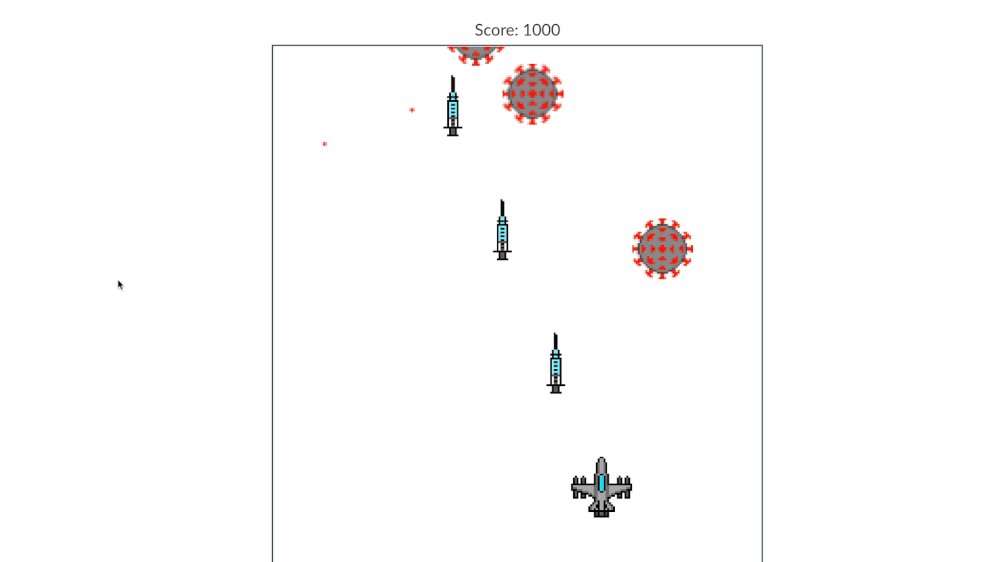
To play games on canvas, you use JavaScript to draw game elements and handle user interactions, updating the canvas visually for each frame.
Ever wondered about the magic behind those cool web-based games? It all starts with the HTML5 canvas element, a blank slate for creative coding. This versatile tool allows developers to draw graphics directly on a webpage. Understanding how to play games on canvas opens up a world of possibilities. We’ll explore the basic techniques for creating interactive game experiences using this powerful tool.

How to Play Games on Canvas: A Fun Guide for Everyone
Have you ever wondered if you could play games right inside your web browser using something called a “canvas”? It’s not just for drawing pictures! Canvas is like a blank sheet inside your browser that you can use to create all sorts of fun things, including games. This might sound tricky, but it’s actually quite cool, and I’m going to show you how it works. We will be diving into the exciting world of making and playing simple games directly on your computer screen. You don’t need fancy equipment or special software – just a browser and a little bit of know-how.
What is a Canvas, Anyway?
Think of a canvas element in a web page as a digital drawing board. It’s a rectangular area where you can put pixels to create images, animations, and yes, even games! Unlike regular HTML elements that have their own pre-defined appearance, the canvas is a blank slate. You, the developer (or aspiring game maker!), are in charge of drawing everything on it using JavaScript code. This offers a lot of flexibility and power, allowing for very creative and engaging game designs.
The Basics of Canvas
- It’s a Rectangle: Canvas is always a rectangle. You can set its size, but it will always have four sides and four corners.
- Pixels are Key: Canvas is made of tiny squares called pixels. Each pixel can be a different color, and putting lots of colored pixels together creates images.
- JavaScript Does the Work: We use a programming language called JavaScript to tell the canvas what to draw.
Setting up your Canvas
Before we can make awesome games, we first need to add a canvas to our web page. This is actually quite easy, and involves just a little bit of HTML code. Don’t worry, I’ll walk you through it!
Creating the Canvas with HTML
To put a canvas on your webpage, you need to use the <canvas> tag, a bit of code that tells the web browser to make space for your canvas. Here’s how it looks:
<canvas id="myCanvas" width="400" height="300"></canvas>Let’s break this down:
<canvas>is the tag that tells the browser, “Hey, I want a canvas here!”id="myCanvas"gives the canvas a name, “myCanvas,” so we can refer to it later in our JavaScript code. You can pick any name, just keep it something easy to remember.width="400"andheight="300"set the size of the canvas. In this case, it is 400 pixels wide and 300 pixels tall. You can change these values to make the canvas bigger or smaller.-
</canvas>this is closing the tag of canvas, and making it complete.
Getting the Canvas Ready with JavaScript
Once the canvas is in place, we need JavaScript to grab ahold of it and start drawing. Think of this as getting your paintbrush and palette ready to start creating your masterpiece. We’ll be using the <script> tags, which is how we put our Javascript codes in our webpage. Here’s how we do it:
<script>
      const canvas = document.getElementById("myCanvas");
      const ctx = canvas.getContext("2d");
    </script>
Let’s take a look at what this code does:
const canvas = document.getElementById("myCanvas");this line finds the canvas on your page that has the id “myCanvas” and holds it in a variable named “canvas”. Think of a variable as a container where you store things.const ctx = canvas.getContext("2d");This line gets the 2D drawing context of the canvas. The “context” is like the toolbox where all our drawing tools live. We will use the variable named “ctx” to use this tool box.
Now that we have the canvas element and drawing context, we can start to create visuals on the canvas!
Drawing Basic Shapes
Now comes the fun part: actually drawing on the canvas! Let’s start with some basic shapes to get familiar with how the canvas drawing process works. We can draw things like rectangles, circles and lines, and use different colors too.
Drawing Rectangles
Rectangles are among the easiest shapes to create on canvas. We use the fillRect() method which is a drawing function inside the canvas toolbox (ctx). Here’s how you can draw a simple red rectangle:
<script>
            const canvas = document.getElementById("myCanvas");
            const ctx = canvas.getContext("2d");

            ctx.fillStyle = "red";  // Set the fill color
            ctx.fillRect(50, 50, 100, 80); // Draw a filled rectangle
        </script>
ctx.fillStyle = "red";sets the color to red, meaning that if we draw something it would be red colored.ctx.fillRect(50, 50, 100, 80);draws a rectangle with the top-left corner at position 50, 50 and with a width of 100 pixels and a height of 80 pixels.
You can experiment with different numbers for x position, y position, width, and height, and also you can change the fill color, like “blue”, “green”, or “#FF00AA” etc.
Drawing Circles
Circles are a bit more involved to draw. Instead of a single fillRect() we need to use the beginPath(), arc() and fill(). Here’s an example that draws a blue circle:
<script>
            const canvas = document.getElementById("myCanvas");
            const ctx = canvas.getContext("2d");

            ctx.fillStyle = "blue";
            ctx.beginPath(); // Start a new path
            ctx.arc(200, 150, 40, 0, 2  Math.PI); // Draw a circle
            ctx.fill();  // Fill the circle with color
        </script>
ctx.fillStyle = "blue";makes the color of the circle to blue.ctx.beginPath();starts drawing a new shape.ctx.arc(200, 150, 40, 0, 2 Math.PI);draws an arc (or circle) at the center at the coordinates 200 and 150, with a radius of 40 pixels. The 0 and 2 Math.PI means the circle is drawn starting at 0 degree and ends at 360 degree.ctx.fill();fills the circle shape we have drawn.
Like the rectangle, you can experiment with different position values and color to make it different and cool.
Drawing Lines
You can also draw lines using the moveTo(), lineTo(), and stroke() methods. Here’s how to draw a simple diagonal line from the top left to the bottom right:
<script>
            const canvas = document.getElementById("myCanvas");
            const ctx = canvas.getContext("2d");

            ctx.beginPath();
            ctx.moveTo(0, 0);  // Start at the top-left corner
            ctx.lineTo(400, 300); // Draw a line to the bottom-right corner
            ctx.stroke();   // Make the line visible
        </script>
ctx.beginPath();we start drawing.ctx.moveTo(0, 0);moves the pencil to the start of the line that is at position x=0 and y=0.ctx.lineTo(400, 300);draws the line to the position x=400 and y=300.ctx.stroke();actually makes the line that we have been drawing.
Making Things Move: Animations on Canvas
Drawing shapes is cool, but making them move is even better! To do that we need to make the shapes redraw in a different position again and again, very quickly. That way it will look like the shapes are moving. To make that happen we will be using a special Javascript function called ‘requestAnimationFrame’.
The Animation Loop
The key to animation is an animation loop: this is a function that keeps running over and over, drawing the scene, moving or changing positions of objects, and drawing them again. This loop happens very fast making it look like animation.
<script>
            const canvas = document.getElementById("myCanvas");
            const ctx = canvas.getContext("2d");

            let x = 50;
            let y = 50;
            let speedX = 2;
            let speedY = 1;

            function draw() {
              ctx.clearRect(0, 0, canvas.width, canvas.height); // Clear the canvas
              ctx.fillStyle = "red";
              ctx.fillRect(x, y, 50, 50); // Draw the moving square

                x += speedX;
                y += speedY;


              // Bounce on the edges of the screen
               if (x + 50 > canvas.width || x < 0) {
                speedX = -speedX;
              }
              if (y + 50 > canvas.height || y < 0) {
               speedY = -speedY;
              }


              requestAnimationFrame(draw); // Request next frame
            }

            draw(); // Start the animation
        </script>
let x = 50;let y = 50;initializes the position of square at x=50 and y=50.let speedX = 2;let speedY = 1;is how much the square moves to the next position, speedX is horizontal speed, and speedY is vertical speed.- The
draw()function is the heart of the animation loop. ctx.clearRect(0, 0, canvas.width, canvas.height);clears the whole canvas before drawing the square at the new position. If you don’t clear the canvas, the previous position will still be on the screen making a blurry effect.ctx.fillRect(x, y, 50, 50);draws the red square again at the new position specified by ‘x’ and ‘y’ variables.x += speedX;andy += speedY;changes the position of ‘x’ and ‘y’ for the next frame.- The if conditions make sure that the square changes direction if it touches the edges of the screen by making the speedX and speedY negative.
requestAnimationFrame(draw);tells the browser to run this draw function again. This makes the animation continue looping.draw();actually starts the looping by calling the function for the first time.
Making a Simple Game: Bouncing Ball
Now that we know how to draw shapes and make them move, let’s put this together into a small game. This is a basic bouncing ball game where a ball will bounce on the sides of the canvas.
The Game Code
<script>
            const canvas = document.getElementById("myCanvas");
            const ctx = canvas.getContext("2d");

            let x = 50;
            let y = 50;
            let speedX = 3;
            let speedY = 2;
            let radius = 20;

            function drawBall() {
              ctx.clearRect(0, 0, canvas.width, canvas.height);

              ctx.beginPath();
              ctx.arc(x, y, radius, 0, 2  Math.PI);
              ctx.fillStyle = "green";
              ctx.fill();

              x += speedX;
              y += speedY;

              // Bounce on the walls
                if (x + radius > canvas.width || x - radius < 0) {
                   speedX = -speedX;
                 }
                 if (y + radius > canvas.height || y - radius < 0) {
                    speedY = -speedY;
                 }

               requestAnimationFrame(drawBall);
            }

          drawBall();
        </script>
- This code is quite similar to the previous code of moving square, except that we are making a ball instead of a square.
- We set the radius of the ball, in this case as 20 pixel.
- We draw a circle using
beginPath(),arc()andfill()method. - We make the ball move by changing x and y with the speed value.
- And finally we change the speed direction, when it touches any of the 4 edges of the canvas.
Adding Interactivity: Responding to Input
Games are way more fun when you can interact with them. To respond to keyboard keys and mouse clicks we need to add "event listeners". These listeners are going to call functions which change the way the game works. We will add a simple functionality to move the ball with keyboard keys
Keyboard Input
Let's modify the game to respond to the arrow keys, making the ball move up, down, left, and right. We do this by adding event listeners for key presses.
<script>
             const canvas = document.getElementById("myCanvas");
             const ctx = canvas.getContext("2d");

            let x = 50;
            let y = 50;
            let speedX = 0; // Initial speed is 0
            let speedY = 0;
            let radius = 20;


           function drawBall() {
              ctx.clearRect(0, 0, canvas.width, canvas.height);

              ctx.beginPath();
              ctx.arc(x, y, radius, 0, 2  Math.PI);
              ctx.fillStyle = "green";
              ctx.fill();

              x += speedX;
              y += speedY;


             if (x + radius > canvas.width || x - radius < 0) {
                   speedX = 0;
                 }
                 if (y + radius > canvas.height || y - radius < 0) {
                    speedY = 0;
                 }

               requestAnimationFrame(drawBall);
            }

            function handleKeyDown(event) {
                const key = event.key;
                switch (key) {
                  case "ArrowUp":
                     speedY = -2;
                     break;
                  case "ArrowDown":
                     speedY = 2;
                     break;
                  case "ArrowLeft":
                     speedX = -2;
                     break;
                  case "ArrowRight":
                     speedX = 2;
                     break;
                    }
            }
           function handleKeyUp(event) {
                const key = event.key;
                 switch (key) {
                  case "ArrowUp":
                  case "ArrowDown":
                     speedY = 0;
                     break;
                  case "ArrowLeft":
                  case "ArrowRight":
                      speedX = 0;
                      break;
                }
             }

            window.addEventListener("keydown", handleKeyDown);
            window.addEventListener("keyup", handleKeyUp);


          drawBall();
        </script>
- We add
speedXandspeedYand initialize both to 0, meaning that the ball will not move when the game starts. - We created a function
handleKeyDown(), that runs when any key is pressed, it checks what was the pressed key, using aswitchstatement, and sets thespeedXandspeedYvalues accordingly. - We created a function
handleKeyUp(), that runs when any key is released, this function setsspeedXandspeedYback to 0, to stop the movement of the ball. - Finally, we added event listeners on the window object. The first listener will listen to “keydown” event and calls the function
handleKeyDown(), and the second listener listens to “keyup” event, and calls the functionhandleKeyUp()
Now you can move the ball by pressing the arrow keys, and the ball will stop moving when you release the key.
More Complex Games
The simple games we have created are good start. You can build more complex games like a simple flappy bird using the same technique with some extra codes. Here are some ideas to make your game more complex:
Ideas for Improving Your Canvas Game
- Adding Images: You can load image files and draw them on the canvas using the drawImage() method. This will make your game visually more impressive.
- Scoring system: Create a score variable and change this value when something happens in your game. Then you can show the score on screen.
- Adding Multiple Objects: Don't limit your game to only one player. You can add more game objects, like obstacles and enemy objects, making the game more challenging and fun.
- Sound effects: Games become more engaging with sound effects, so try to add that to your game.
By exploring these aspects and practicing, you can create cool games right in your web browser!
Canvas is really powerful for making 2D games, and there are lots of other amazing things you can create using a little imagination and JavaScript. With a bit of work, you can become a canvas game creator!
How to play Canvas
Final Thoughts
Creating interactive games on a canvas involves drawing shapes, handling user input, and updating the display. You use JavaScript with HTML canvas elements for this. These elements allow you to make dynamic and engaging content.
To start, set up your HTML and incorporate the canvas. Next, utilize JavaScript to draw game elements and manage game logic. Remember, updating canvas visuals happens through JavaScript functions. Finally, implement user interaction to control your game.
In short, you learned how to play games on canvas by manipulating shapes, handling user inputs, and constantly redrawing the screen. canvas offers developers a powerful tool for dynamic game development.

