
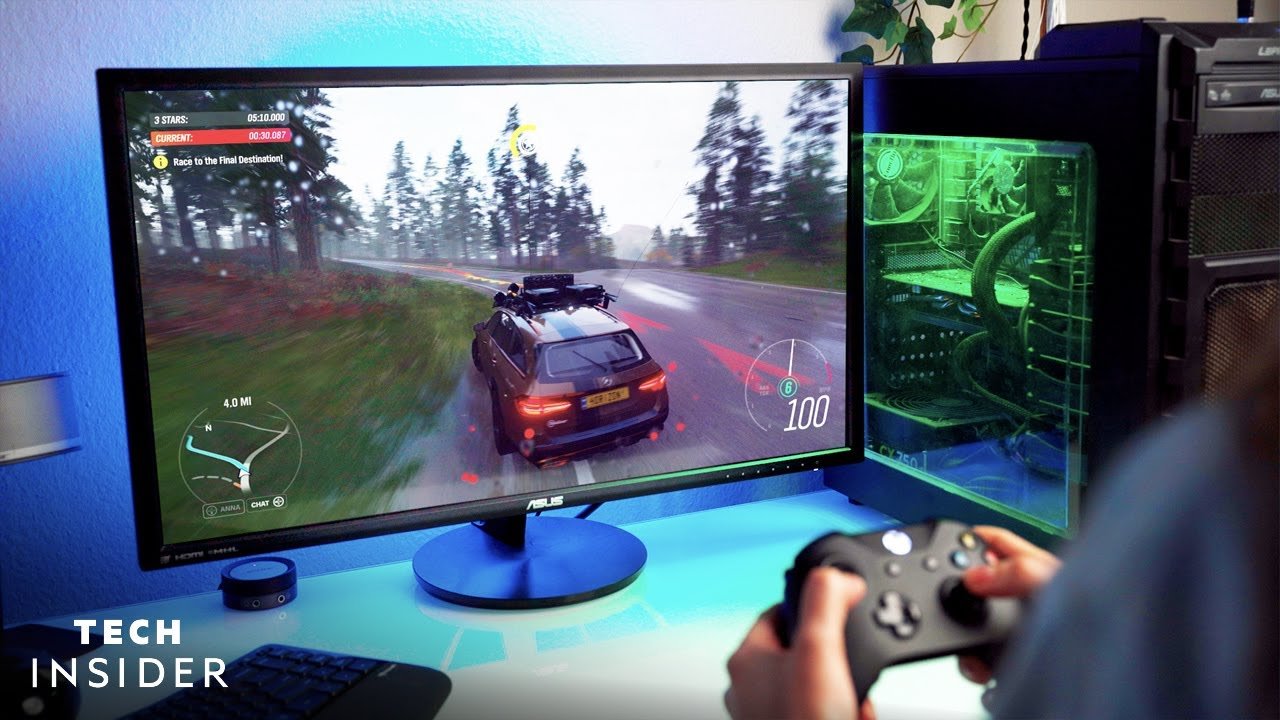
To play games on PC, you typically need to install them from a digital store or a disc, and then launch them using the game’s launcher or shortcut.
Want to jump into the world of PC gaming but don’t know where to start? Figuring out how to play games on pc might seem complicated at first. It actually is quite straightforward once you understand the basics, and we are here to help you.
The process mostly involves obtaining your games, making sure your computer meets the necessary requirements, and understanding where to click to start the game. This guide will make it much easier.

How to Play Games on PC: A Beginner’s Guide
Getting into PC gaming might seem tricky, but it’s actually easier than you think! This guide will walk you through all the steps, from choosing the right gear to actually playing your favorite games. We’ll break everything down so it’s simple and fun to learn.
Picking Your Perfect Gaming PC
Before you can play games, you need a PC that can handle them. Not all computers are created equal! Think of it like this: some cars are built for speed, while others are better for carrying lots of stuff. Similarly, some PCs are better for gaming than others. When choosing a PC for games, there are a few important things to think about:
Desktop vs. Laptop
First, do you want a desktop or a laptop? Desktops are generally more powerful for the same price, and it’s easier to upgrade their parts later. Laptops are great if you want to play games on the go, but they can be pricier and harder to upgrade. Think about where you’ll mostly be playing games. If it’s at home, a desktop might be better. If you travel a lot or like to play in different places, a laptop could be a better choice.
Key Components to Consider
These are some very important parts of the PC that decide how well you can play games:
- CPU (Central Processing Unit): This is like the brain of your computer. A stronger CPU makes your games run smoothly and quickly. Look for terms like ‘Intel Core i5’ or ‘AMD Ryzen 5’ as a good starting point for gaming. Higher number means more power.
- GPU (Graphics Processing Unit): This is the part that makes your games look pretty. It creates the pictures you see on your screen. A good GPU is important if you want to play new games with beautiful visuals. NVIDIA GeForce RTX and AMD Radeon RX are very popular options. The higher the number on them, the better performance for gaming.
- RAM (Random Access Memory): This helps your PC keep track of what it’s doing. More RAM helps games run better. For gaming, 8GB is a minimum, but 16GB is much better.
- Storage: This is where your games are stored. A Solid State Drive (SSD) makes games load much faster than a traditional Hard Disk Drive (HDD). 500GB is good for a few games, but 1TB or more is better. You can have both HDD and SSD for maximum flexibility.
Understanding Specifications
When you are checking out PCs you will often see words like “specifications” or “specs”. These are just details about what is inside the PC. When buying a PC look for the specifications listed above in key components for gaming PC.
It’s a good idea to research the specific needs of the games you want to play. Some games require much more power from your computer than others. Most games will list something like a “Minimum” and a “Recommended” specification on the game page. The minimum specification tells you what the PC needs to have to even run the game. The Recommended specifications will give you a good experience.
Getting the Right Accessories
Okay, so you have a PC, now what? To actually play games, you’ll need a few accessories. These are things that make gaming easier and more fun:
Mouse and Keyboard
A good mouse and keyboard are essential for most games. While you can use a regular office mouse and keyboard, gaming ones often have extra features like customizable buttons and better response times. Consider a mouse that fits well in your hand and a keyboard that is comfortable to type on, and also has keys that are responsive to quickly pressing them. Some people like wired connections, while others prefer wireless options.
Gaming Headset
A gaming headset lets you hear the game sounds clearly, and lets you talk to other players online. It blocks out outside noises which can help you to focus on the game. A microphone is usually included in the headset so you can talk to others. A good gaming headset can help you hear important sounds in the game, like footsteps, which give you a competitive advantage. Consider comfort when choosing a headset, as you could be wearing them for many hours.
Monitor
Your monitor is the screen you use to see the game. A higher refresh rate (like 144Hz or 240Hz) makes games look smoother, especially for fast-paced action. The monitor’s resolution is how sharp the game looks. 1080p is pretty standard, but higher resolutions like 1440p or 4K will look even better but may require more powerful PC to run the game smoothly. You should also consider the screen size to find something comfortable.
Controllers
Many games on PC will work perfectly well with a mouse and keyboard. But some games are better played using a controller. You could use a console controller like an Xbox or Playstation controller, or you could purchase a PC specific controller. Having a good controller can make your experience much better in these types of games.
Where to Get Your Games
Now that you have your PC setup, how do you get games? There are a few main ways to buy or get games:
Digital Stores
Many games are bought online and downloaded straight to your PC. These stores include:
- Steam: This is a very popular store with lots of games. It also has social features to connect you with other players.
- Epic Games Store: Similar to Steam, this store often gives away free games.
- GOG.com: This store focuses on older games and games without DRM (copy protection).
- Microsoft Store: This store is built into Windows, and has many games, some of which you can play with the Xbox Game Pass.
- Ubisoft Connect: If you play a lot of Ubisoft titles, they have a dedicated store and launcher you can use.
- EA App: Electronic Arts (EA) have an app and launcher where you can buy and play their games.
Physical Copies
Some games are still sold in physical boxes at the store. These usually include a disc with the game on it. However, you still usually need to use an online game launcher like Steam or Epic to activate and play these games. Sometimes physical copies come with a code that you use to download the game.
Subscription Services
If you are unsure what games you may like, you can try services that allow you to play lots of games in exchange for a monthly fee. These services include:
- Xbox Game Pass for PC: This is a subscription that gives you access to hundreds of games to play. Many of the games are from Microsoft, but also many third-party games are added to the service.
- Ubisoft+: This service will let you play lots of Ubisoft’s games with a subscription.
- EA Play: This subscription gives you access to many EA titles.
Installing and Setting up Games
After you get a game, you need to install it. Most stores have a way to do this, it is usually a very simple process.
Downloading and Installation
The game will be downloaded from the store you purchased it from. Once downloaded, you may be prompted to install the game. This process can take a long time if your internet connection is slow, or if the game is big.
Game Settings
Once a game is installed, you should check the settings before you begin. Here are some common settings you will come across:
- Graphics Settings: You can change how pretty the game looks. If the game runs slow or ‘laggy’, you may need to turn down the graphics settings. Options include: resolution, texture quality, shadows, and anti-aliasing.
- Sound Settings: You can change the volume levels for music, voices, and sound effects.
- Controls Settings: You can usually change how you control the game. This includes keyboard controls, mouse sensitivity, and button mapping for controllers.
- Accessibility Settings: Many games now include options for those with disabilities. These settings could include closed captions, subtitles, text-to-speech options, and color blind mode.
Understanding Game Genres
There are many different types of games, called genres. Each genre has different gameplay and goals. Here are some common ones:
Action Games
These games focus on fast-paced gameplay, usually involving fighting, shooting, or adventure. Examples include Grand Theft Auto, Call of Duty, and Assassin’s Creed.
Adventure Games
These games often have a focus on story and exploration. Examples include the The Legend of Zelda games, or Uncharted.
Strategy Games
These games require you to think about your decisions and plan your moves carefully. Examples include Civilization and Starcraft.
Role-Playing Games (RPGs)
In these games, you create a character and guide them through the story. Examples include The Elder Scrolls, Fallout, and Cyberpunk 2077.
Simulation Games
These games try to simulate real-life activities. Examples include Microsoft Flight Simulator and The Sims.
Sports Games
These games allow you to play sports virtually. Examples include FIFA, Madden, and NBA 2K.
Puzzle Games
These games have you solve puzzles to advance further. Examples include Portal and Tetris.
Indie Games
These are games made by smaller developers. Many Indie games are very creative and unique. Examples include Stardew Valley and Hollow Knight.
Playing with Friends
Playing games with friends online can be a lot of fun. Here’s how to get started:
Multiplayer Games
Many games have multiplayer modes that let you play with other people. This can be in the form of coop, where you all play on the same team. Or you can compete against your friends. Some popular online multiplayer games include Fortnite, Minecraft, and Apex Legends.
Voice Chat
Talking to your friends makes multiplayer games more fun. You can use in-game voice chat, or a third-party app like Discord.
Finding Friends
Many games have a friend system where you can add people from online. You can also find friends using their username or gamertag. You can also connect with people you know in real life.
Tips for Better Gaming
Here are some tips to help you improve your gaming:
- Practice: The more you play, the better you’ll get.
- Watch Tutorials: You can watch videos on YouTube that give you tips and show how to play games better.
- Join Communities: Join online forums or Discord servers to connect with other gamers.
- Take Breaks: Don’t play for too long without taking a break. It can strain your eyes and hands if you don’t.
- Update Your PC and Drivers: Keeping your computer and your driver software updated can help games run smoothly.
So, that’s it! You now have a good understanding of how to play games on a PC. Don’t be afraid to experiment and try new things. The most important thing is to have fun!
A Beginner’s Guide To PC Gaming! – Everything You Need To Get Started! | AD
Final Thoughts
In summary, playing games on a PC requires you to first ensure your computer meets the game’s specifications. You then purchase games digitally or physically and install them. After installation, you can launch and enjoy your game. This simple process illustrates how to play games on pc.

