
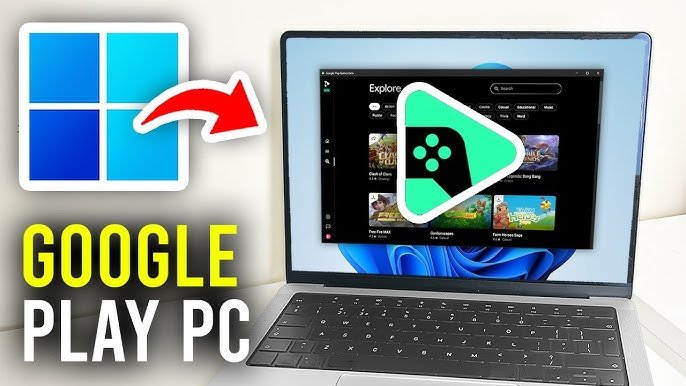
Unfortunately, you cannot directly play Google Play Games on a Mac. You’ll need to use an Android emulator to do so.
Want to enjoy your favorite Android games on your Mac? Many gamers are asking how to play google play games on mac, and it’s not as straightforward as launching an app. You see, these games are designed for Android devices, not macOS.
So, what’s the workaround? The solution involves employing an Android emulator, a clever program that mimics the Android environment on your Mac. This allows you to install and play those engaging Google Play games you’ve come to love.

How to Play Google Play Games on Mac
Okay, so you’ve got your shiny Mac and you’re itching to play some of those awesome games you usually enjoy on your Android phone or tablet. You’re in the right place! Getting Google Play games on your Mac isn’t as straightforward as downloading an app from the App Store, but don’t worry, it’s totally achievable. This guide will walk you through the different methods, step-by-step, so you can get gaming in no time. We’ll explore the officially supported way through Google Play Games Beta and some alternative solutions like emulators. Let’s dive in!
Google Play Games Beta: The Official Route
The best and most reliable way to play Google Play games on your Mac is through the official Google Play Games Beta program. Google created this specifically for playing Android games on PCs and Macs. It’s designed to be easy to use and it offers a good gaming experience. Here’s how to get started:
Checking System Requirements
Before you jump in, let’s make sure your Mac is ready. Google has some minimum requirements for the beta to run smoothly. You’ll need:
macOS Version: Your Mac needs to be running macOS 11 (Big Sur) or newer.
Processor: You need an Intel or Apple silicon processor.
Storage: You’ll need enough free space to install the program and the games you want to play.
Graphics: A decent graphics card is required for smooth gameplay.
RAM: Make sure you have enough memory (RAM), typically at least 8GB is recommended.
Internet: A stable internet connection is required to download and play the games.
Downloading and Installing the Google Play Games Beta
If your Mac meets those requirements, you are good to go! Here’s how to download and install the beta:
1. Visit the Website: Go to the official Google Play Games beta website for computers using your Mac’s web browser.
2. Download: Look for the download button and click it. The file will be downloaded to your Mac.
3. Install: Open the downloaded file. It will most likely be a ‘.dmg’ file. Follow the on-screen instructions to install the program. This usually involves dragging the app icon to your Applications folder.
4. Sign In: Once installed, open the Google Play Games app and sign in with your Google account. This is the same account you use on your Android device.
Exploring the Game Library
Once you’re logged in, the program will show you a selection of games. This isn’t every single Google Play game ever made, but the selection is growing. You can use the search bar to look for specific games.
Browsing: Look through different categories to find new games.
Installation: Click on a game you want to play, and then click the install button.
Playing: Once the game is installed, click the play button to start playing.
Managing Your Games
The Google Play Games Beta app lets you manage your games in a simple way. You can:
Uninstall: Remove games you no longer want to play.
Update: The app will prompt you to update games to their newest versions.
Access Settings: Change settings for the app.
Important Things to Keep in Mind
Not all Games: Remember, not all Google Play games are available on the beta yet.
Beta Software: Because it’s beta software, you might encounter some bugs or glitches. Keep the software updated, so you can get the new changes and improvements.
Updates: Make sure to keep the Google Play Games beta app updated for the best performance and new features.
Alternative Methods: Using Android Emulators
If you can’t access the official beta or the games you want aren’t available, you can use Android emulators. These are programs that create a virtual Android device on your Mac. They are bit more complicated to set up, but they can be a great way to access a wide selection of Google Play games. Let’s take a look at some popular options:
Understanding Android Emulators
An Android emulator is like having an Android phone or tablet inside your Mac. It allows you to run Android apps, including games. They typically offer a wide range of customization and flexibility.
How it Works: These programs simulate the hardware of an Android device, letting you run Android applications directly on your macOS.
Resource Intensive: Emulators can use a lot of your computer’s resources, so make sure your Mac has enough power.
Popular Android Emulators for Mac
Here are a few of the commonly used Android emulators:
BlueStacks: It is very popular, and it is designed specifically for gaming, and it is free and easy to download and install.
LDPlayer: Another well-liked option, especially for performance. It’s known for being fast and stable.
Android Studio: Google’s official development tool. It is very robust but can be more complex to set up, it is more tailored for developers.
NoxPlayer: Another emulator that focuses on gaming. It’s known for its ability to handle heavy games.
Gameloop: Developed by Tencent, the creator of games like PUBG Mobile. It focuses on delivering a good gaming experience.
Installing and Setting Up an Emulator
Let’s use BlueStacks as our example. The process will be similar for other emulators. Here’s the basic setup:
1. Visit the Emulator Website: Go to the official BlueStacks website and download the version for Mac.
2. Install: Open the downloaded file and follow the instructions to install BlueStacks on your Mac.
3. Launch: Open the BlueStacks app. It might take a little while to start up for the first time.
4. Sign In: BlueStacks will ask you to sign in with your Google account. This is the same account you use on your Android device.
5. Google Play Store: Inside BlueStacks, you’ll find the Google Play Store app. Open it.
6. Install Games: Search for and install the games you want to play.
Configuring Your Emulator
To ensure your emulator runs smoothly and you have a great gaming experience, you may need to adjust some settings:
Resolution: Change the screen resolution of the emulator to match your Mac’s screen for the best visuals.
Memory: Allocate enough RAM to the emulator so games run without lagging.
Processor Cores: Assign CPU cores to the emulator to help with performance.
Graphics Settings: Choose your graphic settings based on the strength of your Mac’s graphic card.
Tips for Using Emulators
Keep it Updated: Emulators get frequent updates that add features and enhance stability.
Close Other Apps: Close unnecessary applications while you are using an emulator to free up resources.
Check Community Forums: Look for community forums and videos for your specific emulator, as these can provide tips and solutions to common problems.
Comparing Google Play Games Beta and Emulators
Both the official Google Play Games Beta and Android emulators have their own advantages and disadvantages:
| Feature | Google Play Games Beta | Android Emulators |
|———————-|—————————–|————————–|
| Official Support | Yes | No |
| Ease of Use | Very easy | Can be more complex |
| Game Selection | Limited, but growing | Very wide selection |
| System Resources | Generally more efficient | Can be resource-intensive|
| Stability | Typically more stable | Can be less stable |
| Customization | Limited | High |
| Cost | Free | Generally free, some premium options available|
Choosing the Right Method
Which method should you choose?
If you want the easiest and most stable experience: Go with the Google Play Games Beta if your Mac is compatible and if the games you want are available.
If you want a wider selection of games and more control: An Android emulator is a good choice, but be aware that it may require some technical knowledge.
If you’re a developer or like technical tweaking: Android Studio can be a good fit for you.
Troubleshooting Common Issues
No matter which method you choose, you might face some issues. Here are a few problems you might encounter and how to fix them:
Games are Running Slowly
Check your system resources: Make sure your Mac meets the minimum requirements.
Close other applications: This frees up memory for the game or emulator.
Lower game settings: Reduce graphics options within the game settings to improve performance.
Update drivers: Make sure your Mac’s graphics drivers are up-to-date.
Restart your Mac: Sometimes a simple restart helps clear things up.
Change emulator settings: If you’re using an emulator, allocate more memory and processor cores to it.
Games are Crashing or Not Loading
Check internet connection: A stable connection is important for downloading and playing games.
Update the game: Make sure your game is updated to the latest version.
Reinstall the game: Sometimes uninstalling and reinstalling the game resolves problems.
Clear cache and data: In the emulator, you can clear the data of the game or emulator.
Update the emulator or Google Play Games Beta: Make sure you’re using the newest version.
The App Won’t Install
Check space: Make sure you have sufficient storage space on your Mac.
Check system compatibility: Ensure your Mac meets the minimum system requirements.
Download again: Sometimes, a corrupted file download can cause issues. Try downloading again from the official website.
Disable security settings temporarily: Some security settings might block the installation. Temporarily disabling them (if you are sure that the source is legit) can help, but always re-enable them afterward.
Restart your computer: A simple restart can clear software glitches.
Audio Problems
Check your volume: Make sure your Mac’s volume is turned up and not muted.
Check game settings: Make sure the audio in the game isn’t turned off.
Update audio drivers: Ensure your Mac’s audio drivers are updated.
Restart your audio: Unplug and plug your headset, or restart your Mac to fix audio glitches.
Remember, if you are unsure of what to do, look up specific solutions related to the game or emulator you’re using. The internet is packed with answers, and user forums are filled with fellow gamers who have found solutions to common issues.
Playing Google Play Games on your Mac is certainly possible, and hopefully, now you know the multiple different ways you can achieve this. Whether you go the official Google Play Games Beta route or use an Android emulator, you’ll be able to enjoy your favorite mobile games on a larger screen with more flexibility. The key thing is to take your time, follow the steps carefully, and troubleshoot when needed. Happy gaming!
How to Install Google Play Store App on Mac
Final Thoughts
In short, you can play Google Play Games on Mac using the official Google Play Games Beta app for macOS. Download and install it, then sign in with your Google account.
Once installed, you can browse and install compatible Android games directly from the application. This method provides the most seamless way how to play google play games on mac. Enjoy your favorite games on a larger screen with keyboard and mouse support!

