
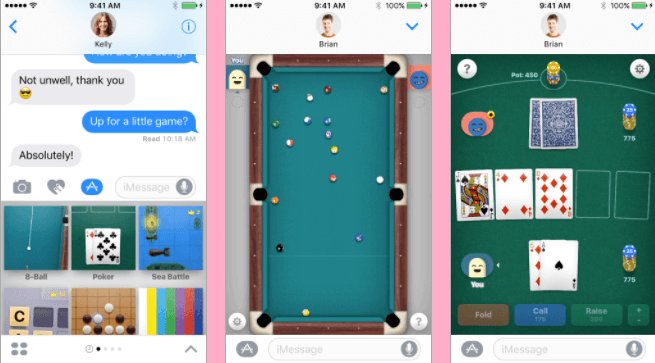
Unfortunately, you cannot directly play iMessage games on an Android device. iMessage games are exclusive to Apple’s ecosystem.
Ever wish you could join in on those fun iMessage games your friends are playing, but you’re on an Android? It’s a common question and the reality is a bit of a letdown for many. You see, iMessage and its games are locked within Apple’s own walled garden, making direct access on Android impossible. This brings us to the question: how to play imessage games on android?

How to Play iMessage Games on Android: A Comprehensive Guide
Want to join your friends in those fun iMessage games, but you’re using an Android phone? It can feel like you’re missing out, right? iMessage games, like those quirky sticker games or the always-addictive pool games, are only officially available on Apple devices. This is because Apple designed them to work specifically with their iMessage app. However, don’t worry! Although you can’t directly play iMessage games on your Android using the iMessage app itself, we have some clever workarounds. This guide will show you how to participate in the fun using some clever techniques and alternative apps. We’ll explore different methods, address common issues, and make sure you don’t have to feel left out of the iMessage game craze.
Understanding the Challenge: iMessage vs. Android
Before we jump into solutions, let’s understand why playing iMessage games directly on Android is tricky. iMessage is Apple’s messaging service, deeply integrated into their ecosystem. It uses a specific protocol not available on Android systems. iMessage games, being a feature of iMessage, depend on this integration to function. Think of it like this: a special Lego set only works with certain Lego pieces; you can’t use those pieces with blocks from a different brand. Similarly, iMessage games rely on Apple’s special building blocks. Android phones use a different system altogether.
This makes direct compatibility impossible. So, an Android phone won’t simply be able to download the iMessage games app. You need a different approach that allows you to participate in the iMessage gaming fun without needing an iPhone or iPad.
Method 1: Using Third-Party Apps that Bridge the Gap
One of the best ways to play along with your friends is by using third-party apps designed to mimic the game experience. While they can’t make iMessage games appear directly on your phone, these apps often offer very similar games and ways to connect with your friends who are using iMessage.
What are these alternative apps?
There are various apps available on the Google Play Store that have similar gameplay to some popular iMessage games. These apps are built for both Android and iOS devices, which means your friends with iPhones and iPads can play along too! These apps replicate the experience of iMessage gaming by creating their own ecosystems where cross-platform play is possible. Some popular options include:
- GamePigeon Alternatives: Apps that mimic the popular GamePigeon offer a selection of simple games like 8-ball pool, checkers, and mini-golf. Many of these have their own built-in messaging systems or use your phone’s SMS functionality.
- Chat Apps with Built-In Games: Some messaging apps, such as Kik, have built-in games. While these aren’t directly iMessage games, they offer a similar fun, playful environment where you can challenge friends, regardless of their operating system.
- Stand-alone Game Apps: Many games that are similar to those on iMessage can be found individually on the Play Store. For example, many developers offer their own versions of pool, mini-golf, or other board-game style challenges.
How to find and use these apps
To find these apps, simply head to the Google Play Store and type in search terms like “iMessage game alternatives” or “games to play with friends.” Be sure to check the reviews and ratings to find reliable apps. Once you’ve found one that looks promising, follow these steps:
- Download and Install: Download the app onto your Android device.
- Create an Account: Many of these apps require you to create an account. Do this using your email or phone number.
- Invite your friends: Send invitations to your friends, and encourage them to download the same app.
- Start Playing: After you and your friends have downloaded the app, start a game!
Advantages of using alternative apps
- Cross-Platform Play: The main advantage is that you and your iPhone-using buddies can play together.
- Variety of Games: Many apps offer a range of games, so you’re sure to find something you’ll enjoy.
- Easy Access: These apps are usually quick to download and set up.
- Don’t require complex workarounds: You won’t need to understand technical jargon.
Limitations of using alternative apps
- Not Real iMessage Games: It’s crucial to remember these are not the actual iMessage games. They are simply similar versions.
- App-Specific Communication: You might need to use a different messaging system within the app to interact with your friends during gameplay.
Method 2: Using Screen Sharing for Limited Interaction
While this method does not allow you to play the game directly, it offers a way to participate with friends who are playing an iMessage game. This involves your friend sharing their phone screen with you while they play.
How does screen sharing work?
Screen sharing apps let you see what your friend is doing on their phone in real-time. This is similar to a video call, but instead of seeing your friend’s face, you see their phone screen. There are many apps that offer this functionality, including:
- Google Meet: You can share your screen directly within a Google Meet call.
- Zoom: This is also a very useful tool that can share screens.
- Discord: Popular among gamers, discord offers both voice and screen sharing options.
- Messenger/Whatsapp: You can even share your screen in most popular chatting apps, but quality of the shared screen might be poor.
Steps for using screen sharing to participate
- Start a Call: Begin a video call with your friend using your preferred app.
- Request Screen Share: Ask your friend to start screen sharing.
- Watch and Instruct: Watch the gameplay on your friend’s phone, and give them verbal instructions or suggestions. You might tell them which piece to move, which direction to aim, etc.
Advantages of screen sharing
- Real iMessage Gameplay Experience (Sort of): You will see the authentic iMessage game on your screen.
- Interactive Participation: Even though you are not directly playing, you can guide the player.
Limitations of screen sharing
- Not Direct Control: You don’t get to move the pieces or touch the screen.
- Relying on a Friend: It depends on your friend sharing their screen.
- Lag Potential: There might be some lag depending on your internet connections.
- Passive Role: You are not playing the game yourself. It’s mainly an interactive spectator experience.
Method 3: Remote Access for Advanced Users (Use with Caution)
This method is a bit technical, and it’s really only recommended for very tech-savvy users, and it is not recommended at all. Remote access apps can allow you to fully control another device from your own device. In theory, if you could get a friend with an iPhone to give you remote access, you could potentially play iMessage games from your Android through their phone. However, there are several important things to consider.
How does remote access work?
Remote access apps give you complete control of a different device from your device. You can control the other devices mouse, keyboard, and other peripherals from your computer or mobile phone.
Important security and privacy concerns
Using remote access in this way comes with many risks. It is important to be aware of the potential security and privacy implications:
- Security Risks: Sharing remote access gives another person access to all of the data on the connected device. This could be a serious security risk, especially if you don’t fully trust them.
- Privacy Issues: You will be seeing everything on the connected device screen. Personal photos, messages, and even bank information could be visible to you.
- Technical Challenges: Remote access apps can be tricky to setup, and they often require a reliable internet connection on both devices.
- Ethical Questions: It’s important to have an agreement with the person whose phone you’re controlling. Is it something they are okay with? It’s crucial to respect their privacy.
Why this method is not recommended
Given the security and privacy risks, as well as technical challenges, this approach is not recommended. It is simply not worth the potential problems, when there are many easy alternatives to have fun playing games with friends.
Troubleshooting Common Issues
Even with workarounds, you may encounter some challenges. Let’s look at some common problems and how to solve them:
App compatibility
Some games might not work on some devices. Ensure you have updated your phone and the game app.
Connection issues
If you’re having trouble connecting to games, try restarting your Wi-Fi or turning on mobile data. Check if your internet connection is stable. Also, be sure to check if the other players in your game are online and have a stable connection as well.
Account issues
If you have account issues, try re-logging into your account. Or deleting the app and re-installing it might help fix the problem.
Game crashes
If the game crashes on your phone try updating the app to its latest version or restarting your phone, as these actions can sometimes help to fix such problems.
Communication problems
If you cannot communicate with your friends within the game you have to make sure that the chat functionality is turned on.
Choosing the Best Method for You
So, which method should you use? Here’s a quick guide to help you decide:
| Method | Best For | Pros | Cons |
|---|---|---|---|
| Third-Party Apps | Playing similar games directly with friends | Cross-platform play, variety of games, easy setup | Not real iMessage games, requires another app |
| Screen Sharing | Participating passively in actual iMessage games | See real iMessage games, interactive participation | No direct control, relies on a friend, can be laggy |
| Remote Access | (Not Recommended) Directly controlling another device to play iMessage games | Full control over iMessage games from another device. | Major security and privacy risks, technical challenges, unethical concerns |
The easiest and safest way to play along is by using third-party apps. You’ll get the most fun without the technical hassle or potential security issues.
Although directly playing iMessage games on Android is not possible, there are plenty of ways to join in the fun. You don’t have to miss out on games with your friends simply because you own an Android device. Remember, communication is key! Talk to your friends about using these workarounds, find an app that works for everyone, and get ready to play!
How To Play iMessage Games on Android (Easy!)
Final Thoughts
You can’t directly play iMessage games on Android. The platform difference prevents it. Workarounds do exist; using third-party apps or virtual machines could help.
These options aren’t ideal and might not give the same experience. The lack of native compatibility remains a challenge. The best way is for Apple and Google to collaborate on cross-platform support.
Therefore, the straight answer to ‘how to play imessage games on android’ is that a direct solution doesn’t exist. You must use less convenient methods. Keep an eye on tech advancements for potential changes.

