
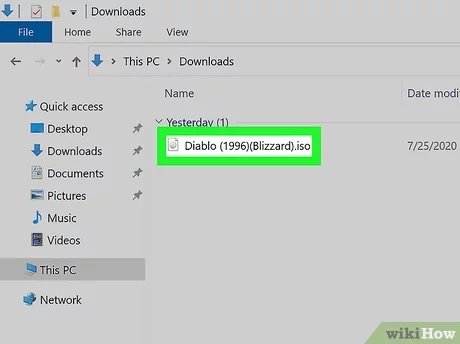
To play iso games, you typically need an emulator compatible with the specific console the game is for. You then load the ISO file within the emulator to start playing.
Ever found yourself staring at a file ending in ‘.iso’ and wondering how to play iso games? It’s simpler than you might think, actually. These files are essentially exact digital copies of game discs.
To get started, you’ll need to grab an emulator that matches the system the game is designed for, then feed it your .iso. It’s a great way to revisit old favorites.

How to Play ISO Games
So, you’ve heard about ISO games and you’re curious, maybe even a little confused? Don’t worry! It’s actually simpler than it sounds. Think of an ISO file like a digital copy of a disc, like a video game disc or a software disc. Instead of putting the physical disc into your computer or console, you’re using this digital file. This guide will show you everything you need to know about playing these games. It’s like having a virtual game library right on your computer, and it’s really cool when you get the hang of it! We’ll break down what ISO files are, where you find them, and all the tools you’ll need. Ready to become an ISO game pro? Let’s jump in!
Understanding ISO Files
Let’s start with the basics: what exactly is an ISO file? Imagine you have a game CD. An ISO file is like a perfect digital photograph of that CD. It contains all the data, the game files, the instructions, everything that’s on the disc. It’s called an “ISO image” because it’s a sector-by-sector copy of the disc, meaning every single piece of information is included. This makes it easy to use the game without needing the original disc. Why would we need this? Well, discs can get scratched, lost, or break. ISO files are a great way to back up your games and play them later. It is like keeping the real game safe but having another copy you can always use. And you don’t have to hunt for discs all the time! That’s the magic of ISO files!
Why Use ISO Files?
There are several great reasons why people choose to play games with ISO files instead of using the original discs:
- Backup Copies: Like we said, ISO files let you make a perfect backup of your favorite games. It’s like having a safety net! So, if your disc goes missing or gets damaged, you still have a way to play the game.
- Convenience: Imagine not having to dig through your pile of game cases every time you want to play a particular game. With ISO files, all your games are stored right on your computer or external hard drive. This makes it super fast to switch between different games.
- No More Disc Drives: Many new computers and laptops don’t even come with disc drives anymore! ISO files let you play your games even if your computer doesn’t have a disc slot.
- Faster Loading Times: Sometimes, games on ISO files can load faster than playing from a physical disc. That means more gaming time and less waiting!
- Portability: You can easily copy ISO files to other devices, which helps you play your games on different computers or consoles if you set them up right. This is great for when you travel or have friends over.
Finding ISO Games: A Few Important Notes
Okay, so where do you get these ISO game files? This is an important part, and it requires being careful. Remember, downloading games you didn’t buy is against the law. You should only get ISO files of games that you already own. If you own the disc, it’s usually okay to create an ISO file of it for your personal use. When searching for ISO files online, it’s important to be very careful. Some websites may offer files that can harm your computer. Always make sure you’re downloading from sources you trust.
Creating Your Own ISO Files From Discs
One way to get ISO files is to create them from your own game discs. This process is often called “ripping.” You’ll need special software to do this. Here’s a simple overview of how it usually works:
- Get the Right Software: There are programs like ImgBurn, PowerISO, or Alcohol 120% that will help you create ISO files.
- Put in Your Game Disc: Place the game disc you want to copy into your computer’s disc drive.
- Start the Software: Open the software you chose and find the option to create an ISO image from a disc.
- Pick a Save Location: Choose where on your computer you want to save the ISO file.
- Create the ISO: Click the button to start making the ISO file. This process can take a little while. Be patient!
How to Play ISO Games
Now for the fun part: playing those games! How you play an ISO game is slightly different depending on if you’re using a computer or a game console. Let’s take a look at both options.
Playing ISO Games on Your Computer
For computer games, you generally need a program that can “mount” the ISO file. Think of mounting like putting the disc in your imaginary disc drive. The computer then thinks the game is being played from a disc. Here are the steps:
Tools You Need:
- A mounting program: Programs like Daemon Tools, Virtual CloneDrive, or even the built-in tools in Windows can do this.
- The ISO Game file: The digital copy of your game disc.
Steps:
- Install Mounting Software: Pick a mounting program and install it on your computer.
- Mount the ISO File: Right-click on the ISO file, and select the option to mount it using your new software. This will make your computer see it as a disc.
- Install the Game: Usually, your computer will open a window that looks just like when you put a real disc in the drive. Follow the installation steps like normal.
- Play the Game: Once it’s installed, you can start playing your game as usual, without needing the real disc.
Playing ISO Games on Game Consoles
Playing ISO games on consoles is a little more complicated and requires specific tools. Usually, you can’t just copy and play an ISO file on a console without modifying the console first. Here’s a simplified look:
Important note: Modifying Consoles
Modifying a game console can sometimes void the warranty or be against the terms of service set by the console maker. Always be careful when doing any modifications. Some things can cause issues if you’re not familiar with them, so consider if it’s right for you or if it would be better to stick to regular, legal ways to play games.
General Steps for Consoles
Here is the overview. The exact steps can be different depending on the particular console:
- Install Special Software: Some game consoles need special software or modifications to be able to play from ISO files. For example, some older consoles can be updated with new software. This software lets the console read games from files on a hard drive or USB drive.
- Copy the ISO File: Use the correct method for your console to copy the ISO file onto a drive that the console can use. This could be an external hard drive or a USB drive.
- Select the Game: On your console, you usually use a special menu (installed as part of the new software) to choose and play the game from the file you copied.
Specific Console Examples (General Idea)
- PSP (PlayStation Portable): On older PSPs, you can sometimes copy ISO files to the memory card and play them using special custom software.
- Wii: For a Wii console, you often have to install a homebrew channel to play ISO games from USB drives.
- PlayStation 2: On PlayStation 2, you might have to use a special program and a USB drive to play your ISO files.
It is always important to research the specific method for your console before attempting to play ISO games on it.
Troubleshooting Common Problems
Sometimes things don’t go as planned. Here are a few common problems you might come across and how to fix them:
Game Doesn’t Start
- Problem: You mounted the ISO file and installed the game, but it won’t start.
- Solution: Check the game’s installation location. Sometimes, you might need to mount the ISO again before starting the game each time. Try running the game as an administrator (right-click the game icon and pick “Run as administrator”). Make sure your computer also meets the game’s minimum system requirements.
Error Message When Mounting
- Problem: You get an error message when you try to mount the ISO file.
- Solution: Make sure you have the right program for mounting files installed. Try mounting the file using a different mounting program. The ISO file could also be damaged, so you may need to get a new one.
Game Runs Slowly
- Problem: The game is very slow or choppy.
- Solution: Close unnecessary programs on your computer. Make sure your computer has the right specs to run the game. Try using a newer computer if possible. You could also try lowering the game’s graphics settings if there is such an option.
Console Not Recognizing ISO
- Problem: Your game console doesn’t show the game in its menu.
- Solution: Double-check you put the game in the right folder and your software is up-to-date. Make sure the USB drive is formatted correctly for your console. It could also be that the ISO is not compatible with your console.
Tips for a Good Experience
To have the best experience playing ISO games, consider these tips:
- Use a Good Antivirus: Always have an antivirus program running to keep your computer safe when you download files.
- Check Game Requirements: Always check to make sure your computer meets the minimum system requirements to play a particular game.
- Keep Games Organized: Create folders to keep your ISO files organized, so it’s easy to find the games you want to play.
- Keep Software Updated: Always keep your mounting software and any console custom software up-to-date.
Playing ISO games is a great way to back up your favorite games and keep them safe. While it involves a few extra steps, it’s a great way to enjoy your games without needing the original discs, especially if you’ve got some older favorites. Just remember to be careful where you get your files and always follow the rules. Enjoy your gaming!
How To Install and play .iso games on a Windows PC
Final Thoughts
To play ISO games, you first need an emulator suitable for your device. Then, find and download the ISO file of the game you want to play.
After that, launch the emulator and navigate to the downloaded ISO file. The emulator will then load and start the game. This completes the basic steps of how to play iso games. Remember to always obtain your games legally.

