
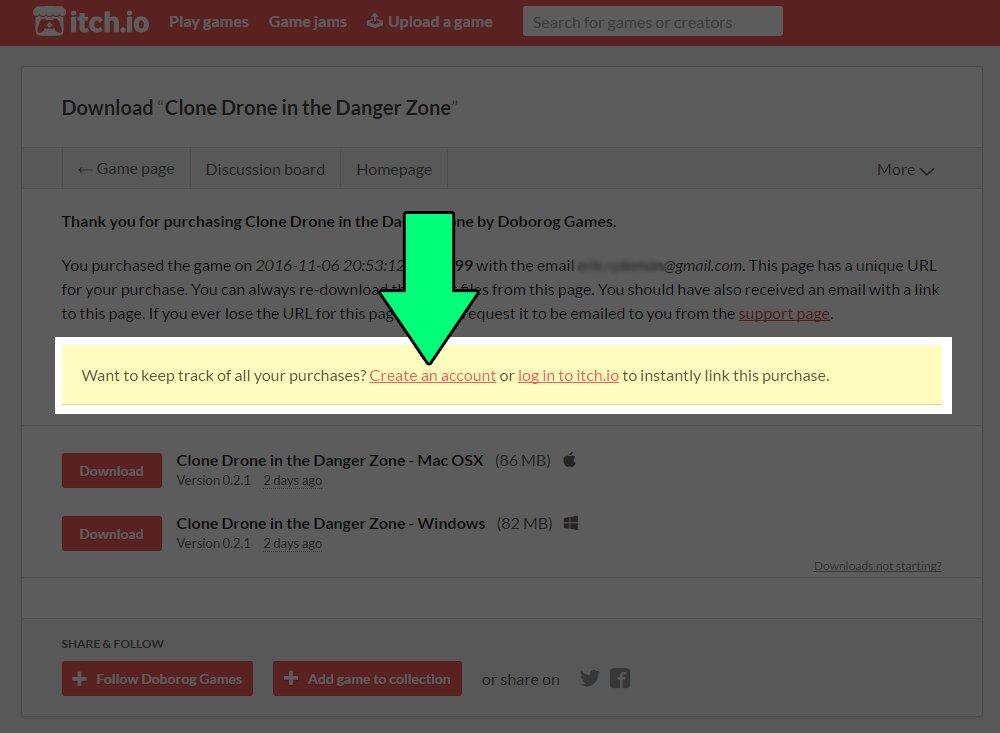
To play itch.io games, simply download the game files from the itch.io page, usually a ZIP or executable, then run or extract them.
Ever stumbled upon a cool game on itch.io and wondered how to actually get started? It’s a common question, and figuring out how to play itch.io games doesn’t have to be tricky. This platform is filled with unique indie titles, but the process is generally quite straightforward.
First, you find a game that piques your interest. Then, usually, you’ll download the game as a file to your computer. That file is often a compressed archive that you need to extract before running.

How to Play Itch.io Games: A Beginner’s Guide
Itch.io is a fantastic place for finding all sorts of cool independent video games. From quirky platformers to mind-bending puzzles and even experimental art projects, there’s something for everyone. But, if you’re new to the site, it might seem a little tricky at first to figure out how to actually play the games you find. Don’t worry, this guide will walk you through everything you need to know, making it easy to jump in and start having fun!
Finding Games on Itch.io
The first step to playing is finding a game you want to try. Here’s how to navigate the site and search effectively:
Using the Browse Page
When you go to Itch.io, you’ll see a “Browse” button at the top. Clicking this opens a whole world of games! You can browse by different categories, like:
- New & Popular: This section shows games that are recently added and trending. Great for seeing what’s hot right now.
- Top Rated: Games that have received lots of good reviews from other players. These are usually a safe bet!
- Genre: Looking for a specific kind of game? You can sort by genres like action, adventure, puzzle, strategy, and many more.
Using the Search Bar
If you already know what you’re looking for, the search bar at the top is your friend. Type in the name of a game or a keyword (like “space” or “puzzle”) to find relevant results. Don’t forget to check out tags used on game pages, as they can also lead you to similar games.
Filtering Your Search
Sometimes, you need to get more specific. Itch.io has filters that can help you find exactly what you want. Here are some useful filter options you’ll see on the left side of the Browse page:
- Platforms: Choose the platform you plan to play on (Windows, Mac, Linux, Android, or even web browser).
- Price: Filter by free games, games on sale, or paid games in a specific price range.
- Tools: Filter games that use specific game creation tools like Unity, or Godot.
- Tags: This is a very helpful way to find games, filter by keywords like ‘retro’, ‘pixel art’, ‘horror’ or others that interest you.
Understanding Game Pages
Once you’ve found a game that looks interesting, click on it to go to its page. This page has all the information you need before you play. Let’s break down what you’ll find:
Game Information
At the top, you’ll usually see:
- Game title and author: Who made the game?
- Game description: Read this to learn what the game is about.
- Screenshots and videos: See the game in action before playing.
- Price: How much the game costs, or if it’s free.
Download Links and Installation
This is the most important part for actually playing. Here’s where you’ll find download links and instructions. Keep in mind that not every game is downloaded the same way:
Browser-Based Games
Some games can be played directly in your web browser. You will usually see a “Run Game” or “Play in Browser” button. Click it and the game will load directly in your browser window. No installation required! These are great for a quick gaming session.
Downloadable Games
Most games will require you to download a file to your computer. Here’s how it generally works:
- Find the download button: This usually says “Download Now,” with a little download icon.
- Choose your operating system: You will likely see different download options depending on if you use Windows, Mac, or Linux. Choose the correct version.
- Save the file: The file will usually be a .zip file (a compressed folder). Save it to a location on your computer that you can easily remember.
Extracting the Game
After you have downloaded the file, you will need to extract the game files. If the file is a ZIP, it must be unzipped, or “extracted.” Here’s how to do that:
- Windows: Right-click the ZIP file and select “Extract All.” Choose where you want to extract the files to (usually a new folder is created).
- Mac: Double-click the ZIP file. A folder with the game’s files will appear in the same location as the ZIP file.
- Linux: You can use a built-in tool or use a command in the terminal (like unzip yourfile.zip).
Running the Game
Once the files are extracted, look for the game’s executable file. This is usually a .exe file on Windows, an .app file on Mac, or a binary file on Linux. Click or double click this file to launch the game. If the file you downloaded was not a zip, you may be able to run it directly, but be careful to only download things from safe sources.
Controls and Instructions
Game pages will typically list the controls for playing the game. Look for this information near the description or on a separate “Instructions” tab. Here are some control types you might find:
- Keyboard: Many games use arrow keys, WASD, or spacebar for movement and actions.
- Mouse: Some games use the mouse for pointing, clicking, or other interactions.
- Gamepad: Some games will support gamepads (like an Xbox or Playstation controller). If a game supports a controller, it will usually tell you what controls to use.
Community and Feedback
Itch.io games often have a section for comments. You can read what other players think of the game, ask questions, or leave your own feedback for the developer. This is a great way to learn more about the game and connect with the community.
Playing Different Types of Games
Itch.io has a variety of different game formats. Understanding these can make playing much easier:
Web Browser Games
As mentioned earlier, browser games play directly in your web browser. They’re super convenient, requiring no downloads and they are a perfect way to try a variety of different games on the site, without having to worry about managing installations on your computer.
Tips for Browser Games
- Make sure your browser is up to date for best performance.
- Sometimes, these games can be a little resource intensive, so close extra browser tabs.
Downloadable Games
These games need to be downloaded and installed onto your computer. They offer more complexity, and are frequently more graphically intense than the web browser based games. Here’s more to know about them:
Installation
As noted before, extracting games from a zip file is a required step. Make sure to take care with installation and be careful with running files that you download from the internet. It is a best practice to always make sure your operating system and antivirus software is up to date.
Running the Executable
After extracting the file you downloaded, find the main program to launch the game. On Windows, this is a .exe file. On Mac, it will be an .app file. On Linux, look for a file with execute permissions.
Free vs Paid Games
Itch.io has a ton of free games, and many paid games as well. Here’s what you should be aware of about both:
Free Games
- Many games are free on Itch.io, making it a very affordable way to play.
- Some free games may ask for a donation after you have played them if you liked them. This is a very kind way to support the game developer.
- Free games still offer great experiences and provide plenty of entertainment.
Paid Games
- Paid games often have more polish and a bigger scope.
- By buying these games, you are directly supporting the developers who create them.
- The process to purchase a game is easy and straightforward on Itch.io, follow the simple instructions on the page for the game.
Troubleshooting Common Issues
Sometimes, things might not go perfectly the first time. Here are a few common problems and how to address them:
Game Won’t Launch
- Check the file extension: Make sure you’re trying to launch the right file type (e.g., .exe on Windows).
- Permissions: Ensure that your computer has permission to run the game. Sometimes an antivirus program may prevent the game from starting, check your antivirus programs settings if you believe this is the cause.
- Re-download: If the download file might be corrupted, redownload the game and extract the file again.
Graphics Issues
- Update drivers: Make sure that your computer’s graphics card drivers are updated to the latest version.
- Lower graphics settings: If the game has settings for graphics quality, you might need to lower them to help the game run better on your computer.
Sound Issues
- Check volume: Make sure your computer’s volume is turned up and that the game’s volume isn’t muted.
- Audio drivers: Make sure the audio drivers are up to date.
Game Controls Not Working
- Check the instructions: Always check the game page for control instructions.
- Restart the game: Sometimes, restarting the game can solve control issues.
- Gamepads: if using a gamepad make sure it is connected correctly.
General Tips for a Great Experience
- Read instructions: Always read the game descriptions, instructions, and comments on the game’s page.
- Be patient: Independent games often have unique ideas, so be prepared to learn how to play them.
- Leave feedback: Tell developers what you think of their game. They appreciate player feedback.
- Have fun!: Most important, be open minded and relax and have some fun.
With a little practice and patience, you will become a pro at playing Itch.io games. There’s a huge library of fun games to explore, and you’re now prepared to jump in and start playing!
How to install Itch.io games on WINDOWS 11-9 (and play them)
Final Thoughts
In short, playing itch.io games is usually straightforward. You either download a game directly or play it in your browser. Many titles have clear instructions on their pages. Therefore, you just need to locate the game’s download button.
If it’s a browser game, a play button is normally present. Follow the provided steps carefully. Understanding how to play itch.io games requires examining each game page individually.

