
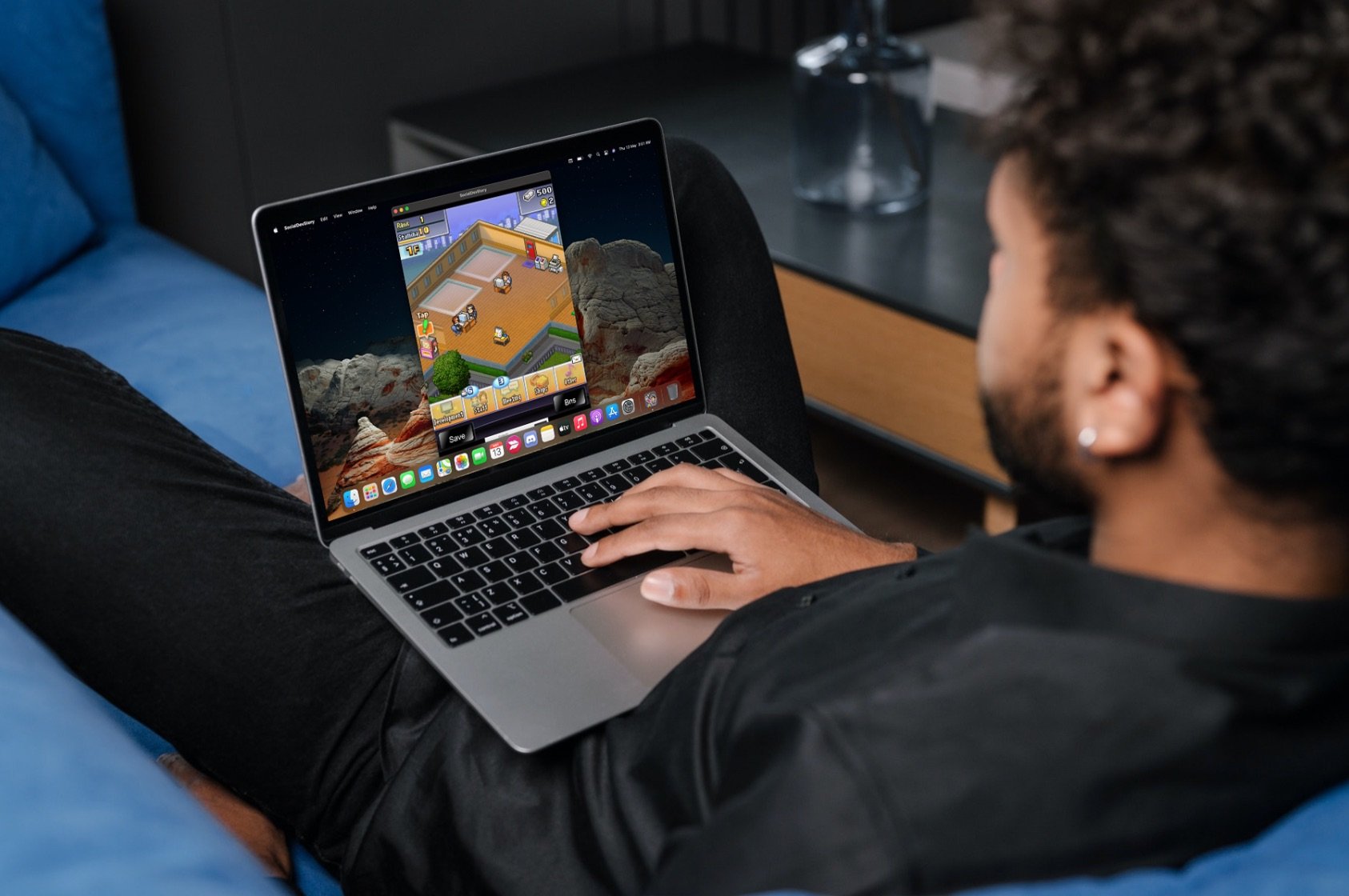
To play mobile games on your Mac, use an Android emulator like BlueStacks or an app mirroring tool.
Ever wish you could enjoy your favorite mobile games on a bigger screen? Many gamers find the small display on their phone limiting. The good news is, you can actually learn how to play mobile games on mac, bringing your mobile entertainment to your desktop. This process is easier than you might think.
Using emulators or mirroring apps creates a seamless experience. These tools allow you to control the games with your keyboard and mouse, providing enhanced gameplay. Now you can enjoy those mobile adventures on your Mac.

How to Play Mobile Games on Mac: A Complete Guide
Want to play your favorite phone games on your big Mac screen? It’s totally possible, and way easier than you might think! Forget squinting at your small phone; let’s get those awesome games onto your computer. This guide will show you all the ways to play mobile games on your Mac, from easy peasy to a little more involved. We’ll cover everything you need to know, so get ready to level up your gaming experience!
Why Play Mobile Games on Your Mac?
Before we jump into the “how,” let’s talk about “why.” Playing mobile games on your Mac has some pretty cool benefits:
- Bigger Screen, Bigger Fun: Say goodbye to tiny text and squinting! Playing on a larger screen makes everything more visible and enjoyable.
- Better Controls: Using a mouse and keyboard can make some games a lot easier to control, especially strategy or shooting games.
- Multitasking Magic: Need to check your email or chat with friends? You can do it easily on your Mac while still keeping the game running.
- Comfort: Playing on a big screen can be more comfortable, reducing eye strain and neck aches compared to hunching over a phone for long periods.
- Recording and Streaming: If you like making videos or showing off your gameplay, it’s much simpler to record your Mac’s screen than your phone’s.
The Easiest Way: Using Apple Arcade
If you have an Apple Arcade subscription, you’re in luck! Many of the games available on Apple Arcade are also available on your Mac. It’s super straightforward.
How to Play Apple Arcade Games on Mac:
- Open the App Store: Click the App Store icon (the blue “A” on a white circle) on your Mac.
- Go to the Arcade Tab: Look for the “Arcade” tab at the top of the window. It’s usually next to the “Discover” tab.
- Browse or Search: Find the games you like! You can scroll through the recommendations or use the search bar to find a specific game.
- Download and Play: Click the game you want, then click “Get” to download it. Once it’s downloaded, just click “Play” and start having fun!
It is important to note that not all mobile games are available on Apple Arcade for Mac, but it is a great option to begin with and test some games you want to play.
Using Game Emulators
Another way to play mobile games on your Mac is through emulators. An emulator is a program that lets your Mac act like another device, like an Android phone or tablet. This lets you run games made for those devices.
Understanding Emulators
It’s crucial to know that emulators do not make illegal copies of games. Instead, they create a virtual environment similar to the mobile devices. You download games from official stores on the emulator’s system, or other safe sources, depending on the emulator’s features.
Popular Android Emulators for Mac
There are a few good choices when it comes to emulators for Mac. Here are some of the most popular and reliable options:
- Bluestacks: This is one of the most popular Android emulators around. It’s easy to set up, has a lot of features, and works well with most games. It’s known for its speed and compatibility.
- Android Studio: If you are a little bit tech-savvy, or you want to go more in-depth, Android Studio is a powerful and free option for Android emulation. It is a bit more complex than others but gives you control over the entire process of playing. It is an official product from Google, so it is a safe option.
- NoxPlayer: NoxPlayer is also a very good emulator which is focused on game compatibility. It is a fast and stable emulator, it is also pretty simple to set up and use.
- LDPlayer: LDPlayer is another solid option, especially for gamers. It’s known for its great performance and supports a wide variety of mobile games.
Setting up an Android Emulator on Mac (using Bluestacks as an example)
Here’s a step-by-step guide using Bluestacks, as it is the most beginner friendly of the lot. While some steps may be similar for other emulators, there might be some difference.
- Download Bluestacks: Go to the official Bluestacks website and download the version for Mac.
- Install Bluestacks: Open the downloaded file and follow the on-screen instructions to install Bluestacks on your Mac. It will require the administrator password.
- Sign in to Google Play Store: Once Bluestacks is installed, open it, and you will see it looks like an Android tablet. Sign in to your Google Account in the Google Play Store.
- Install Games: Just like on your phone, find the game you want, and click “Install.”
- Start Playing: Once the game is downloaded, click the game icon to start playing.
Tips for Using Emulators
- Check System Requirements: Before you install an emulator, make sure your Mac meets the minimum system requirements. Some emulators can be resource heavy and can cause performance problems if your Mac is not powerful enough.
- Update Your Emulator: Make sure you keep your emulator updated for the newest features, bug fixes and security updates.
- Optimize Performance: If you are having lagging or performance issues, you can adjust emulator settings to improve how well it runs, like memory allocation.
- Use a Controller: If you want the most similar experience with phone gaming, try connecting a controller to your mac for more comfortable play.
Screen Mirroring: A Simple Option for Some
Screen mirroring lets you show what’s on your phone screen directly on your Mac. This doesn’t actually run the game on your Mac, but it allows you to see it on a bigger display. This option is best if you don’t have a lot of processing power or a good internet connection.
How to Mirror Your Phone to Your Mac
The process of mirroring varies depending on whether you have an iPhone or Android phone.
Screen Mirroring from iPhone to Mac
For iPhone users, the process is straightforward using AirPlay:
- Make Sure Both Devices are on the Same Wi-Fi: Connect both your iPhone and Mac to the same Wi-Fi network.
- Open Control Center on Your iPhone: Swipe down from the top-right corner of your screen (or up from the bottom on older models) to open the Control Center.
- Tap Screen Mirroring: Look for the icon that looks like two overlapping rectangles and tap it.
- Select Your Mac: Choose your Mac from the list of available devices.
- Enter the Passcode: If a passcode is shown on your Mac, enter it on your iPhone.
Your iPhone screen should now be displayed on your Mac. You can control the game from your phone.
Screen Mirroring from Android to Mac
Android devices require a third-party app or software to screen mirror. Here’s a common method with a popular app called ‘LetsView’:
- Download ‘LetsView’ on Your Android and Mac: Install the ‘LetsView’ app from the Google Play Store on your Android phone and download the desktop software from the official website to your Mac.
- Connect Both Devices to Same Wi-Fi: Make sure that both devices are on the same network.
- Launch LetsView on Both Devices: Open the app on both your phone and your Mac.
- Initiate Screen Mirroring: On your phone, you may see your Mac listed. Click on it to initiate screen mirroring. You might need to allow a permission on your Mac screen.
Your Android screen will now be on your Mac. Control the game from your phone.
Benefits and Limitations of Screen Mirroring
- Pros: Easy to set up, requires less processing power from your Mac, a good option for lower-end Macs.
- Cons: Relies on your phone’s processing power, can drain your phone battery, screen mirroring can have some delay (latency), the game quality depends on the mobile version’s limits.
Using Chrome Extensions for Browser-Based Mobile Games
Some mobile games are also playable in a web browser. For those, Chrome extensions can enhance your experience and make it more enjoyable. These games are typically less resource intensive and can be an easy option if your Mac has less processing power.
Finding and Using Browser-Based Mobile Games
Here is a simple approach to finding and using web-based mobile games:
- Check Game’s Website: Look for the official website of the mobile game. Some developers have a web-based version to play directly on browser.
- Use Game Portals: Some websites focus on browser games. Search for such sites and find the mobile game on those websites.
- Search Online: Simply search online. Using terms like “play [game name] on browser” can help you find playable versions.
Enhancing Browser Games with Extensions
Chrome extensions can provide specific benefits, like improved controls and better resolution. Here are some things these extensions can do:
- Controller Support: Use extensions to allow you to connect your controller to your computer. This can significantly improve control of games made for touch screen devices.
- Screen Adjustments: Some extensions allow you to resize or adjust the game screen to fit your needs.
- Ad Blocker: Ad blocking extensions remove annoying ads, leading to uninterrupted playtime.
Installation and Use of Chrome Extensions
Setting up a Chrome extension is really easy.
- Open Chrome Web Store: Go to the Chrome Web Store. Search for the particular extension you want to use.
- Install: Click on the extension and click on ‘Add to Chrome’.
- Activate the Extension: Check the extension and make sure it is active and working by the icon on browser’s toolbar.
- Play the Game: Open the game on browser and use the extension’s function.
Things to Consider When Playing Mobile Games on Mac
Before you jump into gaming on your Mac, there are a few things to keep in mind:
System Requirements
- Your Mac’s Specs: Make sure your Mac has enough processing power (CPU), memory (RAM), and graphics card capacity to run the emulators or games smoothly.
- Emulator Requirements: Each emulator has its own system requirements. Double-check them before you install.
Game Compatibility
- Not All Games Work on Mac: Some games may not work perfectly on emulators or other ways, as they are built for specific environments or operating systems.
- Search for Workarounds: If a game doesn’t work, search online forums and discussions. Many communities help other players finding solutions.
Legal Considerations
- Use Official Sources: Download games and emulators from trusted websites to avoid harmful software.
- Terms of Service: Be sure you know the terms of service of games you play on your Mac, so that you don’t violate the terms.
Performance
- Optimize Game Settings: Some games let you adjust their graphics settings to optimize performance.
- Close Background Apps: Close unused apps on your Mac to help the games run better.
Playing mobile games on your Mac opens a whole new world of gaming possibilities. Whether you choose to use Apple Arcade, emulators, screen mirroring or browser-based extensions, there’s a way to get those games onto your bigger screen. Just remember to follow the tips we have discussed and get ready for some amazing gaming experiences.
Install any iOS Applications to your Mac M1 with PlayCover 2.0 | Tutorial & Configuration
Final Thoughts
Essentially, you have a few solid options for playing mobile games on your Mac. You can use an emulator, which creates an Android environment. Alternatively, Apple’s own continuity features allows some games to be mirrored from your iPhone or iPad.
Choosing the right method depends on your specific needs. Emulators provide a wider selection of titles. Continuity offers a more direct way, but with limited games. With that, you now know how to play mobile games on mac.

