
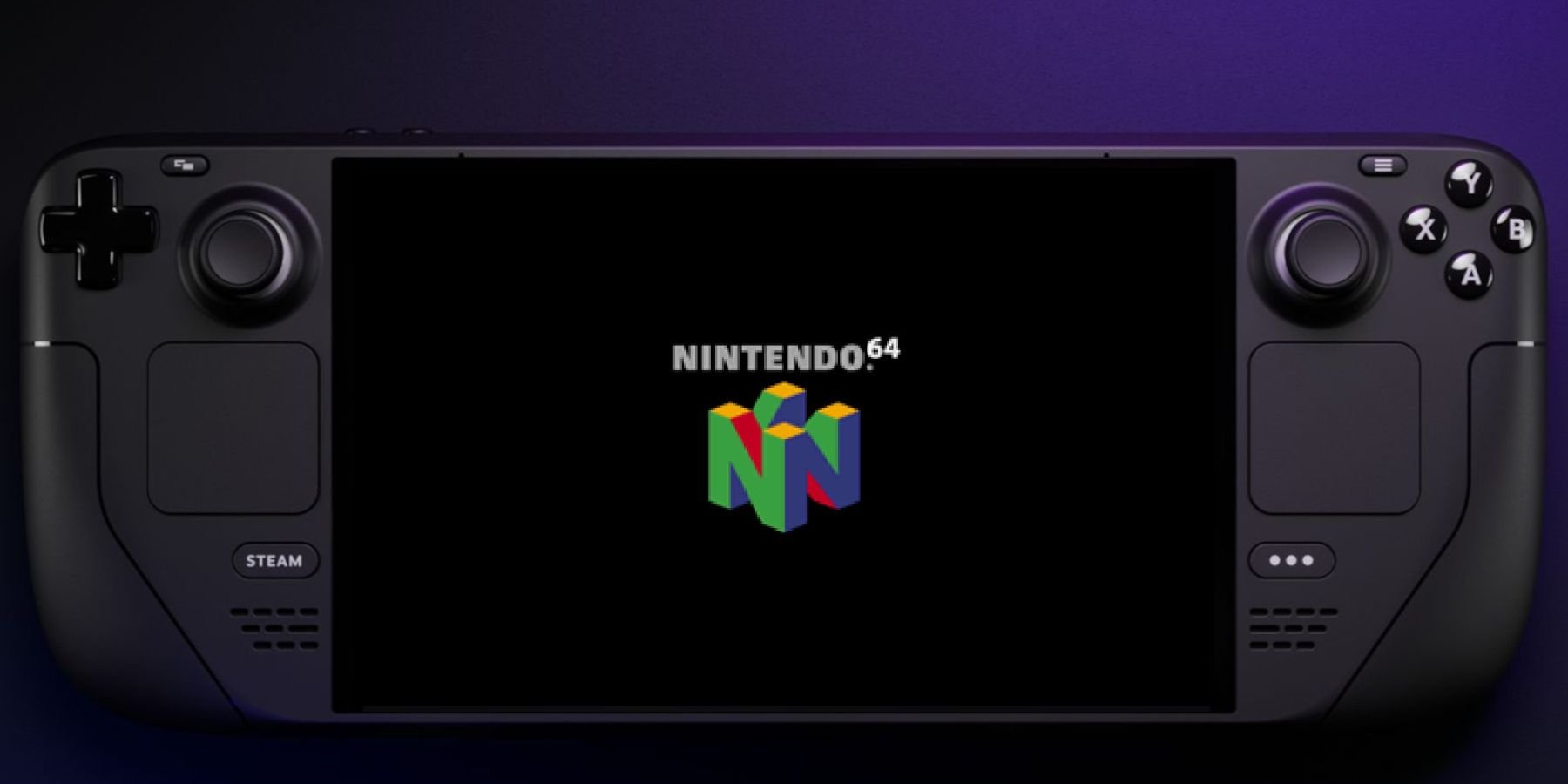
To play N64 games on Steam Deck, you need to install an emulator like RetroArch or Mupen64Plus, then add your N64 ROM files to the emulator.
Ready to relive the golden age of gaming on your Steam Deck? Many of us have fond memories of classic titles from the Nintendo 64 era. The good news is that you absolutely can bring those games to your handheld.
This guide will show you how to play N64 games on Steam Deck with ease. This means diving into the world of emulation, which might sound complicated but is actually quite simple. We will walk through the process step-by-step.

How to Play N64 Games on Steam Deck
Want to play those awesome Nintendo 64 games you remember from childhood on your shiny new Steam Deck? You totally can! It might seem a little tricky at first, but we’re going to walk you through it step-by-step. Think of it like setting up a super cool time machine for your games. We’ll be using something called an “emulator,” which is like a magical program that lets your Steam Deck pretend it’s an old N64. Ready to get started?
Understanding Emulation: The Magic Behind the Curtain
Before we jump into the how-to, let’s chat a little about what’s actually happening. An emulator is just software that makes your computer (or in this case, your Steam Deck) act like another machine. It’s like having a tiny N64 inside your Deck. Because the N64 is old, its hardware is different from the hardware inside your Steam Deck. The emulator translates the N64 game’s instructions into instructions the Steam Deck can understand.
Here’s a simple way to think about it:
- Imagine you’re trying to read a book written in a language you don’t know.
- An emulator is like a translator that takes the words from the book and puts them into a language you understand (the language of your Steam Deck).
Emulation is perfectly legal when you use ROM files from games you already own. It is not allowed to download games you do not own. Let’s keep it fair and respectful to game developers.
Choosing Your N64 Emulator: Project64 vs. RetroArch
For playing N64 games on Steam Deck, you’ve got a couple of main choices for emulators: Project64 and RetroArch. Both work well but have slightly different ways of going about things.
Project64
Project64 is a very popular N64 emulator that’s often used on PC. It’s known for being easy to setup and use. It has a simple layout which is easy to follow, making it a great choice if you like things straightforward and to the point.
- Pros:
- Relatively easy to set up and configure.
- Generally good performance on many systems.
- Has a simpler interface.
- Cons:
- Requires individual installation on Steam Deck as a standalone program.
- Less flexibility in terms of advanced settings and customization compared to RetroArch.
RetroArch
RetroArch is more like a “hub” for emulators. It can handle lots of old consoles, including the N64. It’s a bit more complex but provides more control. This allows for some great settings to be adjusted.
- Pros:
- Supports numerous emulators and platforms.
- Offers lots of customization and advanced settings options.
- Makes it easier to manage multiple retro consoles through one app.
- Cons:
- Can be more complicated to set up.
- Initial configuration might be more time consuming.
For this guide, we’ll focus on RetroArch since it’s very useful for people who like to play various kinds of retro games. However, Project64 is also a great option, so feel free to explore that one too if you feel more comfortable with it.
Preparing Your Steam Deck: Getting Ready to Play
Okay, let’s get your Steam Deck ready for action. Here’s what you need to do:
Switch to Desktop Mode
First, you have to switch from Steam Deck’s game mode to its desktop mode. This allows you to access all of the computer’s functions.
- Press the “Steam” button.
- Select “Power.”
- Choose “Switch to Desktop.”
Install RetroArch on Steam Deck
Next you need to download and install RetroArch. You can do this through the Discover app (the Steam Deck’s app store) or by downloading it directly from the RetroArch website.
- Open the Discover app (blue shopping bag icon).
- Search for “RetroArch”.
- Click “Install”.
- Wait for it to download and install.
Alternatively, download RetroArch from the website. Make sure you download the version that is compatible with Linux, as Steam Deck uses a Linux-based operating system. Unpack the downloaded file and install the app.
Getting Your N64 Game Files (ROMs)
Here’s the important part. You’ll need to have the game files for the N64 games you want to play. These are usually called “ROMs.” It’s only okay to use ROMs of games that you own. If you don’t own the game, it is not allowed for you to download the ROM. Please remember to obtain your ROMs legally.
- Place your N64 ROMs in a folder where you can easily find them. For instance, make a folder called “N64 ROMs” in your Downloads folder.
- Make sure your ROMs are in a format RetroArch can read, usually .n64, .z64, or .v64.
Configuring RetroArch: Making Everything Work Together
Now that you have the software, we need to set everything up correctly. It’s not as hard as it sounds, so just follow the steps.
Run RetroArch
- Go to your start menu (the Steam icon in the lower-left of the screen) on your Steam Deck Desktop.
- Look for and click on the RetroArch application to start it up.
Setting up the N64 Core
Think of the core as a set of special instructions for RetroArch to play a specific type of game. Since we want N64 games, we need to load the right one.
- From RetroArch’s main menu, go to “Load Core”.
- Choose “Download a Core.”
- Look for “ParaLLEl N64” or “Mupen64Plus Next” and choose one. Both work well, but sometimes one might work better for certain games.
- After the core is downloaded, go back to the main menu and select “Load Core” again, this time pick the core you just downloaded
Loading Your N64 ROM
Now, it’s time to tell RetroArch where your N64 game files are located.
- Go back to RetroArch’s main menu.
- Select “Load Content”.
- Find the folder where you placed your ROMs.
- Choose the game file you want to play.
Configuring Controls
The default control setup might not feel the best, so we can change it to better suit the Steam Deck.
- Go back to RetroArch’s main menu and look for “Settings.”
- Go to the “Input” section.
- Find “Port 1 Binds.”
- Here, you can assign buttons on your Steam Deck to the buttons on an N64 controller. Just go through each button and press the button you want on your Steam Deck to use.
Basic Display Settings
You may want to adjust the display settings to make the game look better.
- Go back to the “Settings” menu.
- Choose “Video”
- You can adjust things like the screen resolution to match your Steam Deck’s screen or pick a different aspect ratio.
Saving Your Settings
Once you’re done with the controls and other settings, save them so you don’t have to do it again.
- Go back to the main menu.
- Select “Configuration File.”
- Choose “Save Current Configuration.”
Playing N64 Games in Steam Deck Gaming Mode
Okay, you’ve set up everything in desktop mode. Now let’s get these games running in Steam Deck’s game mode. This is what makes the whole thing fun and easy to use.
Adding RetroArch as a Steam Game
First we need to add RetroArch as a non-steam game. This means it will show up in your game library.
- Go back to the Steam Deck desktop.
- Open the Steam app.
- Click “Add a Game.”
- Select “Add a Non-Steam Game”.
- Choose RetroArch from the list.
Launching RetroArch in Gaming Mode
- Switch back to gaming mode.
- Look for RetroArch in your Steam library.
- Launch it.
Running N64 Games
You can now use RetroArch in gaming mode to select and play your N64 games.
- Select “Load Content”
- Select the game you want to play
Troubleshooting Common Issues
Sometimes things don’t work perfectly the first time, which is okay. Here are some typical problems people run into and how to solve them:
Game Runs Too Slow
If your game is running slowly, try these things:
- Make sure you’ve selected the right N64 core (try switching between “ParaLLEl N64” and “Mupen64Plus Next”).
- Lower the game’s resolution in the RetroArch video settings.
- Make sure no other programs are running in the background.
Game Doesn’t Load
If your game doesn’t load at all:
- Make sure your ROM file is valid (try a different ROM of the same game if possible).
- Check the emulator core settings if you accidentally altered them.
Controller Not Working
If your controller doesn’t work:
- Double-check that you mapped your Steam Deck buttons correctly in RetroArch’s input settings.
- Ensure that the emulator is recognizing your controller.
Sound Issues
If the sound is strange or not working:
- Check your audio settings in RetroArch.
- Make sure your Steam Deck’s volume is up.
Tips for an Enhanced Gaming Experience
Here are a few extra tips to make playing N64 games on your Steam Deck even better:
- Experiment with different cores: Sometimes, one core performs better with specific games than another. Try different ones to find the best setup.
- Use save states: RetroArch allows you to save your game at any point, which can be very helpful for hard games. Use the save state feature to avoid losing progress.
- Try different display options: Play with screen resolutions and aspect ratios to find the one you like the best.
- Explore community settings: There are communities where people share optimal settings for each N64 games. Don’t be scared to look around and check them out!
Playing Nintendo 64 games on your Steam Deck is a cool way to relive old memories and have fun. By following these instructions you will be well on your way to playing these awesome games from your childhood. This might take some trial and error but don’t give up. Soon you’ll be playing your favorite N64 games on your Steam Deck!
N64 on Steam Deck! Mupen64 Plus EmuDeck 2 Setup Guide and Emulation Tutorial for Valve's Handheld
Final Thoughts
To play N64 games on your Steam Deck, you’ll need an emulator like RetroArch or standalone options. Install it via desktop mode, then add ROM files. Configure controls and graphics for smooth gameplay.
Next, add the emulator to your Steam library to access it in game mode. Finally, you can launch your favorite N64 titles with ease. This is how to play n64 games on steam deck, and it’s quite simple to setup.

