
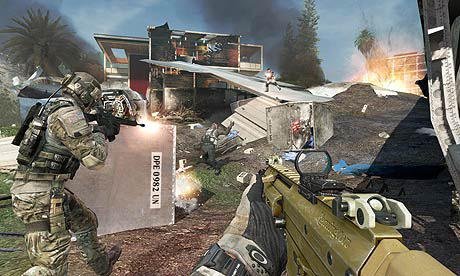
To play old Call of Duty games on PC, you generally need to purchase a digital copy from platforms like Steam or GOG, or install them from the original physical discs. You might also need to apply compatibility settings for older titles.
Remember the thrill of dropping into classic Call of Duty maps? Many gamers are keen to experience those golden days again. So, you’re asking how to play old Call of Duty games on PC, right? It’s a common question for those wanting that nostalgic action.
Often the challenge comes with making older games work on new computers. Thankfully, with a few steps, you can usually get those classics running smoothly. This lets you enjoy the past eras of the game series again.

How to Play Old Call of Duty Games on PC
Want to jump back into the classic Call of Duty games on your computer? You’re in the right place! It’s super fun to revisit those older games, the ones that started it all. But sometimes, playing old games on new computers can be a little tricky. This guide will walk you through everything you need to know. From finding the games to getting them running smoothly, we’ll cover it all. Get ready to relive the glory days of Call of Duty!
Finding Your Favorite Classic Call of Duty Games
The first step is getting your hands on the games. Luckily, there are a few good ways to do this. Let’s look at some of the options:
Digital Download Platforms
Many older Call of Duty titles are available on digital download platforms like Steam and GOG. These platforms make it easy to buy and download games directly to your computer. Here’s what you need to know:
- Steam: Steam is a popular choice. Many Call of Duty games, especially from the Modern Warfare and Black Ops series, can be found there. Simply search for the title you’re looking for, and if it’s available, you can purchase and download it quickly.
- GOG (Good Old Games): GOG specializes in older games, making sure they work well on modern computers. While their Call of Duty selection might be smaller than Steam’s, it’s always good to check GOG for specific titles. The games here are typically optimized to run with fewer problems, and they come without DRM (digital rights management), which can make them easier to install and play.
Keep in mind that not all older Call of Duty games are available on these platforms. Availability can vary based on licensing and other factors. However, these are usually the best places to start your search.
Physical Copies
If you prefer to own physical copies of your games, you can still find them. This can be a little more work, but it is possible. Here’s how you might go about it:
- Online Marketplaces: Sites like Amazon, eBay, and even smaller used goods sites often have old Call of Duty games for sale. Be sure to check the seller’s rating and the condition of the game before buying. Make sure the copy has its product key.
- Game Stores: Sometimes, you might find older games at local game stores. These can be a great place to look for hidden gems, but inventory can be limited and it can be difficult to locate certain titles that are not popular enough.
Important note: If you use a physical copy, you’ll likely need an older computer that has a CD/DVD drive, or you will need to purchase an external USB disc drive to install the game on your computer. Once you have the game files, you can usually play them on any PC.
A Note About Game Keys
When purchasing from digital platforms or using a physical copy, you’ll need a game key (also called a product key) to install and play the game. It is very important to keep your game key safe. Digital platforms will keep track of this for you, while you should keep the physical key that came with the box, in a safe location.
Getting Your Games Running: Compatibility and Setup
Once you have the game, it’s time to get it working on your PC. Older games can sometimes have compatibility issues with newer operating systems. Here’s what to do:
Checking System Requirements
Before you try to install any game, check its system requirements. These tell you what kind of computer the game needs to run correctly. You can find these requirements on the game’s store page, on the back of the game case, or on various gaming websites.
Things to look for include:
- Operating System: Does the game work with your version of Windows (e.g., Windows 7, 8, 10, or 11)?
- Processor (CPU): Does your computer have a fast enough processor?
- Memory (RAM): Do you have enough RAM?
- Graphics Card (GPU): Is your graphics card compatible?
- Disk Space: Do you have enough space on your hard drive?
It’s best to compare these requirements with your PC’s specifications before installing any game. If your PC doesn’t meet the requirements, the game might not run well, or it might not run at all.
Compatibility Modes
If you’re having trouble running an older game, Windows has a compatibility mode that can help. Here’s how to use it:
- Find the game’s executable file. This is usually an .exe file in the game’s installation folder.
- Right-click the executable file and select “Properties”.
- Go to the “Compatibility” tab.
- Check the “Run this program in compatibility mode for” box.
- Select an older version of Windows from the drop-down menu (try Windows XP or Windows 7).
- You can also try checking the “Run this program as an administrator” box.
- Click “Apply” and then “OK.”
Now, try launching the game again. Compatibility mode can trick the game into thinking it’s running on an older computer, which can sometimes fix issues.
Running as Administrator
Sometimes, games need special permissions to work correctly. Running the game as an administrator can help with this. Here’s how:
- Right-click the game’s executable file.
- Select “Run as administrator.”
This can solve problems such as save files not being created or the game crashing.
Troubleshooting Common Issues
Even with compatibility mode and running as an administrator, you may run into other issues. Here are some common ones and how to deal with them:
- Graphics Problems: If the game looks wrong, try adjusting the graphics settings within the game. You might also need to update your graphics card drivers. You can find these on the website of the company that made your graphics card.
- Sound Issues: If you have no sound or weird sound, make sure your computer’s sound settings are correct. You may need to install older audio drivers as well, depending on the game.
- Crashing: If the game crashes frequently, make sure your computer’s drivers are up to date. Sometimes, running the game in a different compatibility mode can also help.
- Game Not Launching: If you cannot start the game, try to re-install it. Sometimes, files can get corrupted, and re-installing the game could help the game to run as normal.
If all else fails, online forums and fan communities can offer additional advice and custom fixes. Search for information on your specific game’s problems, and chances are other people have run into the same issues and found solutions.
Adjusting Game Settings for the Best Experience
Once the game is running, you can adjust the in-game settings. This can help improve both how the game looks and how it plays. Here are some tips:
Graphics Settings
Older games might not run at the highest settings of your modern computer. Experiment with the graphics settings to find what works best. Lowering some of the settings might increase the game’s frame rate, making it smoother.
- Resolution: Try different resolutions to find what looks best on your monitor.
- Texture Quality: Lowering texture quality can improve performance.
- Shadows: Turning off or lowering shadows can also make the game run better.
- Anti-aliasing: Turning this on will smooth jagged lines but can decrease the game’s performance. Try turning it off to see if it fixes the issue.
If the game has the ability to change screen resolution, try changing to the default setting. Older games sometimes are not compatible with the new monitor display ratios, and changing to the default setting could solve the issue. You can then change back to the display resolution you prefer.
Controls and Input
Older games might not fully support modern controllers and input devices. Here’s what you can do:
- Keybindings: Make sure your keyboard and mouse settings feel comfortable for playing. Most games allow you to change the controls.
- Controller Support: If the game has controller support, you might need to configure it through the game’s menus. If the game does not fully support controllers, you may need third party programs to map the keys and allow controller function.
Multiplayer Gaming
Many of the old Call of Duty games had awesome multiplayer features, but it’s true that getting them to work correctly nowadays can be a bit more complicated. Here is what you can try:
- Community Servers: Many games have community-made servers that are still running today. You may have to download some additional files or programs to play on these, but these fan-made servers are often the only way to play multiplayer in many older games.
- LAN (Local Area Network) Play: If you have a few friends nearby, you can set up a LAN game to play together.
- Third-Party Services: There are services that allow you to find players for these older games. Often they work by allowing you to join their servers, and then they connect you with other people looking to play the same game. You can sometimes search for these services by searching online.
It is very important to know that servers for the old Call of Duty games are no longer provided by the official game companies. Most of the multiplayer function is now only possible through fan-made servers and services.
Specific Games: Tips and Tricks
Let’s focus on some popular older Call of Duty titles. Each game may have specific requirements or tips you should know.
Call of Duty 1, 2, and United Offensive
These early games may need some special tweaks. For example, you might need to download fan-made patches to improve compatibility with modern graphics cards.
Call of Duty 4: Modern Warfare
This is a fan favorite. It usually runs well with compatibility mode. For multiplayer, try finding servers through the community-made servers or third party services.
Call of Duty: World at War
World at War may need some additional configuration. Look for fan-made patches or solutions to improve the graphic quality and fix bugs.
Call of Duty: Modern Warfare 2 and 3
These games can run smoothly on most PCs with the right compatibility settings. The multiplayer can be complicated to use, but the fan servers have a lot of good players to play against, if you want a very active multiplayer mode.
Black Ops 1 and 2
These are usually compatible with Windows 10 and 11. Some users prefer to use community patches to improve performance. Multiplayer can be found with the help of fan-made services.
Tips for a Smoother Experience
Here are a few more general tips that can help you get the best out of your classic Call of Duty gaming:
- Keep your Drivers Updated: Always ensure you have the latest graphics card drivers installed. This can fix many issues and make your games run better.
- Use Game Launchers: If you use Steam, try launching the games through that program. This can sometimes fix small issues.
- Be Patient: Sometimes, getting an older game to work can take a little bit of trial and error. Don’t give up right away!
- Look for Help Online: Fan forums and online communities can have a wealth of knowledge and can help you find solutions to problems that you encounter.
By following these steps, you should be able to bring back the great games of the past and experience classic Call of Duty games on your PC! Remember to always be careful about where you download files from and take care to avoid viruses and other malicious software.
Revisiting these classic games can be a blast. The single-player campaigns are nostalgic, and sometimes the gameplay is just as fun as when the games were new. There are a lot of great times to be had and playing with friends online makes the game even more enjoyable.
CoD PC in 2024 – EVERYTHING You Need to Know! The Ultimate Guide to Call of Duty PC
Final Thoughts
Playing older Call of Duty games on PC requires a few steps. You often need to buy game copies or use digital distribution platforms. Compatibility issues sometimes arise, so you may have to adjust settings.
Finding game patches can improve game performance. Mod communities also offer ways to enhance the experience. Remember to research for each specific title.
Ultimately, ‘how to play old call of duty games on pc’ involves acquiring games, troubleshooting setup, and maybe utilizing available modifications. Enjoy revisiting classic CoD!

