
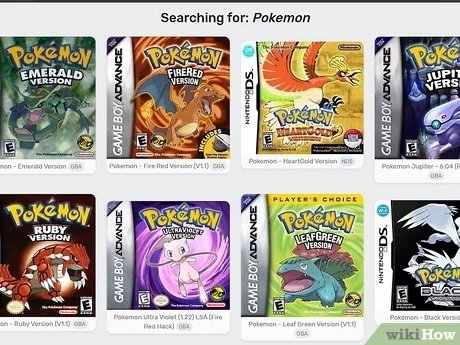
To play Pokemon games on PC, you generally need to use an emulator, which simulates the original gaming console, and download ROM files of the Pokemon games.
Ever wished you could experience the magic of Pokemon on your computer? Many people ask about how to play pokemon games on pc and it’s easier than you might think. This guide will explain a popular way to get started with those classic titles right on your desktop. Get ready to embark on your Pokemon journey in a new way!

How to Play Pokémon Games on PC
Want to explore the wonderful world of Pokémon on your computer? It’s totally possible, and you don’t need a fancy game console to do it! You can play almost any Pokémon game from the classic Game Boy titles to the more recent Nintendo DS and 3DS games right on your PC. This guide will walk you through everything you need to know, step by step. We will cover the emulators you will use, how to find ROMs, and some cool tips to make your gameplay even better. Get ready to become the very best, like no one ever was, on your PC!
Understanding Emulators
First, let’s talk about what an emulator is. An emulator is a special type of software that makes your computer act like a different device. In our case, it will make your computer think it’s a Game Boy, a Nintendo DS, or a 3DS. This way, you can run games that were originally made for those systems on your PC. Emulators are really amazing tools that allow you to enjoy games from different platforms, all in one place.
Types of Emulators
There are different emulators for different Nintendo consoles. Here are some popular ones you might need:
- Visual Boy Advance (VBA): This is for Game Boy, Game Boy Color, and Game Boy Advance games. It’s been around for a while and is very dependable. Think of it as your go-to choice for all the older Pokemon adventures.
- DeSmuME: This one is your friend for Nintendo DS games. It runs those dual-screen adventures smoothly and correctly. If you want to play Pokemon Diamond, Pearl, or Platinum, DeSmuME is your solution.
- Citra: For the more recent Nintendo 3DS games, Citra is what you’ll use. This emulator can play those newer titles with 3D graphics. It’s perfect if you are wanting to experience Pokemon X, Y, or Sun and Moon.
Finding the Right Emulator
Choosing the correct emulator is important for each generation of Pokemon games you want to play. For example:
| Pokémon Game Generation | Corresponding Nintendo Console | Recommended Emulator |
|---|---|---|
| Generation I & II (Red, Blue, Yellow, Gold, Silver, Crystal) | Game Boy & Game Boy Color | Visual Boy Advance (VBA) |
| Generation III (Ruby, Sapphire, Emerald, FireRed, LeafGreen) | Game Boy Advance | Visual Boy Advance (VBA) |
| Generation IV & V (Diamond, Pearl, Platinum, HeartGold, SoulSilver, Black, White, Black 2, White 2) | Nintendo DS | DeSmuME |
| Generation VI & VII (X, Y, Omega Ruby, Alpha Sapphire, Sun, Moon, Ultra Sun, Ultra Moon) | Nintendo 3DS | Citra |
Make sure to always get your emulators from trusted websites. A good starting point would be the official website for each emulator. Avoid random download links, as they might contain harmful software. Safe download sources provide the best experience and keep your computer secure. Once you find the official site, download the version compatible with your computer’s operating system (like Windows or macOS). It should be a straightforward process – just like downloading any other application.
Acquiring ROMs: The Game Files
Now that you have the right emulator, you’ll need the game files. These files are called ROMs. A ROM is basically a digital copy of the game’s cartridge or disc. It’s what the emulator reads to play the game. But it’s very important to remember that you need to own the original game in order to legally download or use its ROM. Downloading ROMs of games that you haven’t purchased is against copyright laws.
Where to Find ROMs (Legally)
While we can’t tell you where to get ROMs illegally, there are ways to legally obtain them. If you own a Pokemon game cartridge, you can use a device called a ROM dumper. This device connects to your PC and makes a digital copy of the cartridge. It’s like ripping a CD or DVD – you’re just creating a backup of your own game. Keep in mind, that you should not share these ROMs with others. They’re meant to be used for your personal enjoyment.
Because of the legal restrictions, there are no websites I can directly recommend for downloading ROMs. However, you can find the ROM dumpers on popular online retail sites if you want to legally create backup copies of your games.
Setting Up Your Emulator
Once you have your emulator downloaded and your game ROM, the next step is setting up everything. Each emulator is a bit different, but here’s a general idea of what you need to do. Let’s focus on Visual Boy Advance (VBA), DeSmuME, and Citra.
Setting Up Visual Boy Advance (VBA)
VBA is relatively easy to set up. Here’s how to get going:
- Install VBA: First, double-click the file you downloaded from the official VBA website. Follow the on-screen instructions. Usually, it’s just a matter of clicking “Next” a few times and then “Finish.”
- Open VBA: Once installed, find it in your programs list or desktop and open it.
- Load the ROM: Go to “File” in the top menu. Select “Open” and then find the ROM file (.gba or .gb extension) you have on your computer.
- Start Playing: The game will start immediately. You can customize the controls under “Options” if you prefer a different setup.
Setting Up DeSmuME
DeSmuME, for Nintendo DS games, needs a bit more setting up, but don’t worry, it’s not too tricky. Here’s what you do:
- Install DeSmuME: Similar to VBA, run the installer you downloaded from DeSmuME’s official site. Follow the simple on-screen instructions.
- Open DeSmuME: Once installed, open the program.
- Configure Controls: Go to “Config” then “Control Config.” Set up the buttons for your keyboard or game controller. This is important to play comfortably.
- Load the ROM: Click on “File,” then “Open ROM,” find your ROM file (.nds extension) and select it.
- Enjoy! The game should now be running on your computer.
Setting Up Citra
Citra, for 3DS games, is a bit more complex to set up compared to the other two. This is because 3DS games require some more processing power and specific settings. Let’s get you going:
- Install Citra: Run the installer from the official Citra website. Just like with the other emulators, keep going with the on-screen prompts.
- Open Citra: Open the emulator after installation.
- Setup Controls: Go to “Emulation” then “Configure Controls.” You will need to map your keyboard or controller buttons here.
- Load the ROM: Go to “File” then “Load File”. Find the ROM file (.3ds or .cia extension) and select it.
- Playing the Game: With all set, you should be able to play the game.
Tips for a Better Gaming Experience
Now that you’re all set up, here are some extra tips to get the most out of playing Pokémon games on your PC:
Using Game Controllers
While you can play games with a keyboard, using a game controller makes the experience much better. Most emulators support game controllers. Connect your controller, and then in the emulator settings, set the controller buttons to match the game controls. This makes it feel much more like playing on an actual console. Using a controller makes moving around in the Pokemon world feel much more natural and immersive.
Saving Your Game
It’s very important to save your game frequently! Emulators use save states, which are like quick bookmarks for your game. You can save at any point and go back to that exact spot later. Use these save states often, because you never know when you might need to go back. The “Save State” function is often found in the “File” menu of your emulator or the game controls. Use it frequently so that you can avoid losing a lot of time if anything goes wrong.
Speeding Up Gameplay
Some emulators let you speed up the game. This is helpful if you want to get through battles or long dialogue quickly. You’ll usually find the speed-up option in the menus. But remember not to rely on this too much, as you might miss some story elements. Consider using it mostly when you’re grinding or retracing your steps in-game.
Enhancing Graphics and Sound
Emulators often come with options to enhance the graphics and sound of older games. You can find these settings in the configuration menus. Experiment with different settings to find what works best for you. For instance, you might be able to make the game run in high definition or add a filter that smooths out the pixelated graphics. Adjusting these settings can make your game look and sound a lot better.
Using Cheat Codes
Some players like to use cheat codes. Most emulators support them. If you’re interested in using them, you can search for the specific codes online. Just remember that using cheat codes might make the game easier, which might not be as fun in the long term. It’s all about how you prefer to enjoy the games.
Joining Communities
There are many online communities about emulation. Joining these communities can be helpful. You can find answers to questions, tips, and sometimes even new mods for the games. It’s also fun to talk to other people who are enjoying the same games you are. This is a fun way to share your experiences and enjoy the games with like-minded fans.
Playing Pokemon games on your PC is an exciting way to experience these classic adventures and the newer generations as well. Emulators allow you to enjoy the entire world of Pokemon at your fingertips. Whether you are replaying the original games or enjoying some newer experiences, following these steps can help you set everything up and have a great gaming experience. With a bit of patience and the right settings, you’ll be on your way to catching them all!
The BEST Way to Play Pokemon on PC GB Operator Review
Final Thoughts
To play Pokémon games on PC, you primarily use emulators. These programs mimic the hardware of Nintendo consoles. You will also need ROM files which contain the actual game data. Find reliable sources for both emulators and ROMs.
Once you have these, install the emulator and load the ROM file. Configure the emulator to your preference. Now, you can start your Pokémon journey on your computer. Remember, ‘how to play pokemon games on pc’ involves this process.

