
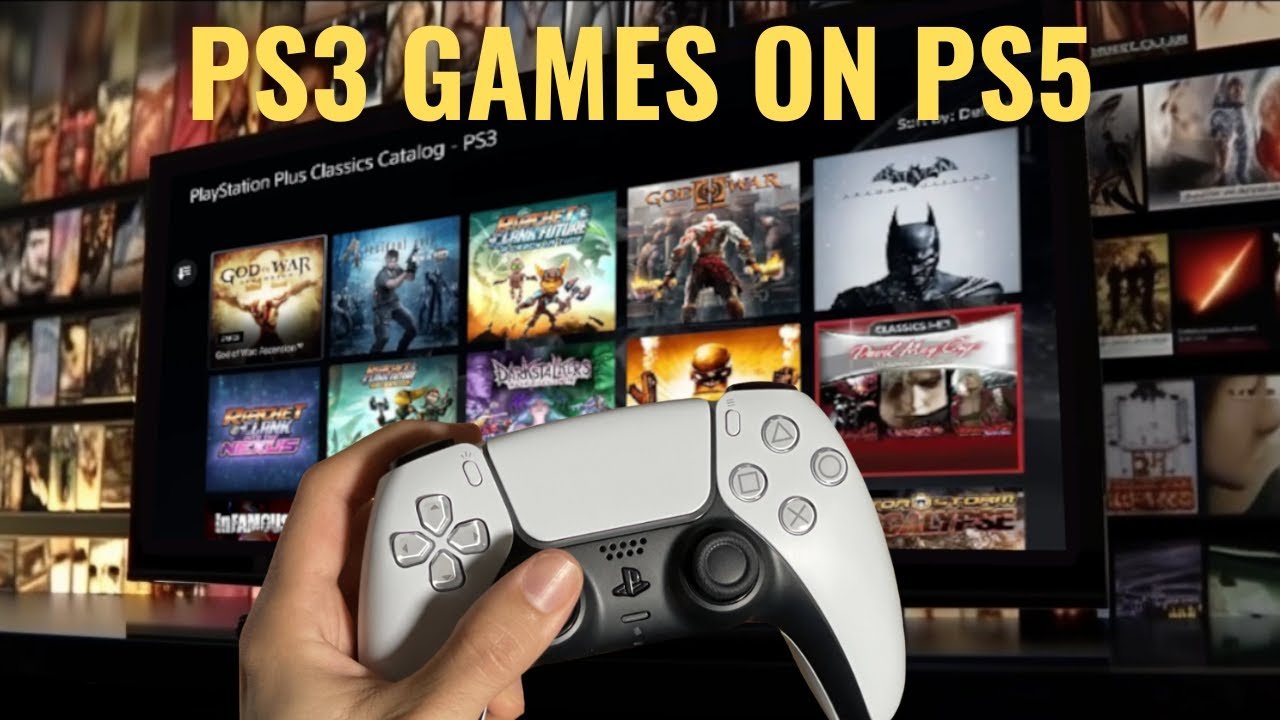
To play PS3 games, you need a PlayStation 3 console, a compatible game disc or a digital download, a controller, and a connected display device like a TV.
Want to revisit classic adventures or experience iconic titles? Figuring out how to play PS3 games is straightforward once you have the necessary equipment. The PlayStation 3 offers a vast library of games, waiting to be explored.
You’ll need an actual PS3 console, a controller, and the game itself, be it on a disc or downloaded. Connect the console to your TV, power it on, and insert the disc or select the downloaded game. Then, prepare for hours of gaming fun.

How to Play PS3 Games
So, you’ve got your hands on a PlayStation 3 (PS3), maybe it’s an old one from your attic or a recent find at a yard sale. Awesome! Now, you might be wondering, “How exactly do I play games on this thing?” Don’t worry, it’s easier than you think! This guide will walk you through all the steps, from setting up your console to getting into your favorite PS3 games. Let’s get started!
Setting Up Your PS3 Console
Before you can jump into gaming, you need to make sure your PS3 is all set up. This includes connecting all the necessary wires and getting everything powered on. Here’s what you’ll need to do:
Gathering the Essentials
- Your PS3 Console: Make sure you have the actual PS3 console.
- Power Cable: This plugs into the back of the PS3 and into a wall outlet.
- Video Cable: This connects your PS3 to your TV. You will likely find the common HDMI cable, but older PS3s may need component or composite cables.
- Controller(s): You need at least one controller to play games. The official controller is called the DualShock 3.
- Game Disc(s): Of course, you need games to play!
Connecting the PS3 to Your TV
The video cable is very important to display your gameplay on TV. Here are the common options to choose from:
- HDMI Cable: This is the best option for the sharpest picture and sound. Plug one end into the HDMI port on the back of your PS3 and the other end into an HDMI port on your TV.
- Component Cable: This cable has five connectors and was commonly used with older TVs. Match the color-coded connectors from the PS3 to the matching inputs on your TV.
- Composite Cable: This has three connectors: yellow (video), white (left audio), and red (right audio). Connect these to the matching ports on your TV. This option gives you the lowest picture quality.
Plugging in the Power
Take the power cord and plug one end into the back of your PS3 and the other end into a wall outlet. Make sure the outlet is working properly.
Turning on Your PS3
Once everything is plugged in, press the power button on the front of the PS3. The light should turn green, indicating that it’s on. If the light is red, then your console is in standby mode and not fully powered up. Also, turn on your TV and select the input source that your PS3 is connected to.
Understanding the PS3 Interface
Now that you have turned on your PS3, it’s time to learn about the system’s interface. This is how you will navigate through menus and choose your games.
The XrossMediaBar (XMB)
The main menu on the PS3 is called the XrossMediaBar, or XMB. It’s a series of icons arranged in a horizontal line. You can move left and right using the left analog stick or the directional buttons on your controller.
- Users: Select this to manage player accounts on the PS3.
- Settings: This is where you adjust various settings for your PS3, such as display, sound, and network options.
- Photo: This is used to view your images.
- Music: To play music from CDs, USB drives, and other sources.
- Video: To watch movies on DVDs and Blu-ray discs.
- Game: This is where you’ll find your game discs and downloaded games.
- Network: For accessing the PlayStation Network, playing online games, and downloading content.
Navigating Menus
To choose something, move the cursor to the item you want and press the ‘X’ button. The circle button usually goes back one step. The triangle button brings up more options.
Playing Games from Discs
The most common way to play PS3 games is by using game discs. Here’s how it works:
Inserting a Game Disc
Look for the disc slot on the front of your PS3. It will either be a slot-loading disc drive or a tray-loading disc drive. Gently place the disc into the slot with the label facing up. The PS3 should pull the disc in automatically, or press the eject button on the console.
Starting the Game
After the disc is inserted, a game icon should appear in the “Game” section of the XMB. Select the icon with the ‘X’ button, and your game should start.
Ejecting a Game Disc
To remove a game disc, just press the eject button on the front of your PS3 console. The disc should come out for you to remove.
Playing Digital Games
Besides games on discs, you can also play games you’ve downloaded from the PlayStation Store. Here’s how to access and play those:
Accessing the PlayStation Store
First, make sure your PS3 is connected to the internet. Go to the “Network” section of the XMB and select “PlayStation Network.” You’ll probably need to create a free PlayStation Network account if you don’t have one already.
Downloading Games
Once you’re in the PlayStation Store, you can search for games to purchase and download. The games will appear in the “Game” section of the XMB after they are downloaded. Make sure you have enough space on your PS3’s hard drive to hold the game. You can check storage by going to Settings > System Settings > System Information.
Starting Digital Games
To start your digital game, select the game icon from the “Game” section of the XMB. Press the ‘X’ button, and it should load just like a disc-based game.
Using the DualShock 3 Controller
The DualShock 3 controller is your main tool for playing games. Here’s a quick rundown of the different buttons and what they do:
Controller Buttons
- Directional Buttons (D-pad): Used for moving through menus and sometimes for controlling your character in games.
- Left Analog Stick: Used for moving your character or moving the camera in games.
- Right Analog Stick: Often used for moving the camera in 3D games.
- L1, L2, R1, R2 Buttons: Located on the top edges of the controller. Used for various actions in games.
- Triangle, Circle, Cross, Square Buttons: Used for various actions in games. They are also used to navigate menus.
- Start Button: Brings up the pause menu in games.
- Select Button: Sometimes used for game options or menus.
- PS Button: Used to go to the main menu. You can also turn off your controller from this menu.
Wireless Functionality
The DualShock 3 controller is wireless, but it needs to be charged using a USB cable (with a mini-USB port) connected to the PS3 when the battery gets low.
Exploring Game Genres
The PS3 has a wide variety of games across many genres. Here are some popular examples:
Action Games
Action games often involve fast-paced gameplay, fighting, and exploration. Popular titles include Uncharted, God of War, and Assassin’s Creed series.
Adventure Games
Adventure games are focused on storytelling and exploration. You might need to solve puzzles and discover new areas. The Last of Us and Grand Theft Auto are great adventure game examples.
Role-Playing Games (RPGs)
In RPGs, you usually play a character that develops over time, gaining skills and equipment. Final Fantasy, and Skyrim are great PS3 RPG examples.
Sports Games
If you love sports, there are many great games available, including titles like FIFA, Madden NFL, and NBA 2K.
Racing Games
For speed lovers, racing games like Gran Turismo and Need for Speed are a lot of fun to play.
Troubleshooting Common Issues
Sometimes, things might not go as smoothly. Here are some common issues and how to fix them:
PS3 Not Turning On
- Make sure the power cable is properly plugged into both the console and the wall.
- Try a different power outlet.
- If the light is still red and it won’t turn on, your PS3 might need to be repaired.
No Picture on TV
- Make sure the video cable is connected securely to both the PS3 and your TV.
- Double check that you have selected the correct input source on your TV.
- Try a different video cable if you have one.
Controller Not Connecting
- Make sure your controller is charged. Try plugging it into the PS3 using the USB cable.
- Press the reset button on the back of the controller.
- Try another controller to confirm it is not a controller issue.
Game Disc Not Reading
- Make sure the disc is clean and free of scratches.
- Try ejecting and re-inserting the disc.
- If the console still doesn’t read the disc, the disc drive might need to be repaired.
Games Freezing or Crashing
- Make sure the game disc is in good condition, or your digital files are good and not corrupt.
- Make sure your PS3 has enough space on the hard drive. You can clear space by deleting old saved games or downloaded content that you don’t use.
- If the issue continues it might be from overheating issues. Make sure to give the console proper ventilation so it can properly cool down.
Tips for a Better Gaming Experience
To make playing your PS3 even more enjoyable, here are a few tips:
- Keep your Console Clean: Dust can build up and cause issues. Use a soft cloth to clean the outside of your PS3, and keep your gaming area clean to keep dust down.
- Store Games Properly: Store your game discs in their cases when not in use to prevent scratches.
- Charge your Controllers: Make sure your DualShock 3 controllers are charged before you start playing to avoid having to use a cord.
- Adjust Sound and Display Settings: Make sure your sound levels are at the right spot, and display settings are set to the right mode. The display should be adjusted to match the TV resolution settings, so the game can be displayed properly.
- Play with Friends: Playing multiplayer games with friends or family is a fun way to play your console.
That’s it! You are now ready to have fun playing games on your PlayStation 3 console. With a little bit of patience, you will get familiar with all the aspects of the console, and will be gaming in no time. So go on, grab your controller, pop in a game, and have fun!
Ultimate Guide: How to Play PS3 Games on PC with RPCS3 Emulator | Updated
Final Thoughts
To play PS3 games, first, ensure you have a working console and compatible discs. Insert the disc into the console’s drive. Then, power on your system and select the game from the menu.
Playing requires a functioning controller. You can navigate menus and control game actions with the controller. Remember to save game progress often.
The process is straightforward. Therefore, anyone can learn how to play ps3 games easily. Enjoy the retro experience!

