
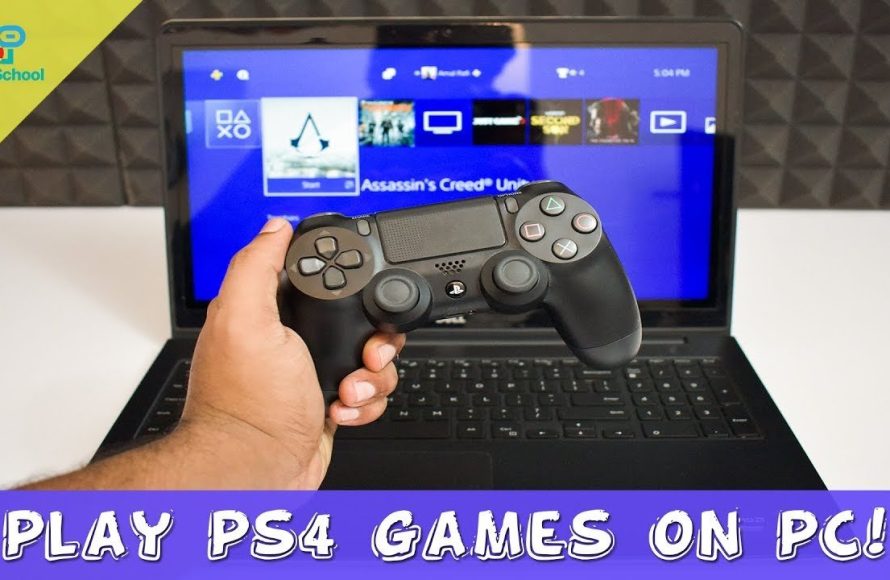
To play PS4 games on PC, you need to use the PlayStation Remote Play application and have a stable internet connection.
Want to enjoy your PlayStation library on your computer? It’s easier than you might think. This guide explains how to play PS4 games on PC, giving you more ways to enjoy your favorite titles. You can use this method to play on a bigger screen or use your preferred mouse and keyboard setup. The process is straightforward; just a few steps gets you gaming on your PC.

How to Play PS4 Games on PC
Ever dreamed of playing your favorite PlayStation 4 games on your computer? It’s a pretty cool idea, right? Imagine bigger screens, maybe even better graphics, and the comfort of your familiar keyboard and mouse setup. Well, the good news is, it’s totally possible! This guide will show you different ways to enjoy your PS4 library on your PC. We’ll look at simple methods to complex ways, and give you step-by-step instructions. Let’s get started so you can get gaming!
Understanding the Basics: Remote Play
The most common and easiest way to play your PS4 games on your PC is by using a feature called Remote Play. Sony made this handy tool that lets you stream your games from your PlayStation to your computer over your home network. It’s almost like having your PS4 right there on your PC screen! Let’s see how this magic works.
What You’ll Need for Remote Play
Before you start, you will need a few things:
- A PlayStation 4 console: Obviously, this is where your games are.
- A PlayStation Network account: This helps connect your PS4 to the network.
- A PC: A Windows PC or Mac will work with the Remote Play app.
- A stable internet connection: Both your PS4 and PC need to be on the same network, and a speedy connection makes the game smoother.
- The PS4 Remote Play application: You’ll need to download and install this on your PC.
- A DualShock 4 controller: A PlayStation controller is recommended and it can connect to your PC via a USB cable or Bluetooth.
Setting up Remote Play on Your PS4
First, we need to prepare your PlayStation 4 for Remote Play. Here’s how to do it:
- Turn on your PS4 and go to the settings menu.
- Look for “Remote Play Connection Settings”.
- Make sure the “Enable Remote Play” box is checked. This turns on the feature.
- Next, go to “Account Management” in settings and select “Activate as Your Primary PS4.” This step is important because it allows remote play to function properly if your PS4 is not set as the primary console.
- It is also advised to set a static IP address on the PS4. This can be done through the network settings, it may help ensure that Remote Play works smoothly by avoiding any disconnection due to changing IP addresses. You can find the step by step guide on google for setting up a static IP address for your PS4, it’s a little technical but definitely helps.
Installing and Setting up Remote Play on Your PC
Now, let’s get the Remote Play application ready on your computer:
- Go to the official PlayStation website and find the Remote Play download page.
- Download the Remote Play app for your PC (Windows or Mac).
- Install the app by following the on-screen instructions. It is very simple to install.
- Open the app. You’ll see a screen asking you to log in to your PlayStation Network account.
- Connect your DualShock 4 controller to your computer using a USB cable or Bluetooth.
- If you are using Bluetooth, go to “Bluetooth and other devices” in your Windows Settings and pair the controller. It is same process on macOS as well.
- Click on the “Start” button in the Remote Play application. If your PS4 is on and connected to the same network, it should find it and you’ll be prompted with a screen which will have the name of your console. Select your console.
- Your PC should now be connected to your PS4. You will see your PS4 screen on your PC, and you can use the controller to play games.
Tips for a Smooth Remote Play Experience
Remote Play can be amazing, but it also relies on the network. Here are few tips for a better experience:
- Use an Ethernet cable: Connecting your PS4 and PC to your router using Ethernet cables gives the best and most stable connection.
- Use 5GHz Wi-Fi: If you are using Wi-Fi, a 5GHz network is often faster and more reliable than a 2.4GHz network.
- Close other apps: When using Remote Play, close any other apps that might use your internet or computer’s resources, this will help your game run smoothly.
- Experiment with resolution and frame rate: The Remote Play app will allow you to set lower resolution and frame rates for the stream. If your PC isn’t very powerful or your internet is slow, try lowering the settings for a smoother experience.
Alternative Methods: PS Now and Beyond
While Remote Play is the most common way, there are other, more involved ways to play PS4 games on your PC. These methods may require more setup or specific hardware.
PlayStation Now: Streaming Games Directly
PlayStation Now, now part of the PlayStation Plus Premium tier, is a subscription service that lets you stream games directly to your PC. It is like a Netflix for games, but instead of movies, it’s games. This approach means you don’t need a PS4 console, but it requires a fast and stable internet connection. Here’s how it works:
- Subscribe to PlayStation Plus Premium: This gives you access to PS Now’s game catalog.
- Download the PlayStation app on your PC: If you are using Windows or Mac, you can find the PlayStation App in their website.
- Log in to your PlayStation Network account: This account will need to be the one linked to your Premium subscription.
- Browse the game catalog: You can then select from a huge library of games and start streaming it.
- Connect a controller: Use a DualShock 4 controller connected via USB or Bluetooth for the best experience.
Benefits of PlayStation Now
- No PS4 Needed: You don’t need a PS4 console to play games this way.
- Large Game Library: Access to a wide range of PS4 and even some PS3 games.
- Convenience: Stream games instantly without needing to download them.
Things to Keep in Mind with PlayStation Now
- Internet Dependency: Game quality is directly related to your internet speed and stability. A poor internet connection may result in game lags, resolution dropping and stutters.
- Subscription Cost: You need to have an active PlayStation Plus Premium subscription, which is an additional cost.
Other Emulation Options (Use with Caution)
You might also come across information about PS4 emulators. An emulator is a program that makes your PC act like another device, in this case, the PS4. However, emulating PS4 on PC is complex, and not many emulators exist that are really reliable or fully functional. Here are few important notes to consider:
- Emulators are still under development: There aren’t any really good PS4 emulators that work perfectly as of now. Most emulators you find might not work properly, and it might take a long time before you can emulate most PS4 games properly on PC.
- Legal concerns: Using emulators can sometimes involve complicated legal issues, especially when you’re using game files that you don’t own. It is advised to proceed with caution.
- Demands High PC Specifications: Even if an emulator works well, it often requires a really strong and powerful PC to run games smoothly.
For now, Remote Play and PlayStation Now are much better options for playing PS4 games on your PC. Avoid using emulators if you are unsure of the legal and technical implications.
Troubleshooting Common Issues
Sometimes, things might not go perfectly smooth. Here are common issues and how to solve them:
Connection Problems with Remote Play
- Check your network connection: Make sure both your PS4 and PC are connected to the same network and have a good connection. Also check if your network or internet is working fine in other devices.
- Restart devices: Try restarting your PS4, PC, and router to resolve any temporary issues.
- Check firewall and antivirus settings: Sometimes, firewall or antivirus software might block the Remote Play connection. You will need to add an exception for the Remote Play app in your settings.
- Update Software: Ensure both your PC and PS4 software is updated to the newest versions.
Controller Issues
- Check Controller connection: Ensure that your DualShock 4 controller is connected to your PC properly either using a cable or Bluetooth.
- Re-pair the controller: If the controller is connected via Bluetooth, try re-pairing it with your PC.
- Try using a USB Cable: Sometimes using a USB cable can make the controller work better.
- Check Controller drivers: Make sure your PC has the latest drivers for the controller.
Performance Issues
- Lower resolution and frame rate: If games lag or are choppy, lower the resolution and frame rate in the Remote Play app settings.
- Close other programs: Close any unnecessary programs on your PC that might use resources.
- Check internet speed: A slow internet connection can cause problems while streaming, try checking the internet speed and ensure that your internet is working properly and as expected.
- Make sure both your PC and PS4 are not using Wi-Fi: Using ethernet cable on both PS4 and your PC will make your gaming experience smoother with less lags.
Choosing the Right Method for You
Now, which way is best for you? Here’s a quick summary:
| Method | Pros | Cons | Best For |
|---|---|---|---|
| Remote Play | Easy to set up, Free, Uses your existing games | Requires PS4 console, Requires good network connection | Players who own a PS4 and want to play on their PC. |
| PlayStation Now | No PS4 needed, Large game library, Easy to use | Requires PlayStation Plus Premium subscription, internet dependent | Players who don’t own a PS4 or want to play a big variety of games without owning them. |
| Emulation | Potentially play without PS4 hardware or subscription in the future, not recommended in the current state | Unreliable, Legal implications, Demands high-end PC, Not recommended | Not recommended to use. |
If you have a PS4 and a stable internet connection, Remote Play is the best option to play your favorite PS4 titles on your PC. If you don’t have a PS4 or want to explore a variety of games, consider PlayStation Now, if your internet is good enough to support streaming.
Playing PlayStation 4 games on your PC opens up a whole new way to enjoy your games. Whether you are using Remote Play to play your own library, or streaming a variety of games through PS Plus Premium, there are options available that will help you play games. Now that you know how to, grab your controller, pick your game, and start having fun!
How To Play PS4 Games On PC – Full Guide
Final Thoughts
In conclusion, you can play PS4 games on your PC using Remote Play. This involves downloading the application and connecting your DualShock 4 controller. Ensure both your PC and PS4 are on the same network for the best experience.
Alternatively, some games might be available to purchase on PC directly. This offers another approach if you prefer not to use Remote Play. Finally, exploring these options allows for playing your favorite PS4 games on PC. This is your guide on how to play PS4 games on pc.

