
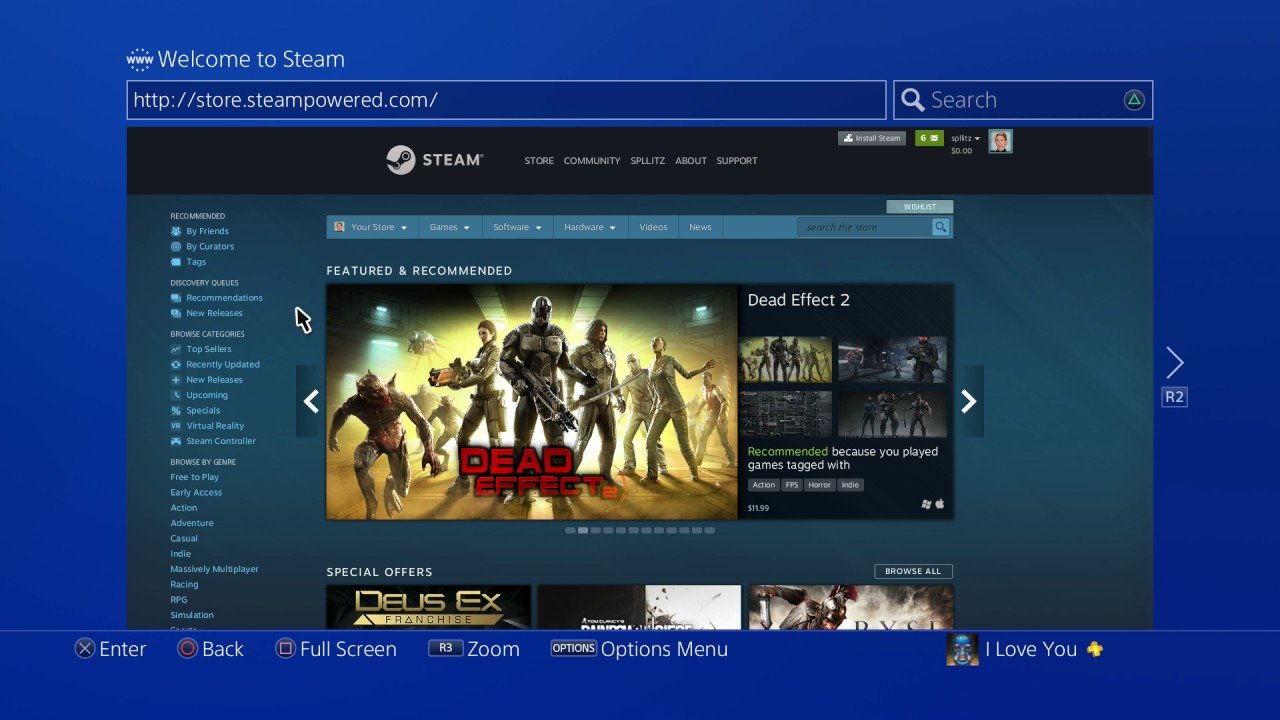
You cannot directly play Steam games on a PS4 console. The two platforms are not compatible.
Dreaming of playing your favorite Steam titles on your PlayStation 4? Many gamers wish they could easily combine their PC and console libraries, but the reality is that it’s not a straightforward process. So, let’s talk about why it’s impossible to natively play Steam games on your PS4.
The underlying technology of these two platforms is different, which means games for each system are coded differently. Therefore, there isn’t a way to simply install a Steam game on a PS4. This incompatibility stems from the operating systems and hardware architecture used by each company.

How to Play Steam Games on PS4
So, you’ve got a PlayStation 4 and a bunch of awesome games on Steam, and you’re wondering if it’s possible to play those Steam games on your PS4? It’s a question many gamers have, and while it’s not as straightforward as popping a disc into your console, there are ways to get closer to your goal. Let’s dive deep into the possibilities (and limitations) of enjoying your Steam library on your PS4.
Understanding the Challenge: Why Direct Play Isn’t Possible
Before we get into any workarounds, it’s important to understand why you can’t just download and play Steam games directly on your PS4. These are two different worlds, kind of like trying to speak Spanish to someone who only understands French. Here’s why:
- Different Operating Systems: Steam games are made to run on computers with operating systems like Windows, macOS, or Linux. The PS4 uses its own system, called Orbis OS. These systems aren’t compatible with each other. Think of it like trying to use an iPhone app on an Android phone – they just won’t work.
- Hardware Differences: Computers and the PS4 have different types of hardware inside. The way they process information and use graphics is not the same. This means the games are built to work with specific hardware, and one system’s games won’t just play on the other.
- Closed Ecosystems: Both Steam and PlayStation operate within their own environments. PlayStation wants you to buy games from their PlayStation Store. Steam wants you to buy them from their store. Allowing direct cross-play would kind of mess up these setups.
The Cloud Streaming Solution: PlayStation Remote Play
While direct play is a no-go, there’s a workaround that lets you kind of play your PC games on your PS4 screen: using PlayStation Remote Play. This feature is not designed for playing Steam games specifically, but it allows you to stream the display of your computer onto your PS4. Here’s how it works and how you can use it to play your Steam games.
What is PlayStation Remote Play?
PlayStation Remote Play is a tool originally designed to let you stream your PS4 games to other devices, like your computer, phone, or even another PlayStation. It acts like a video feed, displaying what’s on your PS4 on a different screen and sending your button presses back to the console.
How to Use PlayStation Remote Play for Steam Games: A Step-by-Step Guide
The key here is to use Remote Play to stream your computer’s screen onto your PS4, then run your Steam games on your computer. This is not ideal, but it is the best option available to try and achieve the goal. This requires you to have Steam on your PC, that a Steam game installed on your PC, your PS4 console, a reliable internet connection and to download the PS Remote Play application to your PC.
- Prepare your PC:
- Download and install the PS Remote Play app on your computer. You can find it on the PlayStation website.
- Make sure your computer and PS4 are connected to the same network (preferably using Ethernet for your PC to the router and using Wi-Fi to connect PS4 to router).
- Login to your PlayStation Network account via the PS Remote Play app on PC.
- Prepare your PS4:
- Turn on your PS4 and log into your account.
- Make sure that your PS4 has the latest system software updates installed.
- Go to [Settings] > [Remote Play Connection Settings] and enable Remote Play.
- Connect your PC and PS4 via PS Remote Play App on PC:
- Open the PS Remote Play app on your PC.
- Select your PS4 to connect.
- Follow the on-screen prompts to connect. If they don’t automatically connect you may need to enter a code on your PC using the “link manually” option.
- Once connected, your PC screen will be streamed to your PS4.
- Start your Steam Game:
- Minimize the Remote Play window on your computer (do not close it completely).
- Open Steam on your computer.
- Start the game you want to play.
- The game will be running on your PC and streamed to your PS4.
Important Considerations for Remote Play with Steam
- Internet Speed is Key: A poor internet connection will result in lags or a choppy video display on your PS4. Use a wired connection (Ethernet) for your PC and, if possible, for your PS4 as well, for better performance.
- Performance Limitations: Your game will run based on your PC’s power and not the PS4’s hardware. If your PC is not very powerful, the game may not run smoothly, even if the connection is good.
- Controls: This workaround can be clunky when it comes to controls. Since you’re streaming your PC screen, you can’t use your PS4 controller with the Steam games directly. However there are solutions to this. Let’s dive into it.
Controller Solutions: Making Steam Games Playable
One big challenge with streaming PC games via Remote Play is using your PS4 controller. PS4 controllers are usually designed to work with your console, not your computer. Here’s how to get around this hurdle:
Using Third-Party Software
You can use third-party software that can translate the signals from your PS4 controller to your computer. This is the most common solution. The software pretends that your DualShock controller is an Xbox controller. Xbox controllers are very often accepted by PC games.
- DS4Windows: This is a popular free software that makes your DualShock 4 controller (PS4 controller) work with Windows as if it were an Xbox controller. After you download and set it up, connect the controller to your PC by plugging it in using a USB cable or via Bluetooth.
Steps to Use DS4Windows:
- Download and Install DS4Windows: Find and download the latest version of DS4Windows from its official website or reputable source.
- Install Drivers: Follow the instructions to install any necessary drivers.
- Connect your PS4 controller: Connect your DualShock 4 controller to your computer using either a USB cable or Bluetooth.
- Run DS4Windows: Launch the program and you will see a status indicator that will tell you if the controller has been detected.
- Test your controller: Test the controller to ensure it is working on your computer. You may need to make some settings changes for certain games.
Important: Once connected, make sure that you are not using the “Remote Play Controller” settings in the Remote Play App itself. You are not playing PS4 games, you are playing PC games so the game must receive controller signals from the controller connected to your computer, and not your PlayStation Controller.
Using Steam’s Built-In Controller Support
Sometimes, Steam has built-in support for PS4 controllers. You can enable this in the Steam settings:
- Open Steam: Start Steam on your computer.
- Go to Settings: Click on “Steam” in the top left corner, then select “Settings”.
- Go to Controller: In the settings menu, select “Controller.”
- General Controller Settings: Click on “General Controller Settings”.
- Select Support: Check the box next to “PlayStation Configuration Support.”
After you enable this setting, Steam can understand your PS4 controller and map the buttons correctly for Steam games. You still may need to make small adjustments to individual games depending on how they were programmed.
Alternative: Using a Capture Card (More Complex)
For more advanced users, another way to display your PC games on a PS4 is to use a capture card. This method is more complicated and generally not recommended for most people, but it is an option for people looking for specific results.
What is a Capture Card?
A capture card is a hardware device that takes video input from one source (like your computer) and records it or displays it on another screen (like your PS4 via its HDMI input). This is often used for recording gameplay or streaming, but it also is capable of displaying the computer signal to your PS4.
How to Use a Capture Card:
While this method can improve image quality by doing the stream in a different way from using the PS Remote App, it also involves more steps and costs more. The image quality may be slightly better, but most people will not benefit from this improvement. This way also suffers from some drawbacks. Here’s how it works:
- Connect your Computer to the Capture Card: Connect your computer’s HDMI output to the input of the capture card.
- Connect the Capture Card to the PS4: Connect the HDMI output of the capture card to the HDMI input of the PS4 (if it has one). Note that most PlayStation consoles don’t have an HDMI input, so this will not be an option for you.
- Capture Card Software: Run the software that is associated to your specific capture card.
- Start PC game: Launch the PC game you want to play.
- Display on PS4: the capture card will send the video output to your PS4 screen.
Limitations of using Capture Card
- Latency issues: there might be a slight delay between your computer and the display on your PS4 screen, which can impact the gaming experience.
- Controller issues: Same as Remote Play, it can be complex to make your PS4 controller work with your PC games. It involves the steps described in the sections above.
- Cost: Capture cards can be expensive, adding a significant cost to your setup.
- Compatibility: The setup is complex and not all capture cards might work perfectly with all systems or provide the same level of compatibility or quality.
Alternatives and Considerations
It’s important to be realistic about the experience. While these methods can technically show your Steam games on your PS4, they’re not perfect. Here are some things to keep in mind:
Alternatives:
- Buy Games on PlayStation Store: If you just want to play games on your PS4, consider buying games directly from the PlayStation Store. This will be simpler and provide better performance than trying to stream from your PC.
- Play on PC Directly: If you are not tied to the idea of playing games on your PS4, the best experience is almost always playing Steam games directly on your PC, where they were originally built to be played.
- PlayStation Now (if available): PlayStation offers a service called PlayStation Now (now part of PlayStation Plus Premium), which allows you to stream PlayStation games to other devices, including your computer. This is not for playing PC games, but it offers a cloud gaming alternative.
Things to Consider:
- The experience will not be the same: You are not running PS4 games, but streaming a PC screen. The experience will always feel different. You are adding a new layer to the process. It may add latency and image quality might suffer.
- Troubleshooting: There may be a need to troubleshoot different softwares and drivers to make the controller works. This can be complex and might frustrate people.
- Network speed and stability: Network issues, both on your router, as well as your own local network, might cause issues, lags, disconnects, and performance problems.
Trying to play Steam games on your PS4 is possible using workarounds like PlayStation Remote Play and third-party controller software. However, the experience is not seamless and it involves multiple steps. The best advice for most people, unless you have a specific need for this setup, is to play your Steam games directly on a PC and PS4 games on the PS4 for the best possible experience.
How to Play Steam Games on PS4
Final Thoughts
Playing Steam games directly on PS4 isn’t possible. Sony and Valve platforms are separate ecosystems. You cannot natively install Steam games on a PlayStation console.
The primary method involves remote play via PC. This means your PC does the processing work. Your PS4 acts as a display.
This workaround lets you play your Steam titles on your console screen. Remember ‘how to play steam games on ps4’ requires a PC. It also needs a good network connection for a smooth experience.

