
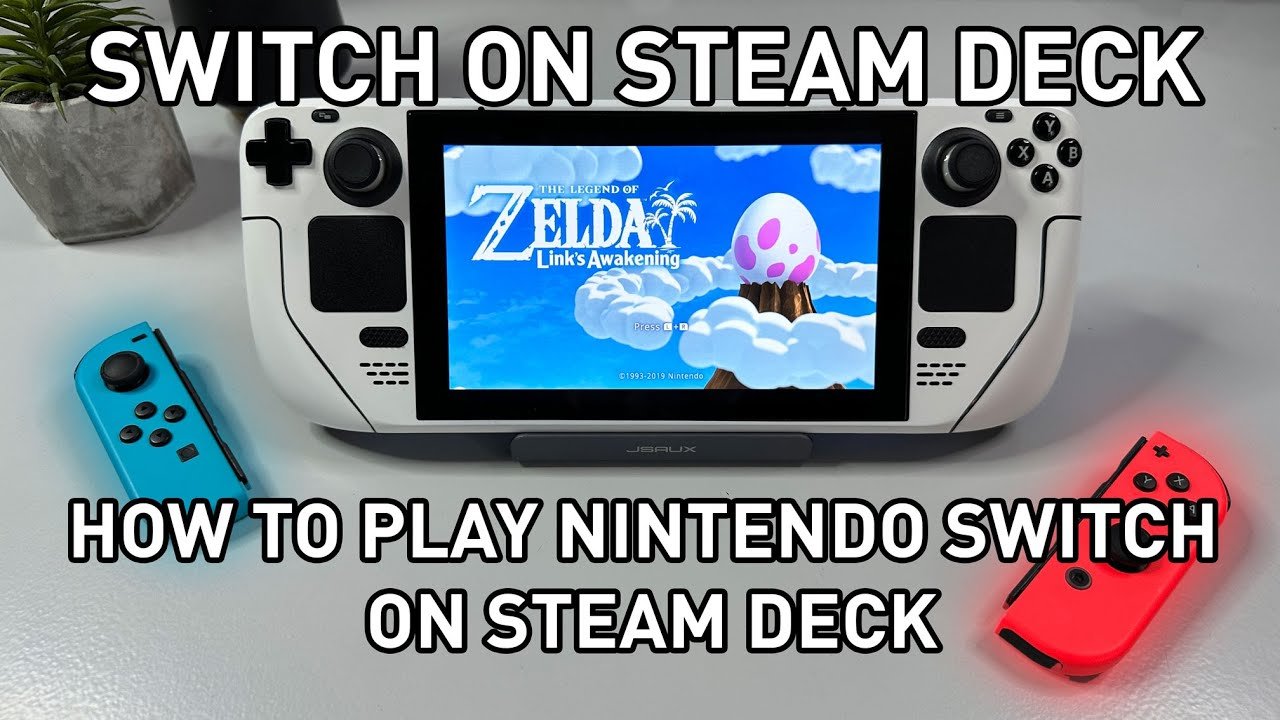
To play Switch games on Steam Deck, you must use an emulator, like Ryujinx or Yuzu, and obtain game ROMs.
Ever wished you could play your favorite Nintendo Switch titles on the go using your Steam Deck? It’s a common desire and, thankfully, a reachable goal. Many people wonder how to play Switch games on Steam Deck. This guide will give you a simple breakdown of the process. We’ll walk through the needed tools and steps involved.

How to Play Switch Games on Steam Deck
Want to play your favorite Nintendo Switch games on your Steam Deck? It’s a cool idea! While the Steam Deck is awesome for Steam games, it can also play many Switch titles with a bit of setup. This guide will walk you through the steps, making it easy even if you’re not a tech expert. We’ll talk about everything from getting the right software to tweaking settings for the best experience. Let’s jump in and get your Switch games running on your Steam Deck!
Understanding the Basics: Emulation and Why It’s Needed
First things first, the Steam Deck doesn’t play Switch games directly. Nintendo and Valve are different companies, and the games are built differently. To play Switch games on your Steam Deck, we need to use something called an emulator. An emulator is like a translator; it makes your Steam Deck understand the way Switch games work. Think of it like having a special decoder ring for video games. The emulator we’ll use is called Yuzu or Ryujinx. These programs simulate the Switch’s hardware, allowing you to play the games designed for that system. They’re developed by independent programmers and are regularly updated to work better with more games.
Legality and Important Considerations
It’s important to talk about the legality of this. Emulation itself is generally okay, but downloading copyrighted game files (ROMs) from the internet is not. You need to own a legitimate copy of the game to legally play it on your Steam Deck through emulation. If you want to play a game using an emulator, the safest and legal way to do so is to extract the game files from your own game cartridges. Doing that is a bit technical, and we will talk about it later. But always remember to only use game files that you own.
Preparing Your Steam Deck: Getting Ready for the Fun
Before you start playing, there are some crucial steps to get your Steam Deck ready. This involves switching into Desktop Mode and installing the necessary software.
Switching to Desktop Mode
The Steam Deck has two modes: Gaming Mode and Desktop Mode. Gaming Mode is the interface you usually see, where you play games directly from Steam. Desktop Mode is more like a regular computer. For installing the emulator, you need to switch to Desktop Mode. Here’s how:
- Press the Steam button on your Steam Deck.
- Go to “Power”.
- Select “Switch to Desktop”.
This will take you to the Linux-based desktop environment. Don’t worry if it looks different; that’s normal. You can control the desktop using the trackpads and the buttons, or you can connect a keyboard and mouse for easier navigation.
Installing an Emulator
Now, we will install an emulator. Let’s go with Yuzu emulator, as it’s one of the most popular and easy-to-use options for Nintendo Switch emulation. There are several ways to install Yuzu. Here’s a simple method:
Using the Discover App
The easiest way to install Yuzu is through the Discover application store in Desktop Mode:
- Click on the Discover icon (the shopping bag) in the taskbar.
- In the search bar, type “Yuzu”.
- Click on the Yuzu application.
- Click “Install”.
- Wait for the installation to finish.
That’s it, you’ve got Yuzu on your Steam Deck!
Alternative Installation Methods
If you can’t find the Yuzu emulator through Discover, you can install it using command line and other methods. But we will focus on the simplest method first as it’s easier for everyone to understand. If you are more comfortable with those methods, you can search them online.
Setting Up Product Keys and Firmware Files
This is a very important step and where things get a bit technical. To make the emulator work with your Switch game files, you will need specific files called “product keys” and firmware files. These are related to your own Nintendo Switch system. You cannot just download them from the internet, as doing that would be illegal and you may get into serious trouble. So, you must have your own Nintendo Switch system to extract those files legally. Here’s a quick rundown:
- Product Keys: These are unique keys from your Nintendo Switch that the emulator needs to run games. You will need to use a specific homebrew app on your Nintendo Switch to extract these keys. The specific name of the app will depend on the current state of the scene, so please search online for “how to get switch product keys”.
- Firmware Files: These are files that come directly from your Nintendo Switch’s operating system. You can extract them with a tool on your modded Switch. Again, the specific name of the tool will depend on the current state of the scene, so please search online for “how to get switch firmware”.
After you have extracted those files, please transfer them to your Steam Deck. You can transfer them with any method that works for you like USB or cloud based file transfers.
Once you have the keys and firmware files, open the Yuzu emulator, and follow these steps:
- Go to “File” then “Open Yuzu Folder”.
- Open the “keys” folder and place the “prod.keys” and “title.keys” files here.
- Go back to the main folder and open the “nand” folder.
- Open the “system” folder, then the “Contents” folder, and finally open the “registered” folder.
- Paste the extracted firmware files here.
These files help the emulator properly understand the Switch’s operating system and the game files. This step is very important, otherwise the emulator will not work.
Getting Your Switch Games: Legally!
As we discussed before, you cannot download game files from the internet. It is illegal and can get you into trouble. It’s important to own the games you want to play. The legal and safe method of doing so is to dump the game files from your own Nintendo Switch cartridges. Here’s how you can get your game files from your own Switch cartridges:
Dumping Game Files from Your Switch Cartridges
Again, you need a modified Nintendo Switch to extract game files from cartridges. It’s not possible on a stock, unmodified Switch. After you have modded your Switch, you will be able to use a homebrew tool to dump your game files. The exact process can vary depending on the specific tool you use.
Once you have dumped the game files, transfer them to your Steam Deck. These files are typically in a .xci or .nsp format. You can use a USB drive or a cloud service to do this.
Key Point: Only dump game files from games that you legally own. Playing games you haven’t bought is not fair to the game creators and can have legal consequences.
Loading and Playing Games on Yuzu
Now that you’ve installed the emulator, copied your games and required files, it’s time for the exciting part: playing your Switch games on your Steam Deck!
Adding Games to Yuzu
- Open the Yuzu emulator.
- Click “File” and then “Load Game Directory”.
- Find the folder where your game files are saved.
- Select that folder and click “Choose”.
Yuzu will now load all the game files in this folder, and they will show up in the main Yuzu screen. The game thumbnails and names should appear if you are using proper game dumps.
Starting the Game
To play a game, simply click on it from the game list. The game will start. You may have to wait a little for the game to start up for the first time, as the emulator needs to load up files. Use the Steam Deck’s controls to navigate menus and play the game. It should generally be the same layout as the Nintendo Switch controller.
Adjusting Emulator Settings
For the best experience, you might need to adjust the Yuzu settings. Here are some important settings that you should check:
Graphics Settings
Click “Emulation” and then “Configure”. In the “Graphics” tab, you can change the resolution, graphics API, and other settings. Lowering the resolution can help games run smoother if your Deck struggles with performance. Try different options to find what works best for you, if your game is not working smoothly. Here is a quick table to help you:
| Settings | Description |
|---|---|
| Resolution | Lowering this setting can improve performance. |
| Graphics API | Try Vulkan or OpenGL. Some games perform better with one over the other. |
| Texture Filtering | Use ‘Bilinear’ for better performance, ‘Anisotropic’ for better quality. |
Advanced Settings
In the “Advanced” tab, you can adjust more settings. The default settings are good for most games, but experimenting may improve performance in certain titles.
- CPU Accuracy: Try setting this to “Normal” or “Unsafe” for performance gain.
- Asynchronous GPU emulation: Enable this if the game is working slow.
Controller Configurations
By default, the Steam Deck’s controls should work fine with the games. However, you may want to adjust settings, which you can do in the “Controls” tab in the settings menu of Yuzu. You can modify different button mappings for better gameplay. If the controller is not working, you will want to check this setting.
Optimizing Performance: Getting the Best Experience
Playing Switch games on your Steam Deck can sometimes be challenging due to performance issues. Here are some methods to get better performance:
Lowering In-Game Resolution and Graphics
Just like we talked about in the emulator settings, try to lower the resolution and graphics in the game to improve performance. Lowering the graphics settings can help games run smoother, and this can also help to improve battery life.
Updating Emulator and Drivers
Make sure that you’re using the latest version of the Yuzu emulator, because updates frequently contain performance improvements and bug fixes. Also, keep your Steam Deck’s drivers updated to the latest versions. Sometimes the problem may be with old drivers.
Using FSR (FidelityFX Super Resolution)
Some games and the emulator can use FSR which is like a special technology that can make games look better and run smoother. Look into the emulator settings and see if this option is available, and enable it. If the game supports FSR, it can greatly increase performance in a specific title.
Checking Community Guides
The emulation community is very active and often shares tips and tricks to improve performance on different games. Check online forums and community guides, where people often share their experiences with specific games, which can help you fine tune the settings for the best experience.
Troubleshooting Common Issues
Sometimes, you may encounter issues. Here are some common problems and their solutions:
Game Crashing or Freezing
If your games are crashing or freezing, first check that you have the correct product keys and firmware files. You should also make sure that the emulator and drivers are up to date. Additionally, try changing the graphics settings in the emulator to lower values, if there is too much graphical load. Also, ensure that your game files are not corrupted.
Sometimes, restarting the emulator, or restarting the Steam Deck might also fix the issues.
Slow Performance
For slow performance, reduce the game and emulator resolution, use lower graphic settings, use FSR (if possible), make sure that all your drivers and the emulator are up to date, and close the background applications if you have any. You should also check online forums for settings specific to that game.
Controller Issues
If your controller is not working, you may have to check the Yuzu’s controller settings. Make sure that your controller inputs are mapped correctly, and that there is no input conflict with other devices. Try different controller settings in the menu. You might also want to try connecting a external controller for troubleshooting.
Emulating Nintendo Switch games on Steam Deck is a great way to enjoy your favorite games in a portable way. The process may take a little time to understand, and it can be a bit technical but the results are rewarding. By following these steps and being patient, you will be able to play all your favorite Nintendo Switch titles directly on your Steam Deck.
Steam Deck – How To Play Switch Games On Steam Deck NOOBS GUIDE
Final Thoughts
To play switch games on steam deck, you must set up emulation. This involves installing the correct software and ROM files. Carefully follow guides for a smooth process.
Remember to get games legally. Once setup, you can enjoy your Switch library on your Steam Deck. This offers a portable way to enjoy your favorite titles.
Ultimately, how to play switch games on steam deck requires some technical work. But the result is a fantastic, convenient experience.

