
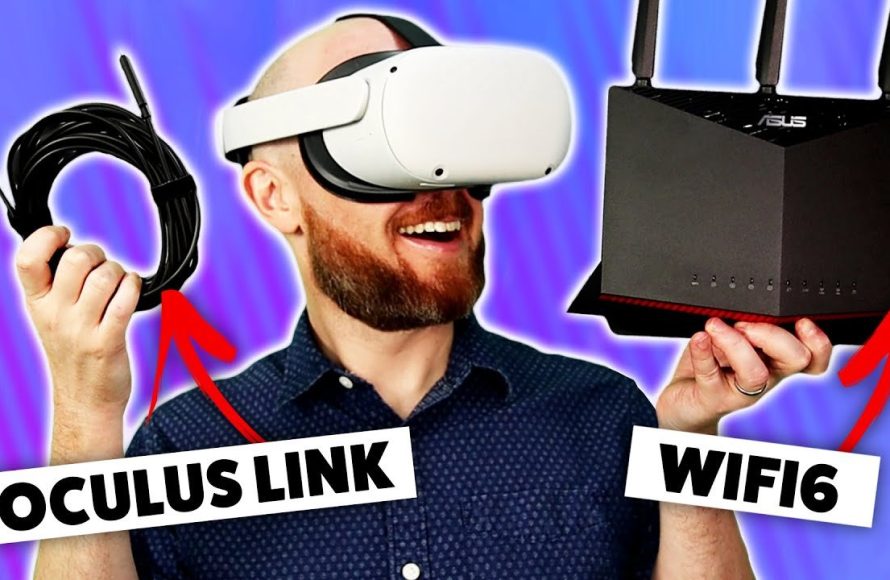
To play VR games on Steam, you need a compatible VR headset connected to your PC, install SteamVR software, and then purchase and launch your chosen VR game through the Steam interface.
Want to dive into the amazing world of virtual reality? Steam is a great platform for VR gaming, but knowing where to begin can sometimes feel confusing. Let’s walk through the steps on how to play VR games on Steam.
First, make sure your PC meets the system requirements for VR. You’ll also need a VR headset properly connected to your computer. Once you have that sorted, you can install SteamVR, which is the platform Steam uses for VR gaming.
After that, simply browse through the many titles on Steam, purchase your preferred VR game, and begin your adventure.

How to Play VR Games on Steam: A Complete Guide
So, you’re excited to jump into the world of virtual reality gaming on Steam? That’s fantastic! Getting started might seem a little tricky, but don’t worry, it’s actually quite simple once you know the steps. This guide will walk you through everything you need to know, from setting up your equipment to launching your very first VR game. We’ll cover the hardware you need, how to install the necessary software, and even some tips for getting the best gaming experience. Let’s dive in!
Understanding the Basics of VR Gaming on Steam
Before we start with the “how-to,” it’s important to understand the basic elements involved in playing VR games on Steam. We’re talking about hardware, software, and the Steam ecosystem itself. These three pieces work together to bring your virtual worlds to life.
Hardware Requirements for VR on Steam
To play VR games, you need some special equipment that goes beyond your typical computer setup. Here’s a breakdown of what you’ll need:
- VR Headset: This is the most important piece! It’s the device you wear on your head that displays the virtual world. Popular options include:
- Valve Index: Known for its high fidelity visuals and excellent tracking.
- HTC Vive series: Including the Vive Pro and Vive Cosmos, these offer a range of features and price points.
- Oculus/Meta Rift S, Quest 2 & 3: Quest headsets are standalone and can also connect to a computer, making them very versatile. (Meta replaced Oculus brand).
- Windows Mixed Reality Headsets: A variety of headsets from different manufacturers (HP Reverb, Samsung Odyssey) that integrate with Windows.
- A Capable Computer: Your PC needs to be powerful enough to run VR games smoothly. This means you’ll need a decent graphics card (GPU), a good central processing unit (CPU), and enough RAM.
- Graphics Card (GPU): NVIDIA GeForce GTX 1060 / AMD Radeon RX 480 or better is generally recommended for minimum requirements, though a higher-end card (like an RTX 3060 or better) will give you a much better experience.
- CPU: Intel Core i5-4590 / AMD FX 8350 or better is usually enough for minimum requirements. For a better experience, consider a more modern CPU.
- RAM: At least 8GB of RAM is required. 16 GB is better for many newer games.
- Controllers: These are your hands in the virtual world. Different VR systems have their own unique controllers, designed to track your movements accurately.
- Base Stations/Tracking Sensors (depending on the headset): Some VR systems, like the Valve Index and HTC Vive, use external sensors to track the headset and controllers.
Important Note: Always check the specific system requirements for the VR games you intend to play, as these can vary. Some games may need more powerful hardware than others. Make sure your computer meets or exceeds those requirements to avoid choppy gameplay or issues.
Software Components: SteamVR and Drivers
Having the right hardware is just one piece of the puzzle. You will also need the right software for your VR experience to work. Here are some of the key softwares:
- Steam Client: This is the main application you use to access and manage your games on Steam. If you don’t have the Steam client on your PC already, you can download it for free from the official Steam website.
- SteamVR: This is the software that connects your VR headset and controllers to Steam. It’s like the translator that lets your VR system talk to your games. The SteamVR software is available for download on the Steam store and you’ll need this software.
- VR Headset Drivers: Your specific VR headset may require specific drivers to work correctly. These drivers are usually available from the manufacturer’s website. Often, Steam will automatically prompt you to download drivers when you connect a new headset.
Setting up Your VR Headset for Steam
Now, let’s get into the steps you’ll need to take to set up your VR headset and get ready to play Steam games. These instructions may vary a bit depending on the specific VR headset you use, but the general ideas should apply to most headsets.
Physical Setup: Connecting the Hardware
The first step is getting all your components connected. Here’s the basic process:
- Connect your VR headset to your computer. Usually this is done via USB and either DisplayPort or HDMI cables. Consult your specific headset documentation for details.
- Connect any external sensors or base stations. For systems like the Valve Index or HTC Vive, you need to place these in your room and plug them into power.
- Make sure the power is on. Turn on the power for the base stations and the headset, if needed. Check the instruction manual of your specific headset.
Software Installation: SteamVR and Drivers
With everything physically connected, now it’s time for software setup:
- Install Steam: If you haven’t already, download and install the Steam Client from the Steam website. Create a Steam account and log in.
- Install SteamVR: Search for “SteamVR” in the Steam Store and install it. This software is essential for running VR games on Steam.
- Install headset-specific drivers: If your VR headset requires any extra drivers, download and install them from the manufacturer’s website. Steam often prompts you to do this as soon as it detects your VR headset. Follow on-screen instructions to install the proper drivers.
- Run SteamVR: Once installed, launch the SteamVR application. You should see the SteamVR home environment in your headset. SteamVR may also prompt you to set up your playspace boundaries.
Configuring Your Playspace
Setting up your playspace is a very important step for a comfortable and safe VR gaming experience. This allows the system to know the area you are playing in, so you don’t accidentally hit anything in real life. Here’s how it usually works:
- Room Setup: SteamVR usually guides you through a room setup process. You will be asked to trace your playing area with your controller. Make sure there is enough space for the types of games you want to play.
- Chaperone System: Once the playspace is setup, you will get a “chaperone” grid that shows in your headset. This shows you the boundaries you created. So, if you get too close to a real life wall, the chaperone grid shows to warn you.
- Adjust settings: You can usually adjust chaperone sensitivity and display settings. It is a good idea to experiment with these settings to make your environment more comfortable.
Finding and Launching VR Games on Steam
Now you’ve got everything set up, you are ready to dive into some VR games on Steam! Here is how you can find and run VR games:
Navigating the Steam Store for VR Games
Steam has a big library of VR games. Here’s how to find them:
- Search for VR games: In the Steam store, search for “VR games” or use the “VR” tag in the browse section of the store.
- Filter by category: You can filter by genre (like action, adventure, or puzzle games). You can also filter by which headset the game is compatible with.
- Check for VR support: Look for the “VR Supported” icon on a game’s store page. This tells you the game has been designed to be played in VR.
Purchasing and Downloading VR Games
Found a game you like? Here is how to purchase and download it:
- Add to cart and purchase: Just like any other Steam game, add it to your shopping cart, and complete the purchase.
- Install the game: After you buy the game, it will be added to your Steam library. Click the “Install” button to start the download.
Launching VR Games from Steam
Ready to play the game you downloaded? Here’s how:
- Launch SteamVR: Ensure SteamVR is running before you launch a VR game.
- Find your game in your library: Go to your library in the Steam client.
- Click “Play” : Press the “Play” button. The game should automatically launch in VR mode. You might see a window on your computer, but the game itself will be displayed inside the VR headset.
Optimizing Your VR Gaming Experience
To get the best out of your VR games on Steam, you may have to tweak a few things. Here’s some of what you might need to know:
Graphics Settings and Performance
Sometimes VR games might seem slow or choppy. Here’s how to make them run better:
- Lower graphics settings: Inside the game, you can usually adjust graphics settings. Lowering things like shadows, texture quality, and anti-aliasing can improve performance.
- Check the game’s requirements: Make sure your PC meets the minimum specs for the game. If not, consider upgrading your graphics card or CPU.
- Update your drivers: Always have the latest graphics card drivers installed for best performance.
Audio Settings
Good audio is key to being fully immersed in your VR game. Here’s how to manage your sound settings:
- Use headphones: Most VR headsets have built-in headphones. If they aren’t built-in, be sure to use headphones with good audio quality for the most immersive experience.
- Adjust in-game audio: In-game audio settings can be adjusted for volume of background sounds, in-game voice chat and more. Adjust them to your liking for the best experience.
Comfort and Motion Sickness
Some people can experience motion sickness in VR. Here are ways to ease discomfort:
- Start with short play sessions: Don’t play for a long time when starting out. Start with 20-30 minute sessions, and gradually increase play time.
- Use smooth movement: In the game settings, if possible, use “smooth movement” instead of “teleporting”. Teleporting can sometimes help with motion sickness at first, but many people find smooth movement much more comfortable.
- Take breaks: If you start to feel motion sickness, take breaks. Stop playing and relax for a while before starting again.
Troubleshooting Common Issues
Even when you do everything correctly, things can sometimes go wrong. Here are some common problems and how to fix them:
Headset Not Detected
If your headset is not recognized by Steam, here is how to troubleshoot it:
- Check connections: Ensure all the cables between the VR headset and the computer are firmly connected.
- Restart everything: Restart your computer, Steam, and the SteamVR application.
- Update drivers: Check for new updates to your headset and graphics card drivers and install any available ones.
Game Not Launching in VR
If your game launches on your monitor but not in the headset:
- Ensure SteamVR is running: Check that SteamVR is fully running before you launch the game.
- Check game settings: Look at the game settings and make sure the game is set to start in VR mode.
- Restart the game and SteamVR: Try quitting the game and SteamVR, and then start them back up again.
Performance Issues
If your game is running slow or choppy:
- Lower graphics settings: Turn the graphic settings to low or medium in the game’s menu.
- Close other programs: Make sure to close other programs while playing to free up resources for the game.
- Update GPU drivers: Make sure you have the latest version of your graphics card driver installed.
By following this guide, you should be set up to enjoy many hours of virtual reality gaming on Steam. Happy gaming!
How To Play Steam Games On Oculus Quest 2
Final Thoughts
To play VR games on Steam, first connect your headset to your PC. Then, install SteamVR and launch it.
Next, browse the Steam store for VR titles. Purchase and download your chosen game. Finally, start the game through SteamVR to begin playing.
This simple process lets you enjoy VR experiences. This is how to play vr games on steam. Remember, compatibility varies based on headset.

