
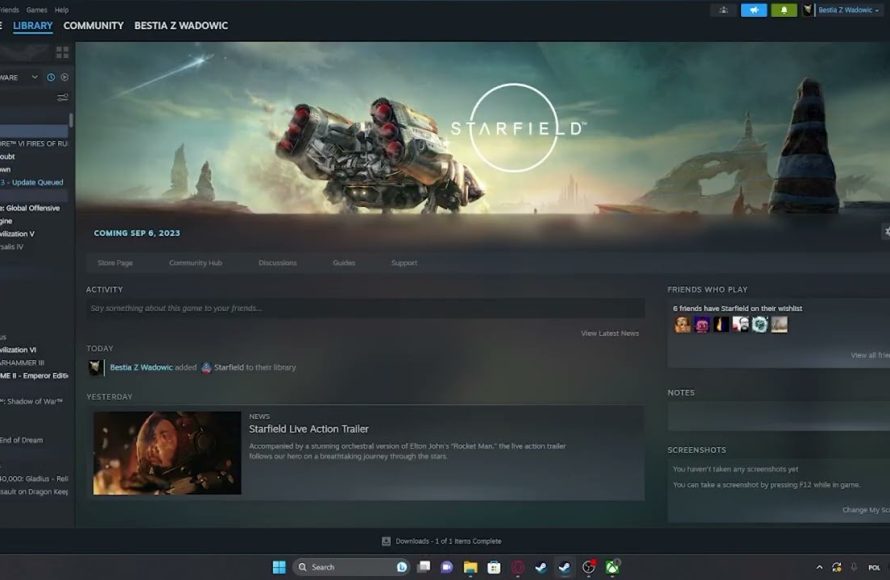
To preload Steam games, you simply need to find the game in your library, and if it offers preloading, click the ‘Preload’ button before the release date.
Anticipation for a new game can be intense, especially when it’s one you’ve been eagerly waiting for. The thought of finally getting to play can be almost overwhelming. But what if you didn’t have to wait for the download after the game went live? That’s where preloading comes in.
This allows you to download most of the game’s files ahead of the official release time. Learning how to preload Steam games can save you precious gaming time. So, instead of watching the progress bar slowly creep along on release day, you’re straight in the game.

How to Preload Steam Games: Your Guide to Playing on Day One
Have you ever waited excitedly for a new video game, only to be stuck watching a progress bar on launch day? That’s where preloading comes in! Preloading a game means you download most of the game files before it officially comes out. Then, when the release day arrives, you can start playing almost instantly. Let’s take a closer look at how to make this happen on Steam, your go-to place for awesome games.
Understanding Preloading on Steam
Think of preloading like getting all your ingredients ready before you start cooking a big meal. Instead of downloading the game all at once on release day, Steam lets you grab most of the game data beforehand. This makes the actual launch day much quicker and smoother. But, it’s not automatic. Not every game has a preloading option, and not every game that has it will be available for preload for everyone. Let’s dive into the details.
Why is Preloading Important?
Imagine everyone trying to download a huge game at the same time. The internet lines would get super busy, making downloads very slow. This also puts a strain on Steam servers. Preloading helps avoid this rush. You download the files over time, usually days before the official release, and it saves you a lot of waiting time and frustration.
- Faster Launch Day Fun: Jump into the game as soon as it’s available.
- Avoid Slow Downloads: Skip the rush of everyone downloading at once.
- More Time to Play: Spend less time downloading and more time having fun.
How Preloads Work
Steam uses a special system to preload games. When a game is available for preload, the Steam servers let you download encrypted game files. This means you have the game data on your computer, but you can’t use it yet. On release day, Steam adds a small decryption key to these files. This key unlocks the game, making it ready to play. Think of it as getting a locked puzzle with all its pieces and then being given a key to put it all together.
The process involves a few steps, and here’s what usually happens:
- Preload Announcement: The game developer or Steam will announce when the preloading becomes available.
- Download Time: You start downloading the main game files, usually a day or two or sometime a week before the official release.
- Waiting Game: The downloaded game files will be encrypted and you’ll have to wait for the launch day.
- Decryption Magic: On the official release day, Steam automatically downloads the decryption key, unlocking the game.
- Play Time: And you are ready to play the game.
Checking if a Game Offers Preloading
The first thing to do is check if the game you are excited about actually offers preloading. Not all games do, so you should verify that first before expecting it to be available.
Steam Store Page is your Friend
The Steam store page for the game is the best place to find out if preloading is available. Here’s what you should look for:
- Preload Announcement Text: If a game has preloading, there’s often a text on the store page that says something like “Pre-load Available Now!” or a similar message.
- Release Date: Check the game’s official release date. Preloading usually starts a few days or sometimes a week before the release.
- Official Announcements: Sometimes the game’s publisher or developer will announce preloading on their social media channels or on the Steam community forums.
Games that Frequently Support Preloading
Generally, big-budget AAA games from large publishers often have preloading options. This helps to avoid strain on their servers and ensures a better experience for the users. Indie games and smaller titles sometimes do not have preloading options available. There are cases when game might not have preloading available even if it is very big, so there is no specific guarantee it will have preload.
Steps to Preload Your Game
Once you’ve confirmed that a game offers preloading, here’s how to actually get the files onto your system.
Purchasing the Game
Before you can preload, you need to buy the game. You can do this by:
- Adding to Cart: Go to the game’s Steam store page and click on “Add to Cart.”
- Proceed to Checkout: Follow the steps to complete your purchase using your preferred payment method.
- Confirmation: After your purchase, Steam will confirm your order and add the game to your library.
Initiating the Preload Download
Now you are ready for the actual preloading process. Follow these steps to start the preload download:
- Open Steam: Launch the Steam client on your computer.
- Go to Library: Click on the “Library” tab at the top of the Steam window.
- Find the Game: Locate the game in your library list on the left-hand side. You will see the text for pre-load.
- Click the ‘Preload’ Button : When you click on the game, it’ll show the page of the game, with all the details. You will find a ‘Preload’ button there. Click on the ‘Preload’ button.
- Installation Process: The pre-load installation process is same as normal installation, it will ask you to install the game in your preferred drive. Select it and continue. Steam will then begin downloading the pre-load files to your computer.
It’s important to note that the ‘Preload’ button will only appear once the game’s developer makes the preloading option available for the game.
Monitoring the Preload Download
Downloading the game files can take some time, especially if the game is large or your internet speed is slow. It is important to keep check on download process:
- Check Download Progress: The “Downloads” section on Steam displays the current download progress. You can find it at the bottom of the Steam client.
- Download Speeds: Check the download speed shown. Slow speeds might indicate issues with your internet or with Steam’s servers.
- Estimated Time: Steam shows you the estimated time for the download to complete.
- Manage Bandwidth: To avoid affecting other internet usage, try to avoid using internet for heavy usage when downloading.
Troubleshooting Preload Issues
Sometimes, things don’t go as smoothly as planned. Here are some common issues you might encounter and how to fix them.
Game Not Showing Preload Option
If you cannot see the pre-load button, there are a few things you can check:
- Check Release Date: Make sure that preloading is actually available for the game at that particular time. Some game offers pre-load just 1 day before release.
- Restart Steam: Sometimes, simply restarting Steam can fix the issue. Close the Steam client completely, and open it again.
- Check Updates: Be sure that your Steam client is fully up to date. Old version might not load the correct information about the pre-load.
- Game Page Again: Go to Steam’s store page again to check if pre-load message is still there. It may be a bug from Steam side.
Slow Download Speeds
Slow download speeds can be frustrating, but there are usually ways to improve it:
- Pause and Resume: Sometimes pausing and resuming the download can improve speed.
- Change Download Region: In Steam settings under “Downloads,” try changing your download region to one that is closer to you or experiencing less traffic.
- Close Background Apps: Close other applications or downloads that are using your internet connection.
- Check Internet: Sometimes the problem is from your internet service provider, not Steam. Check your internet connection speed through other services as well.
- Restart Your Modem/Router: Restarting the modem or router might solve the speed issues.
Download Errors
If you encounter download errors, try the following steps:
- Verify Game Files: After the download, if the game is giving error. Go to the game’s library page, right-click on the game, select “Properties,” then click on “Local Files,” and then click “Verify integrity of game files.”
- Restart Steam: Restarting the Steam client can sometimes fix download errors.
- Clear Download Cache: In Steam settings, under “Downloads,” there’s an option to “Clear Download Cache.” This can sometimes help with download errors.
- Check Antivirus: Some antivirus programs can interfere with downloads. Add Steam as an exception in your antivirus settings.
Space Issues
If you do not have enough storage space, here are the things you can do:
- Clean up Drive: Delete files which are no longer needed in that particular drive. Also you can use the tool in windows that deletes the unwanted temporary files.
- Select Other Drive: While installing, select a different drive for the installation, with enough storage.
- External Hard Drive: If you don’t have space on your computer, install the game on an external drive (However, this may reduce game performance).
What to Expect on Release Day
The best part of preloading is the smooth launch day experience. Here’s what you can expect:
Automatic Unlocking
On the official release date and time, Steam will automatically decrypt the game files. This will happen in the background. Usually, you will see a small download, that is the decryption key which will take few seconds. After that, your game should be ready to play.
No More Waiting
Since most of the files are already on your computer, you can start playing almost immediately. No more slow downloads at the launch time. Just launch the game and enjoy.
What If There Are Some Small Updates
While preloading is designed to handle the bulk of the game download, there might be small patches or updates that need to be downloaded on launch day. This is perfectly normal, and these updates are usually very small and quick. It ensures that the game is up-to-date with the latest changes.
Preloading Steam games is a fantastic way to make sure you are ready to play on day one. By understanding how it works and following the simple steps, you can have a much smoother and more enjoyable experience with every new game release. This will ensure that you have the game ready to go, as soon as it is live. So, go ahead and download those games, and get ready for your amazing gaming experience.
Starfield | Steam Preload When Does It Start & How To Download It
Final Thoughts
Preloading Steam games is simple: if available, Steam automatically initiates the download before the official release. You just need to ensure the game is in your library. The download will start once the preload becomes available.
To check for preload availability, view the game’s Steam store page. The page will usually indicate if preloading is possible. This gives you a head start.
In summary, you learned how to preload Steam games. By pre-downloading, you are ready to play as soon as the game releases. Enjoy your gaming experience.

