
To prioritize game chat on PS5, navigate to the Sound settings in the Control Center and adjust the “Chat Audio Priority” slider to favor chat over game audio.
Ever found yourself struggling to hear your teammates over the explosions and gunfire in your favorite game? It’s a common issue for many PS5 gamers. Knowing how to prioritize game chat on ps5 is key to better communication and teamwork. This simple adjustment can make a huge difference in your online matches, allowing you to coordinate with your squad effectively.

How to Prioritize Game Chat on PS5
Playing online games with friends on your PlayStation 5 is a blast! But sometimes, when things get intense, it can be hard to hear your teammates over the game sounds. That’s where prioritizing game chat comes in. It lets you make your friends’ voices louder so you can coordinate better and have more fun. This guide will show you simple ways to control your audio levels and put your friends first.
Understanding Audio Channels on Your PS5
Before diving into how to prioritize game chat, it’s important to understand how the PS5 handles different sounds. Think of it like a mixing board with different sliders for different sounds. You have:
- Game Audio: This is all the sound coming from the game itself – explosions, music, character voices, and more.
- Chat Audio: This is the sound of your friends talking to you through the microphone.
- System Audio: This includes sounds from the PS5 itself, like menu clicks and notifications.
The key to prioritizing game chat is learning to adjust the volume of these channels so that chat audio stands out from everything else. Let’s explore the different methods you can use to achieve this.
Adjusting Audio Levels Through the Control Center
The quickest way to adjust audio levels is by using the Control Center on your PS5. This lets you make on-the-fly changes without having to exit the game.
How to Access the Control Center
To open the Control Center, press the PlayStation button on your controller. This will bring up a menu at the bottom of the screen.
Locating the Sound Options
Within the Control Center, navigate to the “Sound” options. It’s usually represented by a speaker icon. Here, you’ll find several sliders that control different audio aspects.
Using the Audio Mix Slider
The most important slider for prioritizing game chat is the “Audio Mix” slider. This lets you control the balance between game audio and chat audio. Here’s how to use it:
- Moving the slider to the left will prioritize chat audio, making your friends’ voices louder while making the game audio softer.
- Moving the slider to the right will prioritize game audio, making game sounds louder and your friends’ voices softer.
- Finding the perfect balance usually means moving the slider slightly to the left of center so your friends are easily audible, without completely drowning out the game sound.
It is important to note that the audio mix slider works only when you have a party chat going on. If you are not in a party, you won’t see any changes in the game sound. So, if you want to prioritize game chat, you must either invite your friend to your party or join his party.
Using the PlayStation Button and Quick Menu Adjustments
The PlayStation Button on your DualSense controller is more than just a home button, it’s also your key to quick audio adjustments. You can manage the balance between game and chat audio with just a few clicks without having to go to the control center. Here’s how you do it:
Pressing the PlayStation Button During a Game
When you are actively in a game and want to adjust your audio, the first thing is to press the PS button once. Doing this brings up a quick menu at the bottom of the screen, similar to the control center, but with fewer options.
Navigating to the Sound Options
Within the quick menu, use the left or right button on your controller to find the “Sound” tab. It is typically represented by the same speaker icon you’ll see in the control center. Select it using the “X” button.
Fine Tuning the Audio Balance
Once you have selected the “Sound” tab, you will be presented with the same set of sliders available in the control center. This includes the “Audio Mix” slider. Here’s how to utilize it for prioritization:
- Moving the Slider Left: By pushing the directional stick to the left, you will decrease the game audio while increasing the chat audio volume. This is the ideal action for when your friends’ voice are too low in comparison to game sounds.
- Moving the Slider Right: Conversely, moving the slider to the right will make the game sounds louder, which is useful if you don’t want your friends’ chat to drown out key game sound effects.
- Finding the Sweet Spot: The key to the most convenient gaming experience is to find a balance that works for you. Try moving it just slightly to the left of center so your friends’ voices are more audible while still maintaining immersive game audio.
Adjusting through the quick menu offers a faster way to change audio balance during intense gameplay moments when you don’t want to pause the game.
Adjusting Microphone Input Levels
Another important part of prioritizing game chat is making sure your microphone is working well. If your microphone is too quiet, your friends might have a hard time hearing you. If it is too loud, your friends may have a lot of problems hearing you due to the sound being distorted. Follow the guide below to ensure your friends hear you perfectly.
Accessing Sound Settings
To adjust your microphone input levels, you’ll need to go through the PS5 settings menu. You can access it from the main dashboard by going to the top right of the screen and selecting the settings icon which is represented by a gear icon.
Locating the Microphone Options
In the settings menu, scroll down and select “Sound”. From there select “Microphone”. You will find several options related to managing your microphone.
Adjusting the Input Level Slider
Look for the slider labeled “Adjust Microphone Level”. This slider controls how sensitive your microphone is. Here’s how to use it:
- Moving the Slider to the Right: Moving the slider to the right increases microphone sensitivity, making it easier for your friends to hear you, but also making it more likely to pick up background noises. This is what you want to do if your friends are having a hard time hearing you.
- Moving the Slider to the Left: Moving the slider to the left reduces sensitivity. This might help if your microphone is picking up too much background noise. If your friends are complaining that your microphone is too loud or they hear a lot of background noises, this is the action to take.
- Using the Test Mic Option: The best way to figure out the perfect microphone level is to use the “Test Mic” option, which is located right below the slider. Talk into your microphone normally, and check the level meter. Adjust the slider until the meter is consistently in the optimal range – not too high or too low.
Making adjustments to your microphone input ensures a clearer and more enjoyable game chat experience.
Using the “Mute” Options
Sometimes, what your friend is saying might not be useful during your game. Also, there might be some noises that are going on at his place, or he might be having a conversation with others in his room. In these instances, using the “mute” feature is ideal.
Muting Other Players
The mute options on the PS5 are crucial for managing who you hear. If someone’s audio is distracting, you have the ability to mute individual players in a party or game chat.
- Party Chat Mute: While in a party, navigate to the party screen, select the player you want to mute, and choose the mute option.
- Game Chat Mute: For in-game voice chat, you may find mute options in the player list in the game’s menu, though this depends on the game.
Muting Your Own Microphone
Muting yourself is also an important part of game chat management. If you are having a private conversation or if you want to take a moment to concentrate, you want to mute yourself. Luckily, the PS5 provides a very quick and easy way to mute yourself.
- Quick Mute with the Controller: The quickest way to mute yourself is to press the dedicated “mute” button on the DualSense controller. This button is located beneath the PlayStation button. When your microphone is muted, a light will appear on this button. Pressing it again will un-mute your microphone.
The ability to quickly mute yourself can prevent distractions from the game, or from your private conversations from reaching your teammates.
Utilizing Audio Presets and Profiles
The PS5 offers customization features which allows you to adjust audio in-depth. If you are struggling to find the perfect mix of game and chat audio every single time you enter a game, you might want to use audio presets and profiles. This saves time and allows you to focus on your game.
Creating Audio Presets
The PS5 doesn’t offer built in presets, but you can create your own by utilizing the custom settings. Once you find your perfect audio balance using the methods described above, remember these settings. When you start the next game, you can just use the same settings that you found ideal for the previous game.
Applying Profile-Based Audio Adjustments
You can also use profiles to quickly switch between audio preferences. If you use different headsets or earbuds at different times of the day, you can create profiles for each headset or earbud. When you switch headset or earbud, all you have to do is to switch the profile you are using. To do this, use the same methods described above and select the perfect settings.
Using audio profiles ensures a consistent and optimized experience every time you play. You don’t have to worry about your audio every time you start a new game.
Advanced Audio Settings for Headsets
If you use a headset with your PS5, it might have its own settings that can affect how game chat sounds. Check your headset’s manual for instructions, but these features might include:
- Headset Volume Controls: Many gaming headsets come with their own volume control dials or buttons, allowing you to adjust the overall volume without going into the PS5 menus.
- Mix Controls: Some higher-end headsets even have built-in mix controls, similar to the Audio Mix slider on the PS5. These controls are convenient for fast adjustments.
- EQ Settings: Some headsets offer equalizer (EQ) settings, allowing you to fine-tune which sound frequencies you hear more clearly. For chat clarity, you might boost the mid-range frequencies, where human voices usually reside.
Make sure you explore your headset’s settings for any extra audio management options. By combining PS5 settings with your headset’s features, you can create the best possible game chat experience.
Troubleshooting Common Issues
Even with all the best settings, you might run into some audio problems. Here are a few things to try if your game chat isn’t working as expected:
If Your Friends Can’t Hear You
If your friends are struggling to hear you, try the following:
- Check the Microphone Input Level: Ensure your microphone input is high enough in the sound settings.
- Check the Headset Connection: If using a wired headset, make sure it’s securely plugged in. If using a wireless headset, check the battery level and connection.
- Check Mute Status: Double-check you haven’t accidentally muted your microphone.
If You Can’t Hear Your Friends
If you’re struggling to hear your friends, try the following:
- Check the Audio Mix: Make sure the Audio Mix slider is moved more to the left, giving priority to game chat.
- Check Individual Mute Status: Make sure you haven’t accidentally muted the person you are trying to hear.
- Check Volume Level: Verify both the overall system volume and headset volume are set to an audible level.
If There’s Echo or Distortion
If you’re experiencing echo or distortion, try the following:
- Reduce Microphone Input Level: If the microphone is too sensitive, it can create distortion or an echo. Try reducing the input level and test it.
- Adjust Headset Settings: See if your headset’s settings offer any noise reduction or echo cancellation options.
- Check for Double Audio Sources: Make sure the audio is only coming through the headset and not through speakers or another audio device.
If problems persist after trying these solutions, try restarting your PS5, or your headset if you are using one.
Best Practices for Clear Game Chat
Here are a few best practices to remember for great game chat every time:
- Regularly Check Your Settings: Take a moment every now and then to ensure your sound settings are working correctly.
- Communicate With Your Friends: If you are struggling to hear each other, discuss it! Your friends can tell you if your microphone is too loud or too quiet and you can tell them the same.
- Utilize Testing Features: Use the “Test Mic” function to dial in your microphone settings, and use the audio adjustment options mentioned above.
By making the small adjustments described above, you are sure to have the best possible game chat experience. This also lets you enjoy your game more.
Prioritizing game chat on your PS5 is easy once you know how to access and use the different audio settings. By adjusting the Audio Mix slider, microphone levels, and using the mute options effectively, you can make sure you never miss any important calls from your friends. Whether you’re a casual player or a serious competitor, following these methods will improve your gaming sessions and lets you connect with your friends and have more fun. Keep testing and adjusting your settings until you find what works best for you and your friends.
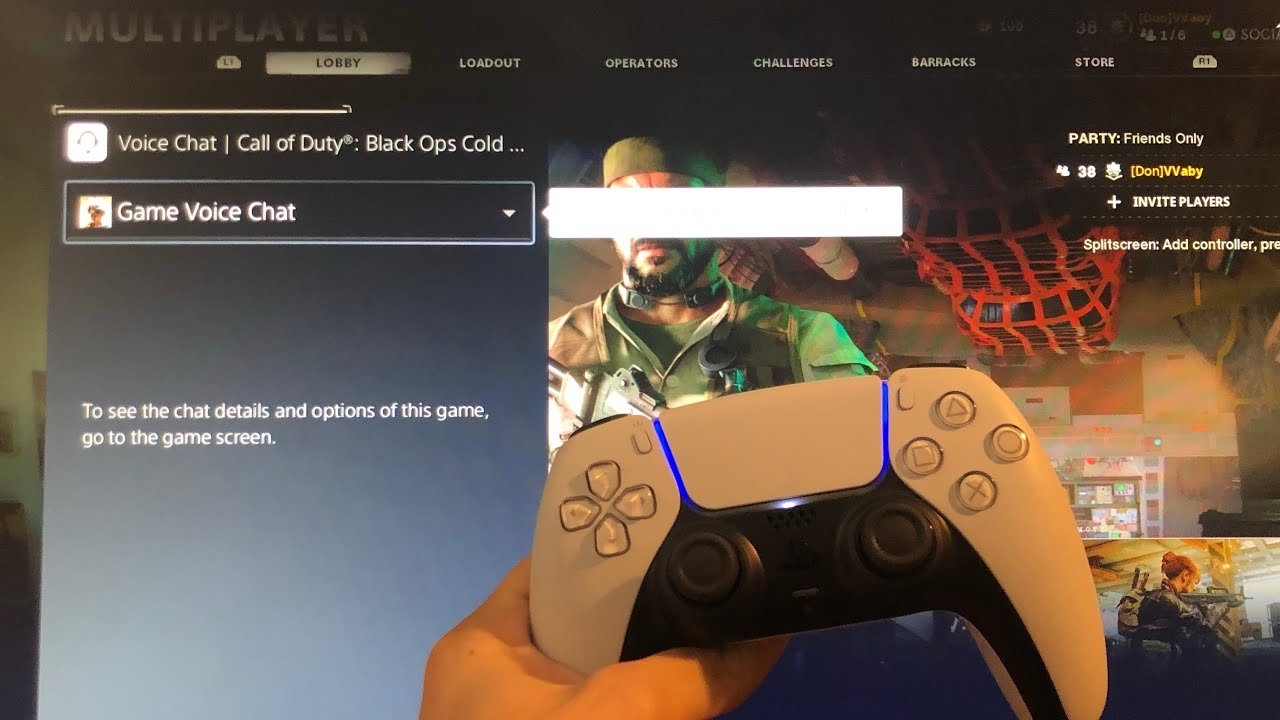
PS5: How to Switch From Party Chat to Game Chat Tutorial! (For Beginners) 2024
Final Thoughts
To prioritize game chat on PS5, adjust audio settings in the sound menu. You can lower game volume and raise chat volume to hear teammates clearly. This ensures vital communication isn’t missed during gameplay.
Another method involves using the PlayStation party settings. Mute other players individually if needed to focus on key voices. These methods help you achieve clear chat during online play. Understanding how to prioritize game chat on PS5 must greatly improve your online experience.

