
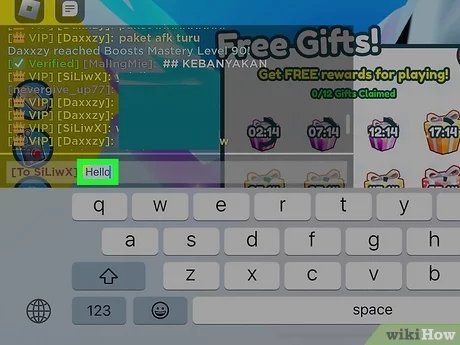
To private chat on Roblox in game, you must use the in-game chat window to select the username of the player you want to message directly.
Ever felt the need to connect one-on-one with a friend during a hectic Roblox game? Knowing how to private chat on Roblox in game can really change your communication style. It enables you to have personal conversations away from the main group chat.
This feature lets you connect with specific players. It’s super helpful for planning strategies, or just having a quiet chat during gameplay. Let’s explore the simple steps involved to start your private messaging.

How to Private Chat on Roblox In Game
Okay, you’re playing your favorite Roblox game, and you want to talk to just one of your friends, not the whole server. Maybe you’re planning a secret base, or maybe you just want to share a funny joke privately. That’s where private chat comes in! It’s like having a secret phone call within the game. It’s super handy, and I’m going to walk you through all the different ways you can do it, so you can become a private chatting pro on Roblox. Let’s get started!
Understanding Roblox’s Chat System
Before we dive into the specifics of private chatting, it’s good to get a quick overview of how the Roblox chat system works. You’ve got two main ways to chat:
- Public Chat: This is the chat that everyone in the game server can see. You type your message, and everyone around you in the game can read it. It’s great for general communication, but not so great for private conversations.
- Private Chat: This is where you can talk to just one person without everyone else seeing your messages. It’s like whispering in a crowded room, except it’s all digital! This is the focus of our deep dive today.
Roblox has made it pretty simple to switch between these two, and we’ll show you how!
Initiating a Private Chat on Roblox via the Player List
One of the most common and easiest ways to start a private chat is through the player list. This list shows all the players currently in your game. Here’s a step-by-step guide:
- Open the Player List: Usually, you can find the player list by looking for a button at the top or side of your game screen. It might have an icon that looks like two people, or sometimes it will say “Players.” Click on that.
- Find Your Friend: Scroll through the list until you find the name of the person you want to chat with. Their name will appear on the player list, among the other players in the server.
- Click on Their Name: Click or tap on your friend’s username in the player list. This will bring up a small pop-up window with different options.
- Select “Chat”: Look for an option that says “Chat” or “Message”. It may be a speech bubble icon or just the word “Chat”. Click this button to open a private chat window with your friend.
- Start Typing: A new chat window should appear, dedicated only to your conversation with that specific player. Now you can type your message and send it.
That’s it! You’ve now sent your first private message using the player list. You can send messages as much as you need and your friend can respond. Both of you will see the messages within that private chat window only.
Using the Chat Icon in Player List
Sometimes, instead of having “Chat” written as an option, you might see a chat bubble icon next to the player’s name. Clicking this chat bubble icon will also achieve the same result as clicking “Chat”. It opens the private chat with that player. These icons make the process faster.
Troubleshooting: No Chat Option?
If you do not see a chat option, it could be that the player has adjusted their privacy settings to not allow private chats from other players. In this case, you will not be able to initiate a private chat with them unless they change their settings. You can also check your own settings to make sure you’re not accidentally preventing others from starting chats with you. More on privacy settings later!
Initiating a Private Chat Directly From Your Friend List
Another way to initiate a private chat is directly from your friend list. This is often quicker if you know the person is online, but not currently in your specific game. Here’s how to do it:
- Open Your Friends List: Find the “Friends” option on the Roblox website or app. This is usually found in the main menu or on your profile page.
- Check for Online Friends: Your friend list will show you who is currently online. Look for the green dot next to their name, which means they are online.
- Click on the Online Friend: Click or tap the name of the friend you want to chat with. A menu will open.
- Start a Chat: Select the “Chat” option that appears, usually represented by a chat bubble or just the word “Chat”. Clicking this will open a private chat window directly.
- Type Your Message: Type your message in the chat window that has opened. It will appear in the chat window, visible only to you and your friend.
Using the friend list method is particularly useful if your friend is in a different game or not in the same server, or even if they have joined the game server later. It starts a private chat across Roblox games and even if one player is on mobile and the other is on pc. They both can talk to each other.
Using the Chat Command in-Game
Roblox also has a handy chat command that you can use to open a private chat. It’s a bit like using a secret code. Here’s how it works:
- Open the Chat Bar: Press the “/” key on your keyboard (or the chat icon on mobile) to open the chat bar.
- Type the Chat Command: Type “/w ” followed by the username of the person you want to chat with. For example, if your friend’s username is “FunGamer123,” you would type “/w FunGamer123”. Note that the /w means you are whispering or sending a private message.
- Type your message After writing the username, simply press spacebar and write the message to send.
- Press Enter: Press the Enter key to send your command. This will start a private chat with the player you typed.
- Start Chatting: The chat window should now appear allowing you to send and receive private messages.
When This Method is Helpful
This method is particularly useful when you want to quickly send a private message to someone whose name you already know or see in game chat, and don’t have the time to look for them in the player list or friend list.
Managing Multiple Private Chats
Sometimes you might want to chat with multiple friends at the same time. Here’s how to manage multiple private chats on Roblox:
- Tabbed Chat Windows: When you open a private chat with multiple players, each chat window appears in separate tabs or as individual chat windows. You can click through each tab to continue each conversation.
- Minimizing Chats: When you are not using a chat window, you can minimize the chat window, so it doesn’t get in the way of playing. The chat window will just show your friend’s username in a small bar, and a notification appears on the chat bar when there’s a new message.
- Closing Chats: If you want to get rid of a chat window, you can usually close it by clicking the “X” button located in the corner of the chat window. This will close the chat window, but won’t end your friendship or conversation forever.
Handling many conversations is quite easy as Roblox has designed the chat system for this. You can switch between multiple chats by clicking on the tab on each chat window, this way you can easily read what each of your friends are saying and respond to them.
Understanding and Adjusting Your Roblox Privacy Settings
It’s important to understand how your privacy settings affect your ability to receive private messages. Roblox offers several options to control who can interact with you. Here’s a quick breakdown:
How Privacy Settings Work
Privacy settings dictate who can send you messages, invite you to games, and see your online status. They’re there to keep you safe and comfortable while using Roblox.
Adjusting Chat Privacy
To change your chat privacy settings, go to the Roblox settings page. Here’s how:
- Log into your Roblox Account: Go to the Roblox website and log in to your account.
- Access Settings: Click on the gear icon in the top-right corner and then click “Settings”.
- Go to Privacy: In the settings menu, click the “Privacy” tab.
- Adjust Who Can Message Me: Look for the “Who can message me?” option. You can choose from “Everyone,” “Friends,” or “No one.”
Recommended Settings
- For younger players: It’s generally best to keep “Who can message me” set to “Friends.” This will reduce chances of strangers messaging.
- For older players: If you are more comfortable, you can set “Who can message me” to “Everyone”, but be aware that you might receive messages from anyone on Roblox.
Why Privacy Settings Matter
Adjusting your settings lets you control who can communicate with you, which is important for staying safe online. If you are being bothered or receiving inappropriate messages, you can use your settings to block further contact.
Useful Tips for Private Chatting on Roblox
Now that you know all the ways to private chat, here are some extra tips to enhance your experience.
Using Emojis
Roblox allows you to use emojis in your messages. This adds emotion and fun to your conversations. You can choose the emoji on your keyboard or find an emoji option in the chat window itself.
Being Polite and Respectful
Remember to always be polite and respectful in your messages. Even though it’s a private chat, treat others how you would like to be treated.
Avoiding Sharing Personal Information
It is always very important to never share your personal information in chats, like your address or phone number. Keep your conversations light and fun, and avoid talking about sensitive topics.
Reporting Inappropriate Behavior
If someone is sending inappropriate messages or makes you uncomfortable, use the “Report” feature within the chat. This helps keep Roblox a safe place for everyone. You can also block users from contacting you. Click on their username, select block and they will not be able to contact you.
Using Text Shorthand
Sometimes, especially in the middle of a game, it might help to use text shorthands like “brb” (be right back), “ty” (thank you), “lol” (laughing out loud) to make messages faster. However, make sure your friends understand your text shorthands.
Troubleshooting Common Chat Issues
Sometimes things don’t go smoothly. Here are some solutions to common chat issues:
Chat Window Not Appearing
If the chat window isn’t showing, make sure it’s not minimized or hidden behind another window. Try pressing the chat key again (usually “/”). If it’s still not showing, try restarting your game or browser.
Messages Not Sending
If your messages aren’t sending, check your internet connection. Make sure you are still online on Roblox. Sometimes a slow connection can cause delays or prevent messages from sending. Also, check if Roblox servers are down as in that case messages also won’t be sent.
Friend is Not Responding
If your friend isn’t responding, they might be busy, having internet issues, or have left the game. You can try reaching them again after a while or through another method.
Blocked From Chatting
If you are unable to send private chats to anyone, you might have been blocked by that player, or perhaps you’re under a chat restriction by Roblox. Review Roblox community guidelines and see if there was an accidental community rule violation.
Practice Makes Perfect
Now you know all about private chatting on Roblox. It might seem like a lot at first, but it’s quite easy once you’ve practiced. The next time you’re playing Roblox, try out the different ways to private chat, and soon you’ll become a pro at it. So jump into your favorite game, connect with your friends, and start chatting away! Private chat is a perfect way to play together, share secrets, and have a better time playing Roblox.
Private chat is a great tool for communicating one-on-one. You have learned to initiate private chat from the player list, friend list, and by using command. It is very useful and simple to manage various chat windows and to adjust privacy settings to stay safe.
How To Private Chat People In ROBLOX!
Final Thoughts
To initiate a private chat on Roblox within a game, use the player list. Click on the username of the person you want to message. A chat window will appear, and your messages will be private to that specific player.
This feature allows direct conversations, differing from the general game chat. Understanding ‘how to private chat on roblox in game’ is important for focused communication. It avoids sending personal messages to the entire server.

